Tech

Practical technology guides from moim.bio, in English.

  • Why Cleaner Apps Drain Phone Battery Faster and How to Fix It

    Why Cleaner Apps Drain Phone Battery Faster and How to Fix It

    You’ve probably seen alarming pop-ups while browsing that say “Your device is infected with a virus” or “Your battery is damaged.” Panicking, you install a recommended cleaner app to speed things up, only to find your phone overheating and your battery draining rapidly. Why do phone cleaner apps make your device even slower?

    Quick Summary

    • Pop-ups claiming ‘virus infection’ or ‘battery damage’ while browsing are deceptive ads.
    • Fake cleaner apps run in the background downloading ads, consuming 65–75% of app battery usage.
    • Uninstall suspicious apps via [Settings → Apps] and block browser notification permissions.
    • Your phone’s built-in tools (like Device Care) are more than enough without third-party cleaners.

    What Are Those Scary Warning Pop-Ups?

    What Are Those Scary Warning Pop-Ups?

    While browsing the web, your phone may suddenly vibrate and display a warning that your device is in danger. Alarming phrases like “Overheating risk,” “Device slowdown,” or “Virus detected” are designed to startle you.

    However, these are not genuine system alerts. They are deceptive web ads using scare tactics—a form of social engineering designed to trick you into downloading cleaner, speed booster, or battery saver apps.

    Up to 70% of Battery Power Is Wasted on Downloading Ads
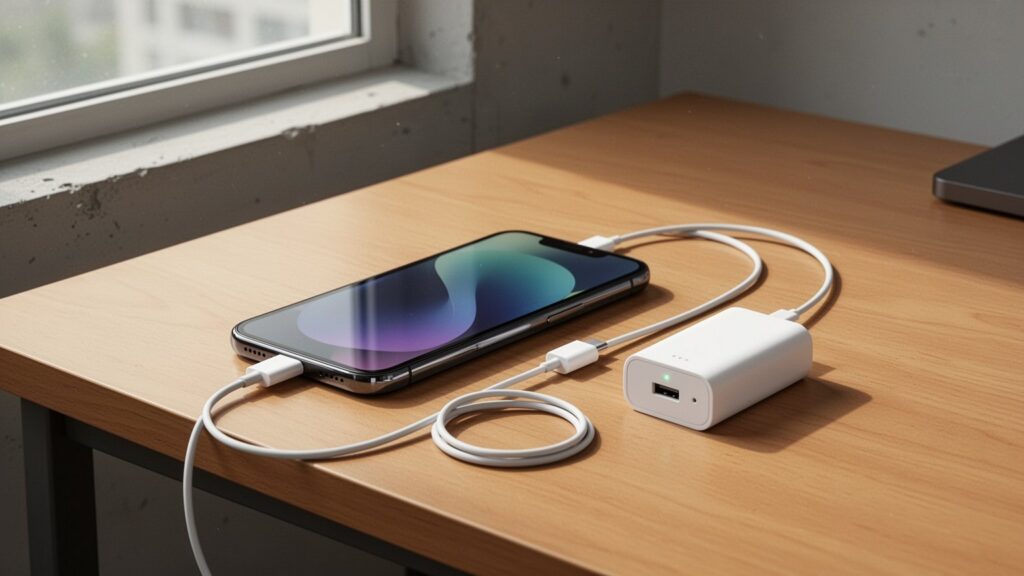
    Up to 70% of Battery Power Is Wasted on Downloading Ads

    Once installed, these fake cleaner apps run continuously in the background instead of optimizing your system. Even when you aren’t using them, they quietly download ad data and push frequent pop-up ads to your screen.

    It’s like hiring a cleaner who leaves the front door wide open and spends all day tossing promotional flyers into your living room instead of cleaning.

    Research shows that when ad-supported free apps run, only 25% to 35% of their energy consumption goes toward actual features. The remaining 65% to 75% is spent uploading user data and fetching advertisements.

    How to Remove Fake Cleaner Apps and Stop Pop-Up Ads

    How to Remove Fake Cleaner Apps and Stop Pop-Up Ads

    If a suspicious app is already installed and constantly serving ads, remove it immediately in your device settings. You should also revoke browser notification permissions.

    Action ItemSteps
    Uninstall Suspicious AppsSettings → Apps → Select recently installed cleaner/booster app → Uninstall
    Block Browser NotificationsMobile browser (Chrome, etc.) Settings → Site settings → Block Notifications and Pop-ups
    Scan Device SecurityRun a malware scan using Google Play Protect or your device’s built-in security tool

    Not every free utility app is malicious adware, and technical definitions vary between ad-supported software and outright malware. Additionally, whether forcibly clearing background RAM actually improves performance depends on your device specifications and OS architecture.

    Built-In Device Care Is More Than Enough

    Built-In Device Care Is More Than Enough

    Modern mobile operating systems already include built-in RAM management and battery optimization. There is no need to install third-party cleaner apps.

    On Samsung Galaxy devices, the built-in ‘Device Care’ feature clears storage, manages background processes, detects abnormal battery drain, and scans for malware in one place.

    Avoid trusting unknown third-party utilities with your device management, and rely on official built-in security tools instead.

    Open ‘Settings → Apps’ on your phone right now and uninstall any suspicious cleaner apps you’ve recently downloaded.

    References

    1-Minute Summary Video

    Related Articles

  • How to Group Tabs in Google Chrome to Organize Your Browser

    How to Group Tabs in Google Chrome to Organize Your Browser

    When researching or shopping online, browser tabs can quickly multiply into dozens. Tabs shrink until only favicons are visible, making it hard to find the page you actually need. Fortunately, Google Chrome offers a built-in way to organize and collapse these open tabs under clean, color-coded labels.

    Quick Summary

    • How to create: Right-click a tab and select “Add tab to new group” (drag to add or move tabs)
    • Visual sorting: 9 colors and custom names with emoji support
    • Space saving: Left-click the group label to collapse or expand all grouped tabs
    • Sync & storage: Cross-device sync via Google Account; inactive Android groups automatically close after 6 months

    How to Create a Tab Group with a Right-Click

    How to create a tab group with a right click

    Google Chrome’s Tab Groups work just like sorting loose papers into color-coded folders on your desk. Introduced as a built-in feature in Chrome 83 (2020), it works right out of the box without any extensions.

    Getting started is straightforward. Right-click on any tab you want to group and select Add tab to new group. In the menu that appears, enter a group name and choose a color.

    ItemDetails & Options
    Supported OSWindows, Mac, Linux, Chrome OS, Android
    Available Colors (9)Grey, Blue, Red, Yellow, Green, Pink, Purple, Cyan, Orange
    NamingCustom text and emoji support

    According to Google’s official documentation, there is no single dedicated keyboard shortcut like “Ctrl + G” to create a tab group, so using the right-click menu is the most reliable method.

    How to Collapse and Manage Tab Groups with One Click

    How to collapse and manage tab groups with one click

    Once you create a group, you can reclaim your tab strip space. Left-click the group label (or color dot), and all tabs inside will instantly collapse under the label. Click it again to expand them back out.

    To add a new page to an existing group, simply drag the open tab into the group header. To remove a tab, right-click it and select Remove from group.

    Dragging the group label itself lets you reposition the entire group along the tab strip or tear it away into a new window. When you are finished, right-click the group label: choose Close group to hide and save it to your bookmarks bar, or Ungroup to keep the tabs open while removing the grouping.

    Mobile Sync and Inactive Tab Retention Rules

    Mobile sync and inactive tab retention rules

    Chrome Tab Groups work on mobile devices running Android as well. In the tab switcher view, touch and hold a tab and drag it over another tab, or tap the menu and choose Group tabs.

    When signed in with the same Google Account and sync enabled, your tab groups stay synced across both desktop and mobile devices.

    Keep in mind the retention timeline for mobile tabs. In Chrome for Android, inactive tabs and tab groups are automatically closed after 6 months. However, synced groups are not permanently deleted and can be reopened whenever needed.

    Try it now: right-click an open tab, choose “Add tab to new group,” and start organizing your browser.

    References

    1-Minute Video Summary

    Related Guides

  • Microsoft Unveils New Copilot Powered by Autonomous AI Agents

    Microsoft Unveils New Copilot Powered by Autonomous AI Agents

    Microsoft unveiled a revamped Copilot on September 25, 2026, moving beyond standard conversational chatbots to incorporate autonomous task-executing agents. The overhaul integrates chat with work delegation and embeds Office applications directly into the conversation interface to assist with day-to-day work. Microsoft CEO Satya Nadella described the new Copilot as a “new operating system for work.”

    Key Takeaways

    • Microsoft unveiled a new Copilot featuring task-executing autonomous agents on September 25, 2026.
    • Reorganized into three core tools: Home (embedded Office), Code (app creation), and Autopilot (24/7 autonomous agent).
    • Standard features will use a monthly subscription, while autonomous agents and advanced models will use pay-as-you-go pricing.
    • Exact pricing rates and free-tier details have not yet been disclosed.

    Rebuilt Around Three Core Tools: Home, Code, and Autopilot

    Rebuilt around three core tools: Home, Code, and Autopilot

    The new Copilot has been restructured around three main tools: Home, Code, and Autopilot.

    ‘Home’ unifies the previously separate chatbot and the work delegation tool ‘Cowork’ into one interface. Microsoft Office programs like Word, Excel, and PowerPoint are embedded directly in the chat window, enabling users to edit documents and work within Copilot itself.

    ‘Code’ leverages GitHub Copilot technology. It allows non-technical office workers without programming experience to build custom applications or dashboards using natural language instructions.

    ‘Autopilot’, rebranded from ‘Scout’, is an autonomous personal agent. Once assigned a name and a role, it carries out tasks 24/7 without requiring ongoing commands.

    ToolKey Features & Capabilities
    HomeCombines chat and Cowork; enables in-chat editing across Office apps (Word, Excel, PPT)
    CodeEnables non-developers to build custom apps and dashboards using natural language
    AutopilotAutonomous agent operating 24/7 once assigned a name and role

    Hybrid Subscription and Usage-Based Pricing

    Hybrid subscription and usage-based pricing structure

    Microsoft plans to implement a hybrid pricing model that combines monthly subscriptions with usage-based billing for the new Copilot.

    Routine conversational chat and basic Office features will be covered by a monthly subscription fee. In contrast, running autonomous agents and accessing advanced AI models will be billed under a pay-as-you-go model based on actual usage.

    Microsoft will roll out ‘Code’ and ‘Autopilot’ in phases to early access users before broadening availability.

    Details on Pricing Rates and Scope of Support

    Specific pricing tiers, per-unit billing rates, and the names of the underlying frontier AI models were not disclosed in the announcement.

    Details regarding whether a free tier will be available, as well as its specific features and usage limits, also remain unconfirmed.

    Additionally, media speculation that Microsoft accelerated the launch timeline in response to Meta’s AI agent announcements was not confirmed in Microsoft’s official release.

    Sources

    1-Minute Video Summary

    Related Articles

  • OpenAI and Anthropic Cut AI API Prices with GPT-6 Sol and Claude Opus 5.5

    OpenAI and Anthropic Cut AI API Prices with GPT-6 Sol and Claude Opus 5.5

    On September 22, 2026, OpenAI and Anthropic launched new artificial intelligence models designed to lower operating costs and API pricing. OpenAI released GPT-6 Sol and Luna with API prices cut by 50%, while Anthropic introduced Claude Opus 5.5 with up to 60% lower costs. Amid ongoing safety discussions, price competition is intensifying as providers aim to ease cost pressures for enterprise clients and expand market share.

    Key Takeaways

    • OpenAI and Anthropic simultaneously released lower-cost AI models on September 22, 2026.
    • OpenAI launched GPT-6 Sol and GPT-6 Luna with API pricing reduced by 50%.
    • Anthropic released Claude Opus 5.5, priced at $4 per million input tokens and $20 per million output tokens.
    • Claude Opus 5.5 ranked first on the AAII benchmark with 58 points, while GPT-6 Sol placed fifth with 48 points.
    • No pricing changes have been confirmed for standard consumer monthly subscription plans.

    OpenAI Releases 50% Cheaper GPT-6 Sol and Luna

    OpenAI launches 50% cheaper GPT-6 Sol and Luna

    OpenAI expanded its GPT-6 lineup by introducing GPT-6 Sol and GPT-6 Luna. API rates for both models have been cut by 50% compared to previous GPT-5.6 promotional pricing.

    GPT-6 Sol sits directly below the flagship Astra model and is optimized for complex tasks such as coding. GPT-6 Luna is built for high-speed processing of large workloads, including document summarization and data extraction.

    Anthropic Claude Opus 5.5 Cuts Costs and Tops Benchmarks

    Anthropic Claude Opus 5.5 cuts costs and leads benchmarks

    Anthropic launched Claude Opus 5.5 as the initial release in its Claude 5.5 family. Pricing is set at $4 per million input tokens and $20 per million output tokens.

    Claude Opus 5.5 is 60% cheaper than the previous top-tier model, Fable 5.1 ($10 input, $50 output), and cuts operating costs by about 40% compared to Opus 5. On the Artificial Analysis Intelligence Index (AAII), it secured the top spot with 58 points, while GPT-6 Sol tied for fifth place with 48 points.

    It also outperformed Claude Fable 5.1 across three major coding benchmarks: TerminalBench, FrontierCode, and CursorBench.

    Key Specifications and Cost Comparison

    Pricing and core characteristics of the newly announced models are detailed below.

    ModelInput (Per 1M Tokens)Output (Per 1M Tokens)Key Features
    GPT-6 SolStandard pricing (50% reduction)Standard pricing (50% reduction)Below Astra; optimized for coding and complex tasks
    GPT-6 LunaStandard pricing (50% reduction)Standard pricing (50% reduction)High-speed processing for bulk summarization and extraction
    Claude Opus 5.5$4$20#1 on AAII (58 pts); 60% cheaper than Fable 5.1
    Claude Fable 5.1$10$50Previous flagship model

    Both OpenAI and Anthropic are focusing on improving cost efficiency per task alongside overall model capability.

    Market Drivers and Unconfirmed Details

    The price reductions come in response to enterprise concerns over rising AI compute costs and pressure from low-cost open-weight models introduced by Chinese providers such as Alibaba, Moonshot AI, and DeepSeek.

    The announcements focus primarily on developer API rates. It remains unconfirmed whether consumer-facing monthly subscriptions, such as $20-per-month tiers, will see price changes. In addition, figures regarding Anthropic’s $965 billion valuation and annualized revenue estimates exceeding $65 billion date back to June–July 2026 estimates and were not newly confirmed alongside this release.

    Sources

    1-Minute Summary Video

    Related Articles

  • How to Split Screen on Windows Using Keyboard Shortcuts

    How to Split Screen on Windows Using Keyboard Shortcuts

    Have you ever spent time manually dragging window borders with your mouse to view a browser and an Excel sheet side by side? Windows often overlap or end up uneven. With just two keys on your keyboard, you can snap your screen cleanly in half within a second.

    Quick Summary

    • Side-by-side 2-way split (50%): Select a window, then press ‘Win + ←’ or ‘Win + →’
    • 4-corner split (25%): Snap to a side first, then press ‘↑’ or ‘↓’ while holding the Win key
    • Windows 11 Snap Layouts: Press ‘Win + Z’ and choose a split template
    • If shortcuts fail: Turn on ‘Snap windows’ in ‘Settings > System > Multitasking’

    How to Split Your Screen in Half: 2-Window Split Shortcuts

    How to split screen in half with 2-window split shortcuts

    The 50/50 split is the most common layout when comparing documents or copying data between two apps. It arranges your workspace neatly, just like placing two open notebooks side by side on a desk.

    Click the window you want to move to make it active, then press the shortcut to snap it directly to the edge of your screen.

    • Snap Left (50%): Win + ← (Left Arrow)
    • Snap Right (50%): Win + → (Right Arrow)

    Once you snap a window to one side, thumbnails of your other open applications will appear in the empty half. This feature is called Snap Assist. Simply click the window you want, and it will fill the remaining 50% automatically. If you do not want to choose a window, press Esc to dismiss the list.

    Snapping 4 Windows into Corners: 4-Way Split

    How to arrange 4 windows into corners with a 4-way split

    If you use a large monitor or need several reference windows open at once, you can divide your screen into four equal quadrants (25% in each corner). Instead of a single shortcut, this requires a quick two-step combination.

    First snap the window to the left or right, and then press the up or down arrow key to push it into a corner quadrant.

    Target PlacementStep 1Step 2
    Top-Left (1/4)Win + ←Win + ↑
    Bottom-Left (1/4)Win + ←Win + ↓
    Top-Right (1/4)Win + →Win + ↑
    Bottom-Right (1/4)Win + →Win + ↓

    Note that when a window is not snapped, pressing Win + ↑ maximizes it to full screen, while Win + ↓ restores it to its previous size or minimizes it.

    Windows 11 Snap Layouts and Productivity Tips

    Windows 11 Snap Layouts and window management tips

    Windows 11 offers built-in visual templates. Hover your mouse over the maximize square icon in the top-right corner of any window, or press Win + Z, to open the Snap Layouts menu, where you can select 2-way, 3-column, or 4-way grid configurations.

    Windows snapped together this way are remembered as a Snap Group. If you switch to another task, you can hover over the app’s taskbar icon or press Alt + Tab to restore the entire multi-window group at once.

    When you click and drag the divider line between two snapped windows, both windows resize simultaneously without creating gaps. If you use multiple monitors, pressing Win + Left/Right Arrow repeatedly moves the active window seamlessly across your displays.

    Troubleshooting: When Snap Shortcuts Do Not Work

    Troubleshooting when split screen shortcuts do not work

    If the shortcuts do not snap your windows, the multitasking feature may be turned off in your system settings. You can re-enable it in a few clicks.

    Go to Windows Settings > System > Multitasking and make sure the ‘Snap windows’ toggle is switched to On.

    Keep in mind that default Windows shortcuts do not support custom split ratios like 70:30 or 60:40 with a single keystroke; adjust these by dragging the center dividing line with your mouse. To switch focus between split windows quickly, use Alt + Tab.

    Press Win + ← on your active window right now to see a clean split screen in action.

    References

    1-Minute Video Summary

    Related Guides

  • How to Mask Sensitive Data in Excel in Seconds Without Formulas

    How to Mask Sensitive Data in Excel in Seconds Without Formulas

    Ever struggled to mask hundreds of phone numbers or ID numbers with asterisks (*)? Spending too much time memorizing complex formulas like REPLACE or SUBSTITUTE? You can fill an entire column automatically by typing just one example and pressing a single keyboard shortcut.

    Quick Summary

    • Mask sensitive data and extract text without formulas using the shortcut Ctrl + E
    • Supported versions: Excel 2013, 2016, 2019, 2021, Microsoft 365
    • How to use: Type an example in the first row next to the source data, then press Ctrl + E on the row below
    • Precautions: Do not leave blank columns between source and target columns; re-run shortcut if source data changes

    How Does Flash Fill Work Without Formulas?

    How Flash Fill works in Excel without formulas

    You do not need to memorize complex formulas to mask or split text in Excel. Excel 2013 and later versions (Excel 2013, 2016, 2019, 2021, and Microsoft 365) include Flash Fill, an intelligent feature that automatically recognizes patterns.

    It works like a cookie cutter. Enter your desired format in the cell directly adjacent to your source data, and Excel will detect the pattern and populate the remaining rows accordingly.

    You can reformat large datasets in seconds without using functions like REPLACE, SUBSTITUTE, MID, or CONCAT.

    How to Mask Data in 1 Second Using ‘Ctrl + E’

    How to mask data using Ctrl + E shortcut

    The process is straightforward. In the column directly next to your source data, type the desired masked format in the first row. Then, select the cell right below it and press Ctrl + E on your keyboard to instantly fill the rest of the column with the same pattern.

    Alternatively, you can click the [Flash Fill] icon under the [Data] tab on the ribbon menu.

    Task TypeSource ExampleFirst Row ExampleShortcut Result (Ctrl + E)
    Phone number masking010-1234-5678010-****-5678Masks middle 4 digits across all rows
    National ID / SSN masking900101-1234567900101-1******Masks last 6 digits across all rows
    Name maskingHong Gil-dongHong G*l-dongMasks middle letters across all rows
    Extract username from emailgildong@company.comgildongExtracts usernames only across all rows

    3 Things to Check When Flash Fill Fails or Shows an Error

    3 troubleshooting checks for Flash Fill errors

    First, ensure there are no empty columns between the source data and the working column. Flash Fill only reads patterns from directly adjacent columns. If the shortcut does not respond, go to [File] > [Options] > [Advanced] > [Editing options] and verify that [Enable AutoComplete for cell values] and [Automatically Flash Fill] are turned on.

    Second, irregular data with varying character lengths may cause pattern recognition to miss with only one sample. In such cases, manually enter examples for 2 to 3 rows so Excel can accurately detect the pattern. (There is no official rule on the exact number of rows required for irregular data.)

    Third, Flash Fill outputs static text values, not dynamic formulas. If the source data changes, the results will not update automatically, so you must press Ctrl + E again. When sharing files externally, remove the original unmasked column or copy only the masked column to a new document to keep sensitive data secure.

    Try typing a single masked example in your current Excel sheet and press Ctrl + E right now.

    References

    1-Minute Video Summary

    Related Articles

  • How to Type Emojis and Special Characters in Windows with Shortcut Keys

    How to Type Emojis and Special Characters in Windows with Shortcut Keys

    When writing emails or documents on a PC, you might have struggled to insert a single special character by scrolling endlessly through legacy character menus. Memorizing where symbols are hidden is frustrating and slow. There is a much faster way: you can open a modern symbol and emoji keyboard just like on a smartphone using just two keys.

    Quick Summary

    • Open symbol & emoji panel: Windows logo key + . or Windows logo key + ;
    • Open clipboard history: Windows logo key + V (Stores up to 25 items with pin support)
    • Instant search: Type keywords directly once the panel opens to find symbols immediately
    • Supported OS: Native support on Windows 10 (version 1809 or later) and Windows 11

    Open the Full Symbol Panel with the ‘Win + .’ Shortcut

    Open the full symbol panel with the 'Win + .' shortcut

    Windows 10 (version 1809 and later) and Windows 11 come with a built-in emoji and special character panel. Pressing Windows logo key + . (period) or Windows logo key + ; (semicolon) on your keyboard instantly brings up the input panel right at your cursor position.

    This panel is divided into four main sections: colorful Emojis, text-based kaomoji expressions like (◕‿◕), Symbols for math and currency units, and animated GIFs.

    With the panel open, simply type any word on your keyboard to instantly filter and find matching emojis. Clicking the clock icon at the bottom displays your most recently used symbols, saving you from searching for them again.

    Why the Modern Shortcut Beats Legacy Input Methods

    Why the modern shortcut beats legacy input methods

    Legacy methods required memorizing complex key combinations or scrolling through character maps. The modern shortcut allows visual browsing and instant keyword search, cutting input time down to 1–2 seconds.

    FeatureLegacy Input MethodsWin + . Panel
    Input MethodComplex key combinations or manual menusWin + . or Win + ;
    NavigationManually paging through small listsVisual categorized tabs and keyword search
    Supported ContentBasic monochrome symbolsModern color emojis, math/currency units, kaomoji, GIFs
    Recent HistoryNot supportedAutomatically saved under the clock icon tab

    It feels like switching from flipping through a thick paper dictionary to using an instant search bar—your workflow stays uninterrupted.

    How to Use ‘Win + V’ Clipboard History to Store up to 25 Items

    How to use the 'Win + V' clipboard history to store up to 25 items

    Another built-in tool that doubles your productivity alongside the symbol shortcut is clipboard history. Press Windows logo key + V to open a list of text and images you previously copied (Ctrl + C).

    It temporarily holds up to 25 items (under 4MB each), eliminating the need to constantly switch back and forth between windows when copying multiple snippets. You can pin frequently used text—such as business registration numbers, account details, or email templates—using the Pin icon so they remain saved even after restarting your PC.

    Click “Turn on” once to enable it, and it will work seamlessly across Microsoft Word, Excel, messaging apps, and web browsers.

    Things to Know and Compatibility Checks

    Things to know and compatibility checks

    Most modern web browsers (Chrome, Edge) and office applications (Word, Excel, PowerPoint) fully support color emojis and symbols without issue.

    However, some older word processors and specialized document editors might display emojis as monochrome outlines or fail to render certain symbols correctly.

    Additionally, when sending text through third-party desktop messaging apps, emoji rendering may look slightly different depending on the recipient’s operating system and installed fonts.

    Press ‘Win + .’ right now in your current document or search bar to insert symbols and emojis in just one second.

    1-Minute Summary Video

    Related Articles

  • How to Remove the Weather Widget and Search Bar in Windows 11

    How to Remove the Weather Widget and Search Bar in Windows 11

    Have you ever turned on a new PC or updated Windows only to find weather and news updates cluttering your taskbar? A large search bar also takes up valuable space, crowding your taskbar after opening just a few apps. Here is how to clean up your screen in just a few clicks.

    Quick Summary

    • Turn off Windows 11 Widgets: Right-click an empty area on the taskbar → [Taskbar settings] → Toggle [Widgets] to [Off]
    • Shrink Search Bar: Under [Taskbar settings], go to the [Search] menu and select [Search icon only] or [Hide]
    • Keep Shortcuts: Even with icons hidden, open Widgets anytime with Win + W and Search with Win + S
    • Turn off Windows 10 News: Right-click taskbar → [News and interests] → [Turn off] (Support ends October 14, 2025)

    Turn Off the Weather Widget in Two Clicks

    Turn off the weather widget in two clicks

    You can turn off the weather widget on the Windows 11 taskbar directly from the settings menu. Right-click any empty space on the taskbar and select [Taskbar settings].

    When the settings window opens, toggle the switch for [Widgets] under ‘Taskbar items’ to [Off]. The weather and news icon will disappear from your taskbar immediately.

    Even after hiding the icon, you can always bring up the widgets board using the shortcut (Windows logo key + W).

    Operating SystemHow to DisableShortcut
    Windows 11Right-click taskbar → [Taskbar settings] → Toggle [Widgets] OffWin + W
    Windows 10Right-click taskbar → [News and interests] → [Turn off]–

    Shrink the Bulky Search Bar: 4 Available Options

    Shrink the bulky search bar with 4 options

    You can also shrink or completely remove the wide search box sitting on your taskbar. It is like taking a bulky pen holder off a crowded desk and putting it in a drawer.

    Right-click the taskbar and open [Taskbar settings] again, then check the ‘Search’ dropdown menu. You can choose one of four display modes to match your workflow.

    Search OptionDisplay StyleRecommended When
    Search boxFull-length input barKeeping the default layout
    Search icon and labelMagnifying glass + ‘Search’ textText label is preferred
    Search icon onlySmall magnifying glass iconSaving taskbar space
    HideCompletely removed from taskbarMaximizing taskbar room

    Even if you set Search to ‘Hide’, you can still access search anytime by pressing (Windows logo key + S) or simply opening the Start menu and typing.

    How Much System Resource Usage Does Disabling Widgets Save?

    How much system resource usage does disabling widgets save?

    Windows 11 widgets run on the ‘Windows Web Experience Pack’ and ‘Microsoft Edge WebView2’ engine. In the background, Widgets.exe and related processes run continuously to update real-time news and weather feeds.

    According to analysis from IT management platform Atera, widget platform processes can consume hundreds of megabytes during routine use with multiple feeds active, often exceeding 250MB. Disabling feeds helps prevent background data traffic and unnecessary memory usage.

    While some online creators have claimed the weather app consumes 1.2GB to 1.6GB of memory, these figures are not verified in official technical documentation. Additionally, toggling the setting off hides the icon and stops rendering the feed, though specific background process behavior may vary depending on your system configuration.

    Right-click an empty spot on your taskbar now to turn off widgets and the search bar, creating a cleaner, more spacious workspace.

    References

    1-Minute Video Summary

    Related Articles

  • Anthropic Releases Claude Opus 5.5 as OpenAI Debuts GPT-6 Sol and Luna

    Anthropic Releases Claude Opus 5.5 as OpenAI Debuts GPT-6 Sol and Luna

    On September 22, 2026, leading artificial intelligence labs Anthropic and OpenAI simultaneously released new flagship and efficiency models. Anthropic announced Claude Opus 5.5, cutting general workload execution costs by 40% compared to its previous version, while OpenAI introduced the budget-focused GPT-6 Sol and GPT-6 Luna with sharply reduced token pricing.

    Key Takeaways

    • Anthropic unveiled Claude Opus 5.5, cutting execution costs by 40% compared to Opus 5
    • OpenAI launched mid-tier Sol and lightweight Luna using GPT-6 Astra training techniques
    • GPT-6 Luna pricing drops to $0.10 per 1M input tokens and $0.50 per 1M output tokens
    • Desktop app Free and Go tier users can now access GPT-6 Luna
    • Speculation linking Anthropic’s launch timing to an upcoming IPO remains unconfirmed in official announcements

    Claude Opus 5.5: 40% Cost Cut and Refined Writing

    Claude Opus 5.5 with 40% cost reduction and improved writing capabilities

    Released on September 22, 2026, Anthropic’s Claude Opus 5.5 reduces operational costs for general workloads by 40% compared to Opus 5. The model posted strong results across benchmarks for agentic coding, computer use, and knowledge work.

    Opus 5.5 was tested by external red-teamers prior to rollout and includes the company’s highest safety standards. Writing performance was also tuned to produce clearer, more natural phrasing than the previous Opus 5 release.

    OpenAI Introduces GPT-6 Sol and Luna with Lower API Prices

    OpenAI launches GPT-6 Sol and GPT-6 Luna with API price reductions

    OpenAI launched the mid-range GPT-6 Sol and lightweight GPT-6 Luna on the same day. Built on training architectures from the flagship GPT-6 Astra, both models lower deployment expenses while maintaining high marks across coding, specialized knowledge tasks, factuality, and computer control.

    Both models support a 1.05M token context window with maximum outputs up to 128K tokens. Key API specs and pricing include:

    ModelInput Price (1M tokens)Output Price (1M tokens)Cached Input ReadKnowledge Cutoff
    GPT-6 Sol$2$10$0.20 (90% discount)April 20, 2026
    GPT-6 Luna$0.10$0.50$0.01 (90% discount)May 18, 2026

    Compared to previous-tier models, GPT-6 Sol cuts input costs by 50%, while GPT-6 Luna slashes input costs by 50% and output costs by 58%.

    Availability and Rollout Scope

    GPT-6 Sol and Luna are rolling out across ChatGPT Work, Codex, and the OpenAI API for Plus, Pro, Business, Enterprise, and Edu tiers. In the desktop application, Free and Go users can also access GPT-6 Luna. The models have not yet arrived in the standard web Chat interface.

    Granular condition differences across benchmark suites and rumors surrounding Anthropic’s reported November IPO timing were noted solely in media commentary and remain unverified in official company statements.

    Sources

    1-Minute Video Summary

    Related Articles

  • How to Save Specific Pages from a PDF Without Any Software

    How to Save Specific Pages from a PDF Without Any Software

    Have you ever needed to send just two or three specific pages from a massive PDF to a client or school? Paying a monthly subscription for paid editing software feels wasteful, while uploading sensitive documents to free online converter websites raises security concerns. Is there a way to extract pages using only the default web browser already on your computer, without installing extra programs?

    Quick Summary

    • Drag and drop the PDF into your browser (Chrome/Edge) and press Ctrl+P (Mac: Cmd+P).
    • Set the destination to ‘Save as PDF’ or ‘Microsoft Print to PDF’.
    • Change Pages to ‘Custom’ and enter a range with a hyphen (1-5) or individual pages with commas (3, 6, 8).
    • Because this uses virtual printing, interactive elements like digital signatures and hyperlinks may be stripped, so check the file after saving.

    How Browser Virtual Printing Works in 10 Seconds

    How browser virtual printing works in 10 seconds

    You do not need to purchase or install dedicated PDF editing tools like Adobe Acrobat Pro. Web browsers you use every day, such as Google Chrome or Microsoft Edge, already have high-performance PDF viewers and virtual printing engines built in.

    This works just like placing selected pages from a thick encyclopedia onto a photocopier and printing them as a new, thin booklet file instead of physical paper. Just as a paper printer outputs physical sheets, the browser redraws and outputs only the pages you specify into a clean new PDF file.

    5-Step Extraction Guide and Page Syntax

    5-step extraction guide and page syntax

    The process is straightforward and takes less than a minute. Follow the steps below.

    1. Open file: Drag and drop the target PDF file into a Chrome or Edge browser window.

    2. Open print menu: Press the shortcut Ctrl + P (or Cmd + P on Mac).

    3. Change destination: Set the Destination (printer) to ‘Save as PDF’ or ‘Microsoft Print to PDF’.

    4. Specify pages: Change the ‘Pages’ option from ‘All’ to ‘Custom’ and enter your desired page numbers.

    5. Save: Click the ‘Save’ button at the bottom and choose your destination folder and file name.

    When typing page numbers, you can freely combine commas and hyphens depending on what you need.

    PurposeInput Format ExampleExtracted Pages
    Continuous page range1-5 or 3-5All pages from 1 to 5
    Individual pages3, 6, 8Pages 3, 6, and 8 (3 pages total)
    Mixed range + individual1-3, 7, 10-12Pages 1–3, 7, and 10–12

    Things to Check Before Clicking Save

    Things to check before clicking save

    Virtual printing generates a new document based on what is rendered visually on screen. As a result, interactive elements from the original file—such as hyperlinks, digital signatures, bookmarks, and fillable form fields—might disappear or stop working in the newly created PDF.

    In addition, the printed page number in the document text (for example, page 1 after a cover sheet) may differ from the browser’s actual sheet index (sheet 3). When entering page numbers, always check the visual page sequence shown in the browser’s preview panel to avoid saving the wrong pages.

    Furthermore, if a PDF has DRM protection or print restrictions enabled, the browser’s print option may be disabled entirely. Rare fonts or ultra-high-resolution graphics might also render slightly differently depending on the browser engine, so it is best to open and inspect the exported file once it is saved.

    Try dragging a PDF into Chrome or Edge right now and press ‘Ctrl + P’ to extract only the pages you need.

    References

    1-Minute Summary Video

    Related Articles