Tech

Practical technology guides from moim.bio, in English.

  • Red vs Brown vs Blue Mechanical Switches: Noise Levels and Which to Buy

    Red vs Brown vs Blue Mechanical Switches: Noise Levels and Which to Buy

    Ever brought a new mechanical keyboard to the office only to get dirty looks from coworkers? Or bought one for gaming, only to find the keys so heavy your fingers ached? They might look identical on the outside, but the switch underneath changes the sound and typing feel completely. Here is how they differ.

    Quick Summary

    • Blue (68 dB / 60 cN): Clicky sound with strong tactile feedback. Loud noise makes it best for private rooms and gaming.
    • Brown (52 dB / 55 cN): Tactile bump without the loud click. Great for typing, but still requires caution in quiet offices.
    • Red (45 dB / 45 cN): Smooth linear travel with 45 cN actuation force. Ideal for fast, repeated keystrokes in gaming.
    • Silent Red (35.6 dB / 45 cN): Built-in silicone dampeners make it quieter than standard membrane keyboards (43.2 dB). Best choice for the office.

    Blue vs Brown vs Red: Tactile Bumps and Click Mechanisms Explained
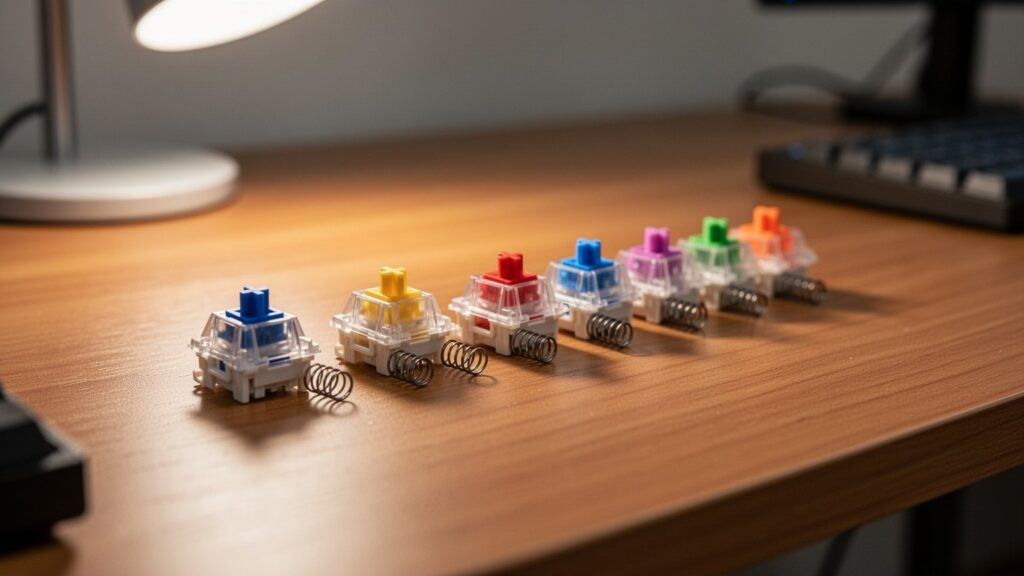
    Blue vs Brown vs Red switch differences

    Mechanical keyboards register a keypress when the internal stem moves downward. The shape of this stem and the internal mechanics determine both feel and noise.

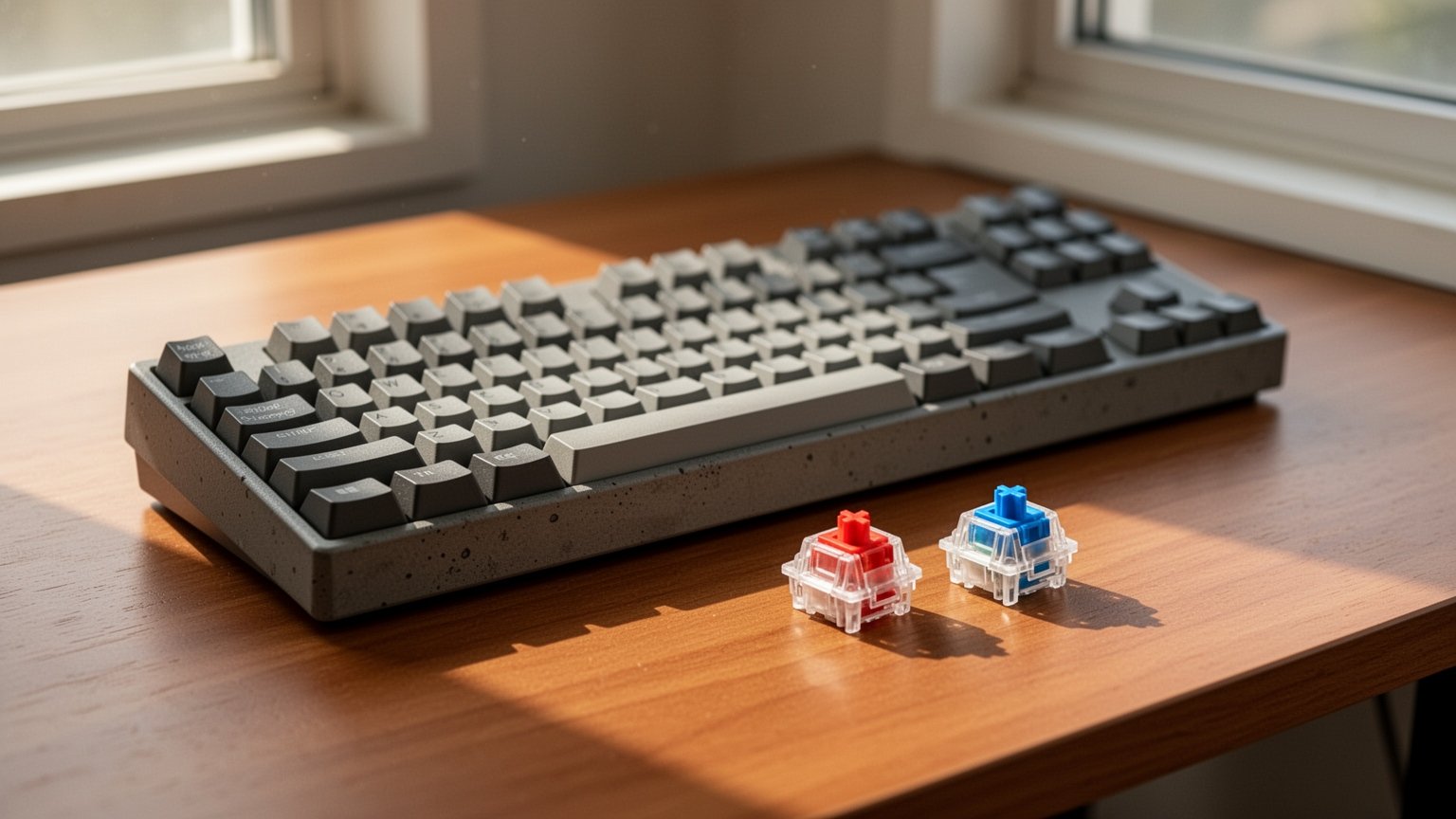
    • Blue (Clicky): Uses a click jacket or click bar mechanism. Pressing the key produces a distinct bump and an audible “click,” similar to clicking a ballpoint pen.
    • Brown (Tactile): Has a small bump on the stem to provide physical feedback without an audible clicking mechanism, making it quieter than Blue switches.
    • Red (Linear): Features a smooth, straight stem. The key presses straight down to the bottom without any tactile bump, offering minimal resistance.
    • Silent Red: Adds internal silicone dampeners at the top and bottom of the switch housing to physically silence the sound of the stem bottoming out and springing back.

    According to standard Cherry MX specifications, actuation forces and travel distances also vary across switches:

    Switch TypePeak ForceActuation ForcePre-travelTotal TravelDurability Rating
    Blue60 cN50 cN2.2 mm4.0 mm50M+ clicks
    Brown55 cN45 cN2.0 mm4.0 mm100M+ clicks
    Red45 cN45 cN2.0 mm4.0 mm100M+ clicks
    Silent Red45 cN45 cN1.9 mm3.7 mm50M+ clicks

    Are They Safe for the Office? Measured Noise Levels (dB)
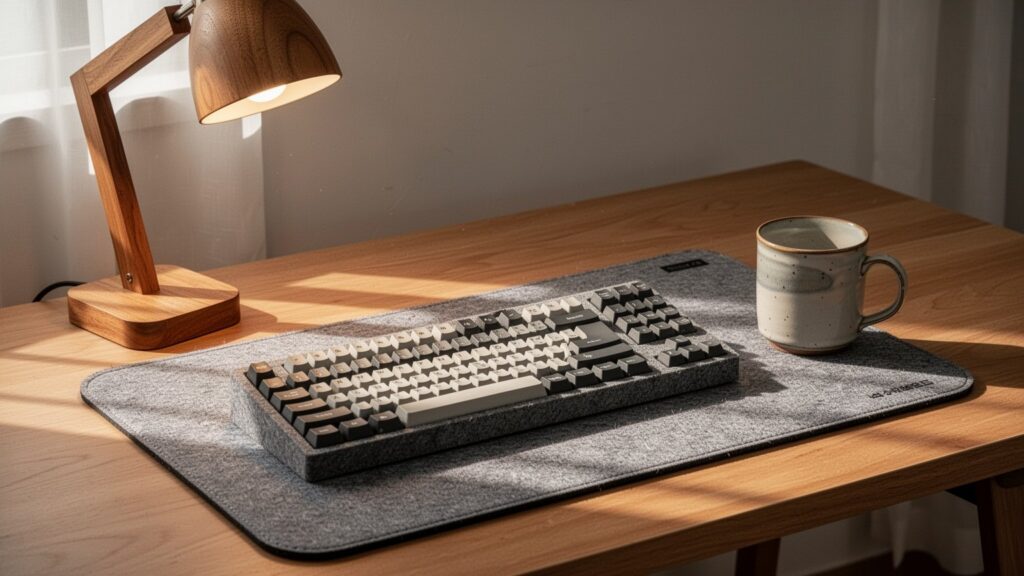
    Are mechanical keyboards safe for the office? Decibel comparison

    Before using a mechanical keyboard in shared spaces like offices or libraries, checking actual decibel levels is essential. Measured test data reveals a clear noise hierarchy between switches.

    Switch TypeMeasured Noise LevelOffice Suitability
    Blue~68 dBNot Recommended (Too loud)
    Brown~52 dBUse Caution (Audible in quiet rooms)
    Red~45 dBUse Caution (Bottom-out clack remains)
    Standard Membrane~43.2 dBGenerally Acceptable
    Silent Tactile~38 dBSuitable
    Silent Red~35.6 dBHighly Recommended (Quietest)

    While exact figures vary by testing setup—Das Keyboard benchmarks list Blue at 64 dB, Brown at 59 dB, and Silent Red at 52 dB—the relative noise ranking remains consistent: Blue > Brown > Red > Silent switches.

    Some beginner guides recommend standard Red or Brown switches for office use. However, if you type heavily, bottoming out will still generate 45 to 52 dB of noise. For quiet or open-plan offices, choosing Silent Red or Silent Tactile switches with silicone dampeners is the safest route.

    Gaming vs Office: How to Choose the Right Switch
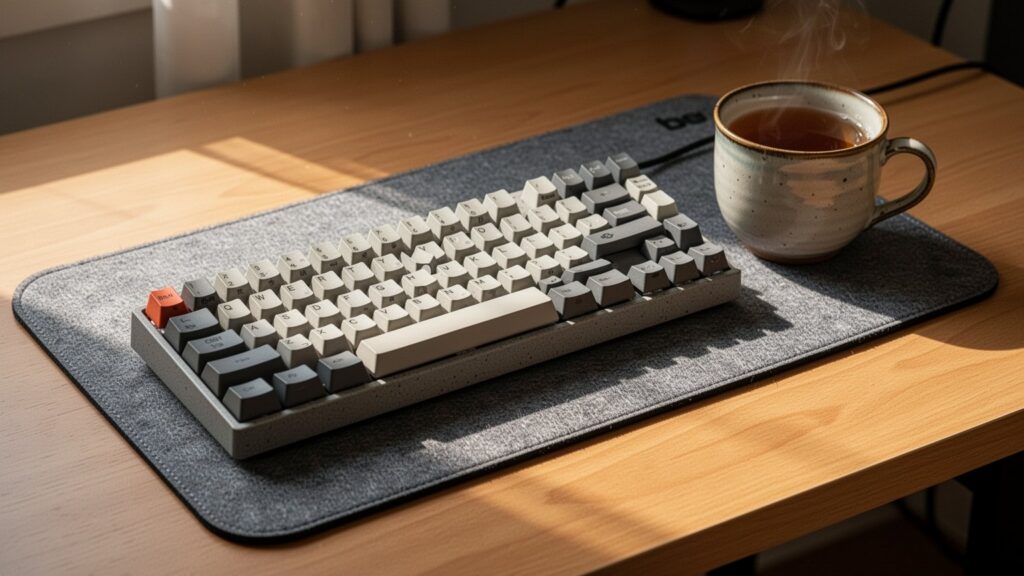
    How to choose mechanical switches for gaming and office work

    Matching your switch type to your primary tasks and environment reduces finger fatigue and improves your daily typing experience.

    • Fast-Paced Gaming (FPS, MOBA): Red switches are ideal. The smooth 45 cN linear actuation allows rapid double-tapping without finger resistance.
    • Quiet Office Typing: Silent Red or Silent Tactile switches keep noise in the mid-30 dB range. Being quieter than standard membrane keyboards (43.2 dB), you can type freely without disturbing colleagues.
    • Crisp Typing in Private Spaces: If you want clear physical feedback and satisfying sound, choose Blue or Brown switches. The tactile bump helps prevent typos while maintaining a distinct typing feel.

    Keep in mind that overall keyboard noise also depends on mounting plates, internal foam dampening, gasket designs, lubricated stabilizers, and how hard you bottom out keys.
    For a quiet workspace, go with Silent Red or Silent Tactile switches. For fast gaming reactions, a 45 cN Red switch remains the top choice.

    References

    1-Minute Video Summary

    Related Guides

  • How to Transfer Photos from Phone to PC Without Quality Loss
    How to Transfer Photos from Phone to PC Without Quality Loss

    When your phone storage runs out, do you quickly send dozens of photos to a chat room to back them up? Later, when you download them on your PC and zoom in, they look blurry, and the capture date and location data are gone. How can you back up your photos to a computer in their original quality without losing data?

    Key Takeaways

    • Standard messaging app transfers compress resolution and strip EXIF data (date, camera model, GPS), making them unsuitable for backups.
    • Galaxy users can connect via USB-C cable to copy the ‘DCIM > Camera’ folder or use the ‘Smart Switch PC’ app.
    • iPhone users must set ‘Settings > Photos > Transfer to MAC or PC > Keep Originals’ before connecting to Windows to prevent transfer errors.
    • If you don’t have a PC or want to avoid paid cloud storage, back up directly using a USB-C external SSD or OTG flash drive.

    Why Messaging Apps Degrade Photo Quality and Metadata

    Why sending photos via messaging apps degrades quality and removes metadata

    Sending photos through messaging apps is like cutting up an original document with scissors to cram it into a postcard instead of mailing the package safely.

    Chat apps typically offer compression options such as low quality, standard quality, or original. Selecting low or standard quality compresses the image resolution and automatically deletes EXIF metadata, which includes camera model, timestamp, aperture, ISO, and GPS location.

    Quality SettingResolution CompressionEXIF MetadataFile Name Preserved
    Low / StandardCompressedAuto-deletedChanged randomly
    OriginalPreservedPreservedModified with app prefix

    Choosing “Original” preserves resolution and EXIF data. However, file names are still altered, video file sizes are strictly capped (often around 300MB per file), and download links expire after a certain period. Chat apps are simply not designed for archiving thousands of photos long-term.

    Transferring Galaxy Photos to PC with a USB Cable or Smart Switch

    Transferring Galaxy photos to PC with a USB cable and dedicated software

    The fastest and safest way to back up thousands of photos and videos from a Samsung Galaxy phone is via a USB-C cable using File Transfer (MTP) mode.

    Connect your phone to your PC with a USB-C data cable and select “Transferring files / MTP” on your phone screen. Open Windows File Explorer, navigate to Internal storage > DCIM > Camera, and copy the entire folder to your PC. All photos and videos will transfer in their original quality.

    If you prefer an automated tool, use Samsung’s official “Smart Switch PC” application. Install it on your computer, connect your phone, and back up all media files in one batch without quality loss. For wireless transfers, install “Quick Share” on Windows to send original files over Wi-Fi Direct and Bluetooth.

    Fixing iPhone Transfer Errors on Windows PC

    How to fix iPhone photo transfer errors when connecting to a Windows PC

    When transferring photos from an iPhone to a Windows PC via cable, transfers often freeze or disconnect unexpectedly. This happens because the iPhone attempts to convert HEIC photos to JPG on the fly during transfer.

    To fix this error, change one setting on your iPhone before connecting. Navigate to Settings > Photos > Transfer to MAC or PC, and change the option from “Automatic” to “Keep Originals”.

    Next, install the Apple Devices app (or drivers) on your PC and connect the cable. Tap “Trust” on the “Trust This Computer?” prompt on your iPhone screen. You can then open the DCIM folder in Windows File Explorer and copy all original photos smoothly without disconnects.

    No PC? Back Up Directly with a USB-C OTG External Drive

    Backing up photos directly using a USB-C OTG external drive without a PC

    If you want to back up large photo collections without turning on a computer, use a USB-C external storage drive (OTG). Free cloud tiers (5GB on iCloud, 15GB on Google) fill up fast, leading to recurring monthly subscription fees.

    Backup MethodCostSpeed and Limitations
    Cloud (iCloud / Google)Monthly subscription once free tier is exceededDepends on internet speed; slow for large uploads
    USB-C External SSD / OTG Flash DriveOne-time hardware purchaseHigh-speed wired transfer with no network needed

    Plug a USB-C external SSD or dual USB flash drive directly into your phone’s charging port. Open the default “My Files” (Android) or “Files” (iOS) app, locate the DCIM folder, and copy it straight to the external drive. You can securely back up thousands of photos in minutes without needing a PC.

    Check your photo settings today to ensure transfers are set to “Keep Originals,” and back up your photos securely to a PC or external drive using a USB-C data cable.

    1-Minute Summary Video

    Related Articles

  • DisplayPort vs HDMI for 144Hz: Which Cable Should You Use?

    DisplayPort vs HDMI for 144Hz: Which Cable Should You Use?

    Did you buy a 144Hz gaming monitor only to find it stuck at a sluggish 60Hz? Looking at the back of your PC, you will see a rectangular HDMI port right next to a DisplayPort (DP) with one beveled corner, making it confusing to choose the right one. Why can choosing the wrong cable cut your monitor’s refresh rate in half?

    Quick Summary

    • 1080p & 1440p 144Hz: HDMI 2.0 (18.0 Gbps) or DP 1.2 (21.6 Gbps) and above is sufficient.
    • 4K 144Hz: Requires HDMI 2.1 (48.0 Gbps) or a DP 1.4 cable with DSC support.
    • G-Sync Compatible: Most gaming monitors require a DP cable to enable screen tear prevention.
    • Lowest Spec Rule: The refresh rate is bottlenecked by the lowest version among your GPU, cable, and monitor port.

    HDMI vs DisplayPort: How Are They Different?

    HDMI vs DisplayPort: How Are They Different?

    The two connectors were built for entirely different purposes. HDMI evolved to connect consumer electronics such as TVs, gaming consoles, and soundbars. As a result, it excels at home theater features like eARC (audio return) and CEC (controlling peripheral devices with a TV remote).

    In contrast, DisplayPort (DP) is a PC-centric standard developed by VESA specifically for monitors and graphics cards. It is optimized for high refresh rates and daisy-chaining multiple monitors via Multi-Stream Transport (MST) from a single port.

    Think of a cable as a water pipe. Even if your monitor is ready to receive 144 frames of water per second, a narrow pipe will bottleneck the flow to just 60 frames. This is why DP, with its generous bandwidth design, is considered the default standard for PC gaming setups.

    144Hz Support by Resolution: Bandwidth and Version Matter

    144Hz Support by Resolution: Bandwidth and Version Matter

    The required cable version depends entirely on your monitor’s resolution: 1080p (FHD), 1440p (QHD), or 4K. You need sufficient data bandwidth (Gbps) to transmit a full 144Hz signal.

    StandardMax Bandwidth1080p 144Hz1440p 144Hz4K 144HzVariable Refresh Rate (VRR / G-Sync)
    HDMI 2.018.0 GbpsSupportedSupportedNot Supported (Max 60Hz)Limited Support
    HDMI 2.148.0 GbpsSupportedSupportedSupportedNative Support
    DP 1.221.6 GbpsSupportedSupportedNot Supported (Max 60Hz)FreeSync / G-Sync Compatible
    DP 1.432.4 GbpsSupportedSupportedSupported (via DSC)Full FreeSync / G-Sync Support
    DP 2.180.0 GbpsSupportedSupportedSupported (Native Uncompressed)Full FreeSync / G-Sync Support

    Note that specifications for older standards can vary across sources. For instance, reports conflict on whether HDMI 1.4 supports 1080p at 144Hz or caps at 60Hz, and the maximum 4K output for DP 1.2 is variously cited as 30Hz, 60Hz, or 75Hz. To ensure stable high refresh rate performance, using a newer standard is always recommended.

    G-Sync Compatibility and Dual Monitor Setup

    G-Sync Compatibility and Dual Monitor Setup

    NVIDIA G-Sync Compatible mode, which prevents screen tearing during gaming, is highly sensitive to the cable type. Most mainstream gaming monitors only enable G-Sync over a DisplayPort connection and will not work over HDMI. To use VRR over HDMI, both the monitor and graphics card must officially support HDMI 2.1 VRR.

    Dual-monitor configurations also require care. Most dedicated graphics cards feature three DP ports and one HDMI port on the back. For the most stable setup, plug your high-refresh-rate primary gaming monitor into a DP port, and connect secondary 60Hz monitors or gaming consoles to the HDMI port.

    Your refresh rate will always default to the lowest version among your graphics card port, cable, and monitor input port. Even if your monitor supports DP 1.4, a lower-spec cable or an incorrect port setting will prevent the 144Hz option from appearing entirely.

    Check the back of your PC to verify your primary monitor is connected via DP 1.4 or higher, then open Windows Advanced Display Settings to confirm 144Hz is enabled.

    References

    1-Minute Video Summary

    Related Articles

  • How to Free Up C Drive Space in Windows Safely

    How to Free Up C Drive Space in Windows Safely

    Have you ever been startled to see your C drive storage bar turn red even when you haven’t downloaded any large videos? When free disk space runs low, your computer slows down and critical security updates can stall. How can you clean out unnecessary hidden files without touching crucial system files?

    At a Glance

    • Step 1: Open ‘Settings > System > Storage’ to run Storage Sense and Cleanup recommendations
    • Step 2: Clear temp folders (%temp%, C:\Windows\Temp) and reset cache with wsreset.exe
    • Step 3: Delete SoftwareDistribution cache and clean WinSxS backups with the DISM command
    • Step 4: Disable Hibernation (powercfg.exe /hibernate off) to immediately reclaim space equal to your RAM capacity (e.g., 16 GB)

    Start with Built-in Windows Storage Management

    Start with Built-in Windows Storage Management

    Just like seasonal clothes and delivery boxes pile up around the house over time, Windows accumulates temporary files and logs the longer you use it. Low disk space degrades PC performance, and Windows updates require at least 10 GB of free space even when using external storage, making regular maintenance essential.

    As of 2026, Windows lets you clean up easily using the built-in ‘Storage Sense’ tool. Navigate to Settings > System > Storage to see disk usage broken down by category at a glance.

    Settings MenuKey FeaturesNotes
    Storage SenseAutomatically clears temporary files and Recycle Bin when space is lowRuns only on the C drive by default
    Cleanup recommendationsSelectively removes large files, unused apps, and synced filesSafely deleted after user confirmation

    Emptying Temporary Files (Temp) and Store Cache

    Emptying Temporary Files (Temp) and Store Cache

    Temporary files created during program installation or execution often linger long after tasks finish. Press Win + R, type %temp%, and your user temp folder (C:\Users\<username>\AppData\Local\Temp) will open, allowing you to select and safely delete all files inside.

    You can clear the system-wide temp folder at C:\Windows\Temp the exact same way. If any file is currently in use, simply click Skip and continue.

    Additionally, if the Microsoft Store app cache is consuming disk space, open the Run dialog (Win + R) and type wsreset.exe to reset and purge unneeded store cache files (.appx).

    Safely Cleaning Windows Update Cache and the WinSxS Folder

    Safely Cleaning Windows Update Cache and the WinSxS Folder

    Pending installation files left behind after updates accumulate in C:\Windows\SoftwareDistribution\Download. To clear this folder, type services.msc in the Run dialog, temporarily stop three services—Windows Update, Background Intelligent Transfer Service (BITS), and Cryptographic Services—delete the files inside the folder, and then restart the services.

    Exercise caution with the C:\Windows\WinSxS folder. Deleting this folder manually in File Explorer will cause critical damage and render the operating system unbootable.

    To safely clean up older backup components, always run Dism.exe /online /Cleanup-Image /StartComponentCleanup in Command Prompt as Administrator using Microsoft’s official component cleanup tool.

    Reclaiming RAM-Sized Space by Disabling Hibernation (hiberfil.sys)

    Reclaiming RAM-Sized Space by Disabling Hibernation (hiberfil.sys)

    The hiberfil.sys file located at the root of the C drive occupies roughly the same amount of storage as your PC’s installed RAM. For instance, on a PC with 16 GB of RAM, it reserves up to 16 GB of drive space for hibernation data.

    If you do not use Hibernation, open Command Prompt as Administrator and run powercfg.exe /hibernate off to immediately delete the file and recover disk space. Note that disabling hibernation also turns off Fast Startup, so adjust this setting according to your needs.

    While some expect a guaranteed amount like 30 GB, actual space freed varies widely based on installed RAM capacity and accumulated update history, ranging anywhere from a few gigabytes to tens of gigabytes.

    Open Windows Settings > Storage right now, turn on Storage Sense, and clean out hidden temporary files.

    References

    1-Minute Video Summary

    Related Posts

  • 2.4 GHz vs 5 GHz Wi-Fi: Which Band Is Faster and Which Should You Use?

    2.4 GHz vs 5 GHz Wi-Fi: Which Band Is Faster and Which Should You Use?

    When checking your smartphone’s Wi-Fi list, you often see ‘2.4G’ and ‘5G’ versions of the same network name. You might connect to 5G expecting maximum speed, only to find the connection drops the moment you shut your bedroom door. Why isn’t the higher number always the right choice?

    Quick Summary

    • Gaming or streaming high-definition video near the router: Connect to 5 GHz
    • Closed rooms or smart home IoT appliances needing constant connection: Connect to 2.4 GHz
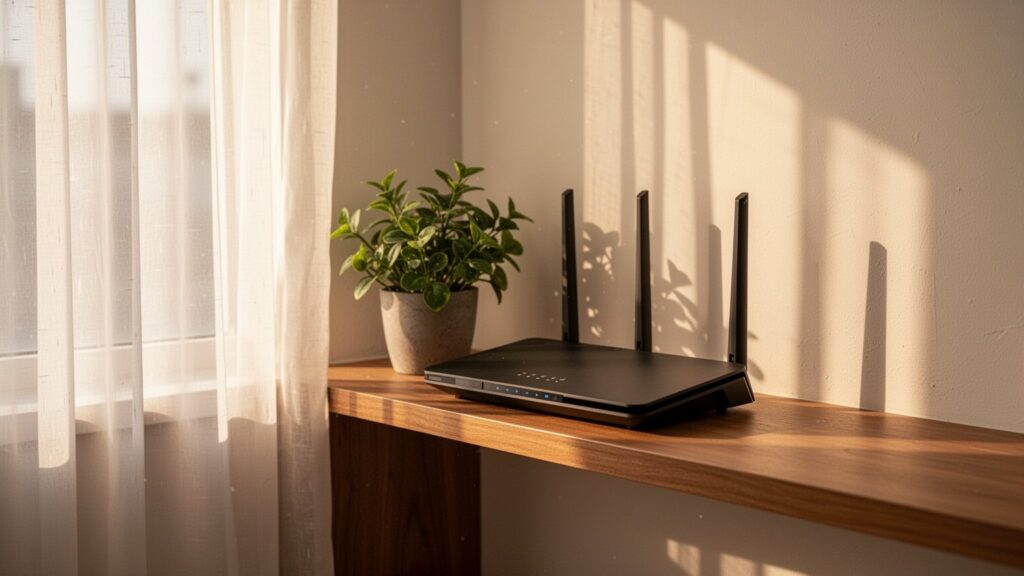
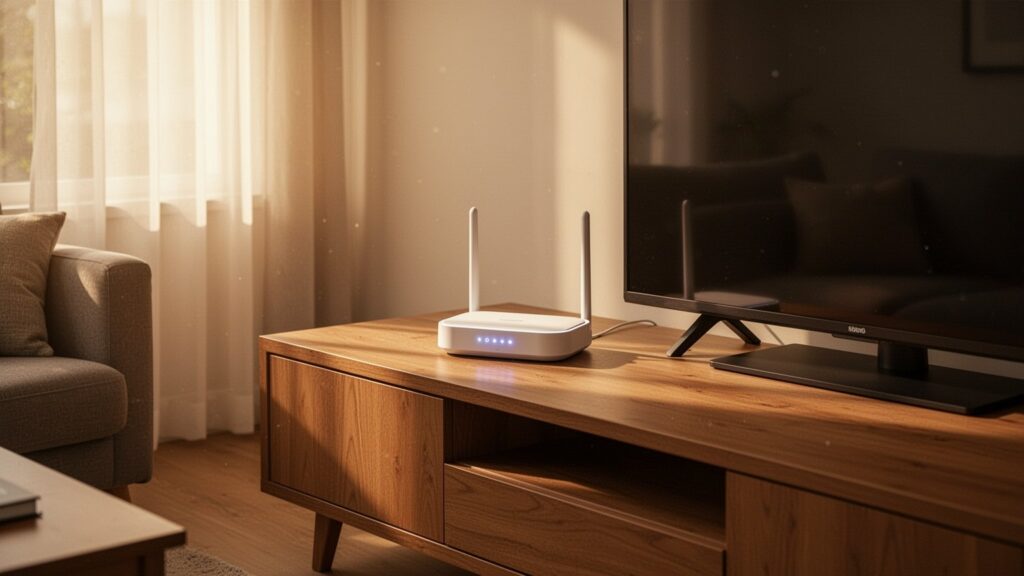
    • Router placement: Place it in an open, central spot at least chest-high, not on the floor or behind a TV
    • Antenna adjustment: Position two antennas at a 90-degree angle (one vertical, one horizontal) for maximum reception

    2.4 GHz vs 5 GHz: Signal Characteristics and Speed Differences

    2.4 GHz vs 5 GHz signal characteristics and speed differences

    The number attached to your Wi-Fi name refers to the radio frequency band in gigahertz (GHz), not 5G cellular mobile networks. As of 2026, most routers feature dual-band technology that broadcasts both frequencies simultaneously. 5 GHz offers a wider channel bandwidth of 580 to 900 MHz, delivering faster data transfer speeds and lower latency. In contrast, 2.4 GHz has a narrower bandwidth of about 82 to 100 MHz, but its longer wavelengths bend around physical obstacles more effectively.

    Think of 5 GHz as a high-speed train on a straight track, while 2.4 GHz is an off-road vehicle navigating winding mountain paths. 5 GHz degrades quickly when passing through walls or doors, but offers blazing speeds at close range. 2.4 GHz is slower, but indoors its signal can reach up to 70 meters, delivering a stable connection through walls into other rooms.

    Which Frequency Should You Connect to for Each Device and Location?

    Which frequency to connect for each device and location

    Dividing your devices between frequencies based on purpose and distance helps maximize network efficiency. Devices that demand high speed—such as for large file downloads, high-definition streaming, or online gaming—should connect to 5 GHz near the router. Devices located in walled rooms or smart home appliances with low data needs stay connected more reliably on 2.4 GHz.

    CategoryRecommended for 2.4 GHzRecommended for 5 GHz
    Target DevicesRobot vacuums, air purifiers, washing machines, IP camerasPCs, laptops, tablets, modern smartphones, gaming consoles
    LocationRooms far from router, behind solid wallsLiving room with router, open line of sight nearby
    Pros & ConsBetter wall penetration / Prone to microwave and Bluetooth interferenceHigh speeds and low latency / Sharp signal drop through obstacles

    However, 2.4 GHz only has three non-overlapping channels (channels 1, 6, and 11), making it vulnerable to signal interference from neighboring Wi-Fi networks, microwave ovens, and Bluetooth devices.

    Router Placement Tips for Full-House Coverage

    Router placement tips for full-house coverage

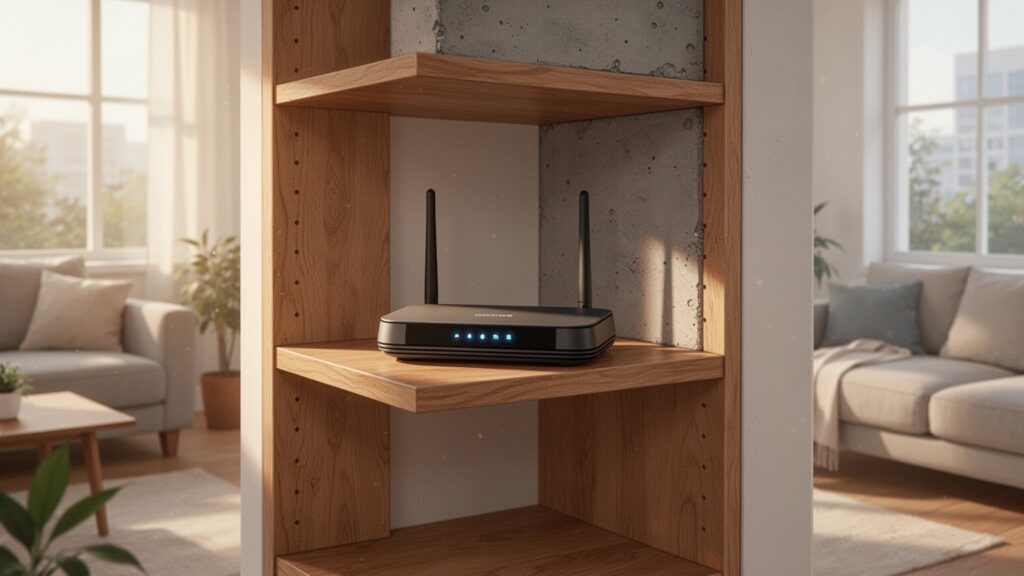
    Even with the right frequency, poor router placement degrades performance. Placing your router on the floor or behind a TV causes furniture and walls to absorb radio waves, creating dead zones. Position the router in a central, open area of the home, elevated at least chest-high from the floor.

    For routers with two or more antennas, adjust their orientation. Pointing one antenna vertically toward the ceiling and another horizontally at a 90-degree angle ensures balanced coverage for both horizontal and vertical device orientations. For large homes or thick concrete walls, adding a Wi-Fi range extender or setting up a mesh Wi-Fi system can eliminate remaining dead spots.

    Why Real-World Internet Speeds Differ from Router Specs

    Why real-world internet speeds differ from router specs

    The maximum speeds advertised on router boxes or ISP spec sheets are theoretical maximums measured under ideal conditions without signal degradation. For example, a standard dual-band router (such as a KT GiGA Wave 2) supports up to 300 Mbps on 2.4 GHz and 867 Mbps on 5 GHz, but real-world wireless environments operate on half-duplex communication and incur network protocol overhead of around 30%, which can cut effective speeds roughly in half.

    Theoretical maximum speeds also vary by Wi-Fi standard documentation. Wi-Fi 5 (802.11ac) specs are often listed anywhere from over 1 Gbps up to 3.46–3.5 Gbps or even 6.9 Gbps depending on stream configurations, while Wi-Fi 6 (802.11ax) varies between 9.6 Gbps and 10 Gbps. In dense apartment complexes, 2.4 GHz speeds frequently drop from the typical 100–200 Mbps range down to 20–40 Mbps due to channel congestion, making real-world measurements essential.

    Try switching your smartphone to the 5 GHz band when sitting near your router, and back to 2.4 GHz when behind closed doors for a stable, drop-free connection.

    References

    1-Minute Video Summary

    Related Articles

  • Does Capping Your Smartphone Charge at 80% Really Double Battery Lifespan?

    Does Capping Your Smartphone Charge at 80% Really Double Battery Lifespan?

    Just one or two years after buying a new smartphone, many people notice their battery barely lasting half a day and consider replacing it. That is why modern smartphones now feature battery protection modes that stop charging at 80%. But is it really worth giving up 20% of your daily battery capacity to turn this on?

    Quick Summary

    • Lowering maximum charge voltage from 4.20V (100%) to 4.10V (~85–90%) increases battery cycle life from 300–500 cycles to 600–1,000 cycles—about double.
    • Storing a battery at 100% charge at room temperature (25°C / 77°F) permanently loses 20% capacity in one year, compared to just 4% loss at a 40% charge state.
    • You can easily enable this in settings on Samsung Galaxy (One UI 6.1 “Maximum 80%”) and iPhone (iPhone 15 or later “80% Limit”).
    • Actual lifespan extension varies depending on operating temperatures and fast-charging heat.

    Why Charging to 100% Degrades Batteries Faster

    Why Charging to 100% Degrades Batteries Faster

    The lithium-ion battery in a smartphone works much like inflating a balloon. If you fill a balloon moderately, the rubber stays relaxed and lasts longer. But if you blow it up right to the verge of popping, extreme surface tension causes the material to stretch and wear out quickly.

    Similarly, as a lithium-ion battery nears 100% charge, its internal voltage rises sharply past 4.20V. Exceeding 4.10V (roughly 80–85% charge) puts high-voltage stress on the cathode structure and accelerates electrolyte breakdown, causing permanent capacity loss.

    This is especially true when plugging in overnight. The phone reaches 100% in just 1 to 2 hours, then sits for the remaining 5 to 7 hours under continuous high-voltage stress above 4.20V. Staying at full charge for extended periods is a leading cause of premature battery degradation.

    How Much Does Lowering the Charge Limit Extend Lifespan?

    How Much Does Lowering the Charge Limit Extend Lifespan?

    According to data from battery research firm Cadex (Battery University), reducing peak charge voltage by 0.10V roughly doubles the battery’s charge/discharge cycle life.

    Peak Charge VoltageCharge LevelEstimated Cycle Life
    4.20V/cell100% Full Charge300–500 cycles
    4.10V/cell~90% Charge600–1,000 cycles
    4.00V/cell~73% Charge850–1,500 cycles
    3.85V/cell~60% Charge2,400–4,000 cycles

    The rate of capacity loss during storage also shows a massive difference. When stored at room temperature (25°C / 77°F) for one year, a battery kept at 40% charge lost only 4% capacity, whereas a battery stored at 100% charge suffered a permanent 20% loss. In hotter environments (40°C / 104°F), a 100% charge state caused a 35% capacity loss in just one year.

    However, because degradation rates depend heavily on ambient temperatures and heat generated by fast charging, you cannot guarantee an exact “two-year lifespan extension” for every individual user.

    How to Set an 80% Charge Limit on Galaxy and iPhone

    How to Set an 80% Charge Limit on Galaxy and iPhone

    Major smartphone makers now offer built-in charge-limiting settings to address this issue.

    On Samsung Galaxy devices (One UI 6.1 and later), you can navigate to the “Battery Protection” menu in Settings to choose from three modes: “Maximum” (stops charging completely at 80%), “Adaptive” (pauses at 80% while you sleep and tops up to 100% right before you wake up), or “Basic” (stops charging at 100% and resumes when it drops to 95%). Choose the one that best fits your daily routine.

    Apple iPhone models starting with the iPhone 15 series allow you to set a hard 80% Charge Limit directly. If you are using an older iPhone, enabling “Optimized Battery Charging” is recommended—it learns your charging routine and delays charging past 80% until just before you start your day.

    If you have frequent access to a charger at home or in the office, enabling the 80% limit is one of the most effective ways to preserve long-term battery health.

    If you regularly leave your smartphone plugged in overnight, consider enabling the 80% charge limit in your settings today.

    References

    1-Minute Summary Video

    Related Articles

  • Do More Router Antennas Actually Make Wi-Fi Faster?

    Do More Router Antennas Actually Make Wi-Fi Faster?

    When shopping for a new Wi-Fi router, models with 4 or 8 horn-like antennas look like they should deliver blazing speeds. Does adding more antennas really double or quadruple your home Wi-Fi speed? Before spending extra on a high-end router, here is the technical reality you should know.

    Quick Summary

    • Single device speeds: Most smartphones use a 2×2 antenna setup, meaning even a 4×4 router cannot exceed the ~867Mbps limit on 5GHz.
    • The real benefit of 4 antennas: MU-MIMO technology cuts down latency and bottlenecks when multiple devices connect simultaneously.
    • Antenna positioning: In single-story homes, position all antennas straight up at 90 degrees to radiate signals horizontally across rooms.
    • Router placement: Avoid placing routers on the floor or behind TVs. Position them centrally on a table or shelf at least 30–45 cm (12–18 in) high.

    Why a 4-Antenna Router Won’t Speed Up Your Smartphone

    Why a 4-Antenna Router Won't Speed Up Your Smartphone

    The number of router antennas is directly tied to the number of spatial streams (MIMO). Just like adding lanes to a highway allows more vehicles through at once, adding transmit and receive antenna channels increases the maximum available bandwidth.

    Wireless Standard (Frequency)1 Stream (1×1)2 Streams (2×2)4 Streams (4×4)
    802.11ac (Wi-Fi 5 / 5GHz)Up to 433MbpsUp to 867MbpsUp to 1,733Mbps
    802.11n (2.4GHz)Up to 150MbpsUp to 300MbpsUp to 800Mbps

    However, the wireless network cards inside most smartphones, tablets, and laptops are built with 1×1 or 2×2 antenna configurations. Because client device hardware maxes out at 2×2 (up to 867Mbps on 5GHz), connecting to an expensive 4×4 router will not make a single device any faster.

    In addition, many 4-antenna routers on the market are not true 4×4 stream devices. Many use a “dual-band 2×2” setup, with physical antennas split into two dedicated for 2.4GHz and two for 5GHz.

    When Are Routers with More Antennas Actually Worth It?

    When Are Routers with More Antennas Actually Worth It?

    The true value of having more antennas shows up when multiple devices use Wi-Fi at the same time, not when using a single device alone. With traditional SU-MIMO, routers transmit data to devices sequentially, creating queuing delays (lag) as connected devices multiply.

    In contrast, a 4×4 router that supports MU-MIMO (Multi-User MIMO) can transmit data to two 2×2 smartphones simultaneously. This cuts down traffic bottlenecks even when everyone in the household streams video or plays online games at once.

    However, adding more antennas does not proportionally double or quadruple Wi-Fi coverage distance across rooms. Wireless transmit power (EIRP) is strictly regulated by law. Rather than pushing signals farther, multiple antennas are used for technologies like beamforming to maintain stable connections and reduce dropouts at the edge of coverage.

    Wall-Penetrating 2.4GHz and How to Position Donut-Shaped Antennas

    Wall-Penetrating 2.4GHz and How to Position Donut-Shaped Antennas

    Wi-Fi signals penetrate obstacles differently depending on frequency. While 5GHz experiences less channel interference and delivers faster speeds, its signal drops sharply through obstacles. In contrast, 2.4GHz is slower but has longer wavelengths that diffract better around concrete walls, making it more reliable in rooms behind closed doors.

    External rod antennas radiate signals sideways in a donut (toroid) pattern, not out from the tips. In standard single-story homes and apartments, pointing all antennas vertically at 90 degrees radiates signals widest across the horizontal living area.

    Placing a router on the floor, behind a TV, inside a cabinet, or next to a microwave blocks signals and causes interference. Position it in an open, central spot, such as on a table or shelf at least 30 to 45 cm (12 to 18 inches) off the ground.

    If your router’s antennas are lying flat or hidden behind your TV, stand them straight up at 90 degrees and move the unit to an open table.

    References

    1-Minute Summary Video

    Related Articles

  • Is Windows Defender Good Enough for Windows 11? Detection Rates and Key Settings

    Is Windows Defender Good Enough for Windows 11? Detection Rates and Key Settings

    Setting up a new PC or reinstalling Windows often leads to one question: do you need an antivirus? Many download free third-party programs or consider paying for an annual subscription. Can the built-in Windows 11 Defender protect you against modern ransomware and viruses on its own?

    Key Takeaways

    • As of 2026, Microsoft Defender achieves a 99.7%–100% malware detection rate, matching paid antivirus software.
    • For general home and office use, paying about $25–$40 (30,000–50,000 KRW) per year for third-party antivirus is unnecessary.
    • Avoid ad-supported free antivirus tools. Instead, enable Tamper Protection and Controlled Folder Access in Windows Settings.

    Is Microsoft Defender as Safe as Paid Antivirus?

    Is Microsoft Defender as Safe as Paid Antivirus?

    Windows Defender once had a reputation for weak performance. As of 2026, however, Microsoft Defender Antivirus consistently scores near the top in independent global security benchmarks.

    In Windows 11 lab evaluations by independent test lab AV-TEST, Defender earned a perfect 6.0/6.0 in Protection and 6.0/6.0 in Usability, securing “Top Product” certification with a 99.7%–100% malware detection rate. In AV-Comparatives real-world protection tests, it achieved a 98.5%–99.1% block rate, earning an “Advanced” rating.

    Testing LabTest CategoryDefender Score & Rating
    AV-TESTProtection6.0 / 6.0 (99.7%–100% Detection Rate)
    AV-TESTUsability6.0 / 6.0 (‘Top Product’)
    AV-ComparativesReal-World Protection98.5%–99.1% Block Rate (‘Advanced’)
    AV-ComparativesSystem Performance‘Advanced’ Award (Moderate System Impact)

    To put it in perspective, the default lock on your front door is now as sturdy as a high-end specialty lock. For standard web browsing and everyday office tasks, Defender provides more than enough defense.

    Who Actually Needs Paid Antivirus Software?

    Who Actually Needs Paid Antivirus Software?

    Most everyday users do not need to spend roughly $25–$40 (30,000–50,000 KRW) per year on paid antivirus suites like Norton 360 (starting at $29.99/year), Bitdefender, or McAfee. If you use genuine software and download files from official sources, Defender is plenty.

    Free third-party antivirus utilities are generally not recommended. While they offer basic malware detection, they often bundle aggressive upgrade pop-ups, data collection practices, and unnecessary bloatware that slows down your system.

    However, paid suites make sense if you need an all-in-one package with multi-device protection across PC and mobile (Android/iOS), built-in VPNs, password managers, dark web monitoring, or dedicated 1-on-1 technical support.

    In AV-Comparatives benchmarks, Defender showed measurable system delays during file copying and archiving, though whether this is noticeable on modern PCs remains debated. Offline detection rates without an internet connection also vary depending on the test period.

    3 Essential Windows 11 Settings to Maximize Security

    3 Essential Windows 11 Settings to Maximize Security

    To get the most out of Microsoft Defender, check a few built-in settings. A few quick adjustments will help stop ransomware and system tampering.

    First, turn on Tamper Protection. This prevents malicious apps from hijacking administrator rights to disable Defender’s real-time protection.

    Second, enable Controlled Folder Access. This dedicated anti-ransomware feature is disabled by default. When activated, it prevents unauthorized programs from modifying or encrypting files in your Documents, Photos, and other protected folders. If it blocks legitimate game saves or design software, simply allow the app manually through the prompt.

    Third, keep Core Isolation (Memory Integrity / HVCI) and SmartScreen active. Core Isolation uses virtualization to shield core Windows processes from malicious drivers, while SmartScreen filters out suspicious downloads and untrusted websites.

    Open Windows Security now to make sure Tamper Protection is enabled, and uninstall unneeded third-party antivirus software to keep your PC running fast.

    References

    1-Minute Summary Video

    Related Articles

  • IPS vs VA Monitors for Office Work: Which Panel Should You Buy?

    IPS vs VA Monitors for Office Work: Which Panel Should You Buy?

    Staring at a monitor for over 8 hours a day doing office work or browsing the web can easily cause eye strain. When shopping for a budget monitor around $150 (200,000 KRW), deciding between IPS and VA panels is often the biggest hurdle. Which panel actually fits your workflow?

    Quick Summary

    • Document work, spreadsheets, coding, and dual monitors: Choose an IPS panel (1–5ms response time) for sharp text readability and minimal viewing angle distortion.
    • Video watching and dark-room contrast: VA panels excel with high 3,000:1 to 5,000:1 contrast ratios, though scrolling ghosting (GtG 4–8ms) can occur.
    • Essential eye-care features: Look for flicker-free backlights and non-glare coatings. Lowering the color temperature to 5,000K can reduce harmful blue light by about 20%.
    • Recommended budget specs ($150 class): A 24 to 27-inch FHD display with a 75Hz–100Hz refresh rate, 99%+ sRGB, and 250 cd/㎡ brightness offers a dependable baseline.

    Why IPS Is the Default Choice for Documents and Dual Monitors

    Why IPS Is the Default Choice for Documents and Dual Monitors

    For tasks involving black text on white backgrounds—such as working in Excel, coding, or reading Word documents—IPS (In-Plane Switching) panels hold a clear advantage. Their standard RGB subpixel layout ensures crisp letter outlines without blurriness.

    Viewing angles also show a distinct difference. IPS maintains color and contrast consistency across wide 178-degree horizontal and vertical angles. In a dual-monitor setup or when sharing a screen with a colleague, the display remains clear without color shifts.

    Response times are fast at 1–5ms GtG. Fast scrolling through long web pages or documents creates minimal smearing or ghosting, reducing eye fatigue.

    Deep Blacks and Video: Pros and Cons of VA Panels

    Deep Blacks and Video: Pros and Cons of VA Panels

    The greatest strength of a VA (Vertical Alignment) panel is its contrast ratio. While standard IPS panels hover between 1,000:1 and 1,500:1, VA panels reach 3,000:1 to 5,000:1—roughly 3 to 5 times higher. This produces deep, ink-like blacks when watching videos with dark scenes or working with multimedia content.

    However, there are trade-offs in office environments. Even if the spec sheet lists 178-degree viewing angles, off-angle viewing often causes noticeable color washout and gamma shifts. Some testing shows optimal performance is limited to around a 130-degree cone.

    Response times lag at GtG 4–8ms compared to IPS. When rapidly scrolling black text on a white background, text trailing and dark smearing can be distracting.

    4 Essential Display Features for Eye Health Beyond Panel Type

    4 Essential Display Features for Eye Health Beyond Panel Type

    There is no definitive medical consensus on whether IPS or VA is inherently easier on the eyes. In practice, eye fatigue depends far more on ambient lighting and monitor ergonomics than the underlying panel chemistry.

    Flicker-Free backlights and anti-glare (non-glare) matte coatings are non-negotiable. When fluorescent lights or sunlight reflect off a glossy screen like a mirror, your eye muscles strain to maintain focus.

    Adjusting color temperature also helps. According to EIZO research, lowering the color temperature from 6,500K to 5,000K reduces eye-straining blue light (400–500nm wavelength) by about 20%.

    Budget Office Monitor Checklist: Key Specs to Look For

    Budget Office Monitor Checklist: Key Specs to Look For

    For a budget around $150 (200,000 KRW), 24-inch (60 cm) to 27-inch FHD (1920×1080) monitors are the most common options. Choosing a model with a 75Hz to 100Hz refresh rate over a standard 60Hz screen ensures smoother cursor movement and scrolling.

    Here is a direct comparison of key panel characteristics and recommendations for office use:

    FeatureIPS PanelVA Panel
    Contrast Ratio1,000:1 – 1,500:13,000:1 – 5,000:1
    Response Time (GtG)1–5ms (Minimal ghosting)4–8ms (Potential scroll smearing)
    Viewing Angle DistortionMinimal distortion across 178°Side gamma and color shifts
    Text ClarityCrisp (Standard RGB layout)Slight fringing if non-standard layout
    Office RecommendationBest for docs, coding & dual setupsBest for video & dark environments

    Popular entry-level options include models like the LG 27MR400 (around $110–$130 [150,000–180,000 KRW]) and Samsung S24C310, which offer 99%+ sRGB, 250 cd/㎡ (250 nits) brightness, tilt adjustment, and VESA mount support.

    If your workday involves hours of reading and text editing, prioritize an IPS panel with flicker-free technology, an anti-glare finish, and a 75–100Hz refresh rate.

    References

    1-Minute Video Summary

    Related Articles

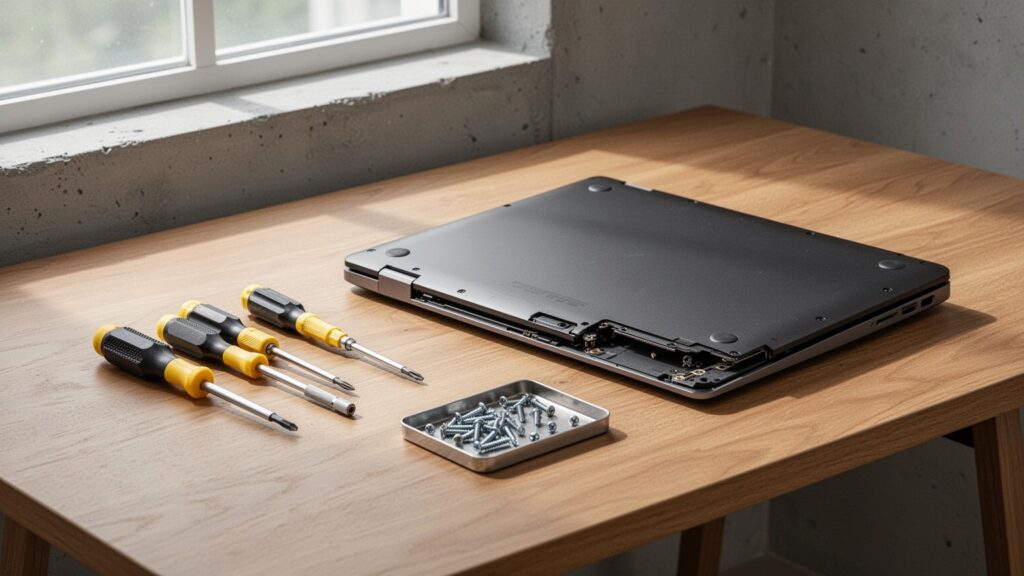
  • Is It Worth Upgrading an Old Laptop with an SSD and RAM?

    Is It Worth Upgrading an Old Laptop with an SSD and RAM?

    Ever turned on your laptop and had enough time to finish a cup of coffee before the desktop even loaded? Throwing it away feels wasteful, but spending over $380 (500,000 KRW) on a brand-new machine is hard to justify. Can swapping a few parts for around $75 (100,000 KRW) bring your old laptop back to life?

    Quick Summary

    • Upgrading to an SSD delivers the biggest performance boost (boot time drops from 1 minute to 10 seconds), and adding 8GB of RAM makes everyday tasks 15–30% faster.
    • Doing a DIY upgrade costs around $65–$75 (90,000–100,000 KRW) total for both an SSD ($30–$50 / 40,000–70,000 KRW) and RAM ($20–$30 / 30,000–40,000 KRW).
    • Upgrades are worth it mainly for laptops with at least an 8th Gen Intel or 2nd Gen AMD Ryzen quad-core CPU, which officially support Windows 11.
    • If parts and labor exceed $110 (150,000 KRW), or if your device has an older 7th Gen Intel processor or below, buying a modern budget laptop for $300–$400 (400,000–500,000 KRW) is a smarter choice.

    Which Laptop Parts Give the Biggest Speed Boost?

    Which Laptop Parts Give the Biggest Speed Boost?

    When upgrading a laptop, the components that offer the most noticeable real-world improvement rank in this order: SSD > RAM > CPU ≈ GPU. Think of it like paving a narrow, bumpy dirt road (an old HDD) into a smooth, open highway (an SSD).

    Replacing an old mechanical hard drive (HDD) with a SATA or NVMe SSD brings the most dramatic difference. Boot times drop from over a minute to around 10 seconds, and lag when launching web browsers or office applications virtually disappears.

    If your system currently runs on 4GB to 8GB of RAM, you likely experience stuttering when opening multiple browser tabs. Adding an 8GB stick to run dual-channel memory (8GB + 8GB) widens data bandwidth, delivering an immediate 15% to 30% performance boost.

    How Much Do Replacement Parts and Labor Cost?

    How Much Do Replacement Parts and Labor Cost?

    Upgrade costs depend heavily on whether you install the parts yourself or take the machine to a repair shop.

    Buying components online and installing them yourself cuts the total cost almost in half. A laptop DDR4 8GB RAM stick costs about $20–$30 (30,000–40,000 KRW), while a 500GB SSD runs about $30–$50 (40,000–70,000 KRW). Replacing both costs around $65–$75 (90,000–100,000 KRW) in total.

    ItemDIY (Self-Purchase)Repair Shop / Service Center (Including Labor)
    500GB SSD ReplacementAbout $30–$50 (40,000–70,000 KRW)About $50–$110 (70,000–150,000 KRW, up to 200,000 KRW at official centers)
    8GB RAM AdditionAbout $20–$30 (30,000–40,000 KRW)About $35–$75 (50,000–100,000 KRW)
    SSD + RAM UpgradeAbout $65–$75 (90,000–100,000 KRW)About $90–$150+ (120,000–200,000+ KRW)

    Keep in mind that labor fees at authorized service centers or independent repair shops range from $15 to $40+ (20,000 to 50,000+ KRW), depending on the laptop brand and disassembly difficulty.

    Is Your Laptop Spec Worth Upgrading?

    Is Your Laptop Spec Worth Upgrading?

    Not every slow laptop is worth upgrading. The CPU needs enough processing power to actually take advantage of the speed provided by a new SSD and extra RAM.

    Upgrades are recommended for devices released within the past 3 to 5 years that feature at least an Intel 8th Gen (i3-8100, i5-8250U or higher) or AMD Ryzen 2nd Gen (3000/2000 series or higher) quad-core processor.

    Because Microsoft ended official support for Windows 10 on October 14, 2025, running Windows 11 for ongoing security updates has become essential. Your laptop should meet official Windows 11 hardware requirements (TPM 2.0 support, Intel 8th Gen or Ryzen 2nd Gen and above) to remain safe and functional for the next 2 to 3 years.

    Why Spending Over $110 Means You Should Just Buy New

    Why Spending Over $110 Means You Should Just Buy New

    Laptops over 7 years old with older dual-core CPUs (Intel 7th Gen or older) or legacy AMD APUs will still stutter during HD video playback and web browsing because the processor itself is a bottleneck. Additionally, many ultra-thin laptops feature on-board soldered RAM with no expansion slots, making memory upgrades impossible.

    Modern entry-level laptops running Windows 11—equipped with Ryzen 5 7430U processors, 8GB–16GB RAM, and 512GB SSDs—typically sell for around $300–$400 (400,000–500,000 KRW). Popular models like the Lenovo IdeaPad Slim 3 or HP 15 series cost roughly $380–$430 (507,000–569,000 KRW).

    If parts and labor exceed $110–$150 (150,000–200,000 KRW), factoring in worn-out batteries and aging display panels makes buying a new budget laptop much more cost-effective.

    Check your CPU generation and available RAM slots in Task Manager first to see if a DIY upgrade under $75 (100,000 KRW) is feasible for your machine.

    References

    1-Minute Video Summary

    Related Articles