Tech

Practical technology guides from moim.bio, in English.

  • Do You Really Need to Safely Remove USB Drives in Windows?

    Do You Really Need to Safely Remove USB Drives in Windows?

    Do you click “Safely Remove Hardware” on the taskbar every time you transfer files to a USB drive? When in a hurry, you might just yank it out while worrying about data corruption. Is it actually safe to unplug a USB drive without ejecting it in Windows?

    At a Glance

    • Windows 10 (version 1809 and later) and Windows 11 set the default external storage policy to “Quick removal,” which disables write caching.
    • If all file transfers and running programs are finished and the drive is idle, unplugging it without safely removing it will not damage your data.
    • Unplugging during background indexing right after copying or while writing to an exFAT drive can corrupt the MBR/PBR, causing RAW partition errors.
    • You can check and change your drive’s cache policy under “Right-click Start → Disk Management → Drive Properties → Policies.”

    Why Windows Changed the Default Setting to “Quick Removal”
    Why Windows Changed the Default Setting to 'Quick Removal'

    In older versions of Windows, unplugging a USB drive without ejecting often caused corrupted files. However, starting with Windows 10 version 1809, Microsoft changed the default removal policy for external storage media from “Better performance” to “Quick removal.”

    The “Quick removal” policy disables write caching. Instead of holding data temporarily in system RAM, Windows writes it directly to the USB drive. It works like shipping a package directly to its destination rather than holding it in a sorting facility.

    As long as the drive is idle and no file copying or reading is active, you can unplug the drive without clicking “Safely Remove Hardware,” and your data will remain intact.

    3 Things That Happen When You Click “Safely Remove Hardware”
    3 Things That Happen When You Click 'Safely Remove Hardware'

    When you click “Eject” or “Safely Remove Hardware” on the taskbar, Windows immediately carries out a three-step background protection process.

    First, it flushes the cache, ensuring all pending write operations in system memory are committed to the storage drive. Second, it closes all open file handles so running applications release their hold on the drive.

    Third, it unmounts the file system completely, making it safe for physical disconnection without risking corruption. If you manually enabled “Better performance” to boost transfer speeds, you must go through this eject process to avoid losing data.

    When Unplugging a USB Drive Can Still Corrupt Data
    When Unplugging a USB Drive Can Still Corrupt Data

    Even with “Quick removal” enabled, pulling the drive out at the wrong moment can still corrupt the file system. The most common mistake is unplugging the drive the instant the file transfer progress window disappears.

    Even after the progress bar closes, background processes such as thumbnail generation, file indexing, or metadata updates may still be writing data. Forcibly disconnecting the drive while open documents or running programs are accessing it will also compromise data integrity.

    Drives formatted with exFAT are especially vulnerable because exFAT does not support file system journaling. Unplugging during a write operation can corrupt critical structures like the Master Boot Record (MBR) or Partition Boot Record (PBR). When this happens, the drive becomes a RAW partition, triggering the dreaded “You need to format the disk before you can use it” error.

    How to Check Your Drive Policy and Safely Disconnect
    How to Check Your Drive Policy and Safely Disconnect

    You can check the active removal policy for any connected external drive in Windows Disk Management.

    StepAction
    Step 1Right-click the Windows Start button
    Step 2Select "Disk Management" from the menu
    Step 3Right-click the target external disk entry and click "Properties"
    Step 4Check the "Policies" tab to verify if "Quick removal" is selected

    If “Quick removal” is active, waiting 5 to 10 seconds after a file transfer completes is generally safe. However, after transferring large batches of files or when dealing with critical backup drives, clicking “Safely Remove Hardware” and confirming the unmount prompt remains the safest practice.

    Wait 5 to 10 seconds after file transfers finish before unplugging, and always use “Safely Remove Hardware” for critical drives to confirm a clean unmount.
    References

    1-Minute Video Summary

    Related Articles

  • Full Wi-Fi Signal but Internet Keeps Dropping? How to Fix Channel Interference

    Full Wi-Fi Signal but Internet Keeps Dropping? How to Fix Channel Interference

    Have you ever had full Wi-Fi bars on your phone, yet YouTube videos freeze and web pages take forever to load? If your internet lags even right next to the router, your device is likely not broken. Why is the signal strong while the internet barely works?

    Quick Summary

    • Frequent Wi-Fi drops are mostly caused by “channel interference” from neighboring routers using the same frequency.
    • Find less congested, non-overlapping channels (like 1, 6, or 11) using Android apps like WiFi Analyzer or PC tools.
    • Access your router settings (e.g., 192.168.0.1) and manually change the channel under Wireless settings.
    • Set the 2.4 GHz bandwidth to 20 MHz, and switch to 5 GHz in open spaces with fewer physical obstacles.

    Why Full Wi-Fi Signal Still Drops: Channel Interference

    Why Full Wi-Fi Signal Still Drops: Channel Interference

    The Wi-Fi icon on your screen only shows the radio signal strength between your device and the router. The real issue lies in the frequency channel—the invisible pathway data travels on.

    Think of it like a single-lane road: when too many cars try to drive on it at once, traffic slows to a crawl. In densely populated apartment complexes and residential buildings, multiple routers use the same frequency path, causing packet collisions and data loss.

    Specifically, the 2.4 GHz band has up to 13 channels spaced just 5 MHz apart. However, a single Wi-Fi transmission requires a bandwidth of about 20 to 22 MHz, causing adjacent channels to overlap and interfere with each other.

    How to Find Less Congested Wi-Fi Channels

    How to Find Less Congested Wi-Fi Channels

    Free analyzer tools on your phone or PC let you instantly check which channels neighboring routers are using. On Android, free apps like WiFi Analyzer show channel congestion graphs. On a PC, tools like NetSpot provide a detailed scan.

    Due to Apple iOS restrictions, iPhones and iPads cannot scan surrounding Wi-Fi networks directly, so you will need an Android device or a PC.

    StandardRecommended Non-overlapping ChannelsDetails
    Global StandardChannels 1, 6, 11The standard 3-channel setup worldwide to minimize interference
    Regional Standard (e.g. KCC)Channels 1, 5, 9, 134-channel division guideline used in certain regulatory regions

    Because some older or North American devices cannot detect channels 12 and 13, sticking to channels 1, 6, or 11 is the safest choice for broad device compatibility. Pick whichever of these three is least crowded in your area.

    How to Change Channels in Router Settings

    How to Change Channels in Router Settings

    Once you identify a clear channel, manually assign it in your router settings. Open a web browser and type your router’s default gateway IP address into the address bar.

    Manufacturer / ISPDefault IPDefault Login
    ipTIME / Common Routers192.168.0.1admin / admin
    KT172.30.1.254ktuser / homehub or megaap
    SK Broadband192.168.35.1Last 6 digits of MAC + _admin
    LG Uplus192.168.219.1Check sticker on device for password/serial

    For most standard router dashboards, the process is straightforward: log in to the admin panel, navigate to [Advanced Settings] → [Wireless / Wi-Fi Settings], select your desired channel from the drop-down menu or run a channel scan, and click [Apply] or [Save].

    2 Additional Router Settings for Better Speed and Stability

    2 Additional Router Settings for Better Speed and Stability

    Adjusting two additional settings alongside channel selection can further reduce connection drops.

    First, lock the 2.4 GHz channel bandwidth (channel width) to 20 MHz. While setting it to 40 MHz can increase maximum speed, it takes up twice as much spectrum, significantly raising the risk of interference from neighboring networks. In crowded areas, 20 MHz (or Auto 20/40 MHz) provides far greater stability.

    Second, connect to 5 GHz Wi-Fi when nearby. The 5 GHz band offers wider channels and far less signal interference compared to 2.4 GHz. In the same room or open spaces with few walls, switching to 5 GHz delivers faster, drop-free connectivity. Actual improvements may vary depending on your layout and router hardware.

    Scan nearby Wi-Fi channel congestion on your phone first, then switch to an uncluttered channel in your router settings.

    References

    1-Minute Video Summary

    Related Articles

  • Why Mobile Hotspot Data Drains Fast on Windows Laptops (and How to Fix It)

    Why Mobile Hotspot Data Drains Fast on Windows Laptops (and How to Fix It)

    Ever turned on your phone’s mobile hotspot to quickly use your laptop on the go, only to get an instant text warning that your data plan is exhausted? Why did browsing a few web pages consume several gigabytes within minutes?

    Quick Summary

    • Press ‘Win + I’ > ‘Network & internet’ > ‘Wi-Fi’ > select your hotspot network, then toggle ‘Metered connection’ to On.
    • Enabling this stops large Windows updates, OneDrive syncing, and Delivery Optimization background uploads.
    • Set a data limit under ‘Network & internet’ > ‘Data usage’ > ‘Enter limit’ to receive overage warnings.

    Your Laptop Treats Hotspots as ‘Unlimited Wi-Fi’

    Your laptop treats hotspots as unlimited Wi-Fi

    When you connect your laptop to a smartphone hotspot, Windows (both Windows 10 and Windows 11) treats it like any standard, unlimited home or office Wi-Fi network. While devices with a dedicated LTE or 5G SIM recognize mobile networks automatically, a Wi-Fi hotspot appears unlimited to Windows until you manually configure it.

    Because of this, Windows runs heavy background tasks such as downloading cumulative system updates and automatically syncing files through cloud services like OneDrive. It is like leaving a faucet wide open, draining your precious mobile data allowance in no time.

    How to Stop Data Leaks with ‘Metered Connection’

    How to stop data leaks with Metered Connection

    Enabling the built-in Windows feature called ‘Metered Connection’ instantly blocks unnecessary background data consumption. You do not need third-party software; it only takes flipping a single switch in Windows settings.

    Press Windows Key + I on your keyboard to open Settings, then navigate to Network & internet > Wi-Fi. Click on your active smartphone hotspot network and switch Metered connection to ‘On’.

    Restricted FeatureHow It Works
    Windows UpdatePauses automatic downloads and installs for non-essential updates
    Cloud SyncTemporarily suspends OneDrive and Windows Store app background syncing
    Delivery OptimizationBlocks uploading update files to other PCs over the internet

    Set a ‘Data Limit’ for an Extra Layer of Protection

    Set a Data Limit for an Extra Layer of Protection

    To prevent accidental overage charges, set a data usage cap. Go to Settings > Network & internet > Data usage, and click Enter limit.

    Here, you can configure a monthly or one-time data allowance in GB or MB. When usage gets close to or reaches the limit, Windows sends alert notifications so you can manage your connection proactively.

    According to Microsoft documentation, some critical security updates may still download automatically depending on policy settings. Furthermore, overage fees and throttling (QoS) rules vary by mobile carrier, so be sure to check your carrier plan details as well.

    Connect your laptop to your smartphone hotspot now, toggle ‘Metered connection’ on in Wi-Fi settings, and stop data leaks for good.

    1-Minute Video Summary

    Related Guides

  • How to Clear a Print Queue Stuck on Deleting in Windows

    How to Clear a Print Queue Stuck on Deleting in Windows

    Have you ever needed to print an urgent document, only for a queue error to pop up and stay stuck on “Deleting” even after right-clicking “Cancel”? Restarting the computer often doesn’t help, leaving the queue blocked. Why won’t it delete normally, and why does it stop all subsequent print jobs?

    Quick Summary

    • Step 1: Press Win + R, run services.msc → Right-click Print Spooler and select [Stop]
    • Step 2: Press Win + R, type spool → Open the PRINTERS folder and delete all files (.SHD, .SPL, etc.)
    • Step 3: In the Services window, right-click Print Spooler and select [Start]
    • Quick CMD Fix: Open CMD as Administrator and run: net stop spooler → del /Q /F /S “%systemroot%\System32\Spool\Printers\.” → net start spooler

    Why Print Jobs Get Stuck on Deleting

    Why Print Jobs Get Stuck on Deleting

    Computers and printers operate at very different speeds. A computer sends data almost instantaneously, while a printer needs time to apply ink or toner onto paper. To balance this speed difference, Windows stores print data in temporary storage through a process called Spooling. It acts like a holding area for cars before a busy toll gate.

    Problems arise when transmission errors occur due to connection drops or corrupted files. The Windows Print Spooler service keeps the faulty file locked because it still sees it as “in use.” When this happens, clicking cancel won’t release the lock, leaving the queue frozen indefinitely. The only solution is to temporarily stop the print service and manually clear the temporary files.

    The Visual Method: Using Windows Services Manager

    The Visual Method: Using Windows Services Manager

    This is the simplest click-based method. Stop the Windows print service, clear the temporary storage folder, and restart the service.

    StepTaskKey / Command
    Step 1Open Run dialogPress Win + R, enter services.msc
    Step 2Stop SpoolerRight-click Print Spooler → [Stop]
    Step 3Open Spool folderPress Win + R, type spool, open PRINTERS folder
    Step 4Delete all filesDelete all files inside (.SHD, .SPL, etc.)
    Step 5Restart SpoolerBack in Services, right-click Print Spooler → [Start]

    The full path of the PRINTERS folder is C:\Windows\System32\spool\PRINTERS. If you attempt to delete the files without stopping the Spooler service first, Windows will block you with an “In Use” error, so be sure to stop the service before deleting.

    The Faster Method: 1-Minute Fix with Command Prompt (CMD)

    The Faster Method: 1-Minute Fix with Command Prompt (CMD)

    If you prefer keyboard commands, you can resolve the issue much faster using three simple lines in Command Prompt (CMD).

    1. Type cmd in the Windows search bar, right-click it, and select [Run as administrator].

    2. Type net stop spooler and press Enter to stop the print service.

    3. Type del /Q /F /S "%systemroot%\System32\Spool\Printers\." and press Enter to delete all queued print files at once.

    4. Type net start spooler and press Enter to restart the print service.

    Once all commands run successfully, the frozen queue clears immediately, allowing you to print new documents.

    Troubleshooting: Precautions and Recurring Errors

    Troubleshooting: Precautions and Recurring Errors

    During the queue clearing process, a printer may occasionally start feeding blank pages continuously. Unplugging the power cord abruptly can damage the hardware, so it is safer to pull open the paper tray and remove the paper first.

    If the error recurs even after clearing the spool folder, check for deeper system issues. According to manufacturer guidelines, common culprits include corrupted printer drivers, misconfigured IP ports, or third-party antivirus interference.

    On shared network printers in offices or schools, clearing the local spool folder alone may not solve the problem. Depending on network setup, the print queue on the host PC or print server might also need to be cleared, so contact your network administrator if needed.

    When printing freezes, avoid repeatedly clicking print. Instead, press Win + R to stop the Print Spooler service and clear out the PRINTERS folder.
    References

    1-Minute Summary Video

    Related Articles

  • How to Mirror Your Phone Screen to a Windows 11 Laptop Wirelessly

    How to Mirror Your Phone Screen to a Windows 11 Laptop Wirelessly

    You often want to view photos or videos taken on your smartphone on the larger screen of your laptop. However, finding and plugging in a cable every time or paying for third-party software is inconvenient. How can you share your screen wirelessly using only the built-in features already available in Windows 11 and Android?
    Quick Overview

    • Requirements: Enable Wi-Fi on both Windows 11 PC and phone, connect to the same network (Miracast support required)
    • PC Setup: Go to Settings > System > Projecting to this PC > Optional features, install ‘Wireless Display’, and launch the app
    • Phone Connection: Open Quick Settings, tap Smart View, select your PC, and tap ‘Start now’
    • Feature Differences: Use ‘Wireless Display’ for simple screen mirroring, and ‘Phone Link’ for mouse and keyboard control from PC

    What Requirements Are Needed Before Connecting Wirelessly?

    What requirements are needed before connecting wirelessly?

    To connect screens wirelessly without extra gear, both devices must support the same wireless transmission standard. Both your Windows 11 PC and smartphone must support Miracast, and Wi-Fi must be turned on for both devices.
    Most importantly, the PC and smartphone must be connected to the same Wi-Fi network. Setting both devices to the same router network ensures the phone can accurately discover the laptop as a receiving display.

    Setting Up Windows 11: Adding the ‘Wireless Display’ Feature

    Setting Up Windows 11: Adding the 'Wireless Display' Feature

    In Windows 11, the wireless projection receiver might be disabled or uninstalled by default to save storage and enhance security. In this case, you need to manually add the free optional feature called Wireless Display in Windows Settings.

    StepNavigation PathAction
    Step 1Start > Settings > System > Projecting to this PCOpen the projection settings page
    Step 2Optional features > View featuresOpen the optional features search window
    Step 3Search for ‘Wireless Display’ and check the boxDownload and install the feature
    Step 4Configure Projecting to this PC permissionsSet to ‘Available everywhere on secure networks’ or preferred option
    Step 5Click ‘Launch the Wireless Display app to project to this PC’Open the blue receiver standby screen

    Once installed and launched, your laptop enters a standby state ready to receive your smartphone’s screen signal. In Windows 11 version 22H2 and later, it runs as the ‘Wireless Display’ app, while in earlier versions it operated as the ‘Connect’ app.

    Casting the Screen from Your Smartphone via Smart View

    Casting the Screen from Your Smartphone via Smart View

    Once the laptop is ready to receive, it is time to cast the signal from your smartphone (Galaxy / Android).

    1. Swipe down twice from the top of your phone screen to open the Quick Settings panel and tap the Smart View (Screen Mirroring) icon.

    2. Select your laptop’s name from the list of detected available devices.

    3. Tap ‘Start now’ when the confirmation prompt appears. If a one-time PIN code appears on your laptop screen, enter that number on your phone.

    After a moment, your smartphone screen will be mirrored directly on your laptop display. When finished, tap ‘Disconnect’ via the Smart View floating icon or notification menu to end the session immediately.

    Difference Between Screen Mirroring and PC Control

    Difference Between Screen Mirroring and PC Control

    The Wireless Display method acts like beaming your smartphone screen onto a projector. It is most practical for simply enlarging content—such as presentations, browsing mobile photos and documents, or streaming videos.

    If you want to control smartphone apps directly using your PC’s mouse and keyboard or manage texts and notifications, use Microsoft’s Phone Link app instead of Wireless Display. Note that Apple iPhone’s AirPlay protocol is not natively compatible with Windows Miracast and cannot connect using this method.

    Check your laptop settings now to confirm the ‘Wireless Display’ feature is installed, then turn on Smart View on your phone.

    References

    1-Minute Summary Video

    Related Articles

  • How to Move and Control Your Mouse Cursor Using Only the Keyboard

    How to Move and Control Your Mouse Cursor Using Only the Keyboard

    Have you ever had your mouse cursor suddenly freeze while typing an urgent document or completing an online transaction? Whether your wireless mouse battery died or your cable broke, saving your work or closing windows without a mouse can feel impossible. However, you can control the cursor entirely using your keyboard’s numeric keypad. Here is how to set it up and use it.

    Quick Summary

    • Activation shortcut: Press ‘Left Alt + Left Shift + Num Lock’ together, then press Enter on the prompt dialog
    • Move cursor: Numpad 8 (Up), 2 (Down), 4 (Left), 6 (Right), and 7·9·1·3 (Diagonals) / Ctrl (Accelerate), Shift (Slow down to 1-pixel precision)
    • Click & Double-click: Select / (Left click) or – (Right click), then press 5 (Click) or + (Double-click)
    • Drag & Drop: Press 0 over an item to hold down the button, move, and press . (Decimal point) to release

    How to Turn on Mouse Keys Instantly with a Shortcut or Settings

    How to Turn on Mouse Keys Instantly with a Shortcut or Settings

    Windows 10 and 11 come with a built-in feature called “Mouse Keys” that lets you control the pointer using your keyboard when you do not have a mouse. You do not need to install any extra drivers or third-party software.

    The fastest way to turn it on is by using the dedicated keyboard shortcut. Press Left Alt + Left Shift + Num Lock simultaneously, and a prompt asking “Do you want to turn on Mouse Keys?” will appear on screen. Press Enter or the Spacebar to enable Mouse Keys mode immediately.

    If the shortcut does not respond, you can turn it on directly through Windows Accessibility settings. Press Windows key + U to open Accessibility settings, navigate to the “Mouse” menu under “Interaction,” and toggle Mouse Keys on. Alternatively, press Windows key + I to open the main Settings app and navigate to Accessibility.

    Moving the Cursor in 8 Directions Using the Numeric Keypad

    Moving the Cursor in 8 Directions Using the Numeric Keypad

    Once Mouse Keys is enabled, the numeric keypad on the right side of your keyboard acts as your mouse pad. You can move the cursor in 8 directions, similar to a directional pad on a game controller.

    Even numbers control standard up, down, left, and right movements, while odd numbers move diagonally. You can also adjust movement speed using modifier keys. Hold Ctrl while pressing a direction key to accelerate movement across the screen, or hold Shift to slow the cursor down to precise 1-pixel increments.

    DirectionNumpad KeyFunction Description
    Up / Down8 / 2Move cursor vertically up or down
    Left / Right4 / 6Move cursor horizontally left or right
    Diagonal (Top-Left / Top-Right)7 / 9Move cursor diagonally up-left or up-right
    Diagonal (Bottom-Left / Bottom-Right)1 / 3Move cursor diagonally down-left or down-right
    Accelerate / Slow DownCtrl / ShiftHold while moving for high speed / 1-pixel fine precision

    How to Click, Right-Click, Double-Click, and Drag and Drop

    How to Click, Right-Click, Double-Click, and Drag and Drop

    Once you move the cursor to the target position, you can perform clicks and window dragging using the keypad. Mouse Keys works by having you first select which mouse button to activate before executing the click command.

    Press the slash (/) to select the primary left mouse button, or press the minus sign (-) to select the right mouse button (for context menus). Once selected, that button remains active until you choose a different one. After selecting your button mode, press 5 to perform a single click, or press the plus sign (+) to double-click.

    You can also drag and drop icons or windows. Place the cursor over the target item and press 0 to hold down the mouse button (drag). Then, use the direction keys to move the cursor to where you want it and press the decimal point (.) to release the button (drop).

    ActionKeyDescription
    Select left button/Sets left-click as the active button (default)
    Select right button-Sets right-click as the active button
    Select both buttons*Sets both buttons as active simultaneously
    Single click5Performs a single click with the active button
    Double click+Performs a double-click with the active button
    Hold down button (Drag)0Holds down the active mouse button
    Release button (Drop).Releases the held mouse button

    Important Things to Keep in Mind When Using Mouse Keys

    Important Things to Keep in Mind When Using Mouse Keys

    Keep in mind that while Mouse Keys is active, your numeric keypad is converted into a mouse controller, meaning you cannot use it to type numbers. If you need to enter numbers, use the top row number keys (1–0) above the letter keys instead.

    In addition, Mouse Keys is designed primarily for full-sized keyboards with a physical numeric keypad on the right. For tenkeyless (TKL) keyboards or compact laptops without a numpad, official documentation does not specify whether the default shortcut directly remaps standard letter keys, so connecting an external full-sized keyboard is recommended.

    Once you have saved your work and connected a working mouse, press Left Alt + Left Shift + Num Lock again or turn off the toggle in Settings to return the keypad back to normal number entry mode.

    If your mouse suddenly stops working, don’t panic—press Left Alt + Left Shift + Num Lock to safely navigate and save your work using the keyboard.

    References

    1-Minute Video Summary

    Related Articles

  • Windows Freezes After Sleep Mode? How to Turn Off Fast Startup

    Windows Freezes After Sleep Mode? How to Turn Off Fast Startup

    Have you ever walked away from your computer in sleep mode, only to come back to a pitch-black, frozen screen even when moving the mouse? Many people find their keyboard unresponsive and end up holding down the power button to force a shutdown. Why does this freeze keep happening?

    Quick Summary

    • Sleep mode freezes and crashes are primarily caused by system file (hiberfil.sys) conflicts from “Fast Startup.”
    • You can fix this by typing powercfg.cpl into the Run dialog (Win+R) and unchecking “Turn on fast startup (recommended).”
    • On modern SSDs, disabling Fast Startup makes virtually no difference in boot speed.
    • If driver defects or BIOS errors are the root cause, additional troubleshooting may be required.

    The Real Reason Windows Freezes in Sleep Mode

    The real reason Windows freezes in sleep mode

    The primary culprit is “Fast Startup,” a feature introduced in Windows 8 and enabled by default in Windows 10 and 11. Instead of performing a complete shutdown (“cold boot”), this feature uses a “hybrid shutdown” method that saves core system state data to the hiberfil.sys file before powering down.

    Think of it like shoving messy paperwork into a drawer instead of clearing your desk every time, then pulling it back out later. The problem is that even after multiple restarts, system cache and leftover driver states never fully reset and continue accumulating in this file.

    In this state, power restoration conflicts occur whenever the PC enters or wakes from sleep mode. This leads to black screens that won’t turn back on, mouse and keyboard freezing, or Blue Screen of Death (BSOD) crashes. Major manufacturers like Dell, HP, and ASUS also recommend disabling Fast Startup as the primary fix for sleep mode freezing.

    How to Disable Fast Startup in Control Panel in 1 Minute

    Steps to disable Fast Startup in Control Panel in 1 minute

    You can resolve this immediately by changing a power option setting—no extra software required. Follow these five steps:

    StepAction and Path
    Step 1Press Windows Key + R, type powercfg.cpl into the Run box, and press Enter.
    Step 2Click [Choose what the power buttons do] in the left pane.
    Step 3Click [Change settings that are currently unavailable] at the top (next to the shield icon).
    Step 4Under Shutdown settings, uncheck the [Turn on fast startup (recommended)] box.
    Step 5Click [Save changes] at the bottom and restart your computer.

    If you prefer using the command line, you can also run Command Prompt (CMD) as administrator and type powercfg /h off to disable it immediately.

    Why You Don’t Need Fast Startup on Modern PCs

    Why you don't need Fast Startup on modern PCs

    Fast Startup was originally designed back when mechanical HDDs took 1 to 2 minutes to boot. On modern systems equipped with fast NVMe SSDs, turning this feature off makes almost no perceptible difference in boot time.

    In fact, keeping Fast Startup on can cause issues: because the computer never fully powers down, Windows Updates may fail to install properly, accessing the motherboard BIOS can become difficult, and external USB devices might fail to reconnect properly.

    Note that if faulty graphics/chipset drivers or outdated motherboard BIOS firmware are the underlying issue, disabling Fast Startup alone might not completely resolve the problem. Additionally, any minor increase in boot time without Fast Startup can vary depending on your PC specifications, including SSD type, RAM capacity, and the number of background startup programs.

    Disable Fast Startup in Power Options right now and restart your PC. Your sleep mode freezing issues will be resolved.

    References

    1-Minute Video Summary

    Related Articles

  • Why Your 100W Charger Only Outputs 60W: USB-C Cables and E-Marker Chips Explained

    Why Your 100W Charger Only Outputs 60W: USB-C Cables and E-Marker Chips Explained

    Did you buy an expensive 100W fast charger only to find your laptop charging frustratingly slow? If your charger has plenty of output but the battery fills up slower than expected, your cable might be the culprit. USB-C cables look identical on the outside, but what is happening on the inside?

    Key Takeaways

    • Standard 3A cables support up to 60W (20V/3A) without an E-Marker chip.
    • High-power charging at 100W and 240W (5A) requires a built-in E-Marker chip in the connector.
    • Plugging a non-E-Marker cable into a 100W charger automatically limits output to 60W to prevent overheating.
    • Charging wattage (W) and data transfer speeds (Gbps) are independent specs, so check both before buying.

    Why You Get Capped at 60W Even on a 100W Charger

    Why you get capped at 60W on a 100W charger

    Even if they look identical, USB-C cables are divided by internal current rating: 3A (ampere) and 5A cables. Standard consumer cables are engineered to carry a maximum current of 3A (60W at 20V).

    When you connect a 3A cable between a 100W charger and a laptop, the charger automatically throttles its output to 60W (20V/3A) to prevent cable overheating and fire hazards. Even if the charger can supply 100W, the cable bottleneck locks the output at 60W.

    What Is an E-Marker Chip, and Why Does 5A Require It?

    What is an E-Marker chip and why 5A charging requires it

    To safely carry currents above 3A—specifically 5A for 100W and 240W—a miniature chipset called an “E-Marker” (Electronic Marker) must be integrated into the connector.

    The E-Marker chip acts as an ID card. It uses the cable’s CC (Configuration Channel) line to transmit current rating (5A) and voltage specifications to both the charger and the connected device in real time. Without this chip, devices assume the cable cannot safely handle high power and fall back to 60W safe mode for hardware protection.

    USB-C Power Ratings and E-Marker Requirements at a Glance

    USB-C power ratings and E-Marker requirements

    Under USB-IF (USB Implementers Forum) standards, cable power specifications are divided into Standard Power Range (SPR) and Extended Power Range (EPR). Official certified specifications primarily center around 60W and 240W tiers.

    CategoryMax CurrentMax VoltageMax Supported PowerE-Marker Required
    Standard Cable (SPR)3A20V60WNo
    High-Power Cable (SPR)5A20V100WYes
    Extended-Power Cable (EPR)5A28V / 36V / 48V140W ~ 240WYes

    While some products are marketed as “140W dedicated cables,” the official USB PD 3.1 EPR standard certifies cables based on 240W (48V/5A) capabilities.

    Does a 240W Cable Mean Faster Data Transfer?

    Does a 240W cable mean faster data transfer speed

    High charging capacity does not guarantee fast data transfer speeds. Even if an E-Marker cable supports 240W charging, data speeds remain capped at basic USB 2.0 (480 Mbps) if it lacks dedicated high-speed data wiring.

    Conversely, a cable limited to 60W (3A) charging still requires an E-Marker chip if it supports high-speed data protocols like USB 3.2 Gen 2 (10 Gbps) or USB4 (40 Gbps and above) to communicate its capabilities to devices. Power and data transmission are independent specifications, so check both before purchasing.

    When shopping for a cable to charge your laptop or high-power device, look for “100W/240W supported” or “E-Marker equipped (5A)” in the product specs first.

    References

    1-Minute Video Summary

    Related Articles

  • How to Take a Partial Screenshot in Windows: Win + Shift + S Shortcut and Setup

    How to Take a Partial Screenshot in Windows: Win + Shift + S Shortcut and Setup

    Tired of capturing your entire screen and cropping it in Paint just to share a small section? Windows has a built-in shortcut that lets you crop and capture any area on your screen in one second, without installing extra software.

    Quick Summary

    • Pressing ‘Win + Shift + S’ brings up 4 capture modes (Rectangle, Freeform, Window, Fullscreen) to capture any area instantly.
    • Captured images save directly to your clipboard, so you can paste them into chats or documents immediately with ‘Ctrl + V’.
    • Enable ‘Use the Print screen button to open screen capture’ under Settings > Accessibility > Keyboard to trigger it with a single PrtScn key press.
    • To save full-screen captures directly as files, press ‘Win + PrtScn’ to auto-save them in the ‘Pictures > Screenshots’ folder.

    Win + Shift + S: 4 Screen Capture Modes at Your Fingertips

    Win + Shift + S: 4 Screen Capture Modes at Your Fingertips

    Press Windows logo key + Shift + S simultaneously. The screen will dim slightly, and the Snipping Tool toolbar will appear at the top center of your display. Select a mode with your mouse to capture the screen right away.

    There are 4 different capture modes available:

    Capture ModeHow It WorksBest Used For
    RectangleCaptures a box area dragged with your cursorSharing a specific chart, photo, or snippet
    FreeformDraws any freehand shape to captureIrregular shapes or curved outlines
    WindowCaptures a single application window clicked by mouseCapturing an entire browser or messenger window
    Full screenCaptures the entire monitor instantlyQuickly recording the whole display status

    You don’t need to install or run a separate program—this built-in feature works instantly anywhere across Windows 10 and 11.

    How Instant Paste (Ctrl + V) Works Without Saving Files

    How Instant Paste (Ctrl + V) Works Without Saving Files

    The biggest advantage of this shortcut is that you don’t have to save image files to your drive and search for them. Once you finish selecting the area, the image is copied directly to your computer’s temporary storage—the clipboard.

    It works just like cutting out a piece of paper and pasting it right away. After capturing, simply press Ctrl + V in Slack, Discord, Microsoft Teams, Word, PowerPoint, Notion, or Paint to insert the screenshot immediately.

    If you want to annotate the screenshot with a highlighter or pen and save it as a file (PNG/JPG), click the notification banner that appears in the lower-right corner of the screen right after capturing. This opens the built-in Snipping Tool editor where you can mark up and save your image. (Depending on your Windows build and settings, shortcut behaviors may vary slightly.)

    How to Open Snipping Tool with Just the PrtScn Key

    How to Open Snipping Tool with Just the PrtScn Key

    If pressing three keys at once feels inconvenient, you can configure your system to launch the same Snipping Tool by pressing just the PrtScn (Print Screen) key. You can enable this with a few clicks in the standard Windows 10/11 Settings menu.

    1. Press Windows logo key + I to open Settings.

    2. Go to Accessibility and select Keyboard.

    3. Toggle on the option for “Use the Print screen button to open screen capture”.

    Once enabled, tapping the PrtScn key in the upper-right corner of your keyboard immediately displays the 4 capture modes at the top of the screen. Note that on some laptops, keyboard layouts may require pressing Fn + PrtScn instead, so check your device layout.

    Windows Screen Capture Shortcuts by Situation

    Windows Screen Capture Shortcuts by Situation

    Choosing the right shortcut for each scenario can speed up your workflow significantly.

    ShortcutFunctionSave Method
    Win + Shift + SRectangle / Freeform partial captureClipboard copy (Paste with Ctrl + V)
    Win + PrtScnInstantly saves full screen to fileAuto-saved to This PC > Pictures > Screenshots
    Win + Shift + RScreen area video recordingLaunches video capture mode

    Use Win + Shift + S when quickly sharing details in chat, and use Win + PrtScn when archiving full screenshots in bulk.

    Try pressing ‘Win + Shift + S’ on your keyboard right now, drag a box, and press ‘Ctrl + V’ in your messenger or notes app.

    References

    1-Minute Video Summary

    Related Articles

  • Can You Plug an AC and an Air Fryer into the Same Power Strip? Wattage Limit Guide

    Can You Plug an AC and an Air Fryer into the Same Power Strip? Wattage Limit Guide

    When there is an open socket on a power strip in your living room or kitchen, it is easy to plug in an air fryer or air conditioner without a second thought. A strip with 5 or 6 outlets seems spacious enough, but why do power cords get hot or circuit breakers trip?

    Quick Overview

    • Calculate power strip capacity with ‘V × A’; a 16A 250V model handles up to 4,000W.
    • For fire safety, keep continuous load below the 80% threshold of 3,200W (or 70% / 2,800W for heating and motor-driven appliances).
    • Running a standing AC (up to 2,800W) and an air fryer (up to 1,800W) simultaneously reaches 4,600W, instantly exceeding the safe limit.
    • High-power appliances should always plug directly into wall outlets; if an extension is necessary, use a dedicated 4,000W heavy-duty strip with 2.5SQ wiring and a built-in circuit breaker, connecting only one device.

    How to Calculate Wattage Capacity from ’16A 250V’ on a Power Strip

    How to Calculate Wattage Capacity from '16A 250V' on a Power Strip

    You can calculate a power strip’s maximum capacity using the formula printed on the back: Rated Voltage (V) × Rated Current (A). A standard 16A 250V power strip handles up to 4,000W (250V × 16A). On the other hand, older or low-capacity models rated at 10A 250V top out at just 2,500W.

    The key rule is that you should never use 100% of that 4,000W ceiling. To account for heat generation and sudden power surges, experts recommend staying within 80% of total capacity—around 3,200W to 3,300W. For appliances with heating elements or electric motors, keep total usage under 70% (roughly 2,800W) for optimal safety.

    Rating SpecificationMaximum CapacityRecommended Safety Limit (80%)Motor & Heating Appliances (70%)Recommended Wire Gauge
    10A 250V (Older/Low-capacity)2,500WUnder approx. 2,000WUnder approx. 1,750W1.0SQ (1.0 mm²)
    16A 250V (Standard Strip)4,000WUnder approx. 3,200W–3,300WUnder approx. 2,800W1.5SQ (1.5 mm²)
    16A 250V (Heavy-duty with Breaker)4,000WUnder approx. 3,200W–3,300WSingle device recommended2.5SQ (2.5 mm²) or thicker

    Whether a power strip has 2 outlets or 6, the total allowable load supported by the single cord is the same: 4,000W. Just like a bridge’s gross vehicle weight rating, the combined wattage of all connected devices must not exceed the limit.

    What Happens When You Run an AC and an Air Fryer at the Same Time

    What Happens When You Run an AC and an Air Fryer at the Same Time

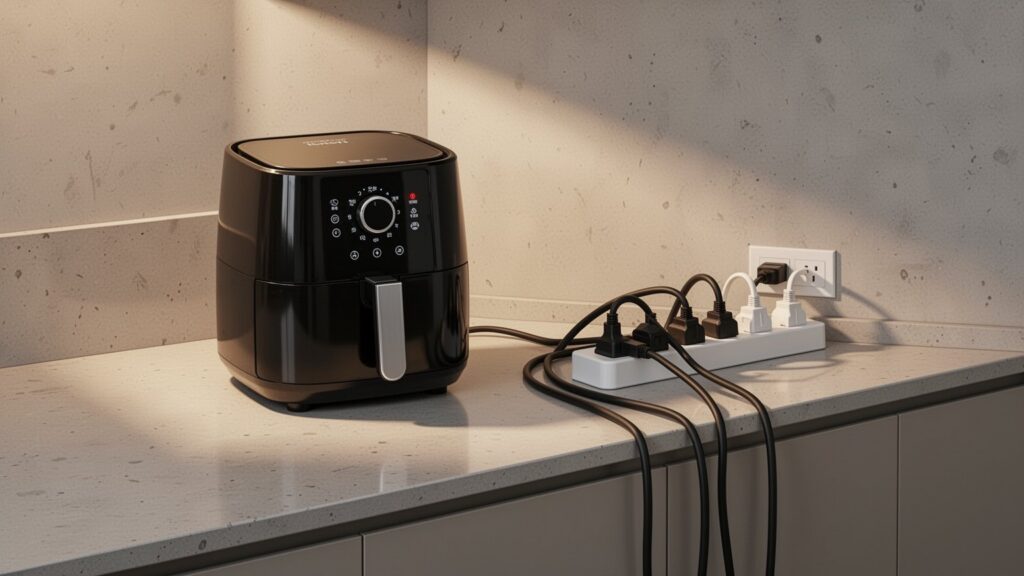
    Everyday household appliances pull more power than many expect. A standing air conditioner consumes 2,000W to 2,800W, while a large air fryer pulls 1,500W to 1,800W. Plugging both into a single 16A power strip and operating them simultaneously drives total demand to 3,500W–4,600W, quickly blowing past the safe threshold of 3,200W.

    When current exceeds safety ratings, electrical resistance causes rapid heat accumulation, melting the outer insulation and risking a short-circuit fire. In a demonstration by the Busan Fire and Disaster Headquarters, connecting a single air conditioner to a coiled 10A power strip caused wire temperatures to reach 130°C (266°F) and catch fire in just 7 minutes and 30 seconds.

    According to data from the Korea Consumer Agency (CISS), 387 safety accidents related to power strips and outlets were reported over a five-year period from 2020 to 2024. Electrical issues like shocks, ground faults, and short circuits accounted for 44.7% (173 cases), while fire and overheating made up 25.1% (97 cases), with residential homes accounting for 84.6% of all occurrences.

    How to Choose the Right Heavy-Duty Power Strip for High-Wattage Appliances

    How to Choose the Right Heavy-Duty Power Strip for High-Wattage Appliances

    High-draw appliances—such as standing air conditioners, induction cooktops (1,800W–3,400W), and electric pressure rice cookers (1,100W–1,400W)—should always be plugged directly into a wall receptacle. If distance requires an extension, you must choose a specialized heavy-duty power strip.

    Standard power strips typically use 1.5SQ (1.5 mm²) wiring, but heavy-duty versions use thicker 2.5SQ (2.5 mm²) or larger cords to suppress heat. Look for units equipped with an overload switch, a ground-fault circuit interrupter that shuts off power within 0.03 seconds, grounded contacts, and a flame-retardant enclosure.

    Because wattage ratings differ depending on the brand and active operating mode, make it a habit to check the specification label on each appliance. Electrical safety authorities also advise replacing power strips every 1 to 2 years to avoid loose contact points and deteriorated internal insulation.

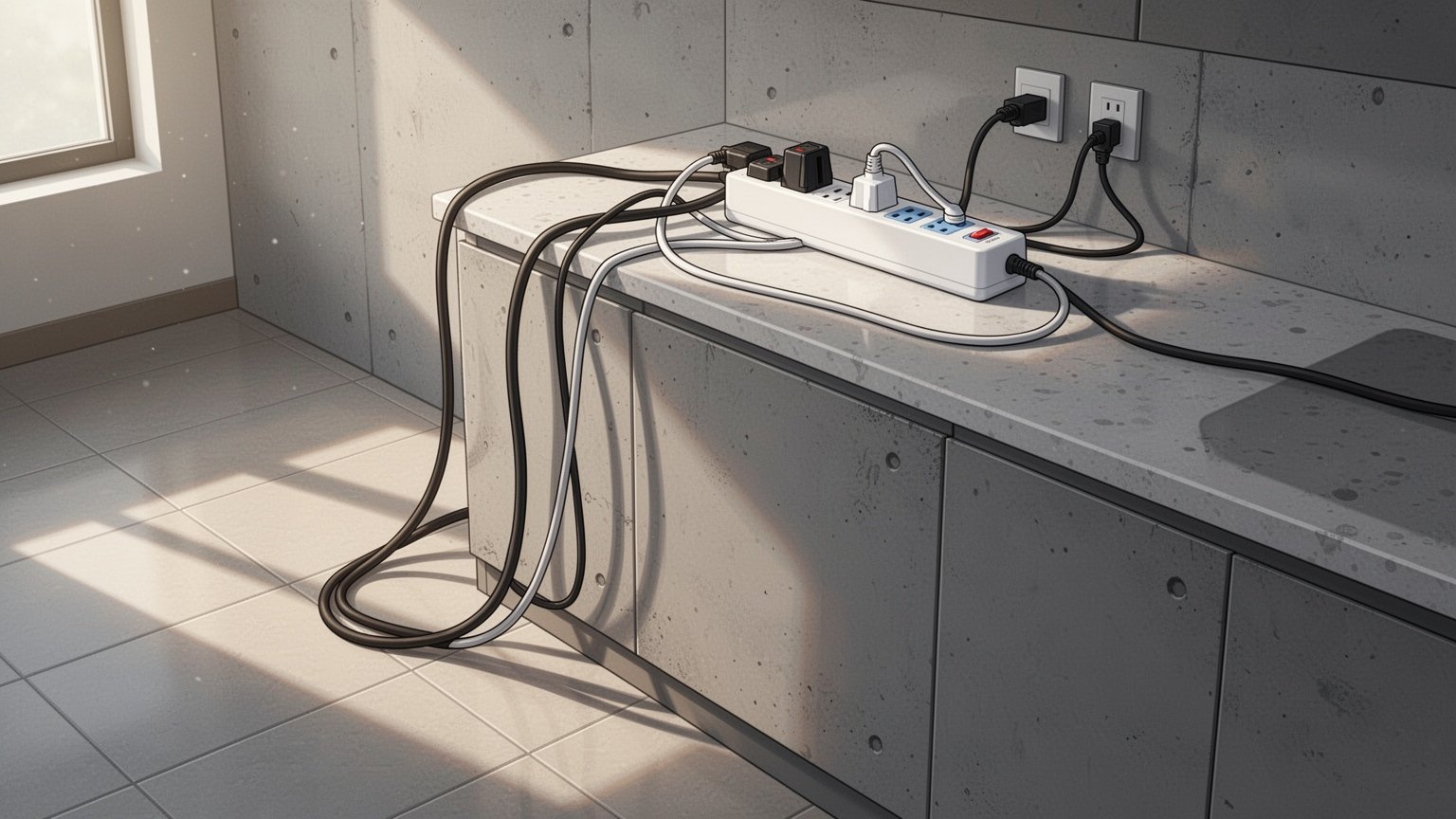
    Check your power strips today for a ’16A’ rating, make sure cords are uncoiled and untangled, and always plug major appliances like air conditioners directly into a wall outlet.

    References

    1-Minute Summary Video

    Related Articles