Tech

Practical technology guides from moim.bio, in English.

  • PC Turns On but No Display: Why Cleaning RAM with an Eraser Works

    PC Turns On but No Display: Why Cleaning RAM with an Eraser Works

    Have you ever pressed your PC power button, heard the fans spin up, and seen the case lights turn on, only for your monitor to show a blank screen with “No Signal”? When the screen stays black, it is easy to assume a major component has failed and worry about expensive repair costs. But why do IT technicians and hardware manufacturers recommend reaching for a simple rubber eraser first?

    Quick Summary

    • Unplug the power cable and press the PC power button 4–5 times to fully drain residual motherboard power.
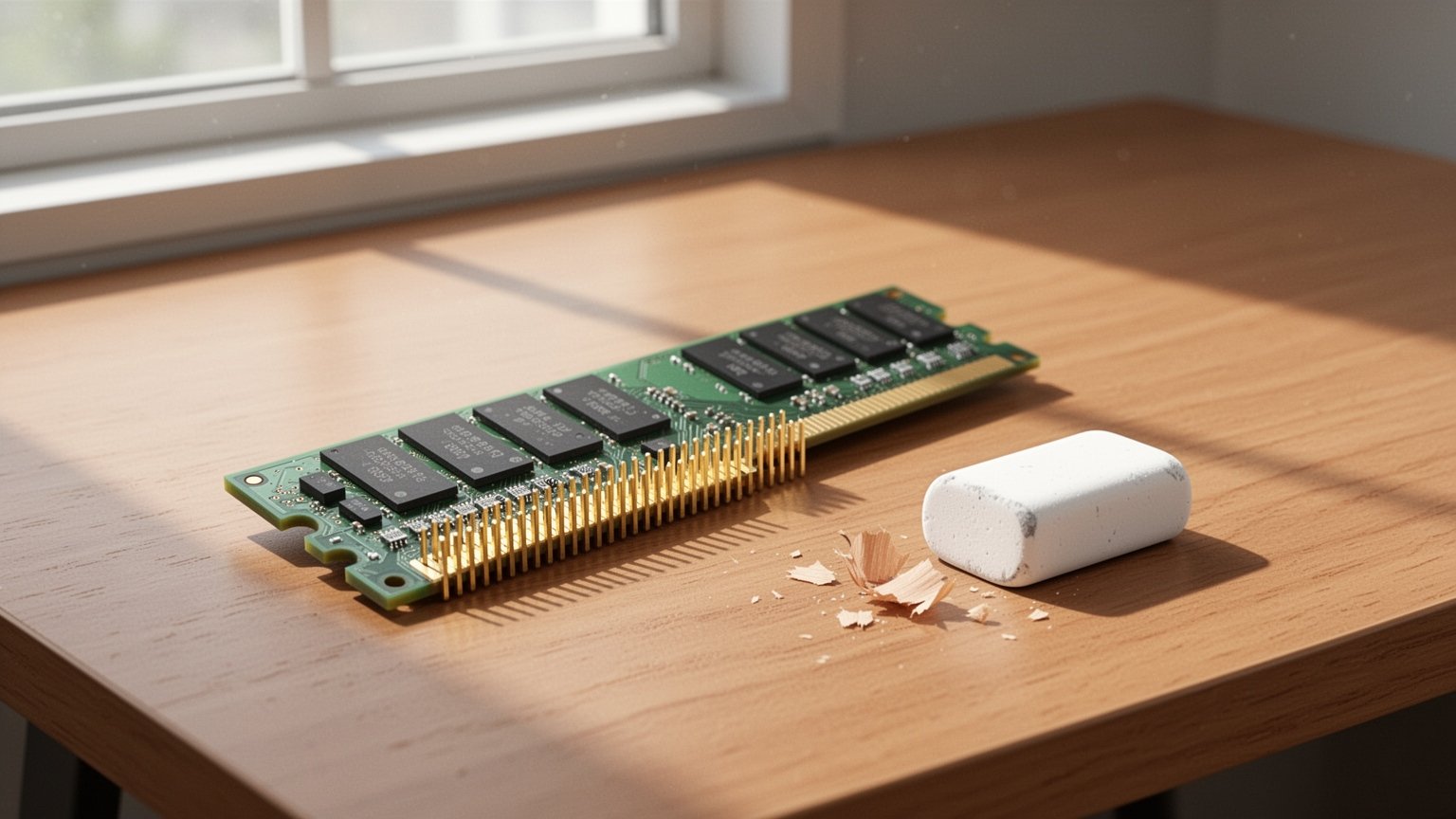
    • Remove the RAM vertically and gently rub both sides of the gold contacts (gold fingers) with a soft rubber eraser.
    • Thoroughly brush or blow away all eraser crumbs, align the asymmetrical notch, and press firmly until both latches click into place.
    • Clean the motherboard RAM slot pins using only compressed air or an air blower, never an eraser.

    Why Your Screen Stays Black: Poor Contact on RAM ‘Gold Fingers’
    Why Your Screen Stays Black: Poor Contact on RAM 'Gold Fingers'

    When you power on a computer, the motherboard runs a Power-On Self-Test (POST) to ensure all core components are working properly. If the system memory (RAM) is not detected correctly in its slot, the BIOS halts display output, leaving your monitor with a black screen or a “No Signal” notification.

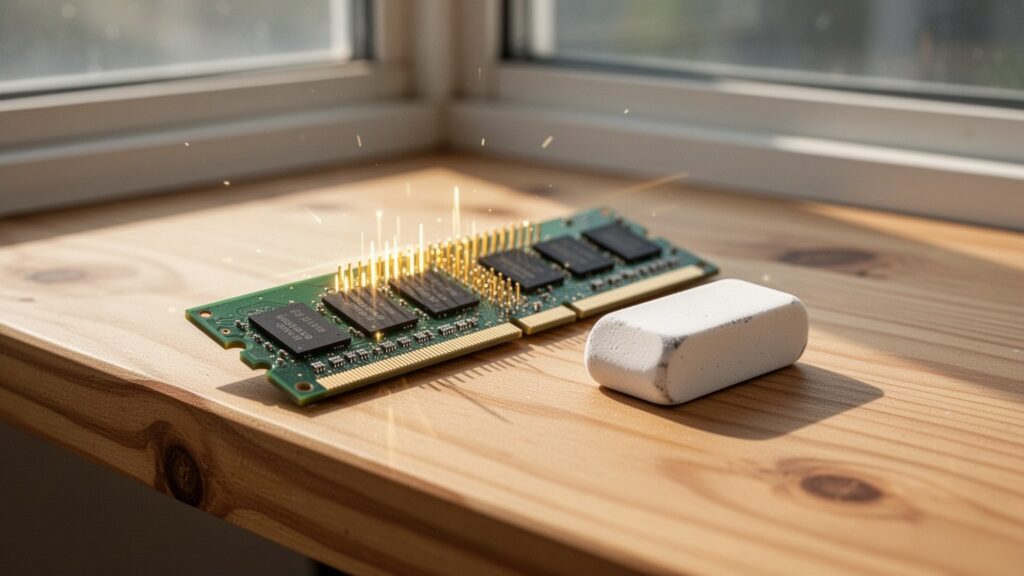
    The row of gold-plated contacts along the bottom edge of a RAM module is known as “gold fingers.” Although these contacts are manufactured with a gold layer of 0.8 μm or more by standard specifications, prolonged exposure to ambient oxygen and moisture creates a microscopic oxide film. When fine dust accumulates over this layer, electrical contact resistance rises, cutting off signal transmission to the motherboard.

    How an Eraser Strips Away Oxide Layers (and Cleaning Precautions)
    How an Eraser Strips Away Oxide Layers and Cleaning Precautions

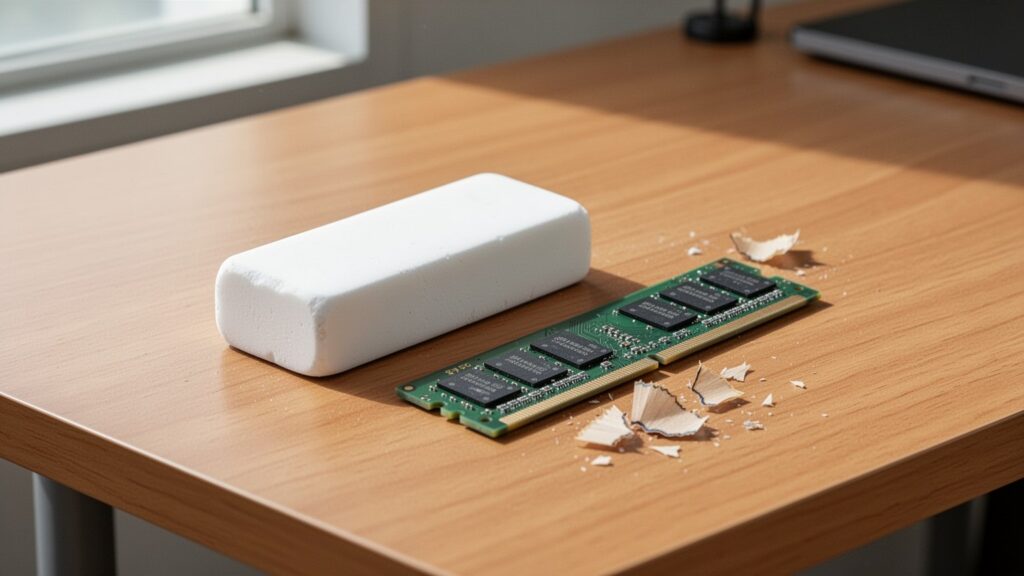
    Gently rubbing the gold fingers with a soft rubber eraser creates mild mechanical friction that strips away hardened oxide films and grime without scratching the underlying metal contacts. Major hardware manufacturers such as Samsung Electronics and professional IT publications also recommend this eraser cleaning technique in their official troubleshooting guides.

    However, there are critical precautions to follow. Using acetone to break down stubborn dirt will dissolve the module’s plastic PCB substrate, while water dries slowly and risks short circuits or corrosion. If you prefer a liquid cleaner, use pure isopropyl alcohol or dedicated electronic contact cleaners (such as BW-100 or DeoxIT). In addition, never use an eraser inside the motherboard’s RAM slots; clear out slot pins using only compressed canned air or an air blower.

    3 Steps to Safely Clean and Reseat RAM Without Damaging Hardware
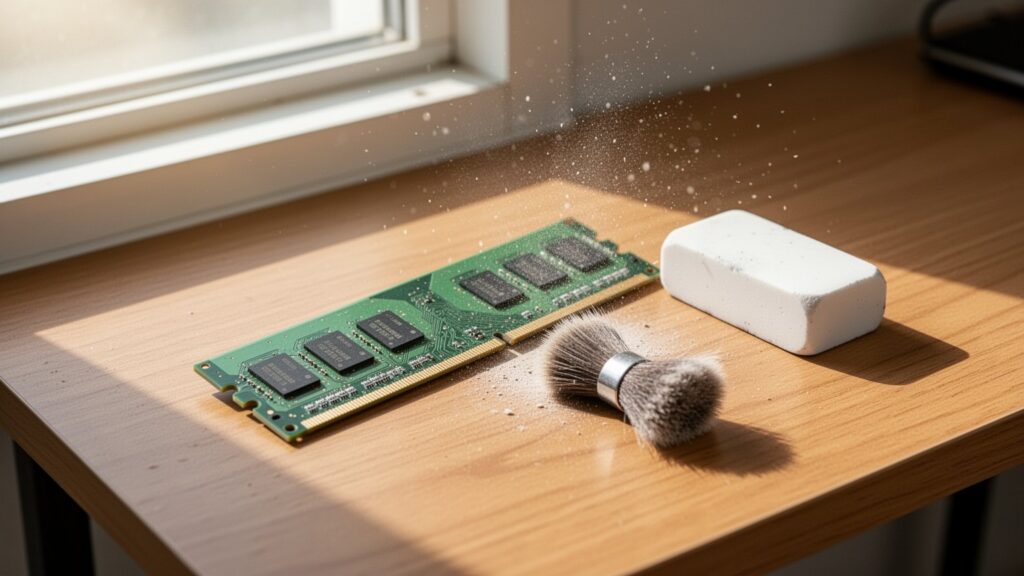
    3 Steps to Safely Clean and Reseat RAM Without Damaging Hardware

    When removing and installing RAM, preventing static discharge and short circuits from residual power is essential. Follow this safe procedure:

    StepActionKey Precaution
    Step 1: Power DischargeUnplug the PC power cord and press the power button 4–5 timesFully discharges residual motherboard current
    Step 2: Removal & CleaningPush side latches down to release RAM, then rub gold fingers with an eraserCompletely brush off eraser shavings and let rest for 10–15 minutes
    Step 3: Alignment & ReseatingAlign the bottom asymmetrical notch and insert verticallyPress down evenly on both ends until latches click shut

    RAM modules feature an asymmetrical notch cut into the bottom edge. Because the notch position varies across standards like DDR3, DDR4, and DDR5, always verify the ridge position inside the motherboard slot before pushing down to prevent physical damage.

    Debris Removal and Common Myths Around Eraser Cleaning
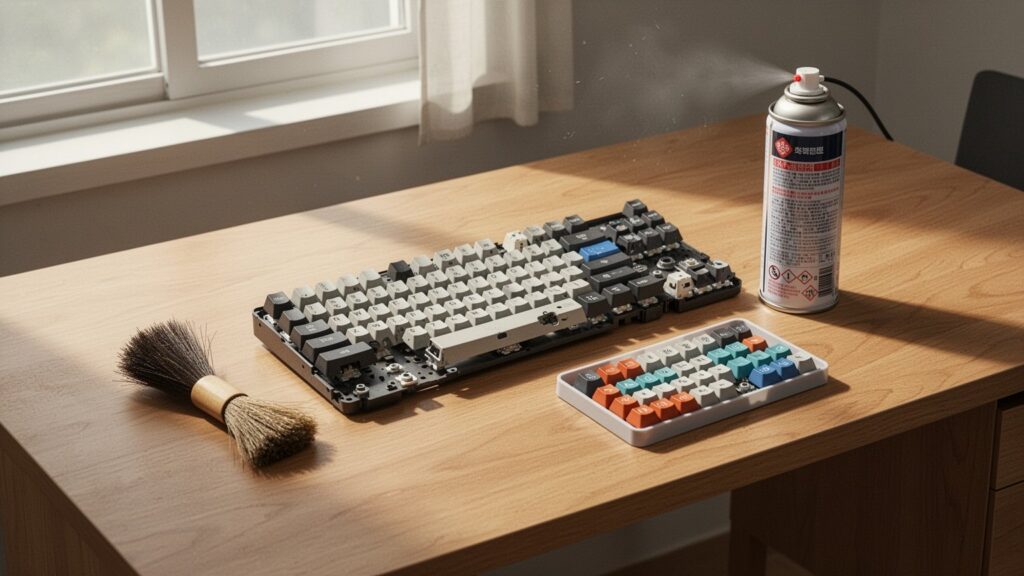
    Debris Removal and Common Myths Around Eraser Cleaning

    The most important finishing step after using an eraser is clearing away all rubber shavings. If leftover crumbs cling to the pins when inserted into the slot, they can cause new contact faults or short circuits between pins. Use a soft brush or air blower to sweep away every trace of debris, and let the stick sit for 10–15 minutes before reinstalling.

    Some PC repair communities argue that the eraser itself does nothing, claiming that the mechanical friction of simply removing and reseating the RAM stick is what restores contact. Claims that “70% to 90% of black screen issues are caused by faulty RAM contact” are also empirical rules of thumb rather than official data. However, in environments where a stubborn oxide layer has developed, the gentle abrasive action of an eraser provides proven mechanical help in restoring clean metal contact.

    If your PC turns on without a display signal, do not jump straight to replacing expensive parts. Cut the power completely today and try cleaning your RAM contacts with an ordinary rubber eraser first.

    References

    1-Minute Video Summary

    Related Articles

  • Why Is Your 144Hz Monitor Stuck at 60Hz? How to Fix It in Windows

    Why Is Your 144Hz Monitor Stuck at 60Hz? How to Fix It in Windows

    Did you connect a brand-new high-refresh-rate gaming monitor to your PC, only to feel like games look just as sluggish as before? Even after spending money on a 144Hz display, Windows often defaults to a 60Hz refresh rate. Here is how to verify and unlock your monitor’s full speed.

    Quick Summary

    • Windows 11: Right-click desktop → Display settings → Advanced display → Select 144Hz under Choose a refresh rate
    • NVIDIA Control Panel: Under Change resolution, select a resolution from the PC section (not the top TV section) to unlock 144Hz
    • Check connection: Plug directly into the dedicated graphics card at the bottom of the PC case, not the motherboard ports at the top
    • Cable requirements: QHD 144Hz requires DP 1.2 or HDMI 2.0+; 4K 144Hz requires DP 1.4 or HDMI 2.1

    Why Is Your 144Hz Monitor Still Running at 60Hz?

    Why Is Your 144Hz Monitor Still Running at 60Hz?

    Refresh rate refers to the number of times per second a monitor updates the image on screen, measured in Hertz (Hz). A 60Hz monitor displays 60 frames per second, while a 144Hz monitor outputs 144 frames per second.

    Think of it like a flipbook. When you flip 144 pages per second instead of 60, motion becomes roughly 2.4 times smoother. Motion blur and screen tearing decrease, and mouse input latency drops noticeably.

    However, Windows prioritizes safe display compatibility when a new monitor is connected, frequently locking the default refresh rate to 60Hz. If you set up a new display, you must manually adjust the settings to enable 144Hz output.

    How to Change Refresh Rate to 144Hz in Windows 10 and 11

    How to Change Refresh Rate to 144Hz in Windows 10 and 11

    Adjusting the refresh rate directly in Windows settings takes less than a minute. Follow the steps below for your operating system.

    Steps for Windows 11

    1. Right-click an empty area on your desktop and select Display settings.

    2. Scroll to the Related settings section and click Advanced display.

    3. Select your display and click the Choose a refresh rate dropdown, then select 144Hz (or the highest rate listed).

    Note: If a refresh rate in the dropdown has an asterisk (*), selecting it may automatically change your display resolution to accommodate that rate.

    Steps for Windows 10

    1. Right-click the desktop and choose Display settings.

    2. Scroll down, click Advanced display settings, and click Display adapter properties for Display 1.

    3. Go to the Monitor tab, set Screen refresh rate to 144Hz, and click OK.

    Major display manufacturers like Samsung also suggest clicking List All Modes under adapter properties to manually select the optimal resolution and refresh rate combination recommended in the monitor’s user manual.

    Check Your Cable Standard and GPU Port Location

    Check Your Cable Standard and GPU Port Location

    If 144Hz does not show up as an option or keeps reverting to 60Hz, inspect your physical setup. Video transmission runs at the lowest bandwidth threshold shared between the GPU port, the cable, and the monitor port.

    First, verify where the cable connects behind your computer. Plugging into the motherboard I/O ports near the top uses integrated CPU graphics, which often caps refresh rates. Connect directly to the dedicated graphics card ports located lower on the case.

    Second, ensure the cable supports sufficient bandwidth. Different resolutions require specific cable standards to carry 144Hz signals.

    Standard1080p (FHD)1440p (QHD)4K (UHD)Notes / Features
    HDMI 1.4Up to 120Hz–144HzUp to 60Hz–75HzUp to 30HzLegacy standard; limited high-res support
    HDMI 2.0 (18.0 Gbps)Up to 240HzUp to 144HzUp to 60HzCannot output 4K at 144Hz
    HDMI 2.1 (48.0 Gbps)240Hz+240Hz+144HzFull high-res high-refresh support
    DisplayPort 1.2 (21.6 Gbps)Up to 240HzUp to 165HzUp to 75HzStandard PC gaming bandwidth
    DisplayPort 1.4 (32.4 Gbps)240Hz+240Hz120Hz (144Hz with DSC)VESA standard specification

    Manufacturer firmware limits can also affect HDMI ports. Even if a port is HDMI 2.0, some monitors only allow 144Hz over DisplayPort (DP). Check the monitor manual if an HDMI connection stays limited to 60Hz or 120Hz.

    Unlock the 60Hz Cap in GPU Control Panels

    Unlock the 60Hz Cap in GPU Control Panels

    A frequent mistake happens inside the NVIDIA Control Panel under Display → Change resolution.

    Selecting a resolution under the top Ultra HD, HD, SD section treats the screen as a TV broadcast format and caps the refresh rate at 60Hz. Scroll down to the PC section and select your native resolution there to reveal 144Hz and higher refresh rate settings.

    If you use an AMD graphics card, open AMD Software: Adrenalin Edition and check the Display section to manually configure the refresh rate.

    Note: On dual-monitor setups pairing a 144Hz main screen with a 60Hz secondary display, playing video in certain browsers or windowed modes may cause refresh rate sync drops depending on your GPU driver and Windows build.

    Right-click your desktop now and check your display settings to make sure your gaming monitor isn’t stuck at 60Hz.

    References

    1-Minute Video Summary

    Related Guides

  • How to Disable Startup Programs in Windows to Speed Up Boot Time

    How to Disable Startup Programs in Windows to Speed Up Boot Time

    Have you ever turned on your computer only to wait endlessly as desktop icons slowly appear or your mouse cursor stutters? Why does a PC that was blazing fast when new get slower and slower to boot up over time?

    At a Glance

    • Open Task Manager (shortcut: Ctrl + Shift + Esc) and set unused programs to ‘Disabled’ in the ‘Startup apps’ tab.
    • Prioritize disabling apps with a ‘High impact’ rating (consuming over 1 second of CPU time or over 3 MB of disk I/O), such as chat apps and game launchers.
    • Disabling startup apps does not uninstall them; you can re-enable them at any time.
    • You can also easily manage startup apps using the toggle switches in ‘Settings > Apps > Startup’.

    Why PC Boot Times Get Slower Over Time

    Why PC boot times get slower over time

    When installing new software, clicking “Next” without checking the options often enables auto-start on Windows boot by default. Typical culprits include messaging apps, game launchers, cloud storage sync clients, and automatic software updaters.

    This is like packing every single textbook into your backpack every morning, even for classes you do not have that day. The moment Windows boots up, multiple programs compete for CPU and disk resources simultaneously, creating a severe bottleneck.

    Removing programs you don’t need right away from the startup list and launching them manually only when needed can significantly reduce system load.

    Startup Impact Levels: Which Programs Should You Turn Off First?

    Startup impact levels and which programs to disable first

    Windows measures how much load each program places on boot speed using the “Startup impact” metric. This rating is determined by CPU processing time and disk read/write (I/O) activity during startup.

    Startup Impact LevelCPU Active TimeDisk I/O Usage
    High impactOver 1 second (1,000 ms)Over 3 MB
    Medium impact300 ms to 1,000 ms300 KB to 3 MB
    Low impactUnder 300 msUnder 300 KB (under 292 KB in some documentation)
    None–Disabled
    Not measured–No data collected

    Your primary targets should be programs listed as ‘High impact’. While user forums sometimes report dramatic improvements—such as boot times dropping from one minute down to 15 seconds—actual results vary depending on hardware configuration (such as having an SSD) and are not an official guarantee from Microsoft. Furthermore, official Microsoft documentation varies slightly regarding the disk threshold for Low impact, citing either under 292 KB or under 300 KB.

    How to Disable Startup Apps in 10 Seconds

    How to disable startup apps in 10 seconds via Task Manager or Settings

    The quickest method is pressing Ctrl + Shift + Esc to open Task Manager. In Windows 11, click ‘Startup apps’ on the left navigation bar; in Windows 10, go to the ‘Startup’ tab at the top. Right-click any non-essential program and select ‘Disable’.

    If you prefer using the Windows Settings interface, navigate to ‘Settings > Apps > Startup’ and switch the toggle switch to Off for the desired apps.

    Disabling an app here does not delete or uninstall it. The preference is stored in the Windows Registry, allowing you to re-enable auto-start at any point in the future.

    Press Ctrl + Shift + Esc right now and disable unnecessary startup apps marked with ‘High impact’.

    References

    1-Minute Summary Video

    Related Articles

  • How to Check Laptop Battery Health in Windows Without Third-Party Apps

    How to Check Laptop Battery Health in Windows Without Third-Party Apps

    You’ve probably experienced unplugging a fully charged laptop only to watch the battery drain in under an hour. The standard percentage meter in Windows settings doesn’t reveal how much the battery has physically degraded. How healthy is your laptop battery really?

    Quick Summary

    • How to run: Press Win + R → type cmd → run powercfg /batteryreport and open the generated HTML file
    • Health formula: (FULL CHARGE CAPACITY ÷ DESIGN CAPACITY) × 100 (%)
    • Replacement threshold: Below 70–80% remaining health or 500 charge cycles (Dell documentation recommends replacement below 40%)
    • Lifespan tips: Maintain charge levels between 20–80% and turn on battery protection mode (80–85% charge cap)

    Generate a Report Using Built-In Windows Commands Without Extra Software
    Generate a Report Using Built-In Windows Commands Without Extra Software

    You don’t need to install unverified third-party utilities to check battery health. Windows comes with a built-in battery diagnostic tool called Powercfg.exe.

    Press Win + R on your keyboard, type cmd in the Run dialog, and click OK. When the Command Prompt window appears, type powercfg /batteryreport and press Enter.

    The command will generate an HTML report saved to C:\Users\[username]\battery-report.html. If you want to specify a destination folder directly, run powercfg /batteryreport /output "C:\battery-report.html", then double-click the file to view it in any web browser.

    Calculating Battery Health Percentage from Capacity Metrics

    Calculating Battery Health Percentage from Capacity Metrics

    A battery behaves much like a water bottle. Over time, sediment builds up at the bottom, reducing effective volume so a 1-liter bottle can only hold 700 ml.

    Under the Installed batteries section near the top of the report, you will find key metrics to calculate wear level.

    MetricDescriptionMeaning
    DESIGN CAPACITYDesign CapacityFactory-rated original battery capacity (mWh)
    FULL CHARGE CAPACITYFull Charge CapacityMaximum capacity the battery can currently hold at 100% (mWh)
    CYCLE COUNTCycle CountNumber of full charge and discharge cycles completed

    Calculate current battery health using this formula: (FULL CHARGE CAPACITY ÷ DESIGN CAPACITY) × 100. For example, if Design Capacity is 50,000 mWh and Full Charge Capacity is 35,000 mWh, remaining battery health is 70%.

    When Should You Replace Your Laptop Battery?

    When Should You Replace Your Laptop Battery?

    How degraded must a battery get before it needs replacement? Standard lithium-ion (LION) and lithium-polymer (LiP) cells typically drop to roughly 80% of design capacity after reaching around 500 cycles.

    In general, once remaining capacity falls below 70% to 80%, unplugged runtimes decrease noticeably and replacement becomes practical. However, guidelines vary: Dell’s official documentation defines severe degradation and suggests replacement when capacity falls below 40% of design capacity.

    Note that on certain laptop models and firmware versions, the CYCLE COUNT field may appear blank or display as - depending on hardware reporting support.

    Practical Tips to Extend Laptop Battery Lifespan

    Practical Tips to Extend Laptop Battery Lifespan

    Daily charging habits make a significant difference in prolonging battery life. Draining the battery to 0% completely or leaving it plugged in at 100% all the time accelerates chemical degradation.

    Keeping charge levels between 20% and 80% during everyday use is ideal. Enabling battery protection modes in manufacturer apps (such as Samsung Settings, LG Smart Assistant, or LG Control Center) will automatically cap the maximum charge at 80% to 85%.

    When storing a laptop unused for long periods, charge the battery to around 40% to 60% and keep the device in a cool, dry place to minimize capacity loss.

    Open Command Prompt (cmd) now, generate your battery report in 60 seconds, and check your laptop’s actual battery health.

    References

    1-Minute Summary Video

    Related Articles

  • Is Charging Your Phone Overnight Bad for Battery Life?

    Is Charging Your Phone Overnight Bad for Battery Life?

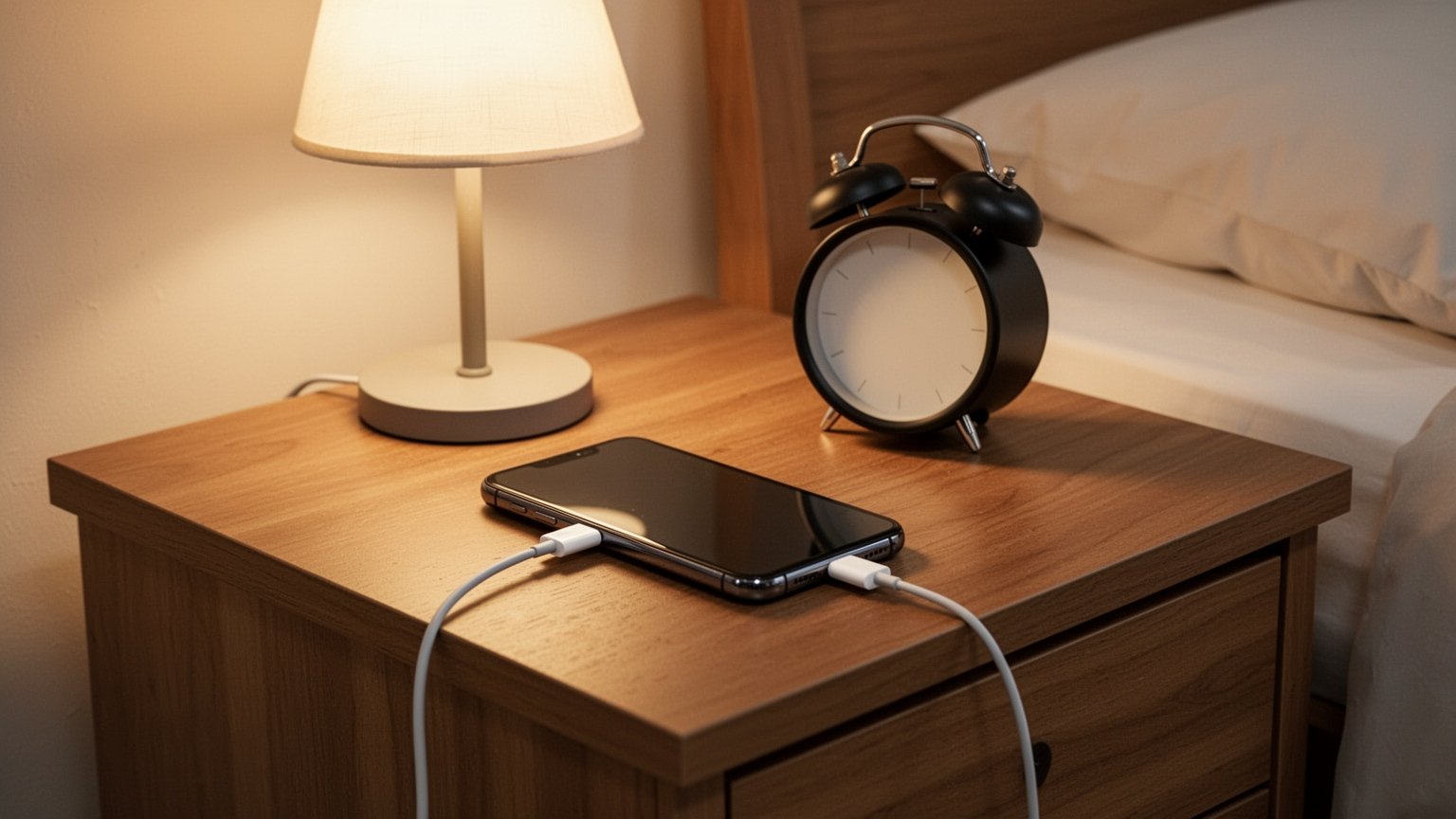
    Many people plug their smartphones in before going to bed and leave them connected until morning. But when your phone stays plugged in for hours after reaching 100%, does it harm the battery?
    Quick Summary

    • Leaving a battery sitting at 100% overnight accelerates wear due to high-voltage stress.
    • Capping the charge limit at 80–85% roughly doubles battery lifespan from 300–500 cycles to 600–1,000 cycles.
    • Draining the battery completely to 0% causes severe damage; plugging in at 20–40% is optimal.
    • If you plan to use your phone for over 3 years, turn on Samsung’s “Protect Battery” or Apple’s “80% Limit” setting.

    It Won’t Explode, but the Battery Ages Much Faster

    It Won't Explode, but the Battery Ages Much Faster

    Modern smartphones feature a Battery Management System (BMS) and built-in protection circuits. Power automatically cuts off once the charge reaches 100%, so you don’t need to worry about fires or explosions caused by overcharging.

    However, leaving the charger plugged in overnight keeps the battery sitting at a high-voltage state (above ~4.20V) for 5 to 7 hours. In lithium-ion batteries, internal voltage climbs sharply once the charge exceeds 80%.

    Think of it like keeping a balloon inflated to near-bursting capacity for hours—over time, the rubber loses its elasticity. Prolonged high voltage strains the cathode’s crystal structure and accelerates electrolyte oxidation, permanently reducing battery capacity. While technical debates continue over whether trickle charging or high-voltage dwell causes more damage, resting at 100% undeniably speeds up chemical degradation.

    Why Capping Charge at 80% Doubles Battery Lifespan

    Why Capping Charge at 80% Doubles Battery Lifespan

    According to experimental data from Battery University, lowering the charge voltage substantially increases battery cycle life. Capping the charge at 80–85% (~4.06–4.10V) prevents the battery from entering high-voltage stress zones, roughly doubling its usable lifespan. While some online discussions claim a 3x to 4x boost, test data points to an increase of about 2x.

    Charge Level (Voltage)Discharge Cycles
    100% Full Charge (4.20V)300–500 cycles
    ~90% Charge (4.13V)400–700 cycles
    ~81% Charge (4.06V)600–1,000 cycles
    ~73% Charge (4.00V)850–1,500 cycles

    A battery maintained at 100% charge at room temperature (25°C / 77°F) suffered roughly a 20% permanent capacity loss after one year. In contrast, a battery stored at 40% charge lost only about 4%.

    Draining to 0% Is Even Worse: How to Charge Smart

    Draining to 0% Is Even Worse: How to Charge Smart

    Letting your battery completely drain to 0% before charging is far more harmful than leaving it at 100%. Deep discharge corrodes internal current collectors and damages electrode structures. Research from the Korea Electrotechnology Research Institute (KERI) shows clear differences in cycle life depending on discharge depth.

    Discharge Level Before RechargeAvailable Full Charge Cycles
    0% (Full discharge)~600 cycles
    Recharged at 20% remaining~900 cycles
    Recharged at 40% remaining~1,500 cycles

    Smartphone makers now include built-in settings to help protect battery health. Samsung offers “Protect Battery” (limiting max charge to 80% or 85%), while Apple provides “Optimized Battery Charging” and an “80% Limit” toggle. If you upgrade devices every 1 to 2 years or need full daily capacity, charging to 100% is fine. But if you plan to keep your phone for 3 years or more without replacing the battery, enabling the 80% limit is the smarter choice.

    Enable the “80% Limit” in your smartphone settings, and connect your charger before the battery drops below 20%.

    References

    1-Minute Summary Video

    Related Articles

  • Does Windows Night Light Actually Reduce Eye Strain?

    Does Windows Night Light Actually Reduce Eye Strain?

    Many people turn on Windows Night Light when working late at night to cut down on screen glare. But does turning your display warm and orange really reduce eye fatigue and protect your eyesight?

    Quick Summary

    • Windows Night Light lowers color temperature from 6,500K to 5,000K, reducing blue light emission by about 20%.
    • The main cause of eye strain is reduced blinking during long sessions, not blue light itself.
    • The real benefit of Night Light is preventing melatonin suppression to protect your sleep cycle.
    • For better eye health, keep room lighting between 300 and 500 lux and look into the distance every 20 minutes.

    How Does Windows Night Light Change Your Screen?

    How Windows Night Light changes the screen display

    Windows Night Light lowers screen color temperature by reducing blue values and increasing red values in the RGB mix. It works like placing a thin amber film over your monitor, turning cool fluorescent light into a warm incandescent glow.

    According to research by display maker EIZO, lowering monitor color temperature from the standard 6,500K to 5,000K cuts blue light emission in the 400–500 nm range by roughly 20%.

    In Windows, you can easily adjust this via Settings > System > Display > Night light using the strength slider (0 to 100), tuning the color temperature from 6,500K down to 1,200K.

    Why Your Eyes Still Feel Dry with Night Light On

    Why eyes still feel dry with night light enabled

    Many expect Night Light to make eye fatigue disappear completely. However, according to the American Academy of Ophthalmology (AAO), there is no scientific evidence that blue light from digital screens directly damages eye tissue or causes eye strain.

    The real reason your eyes feel tired and dry during computer use is a significant decrease in blink rate when focusing on a screen for long periods.

    Similarly, claims that blue light causes macular degeneration or that blue-light-blocking glasses relieve eye strain lack clear clinical backing.

    The Real Purpose of Night Light: Protecting Sleep Hormones

    Protecting melatonin and sleep rhythms with night light

    The primary benefit of Night Light is not relieving eye strain, but protecting your circadian rhythm at night. Exposure to blue light in the evening stimulates the retina and suppresses melatonin, the hormone that promotes sleep.

    Harvard Medical School research found that blue light exposure suppresses melatonin roughly twice as much as green light and shifts circadian rhythms by about 3 hours.

    If you must work on a computer late at night, turning on Night Light helps prevent melatonin disruption and preserves sleep quality.

    Optimal Color Temperature and Workspace Setup for Eye Comfort

    Optimal workspace setup and color temperature settings

    Using a bright monitor in a dark room creates severe contrast, worsening eye fatigue. You need to adjust both your workspace lighting and screen settings for the best results.

    SettingRecommended ValueDescription & Expected Benefit
    Daytime / Work Temp4,000K – 5,000KMinimizes color distortion while maintaining readability and focus
    Night / Rest Temp2,700K – 3,500KMinimizes melatonin suppression
    Room Ambient Light300 – 500 luxSoftens contrast between the display and surrounding space
    Bias Lighting2,700K – 4,000KIndirect light placed behind the monitor
    20-20-20 RuleEvery 20 min, look 20 ft (6m) away for 20 secRelieves eye muscle tension and encourages natural blinking

    Position your monitor 50 to 70 cm (20 to 28 inches) away from your eyes, and tilt it back 10 to 15° so the top of the screen sits slightly below eye level.

    Set your Windows Night Light appropriately now, and remember to look at an object 20 feet (6 meters) away for 20 seconds every 20 minutes while blinking naturally.

    References

    1-Minute Video Summary

    Related Articles

  • Sleep Mode vs Shut Down: PC Electricity Costs and Performance Compared

    Sleep Mode vs Shut Down: PC Electricity Costs and Performance Compared

    When you finish working on your computer, you might wonder whether to shut it down completely or leave it in sleep mode for a faster start the next day. You might also worry that leaving it in sleep mode draws too much power or wears out internal components. How do the two options actually compare in power draw and system performance?

    Quick Summary

    • The power difference between Sleep Mode and Shut Down is only 1–3W, costing under $0.10 (52–100 KRW) extra per month.
    • Switching to Sleep Mode instead of leaving the PC idle with the display on (30–86.5W) saves roughly 156 kWh, or about $21 (28,548 KRW) per year.
    • Because of Windows Fast Startup, you must choose “Restart” rather than “Shut Down” to fully clear memory leaks.
    • Use Sleep Mode for short breaks (1–2 hours), Shut Down at the end of the day, and Restart once a week.

    The Electricity Cost Difference Is Less Than 10 Cents a Month

    The electricity cost difference between sleep mode and shut down is under 10 cents a month

    Even when a computer is shut down, leaving it plugged in still draws about 0.2W to 2.3W in standby power for the motherboard and network interface. On the other hand, Sleep Mode (S3) draws a tiny trickle of current—about 0.5W to 5.1W—to keep your active session stored in RAM.

    The difference in power draw between the two states is only about 1W to 3W. Even if you leave your PC in sleep mode all month long, the additional power consumption is only about 0.518 kWh, which translates to less than $0.10 (52–100 KRW) per month.

    Power StateAverage Power DrawNotes & Cost Impact
    Shut DownApprox. 0.2W – 2.3WStandby power when plugged in
    Sleep Mode (S3)Approx. 0.5W – 5.1WMaintains RAM power (< $0.10 / 52–100 KRW/month)
    Idle at DesktopApprox. 30W – 86.5WExceeds 100W with monitor on

    On the other hand, putting your PC into sleep mode instead of leaving it idle on the desktop (30W to 86.5W) can save about 156 kWh, or roughly $21 (28,548 KRW) annually.

    Why Using Only Sleep Mode Causes Performance Stutters

    Technical reasons why a PC stutters when using sleep mode continuously

    While sleep mode drastically reduces wake-up time, running your computer for extended periods without a reboot can slow it down. This happens primarily due to memory leaks.

    Even after you close applications, leftover remnants and background processes may fail to release their allocated space in RAM. It is like leaving stacks of documents scattered across your desk day after day.

    When available RAM runs low, Windows compensates by using a portion of your storage drive as virtual memory (paging). Because disk operations are slower than RAM, the system begins to stutter.

    Why You Need to Click “Restart” Instead of “Shut Down” to Clear Memory

    Why you need to click Restart instead of Shut Down to clear memory

    Many users select “Shut Down” believing it performs a full system reset. However, modern Windows versions enable “Fast Startup” by default, which saves the current Windows kernel session to the disk during shutdown and reloads it upon turning the PC back on.

    This means shutting down and turning the PC back on does not completely wipe cached kernel data. To fully clear volatile RAM and reset system state, you must select “Restart.”

    While there is no official schedule for rebooting, restarting your PC about once a week helps maintain peak performance. Modern hardware is built to handle over 40,000 power cycles, so frequent power transitions will not easily damage your components.

    The Most Practical Power Management Habits for Daily Use

    Practical power management habits for daily PC use

    When stepping away for 1 to 2 hours—such as for lunch or a meeting—using Sleep Mode is most efficient because it lets you resume your work instantly.

    When leaving for the day or going to bed, choose “Shut Down.” To eliminate standby power entirely, switch off the power strip. Cutting power during long absences saves about 27 kWh, or roughly $3.70 (4,941 KRW) per year.

    Even if you rely primarily on Sleep Mode during the week, make it a habit to click “Restart” once a week to clear system memory.

    Use Sleep Mode freely for short breaks, and restart your PC once a week to keep memory completely clear.

    References

    1-Minute Video Summary

    Related Articles

  • FAT32 vs exFAT vs NTFS: Which USB Format Should You Choose?

    FAT32 vs exFAT vs NTFS: Which USB Format Should You Choose?

    Have you ever opened the format menu on a new USB flash drive and hesitated when seeing FAT32, exFAT, and NTFS? Or perhaps you were confused when a 128GB external drive refused to accept a single large video file. Which file system should you choose to avoid errors?

    Quick Summary

    • Using both Windows and Mac, or storing files larger than 4GB: exFAT
    • Dedicated Windows PC backup drives and external hard drives: NTFS (Read-only on Mac)
    • Car stereos, navigation units, older smart TVs, and small universal devices: FAT32 (4GB single file limit)
    • OTG drives for Android smartphones: FAT32 or exFAT (NTFS not natively supported)

    Large Files Won’t Copy? The 4GB Limit of FAT32

    Large Files Won't Copy? The 4GB Limit of FAT32

    A file system functions like compartments in a storage drawer. It defines the rules for how data is organized and stored across your drive.

    Introduced in 1996, FAT32 is the oldest format among the three. It offers exceptional compatibility, working seamlessly with car audio systems, navigation units, projectors, and older smart TVs.

    However, it has one major limitation: maximum individual file size is capped at 4GB (4,294,967,295 bytes). Even if you have a 128GB drive, a single 5GB movie cannot be copied to it.

    Why exFAT is Best for Mac and Windows

    Why exFAT is Best for Mac and Windows

    Microsoft introduced exFAT in 2006 for flash memory to eliminate the 4GB file size limit of FAT32.

    Its single file size limit reaches 16EB (exabytes), effectively allowing you to store 4K video files or massive archives without running into capacity caps.

    Its biggest strength is cross-platform compatibility. Windows PCs, MacBooks, Android devices, and modern consoles like the PS5 support both reading and writing out of the box. However, exFAT lacks journaling to protect data during unexpected disconnects, so always use ‘Safely Remove’ before unplugging.

    Secure NTFS for Windows-Only External Drives

    Secure NTFS for Windows-Only External Drives

    NTFS is the default file system for the Windows operating system. With a single file limit of 16TB, it is ideal for large-scale backups.

    The core advantage of NTFS is journaling. It keeps a log of file changes, greatly reducing the risk of data corruption if power is suddenly cut or the cable is unplugged.

    However, macOS can only read NTFS drives—it cannot write new files or edit existing ones without third-party software. NTFS is best suited for dedicated backup drives used exclusively on Windows computers.

    Device Compatibility Comparison and Format Recommendations

    Device Compatibility Comparison and Format Recommendations

    Use the table below to choose the right format for your setup.

    FormatMax Single File SizeWindowsMac (macOS)Smartphone (Android)Recommended Use
    FAT324GB LimitRead / WriteRead / WriteRead / WriteCar audio, older TVs, document USB drives
    exFATVirtually UnlimitedRead / WriteRead / WriteRead / WriteCross-platform USBs (Mac & Windows), 4K video SSDs
    NTFS16TBRead / WriteRead-Only (Cannot write)Not supported nativelyWindows backup drives, large external HDDs

    Note that Smart TV support varies by manufacturer and model year. Sony TVs generally support FAT32 and exFAT, while Samsung TVs often support FAT32 and NTFS. Check your TV manual before connecting.

    If you regularly transfer videos or project files between PC and Mac, format your drive as ‘exFAT’ and always remember to click ‘Safely Remove’ before unplugging.

    1-Minute Summary Video

    Related Articles

  • How to Reduce Chrome Memory Usage and Fix Tab Lag (Save Up to 40% RAM)

    How to Reduce Chrome Memory Usage and Fix Tab Lag (Save Up to 40% RAM)

    When browsing the web, it is easy to end up with dozens of open tabs. Eventually, the computer fans roar and the mouse cursor starts lagging. Why does Chrome become so resource-heavy with just a few extra tabs?

    Quick Summary

    • Official Google metrics: Free up to 40% and up to 10GB of RAM using Memory Saver
    • How to set up: Enter chrome://settings/performance in the address bar and select the recommended ‘Balanced’ mode
    • Prevent data loss: Add your essential work websites to the exception list so unsaved forms do not disappear
    • Extra tip: Disable running background apps after closing Chrome at chrome://settings/system
    h2>Why Does Chrome Slow Down Your Computer with Every Tab?

    Why Does Chrome Slow Down Your Computer with Every Tab?

    For security and stability, Chrome assigns a separate process—an isolated workspace—to every single tab. This ensures that if one tab crashes, it does not take down other tabs or the entire browser.

    Think of it like occupying an entire new desk in a library for each book you open. When you keep 20 to 30 tabs open on a system with 8GB or 16GB of RAM, memory quickly fills up, causing the entire PC to stutter and freeze.

    h2>The 3 Memory Saver Modes: Which One Fits Your Setup?

    The 3 Memory Saver Modes: Which One Fits Your Setup?

    Google Chrome includes a Memory Saver feature that frees up memory from inactive tabs and redirects resources to active tasks. According to Google, this feature can reduce browser memory usage by up to 40% and 10GB.

    Enter chrome://settings/performance into your address bar to jump directly to the Performance settings. Memory Saver provides three tiers. Google designed the deactivation timer to adapt dynamically to your system state rather than using a rigid minute threshold.

    Saving LevelHow It WorksRecommended For
    ModerateReclaims memory after extended inactivity based on system needsHigh-RAM systems, light browsing
    BalancedDeactivates tabs based on usage patterns and system state (Recommended)Standard office work and multitasking
    MaximumReclaims memory quickly as soon as you switch away from tabsLow-memory systems (8GB RAM or less)
    h2>How to Protect Tab Data and Stop Background RAM Leaks

    How to Protect Tab Data and Stop Background RAM Leaks

    When you click back on a discarded tab, the page will automatically reload. To keep draft posts or filled forms from disappearing, click Add next to “Always keep these sites active” and register the domains you work on regularly (such as notion.so).

    You do not have to worry about tabs playing audio, running calls, sharing screens, or downloading files—Chrome automatically detects active media and processes and will not deactivate them.

    Finally, prevent Chrome from secretly consuming RAM after closing the window. Enter chrome://settings/system in your address bar and toggle off “Continue running background apps when Google Chrome is closed” to completely stop unnecessary memory drain. (Note: These performance settings are supported on Windows, macOS, and ChromeOS desktop environments.)

    Open chrome://settings/performance in Chrome right now and set Memory Saver to ‘Balanced’ for a much smoother PC experience.

    h2>References h2>1-Minute Video Summary
    h2>Related Articles
  • Can You Charge Your Phone with a 65W Laptop Charger?

    Can You Charge Your Phone with a 65W Laptop Charger?

    Ever hesitated to plug your bulky 65W USB-C laptop charger into your smartphone? It is easy to worry that the extra wattage might overheat the battery or ruin your device. Is it actually safe to use a high-output laptop adapter with your phone?

    Quick Summary

    • Safety: It is completely safe. The phone’s power management chip pulls only what it supports (usually 15W to 25W), regardless of the 65W supply.
    • Failsafe: Chargers start at a safe 5V baseline and only switch to 9V, 15V, or 20V after completing a digital handshake.
    • Cable Rating: Speeds above 45W require a 5A (100W) cable with a built-in E-Marker chip.
    • Fast Charging 2.0: Full 45W charging requires both a PPS-compatible charger and a 5A cable.

    Why High-Wattage Chargers Won’t Damage Your Phone

    Why high-wattage chargers do not damage devices

    In short, connecting a 65W or 100W charger to a 25W-rated phone causes zero harm. The wattage printed on a charger is not the amount of electricity forced into the device—it is simply the maximum output the charger can deliver.

    Think of it like a buffet. Even if 65 servings of food (power) are available, a plate (the smartphone) sized for 25 servings takes only what it can hold.

    The secret lies in the digital handshake of the USB-PD (Power Delivery) standard. Devices communicate over the Configuration Channel (CC) pins inside the USB-C cable. When the smartphone’s power management IC requests 25W, the charger approves the request and delivers only that exact amount.

    The Two-Step Safety Check That Prevents Voltage Surges

    Two-step safety failsafe preventing high voltage surges

    A USB-PD charger does not blast 20V the moment it is plugged in. Every connection starts at the safe baseline level of 5V to begin communication.

    Only after both sides negotiate and confirm their specifications does the charger step up to fast-charging voltages like 9V, 15V, or 20V. If the handshake fails, the charger remains locked at 5V to protect the phone’s internal circuitry.

    Charging TierVoltage (V)Max Current (A)Max Output (W)Primary Devices
    Baseline / Low Power5V3A15WWireless earbuds, standard smartphone charging
    Fast Charging9V3A27WSmartphones, compact gadgets
    Mid-Output Fast Charging15V3A45WTablets, select ultraportable laptops
    High-Output Fast Charging20V3.25A / 5A65W / 100WStandard laptops, high-performance tablets
    EPR High OutputUp to 48V5AUp to 240WWorkstation laptops, high-power equipment

    Source: USB-IF Standard Specifications

    Why Cable Ratings Matter for 45W+ Fast Charging

    Checking cable ratings for 45W fast charging

    Even with a 65W charger, you will not get maximum speed if your cable is under-specced. Standard USB-C to C cables are divided into two main categories: 3A (60W) and 5A (100W).

    To carry currents over 3A safely, a cable requires an internal electronic marker chip called an ‘E-Marker’. Samsung’s 45W Super Fast Charging 2.0 requires both a PPS (Programmable Power Supply) enabled charger and a 5A E-Marker cable.

    Pairing a 65W charger with a standard 3A cable caps your phone’s charging speed around 25W. This is why checking cable current ratings is essential.

    Cable TypeCurrent RatingMax Supported OutputReference Price (Samsung Service)
    Standard USB-C to C Cable3AUp to 60W (20V/3A)about $12 (16,000 KRW, 1.8m)
    E-Marker USB-C to C Cable5AUp to 100W (20V/5A)about $17 (23,000 KRW, 1.8m)

    Note: Samsung’s 65W PD 3.0 PPS charger retails for about $48 (65,000 KRW).

    Best Practices and Safety Precautions

    Best practices and safety precautions for charging

    High-wattage PD chargers are safest when paired with certified cables. Cheap, uncertified cables with defective or missing E-Marker chips may fail to manage power properly, so stick to certified brands.

    Many users worry that frequent fast charging shortens battery lifespan. While modern power management minimizes wear, high temperatures remain a factor, and the exact degradation rate varies depending on usage conditions.

    Avoid fast charging when your device is already hot. If you want a single charger for both your laptop and phone, pairing a 65W+ PPS adapter with a 5A (100W) cable is the ideal setup.

    Check whether your current USB-C cable is rated for 3A (60W) or 5A (100W), and simplify your setup with a 65W+ PPS charger for all your devices.

    References

    1-Minute Video Summary

    Related Guides