
You’ve probably experienced unplugging a fully charged laptop only to watch the battery drain in under an hour. The standard percentage meter in Windows settings doesn’t reveal how much the battery has physically degraded. How healthy is your laptop battery really?
Quick Summary
- How to run: Press
Win + R→ typecmd→ runpowercfg /batteryreportand open the generated HTML file- Health formula:
(FULL CHARGE CAPACITY ÷ DESIGN CAPACITY) × 100(%)- Replacement threshold: Below 70–80% remaining health or 500 charge cycles (Dell documentation recommends replacement below 40%)
- Lifespan tips: Maintain charge levels between 20–80% and turn on battery protection mode (80–85% charge cap)
Generate a Report Using Built-In Windows Commands Without Extra Software

You don’t need to install unverified third-party utilities to check battery health. Windows comes with a built-in battery diagnostic tool called Powercfg.exe.
Press Win + R on your keyboard, type cmd in the Run dialog, and click OK. When the Command Prompt window appears, type powercfg /batteryreport and press Enter.
The command will generate an HTML report saved to C:\Users\[username]\battery-report.html. If you want to specify a destination folder directly, run powercfg /batteryreport /output "C:\battery-report.html", then double-click the file to view it in any web browser.
Calculating Battery Health Percentage from Capacity Metrics
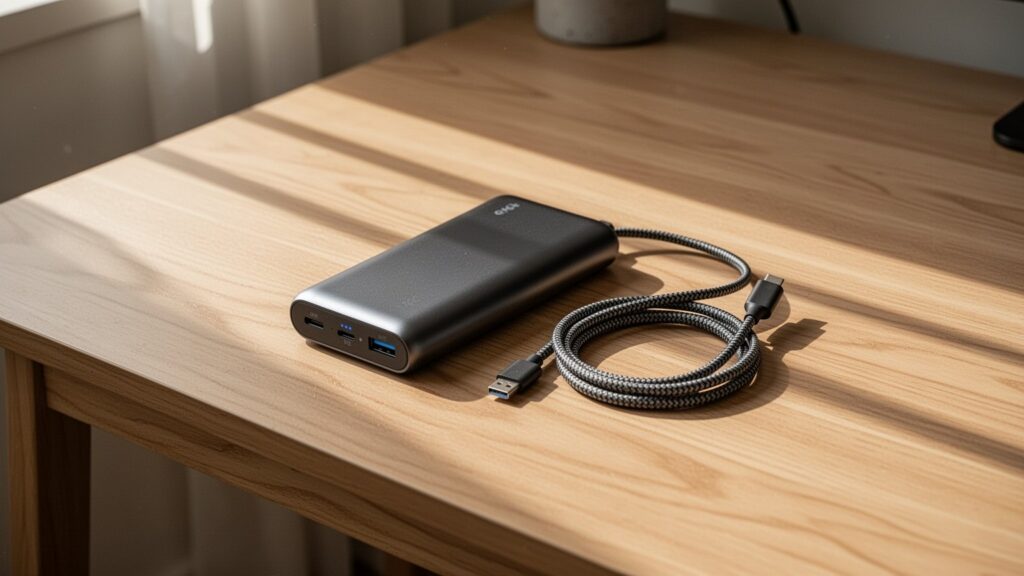
A battery behaves much like a water bottle. Over time, sediment builds up at the bottom, reducing effective volume so a 1-liter bottle can only hold 700 ml.
Under the Installed batteries section near the top of the report, you will find key metrics to calculate wear level.
| Metric | Description | Meaning |
|---|---|---|
DESIGN CAPACITY | Design Capacity | Factory-rated original battery capacity (mWh) |
FULL CHARGE CAPACITY | Full Charge Capacity | Maximum capacity the battery can currently hold at 100% (mWh) |
CYCLE COUNT | Cycle Count | Number of full charge and discharge cycles completed |
Calculate current battery health using this formula: (FULL CHARGE CAPACITY ÷ DESIGN CAPACITY) × 100. For example, if Design Capacity is 50,000 mWh and Full Charge Capacity is 35,000 mWh, remaining battery health is 70%.
When Should You Replace Your Laptop Battery?

How degraded must a battery get before it needs replacement? Standard lithium-ion (LION) and lithium-polymer (LiP) cells typically drop to roughly 80% of design capacity after reaching around 500 cycles.
In general, once remaining capacity falls below 70% to 80%, unplugged runtimes decrease noticeably and replacement becomes practical. However, guidelines vary: Dell’s official documentation defines severe degradation and suggests replacement when capacity falls below 40% of design capacity.
Note that on certain laptop models and firmware versions, the CYCLE COUNT field may appear blank or display as - depending on hardware reporting support.
Practical Tips to Extend Laptop Battery Lifespan

Daily charging habits make a significant difference in prolonging battery life. Draining the battery to 0% completely or leaving it plugged in at 100% all the time accelerates chemical degradation.
Keeping charge levels between 20% and 80% during everyday use is ideal. Enabling battery protection modes in manufacturer apps (such as Samsung Settings, LG Smart Assistant, or LG Control Center) will automatically cap the maximum charge at 80% to 85%.
When storing a laptop unused for long periods, charge the battery to around 40% to 60% and keep the device in a cool, dry place to minimize capacity loss.
Open Command Prompt (cmd) now, generate your battery report in 60 seconds, and check your laptop’s actual battery health.
답글 남기기