Tech

Practical technology guides from moim.bio, in English.

  • How to Use Windows Clipboard History (Win + V Shortcut)

    How to Use Windows Clipboard History (Win + V Shortcut)

    When working on documents or doing research on your PC, you have likely lost a copied link or text snippet after accidentally copying something else. Switching back and forth between windows to copy items one by one wastes time. By enabling a single built-in Windows feature, you can view and paste past clipboard items whenever you need them.

    Quick Summary

    • Shortcut: Press Windows logo key + V, then click [Turn on] to activate immediately.
    • Storage limits: Stores up to 25 items (text, HTML, bitmap images up to 4MB per item).
    • Data retention: Items are cleared upon PC restart or when exceeding 25 items; pin essential items to keep them permanently.
    • Syncing: Share copied items across devices logged into the same account via ‘Settings > System > Clipboard’.

    Enable Clipboard History with a Single Shortcut
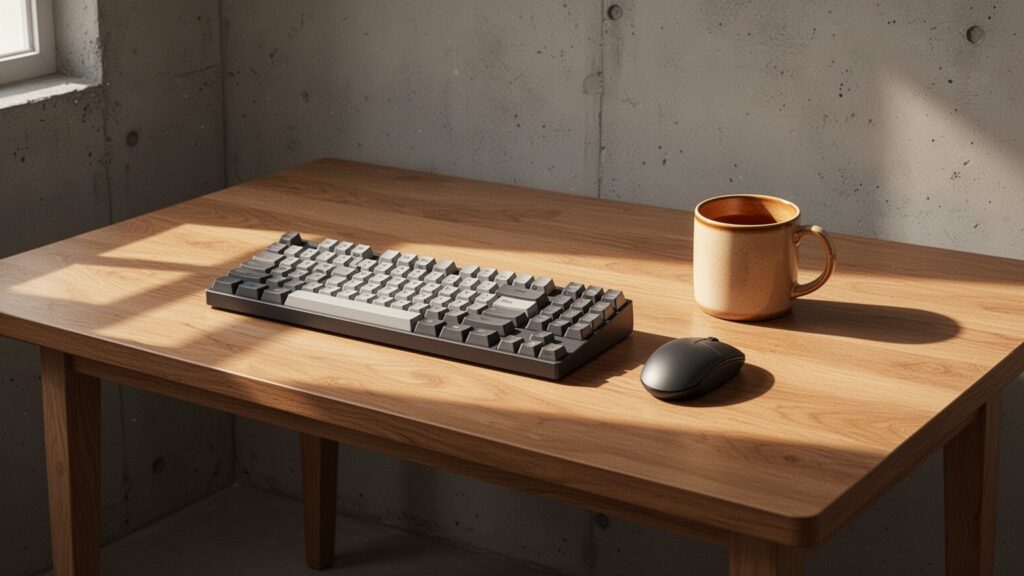
    Enable Clipboard History with a single shortcut

    Standard copy and paste (Ctrl + C, Ctrl + V) keeps only the single most recent item in temporary memory. Copying any new content immediately overwrites the previous data.

    Pressing Windows logo key + V on your keyboard opens the Clipboard pop-up window. Click the [Turn on] button to start recording everything you copy from that moment forward.

    You can also enable it by opening Start > Settings > System > Clipboard and toggling the ‘Clipboard history’ switch to [On].

    Stores Up to 25 Items: Supported Data Types
    Stores up to 25 items: supported data types

    Clipboard history acts like a stack of notes stored in your system drawer. It stores not just plain text, but also web page formatting and images.

    CategorySpecification (As of 2026)
    Maximum stored items25 items
    Size limit per item4MB
    Supported formatsText, HTML, Bitmap images
    Supported OSWindows 10, Windows 11 (Windows 10 reached end of support on October 14, 2025)

    When the history reaches 25 entries, copying a new item will automatically push out and permanently delete the oldest unpinned item.

    Pin Critical Items to Prevent Accidental Deletion
    Pin critical items to prevent accidental deletion

    Restarting your PC resets and wipes all standard clipboard entries. Furthermore, once an item is pushed past the 25-entry limit, Microsoft provides no recovery method.

    For frequently used text such as email addresses, account details, or standard boilerplate responses, click the three-dot menu (...) on the item and select [Pin]. Pinned items remain safe even if you reboot your PC or click [Clear all].

    To clean up unneeded items, open the three-dot menu (...) and select [Delete] to remove them individually, or click [Clear all] to delete all non-pinned items at once.

    Syncing Across PCs and Troubleshooting

    Syncing across PCs and troubleshooting

    If you use both a laptop and a desktop, you can use cloud sync. Sign in with the same Microsoft account (or work/school account), go to Settings > System > Clipboard, and enable ‘Sync across your devices’ to transfer copied text across your computers.

    You can set clipboard sync to transfer copied text automatically, or manually choose which items to send from the Win + V window.

    In rare cases, system glitches may cause the clipboard to display only up to 2 items. This does not indicate a spec change; restarting Windows Explorer in Task Manager or toggling the Clipboard history setting off and on will restore normal operation.

    Press ‘Windows logo key + V’ right now to turn on Clipboard history, and pin your most-used phrases for instant access.
    References

    1-Minute Video Summary

    Related Articles

  • How to Instantly Undo Accidentally Deleted Files on Windows Desktop

    How to Instantly Undo Accidentally Deleted Files on Windows Desktop

    Have you ever accidentally deleted an important file or dragged it into the wrong folder while cleaning up your desktop? You don’t have to search through the Recycle Bin or dig through folders one by one. There is a way to revert it back in just one second. What is this magic key combination?

    At a Glance

    • Accidental deletion, move, or rename: Ctrl + Z (or right-click and choose ‘Undo’)
    • Redoing an undone action: Ctrl + Y (or Ctrl + Shift + Z)
    • Cannot be restored if: Permanently deleted using Shift + Delete, or executed after disconnecting/formatting an external drive

    The Undo Shortcut You Use in Documents Also Works in Folders

    The undo shortcut works in folders just like in documents

    Just like erasing a typo with a pencil eraser while writing, the most familiar shortcut when using a computer is Ctrl + Z.

    Most users believe this shortcut only works inside word processors or spreadsheet programs like Word and Excel. However, it works exactly the same way in File Explorer and on the desktop in Windows 10 and Windows 11.

    If you accidentally dragged a file into another folder, renamed a file by mistake, or pressed the Delete key, pressing Ctrl + Z instantly cancels the action you just performed. If using the keyboard is inconvenient, right-clicking on an empty space in the folder and selecting ‘Undo’ will restore the file just the same.

    Actions You Can Undo and How to Redo Them

    Actions you can undo and how to redo them

    Windows File Explorer temporarily keeps a history of your recent file operations in memory. Thanks to this feature, you can restore files to their previous state without the hassle of opening the Recycle Bin.

    Mistake MadeResult of Pressing Ctrl + Z
    Accidental file deletion (moved to Recycle Bin)Instantly restored to its original folder location
    Accidental move via mouse dragFile automatically returns to its original folder
    Mistaken file renameReverts to previous file name
    Unnecessary duplicate copy createdInstantly deletes the newly created copy

    If you pressed Undo too many times and reverted actions you wanted to keep, simply press the Redo shortcut, Ctrl + Y. Depending on the specific software environment, Ctrl + Shift + Z may also be used.

    When It Won’t Work: Important Warnings

    When undo cannot recover files in Windows

    This shortcut does not solve every issue. Files permanently deleted with Shift + Delete without going through the Recycle Bin cannot be recovered using Ctrl + Z.

    Extreme care is also required when handling external media. If you copy or move files from a USB flash drive or SD card to your PC, and then press Ctrl + Z after disconnecting or formatting the external device, the copied file on your PC will be removed and cannot return to the original source, creating a risk of permanent data loss.
    For reference, while Microsoft Office is known to support up to 100 undo steps, the exact limit of actions File Explorer keeps in RAM is not stated in official documentation. In addition, closing the File Explorer window completely or restarting your computer clears the operation history, so it is safest to press the shortcut immediately after a mistake happens.
    If a file disappears after an accidental click or drag on your desktop, do not panic—press Ctrl + Z on your keyboard right away.
    References

    1-Minute Video Summary

    Related Posts

  • How to Open and Close Browser Tabs with a Mouse Wheel Click

    How to Open and Close Browser Tabs with a Mouse Wheel Click

    Do you still right-click a link and select ‘Open link in new tab’ when browsing the web? Or carefully aim for the tiny ‘X’ button to close overcrowded tabs? Clicking your mouse wheel (middle click) handles all of this in a single second. Here is how these built-in browser shortcuts work.

    Quick Summary

    • Middle-click a link: Opens in a new background tab without leaving your current page
    • Shift + middle-click: Opens in a new tab and immediately switches to it
    • Middle-click a tab: Closes the tab instantly without needing to aim for the tiny ‘X’
    • Ctrl + Shift + T: Reopens recently closed tabs (up to 10 in Chrome)

    Click links with the mouse wheel to open them in a new tab

    Clicking a link with the mouse wheel opens it in a new tab

    When reading an article or forum and you want to check out an interesting link later, click your mouse wheel on it. The link opens in a new tab in the background while keeping you on your current page. It works just like dropping a bookmark into a book so you can continue reading uninterrupted.

    If you want to open the link and jump directly to that new tab right away, hold down the Shift key while middle-clicking. You can also use standard left clicks with keyboard modifiers to achieve the same result.

    ActionMouse WheelKeyboard + Left Click
    Open in new background tabMiddle-click linkCtrl + Left-click
    Open and switch to new tabShift + Middle-clickCtrl + Shift + Left-click

    Middle-click any part of a tab to close it instantly

    Middle-clicking a tab title closes it immediately without clicking the X button

    As you open more tabs, each tab shrinks, making it difficult to hit the small ‘X’ button on the edge. Instead, simply hover anywhere over the tab title and click the mouse wheel.

    The entire tab acts as a close target, eliminating the need to aim precisely and speeding up your web navigation. If you prefer to close the active tab with your keyboard, press Ctrl + W or Ctrl + F4.

    Restore closed tabs and add custom gestures

    Restore closed tabs and use mouse gesture extensions

    If you accidentally close an important tab while clearing out clutter, press Ctrl + Shift + T. Browsers like Google Chrome remember your recently closed tabs and restore them in order, up to 10 tabs at a time.

    For more mouse navigation options, you can install extensions like ‘crxMouse Chrome™ Gesture.’ Holding down the right mouse button and drawing simple shapes lets you go back, refresh, or manage tabs with intuitive gestures.

    Note: If clicking the mouse wheel locks your cursor into auto-scroll mode instead of triggering tab actions, this is usually caused by a physical mouse switch issue or dedicated driver settings rather than standard browser behavior.

    Try clicking any link or open tab in your browser right now using your mouse wheel.

    References

    1-Minute Summary Video

    Related Articles

  • Second Monitor Not Working? How to Fix It with the Win + P Shortcut

    Second Monitor Not Working? How to Fix It with the Win + P Shortcut

    Ever plugged in a conference room projector or hooked up a dual monitor for remote work, only to be met with a “No Signal” black screen? If unplugging and reconnecting the cable changes nothing, what should you press first?

    Quick Summary

    • Display switch shortcut: Windows logo key + P (Fn + F4 on Samsung laptops)
    • Mode selection: ‘Duplicate’ for presentations/lectures, ‘Extend’ for dual-monitor multitasking
    • Reset a frozen screen: Windows logo key + Ctrl + Shift + B (restarts graphics driver)
    • No sound output: Go to Settings > System > Sound and set the output device to HDMI / external device

    What Is the First Shortcut to Press When the Screen Doesn’t Show?

    What shortcut should you press first when the screen does not display?

    The most common reason an external screen stays blank even after plugging in the cable properly is that the Windows display setting is locked to “PC screen only.” It is like powering on a TV without switching to the correct input source.

    Pressing Windows logo key + P immediately opens the Project menu on the right side of the screen. You do not need to navigate through the Control Panel with a mouse—you can choose your display mode in just one second.

    If you are using a Samsung laptop, pressing the Fn + F4 hotkey will also bring up the external display menu right away.

    Duplicate vs. Extend: Which Mode Should You Choose?

    Duplicate vs. Extend: Which mode should you choose?

    Pressing Windows logo key + P reveals 4 display modes. Selecting the right mode for your task will keep your workflow smooth.

    ModeHow It WorksRecommended Scenario
    PC screen onlyOnly primary display is active; external display turns offWhen disconnecting from external monitors to use laptop alone
    DuplicateMirrors the same screen across all connected devicesMeeting presentations, lectures, projector screen sharing
    ExtendExpands desktop area so windows can move across screensRemote work, multitasking, dual-monitor productivity
    Second screen onlyExternal display stays on; laptop/PC screen turns offWatching movies on a TV, using laptop with lid closed

    If you prefer using your mouse, right-click an empty area on your desktop, select Display settings, and choose ‘Duplicate’ or ‘Extend’ under the Multiple displays menu.

    3-Step Troubleshooting When Shortcuts Don’t Respond

    3-step troubleshooting when display shortcuts do not respond

    If Windows does not recognize the monitor or the screen freezes even after pressing the shortcut, restart your graphics driver immediately. Press Windows logo key + Ctrl + Shift + B. The screen will flicker briefly with a beep sound while the graphics driver restarts—resolving display glitches without rebooting your PC.

    If the display still does not connect after restarting the driver, press Windows logo key + I to open Settings > System > Display > Multiple displays, and click the Detect button to search for the device manually.

    Finally, check that your HDMI, DisplayPort (DP), or USB-C cable is firmly seated, and verify that the monitor’s power and Input Source are switched to the correct port. Community discussions occasionally report specific driver or HDR conflicts affecting Extend mode, though this is not an officially confirmed Microsoft issue.

    No Sound After Connecting via HDMI?

    What to do if there is no sound after connecting via HDMI?

    Sometimes video plays normally, but audio comes out of the laptop speakers instead of the monitor or projector. Because HDMI and DP cables carry both audio and video, ensure that the default audio output is set to the external device.

    When there is no sound, open Settings > System > Sound or navigate to Control Panel > Sound.

    Under the output device list, select your connected monitor or projector (such as HD Audio or HDMI Device) and set it as the default output device.

    If your external monitor is stuck on a black screen, press ‘Win + P’ right now and select ‘Extend’ or ‘Duplicate.’

    References

    1-Minute Video Summary

    Related Articles

  • How to Change Mouse Cursor Size and Color in Windows 11

    How to Change Mouse Cursor Size and Color in Windows 11

    Have you ever struggled to find your tiny mouse cursor on a high-resolution QHD or 4K monitor? Stop wasting time waving your mouse across the screen to locate it. Here is how you can make your cursor stand out in just 10 seconds without installing third-party software.

    Quick Summary

    • Change size & color: Press Win + U, open ‘Mouse pointer and touch’, and customize the size (1–15) and vibrant colors.
    • Ctrl key ripple effect: Run main.cpl, navigate to ‘Pointer Options’, and check ‘Show location of pointer when I press the CTRL key’.
    • Shake to find cursor: Install Microsoft’s free tool ‘PowerToys’ and enable ‘Find My Mouse’.

    1-Second Shortcut: Adjust Size (1–15) and Custom Colors

    1-Second Shortcut: Adjust Size (1–15) and Custom Colors

    Losing track of your mouse pointer on a large monitor is like searching for a tiny button in a dark room. In Windows 11, you can instantly adjust cursor size and color with a single shortcut.

    Press Windows key + U to open Accessibility settings, then select Mouse pointer and touch. (You can also get there via Start > Settings > Accessibility.)

    SettingOptionsRecommendation
    Pointer SizeSlider from 1 to 15Level 2–3 for standard displays, 4–5 for 4K displays
    Pointer StyleWhite, Black, Inverted, CustomChoose fluorescent lime or yellow for maximum visibility

    Selecting ‘Custom’ lets you pick vibrant colors like lime, yellow, gold, pink, or green. This ensures your cursor remains distinct against both light web pages and dark workspaces.

    Tap the Ctrl Key: Locate the Cursor with a Ripple Effect

    Tap the Ctrl Key: Locate Cursor with a Ripple Effect

    Even with a larger cursor, having multiple open windows can cause you to lose track of it. In this case, enabling the built-in ripple effect makes locating the pointer effortless whenever you press the Ctrl key.

    Press Win + R, type main.cpl, or go to Start > Settings > Bluetooth & devices > Mouse > Additional mouse settings. In the Pointer Options tab, check Show location of pointer when I press the CTRL key at the bottom and click ‘OK’.

    Whenever you lose track of the mouse, simply press and release the Ctrl key. Concentric circles will animate toward the pointer to pinpoint its location. (Note: Depending on your PC configuration, it may only respond to the left Ctrl key instead of the right Ctrl key, though this is not explicitly documented by Microsoft.)

    Shake to Find? Use the Microsoft PowerToys Spotlight Feature

    Shake to Find? Use the Microsoft PowerToys Spotlight Feature

    Windows 11 does not natively include a shake-to-locate mouse gesture. However, installing Microsoft’s official free utility, Microsoft PowerToys, lets you use a powerful spotlight effect.

    Enabling the Find My Mouse utility in PowerToys highlights your screen in the following way:

    • Activation: Shake the mouse, press the left Ctrl key twice, or press the right Ctrl key twice.
    • Visual Effect: Dims the background with a 50% opacity dark overlay (#000000) while showing a 100px radius bright circular spotlight (#FFFFFF) over the pointer for 500ms.

    Clicking anywhere or pressing a keyboard key immediately dismisses the spotlight, making it especially handy across multi-monitor setups.

    Press Windows key + U right now and increase your mouse cursor size to level 3 or higher for effortless tracking.

    References

    1-Minute Video Summary

    Related Guides

  • How to Back Up Windows Sticky Notes and Sync with Your Phone

    How to Back Up Windows Sticky Notes and Sync with Your Phone

    Many people keep important work notes or account numbers on the yellow Sticky Notes pinned to their desktop. But what if your PC suddenly needs formatting, or you need to check a note while you are out? Here is how to sync Sticky Notes with your smartphone in a few clicks and safely back them up using a single file.

    Quick Summary

    • Account Sync: Sticky Notes v3.0 or later auto-saves to the cloud when signed in with a Microsoft account
    • Mobile Access: Open the Microsoft OneNote app and go to the “Sticky Notes” tab, or visit web (onenote.com/stickynotes)
    • Local Backup Path: Press Win+R and enter %LocalAppData%\Packages\Microsoft.MicrosoftStickyNotes_8wekyb3d8bbwe\LocalState
    • Core Backup File: plum.sqlite (paste into the same folder after formatting to restore)

    Real-Time Sync with Smartphones via Microsoft Account

    Real-time sync with smartphones via Microsoft account login

    Windows Sticky Notes (version 3.0 and above) automatically syncs to the cloud in real time once you link your Microsoft (MS) account—no manual saving required. It works just like having a post-it on your desk replicated instantly in your pocket notebook.

    Setting up sync is straightforward:

    1. Open Sticky Notes on your PC.

    2. Click the Settings (gear) icon in the top-right corner of the notes list.

    3. Sign in with your Microsoft account.

    4. If notes do not sync immediately, click [Sync now] in the Settings menu.

    Once logged in, all your notes will automatically appear on any home PC, office desktop, or laptop when you sign in with the same account.

    How to View Sticky Notes on Mobile and Web Browsers

    How to view notes on smartphones and web browsers

    You can view and edit notes created on your PC directly from your phone or web browser. Even without a standalone Sticky Notes mobile app, Microsoft’s default services have you covered.

    PlatformApp & Access PathHow to Access
    Smartphone (Android / iOS)Microsoft OneNote AppBottom [Sticky Notes] tab or Home Feed
    Android LauncherMicrosoft LauncherHome screen Feed menu
    Web Browseronenote.com/stickynotesSign in with MS account to view web notes
    WebmailOutlook.comClick the [Notes] icon on the left navigation bar

    On some Android tablets, the dedicated tab in the OneNote app might not appear. In that case, accessing notes via a web browser (onenote.com/stickynotes) is the best alternative. Additionally, Samsung Notes sync with OneNote may vary in Sticky Notes integration depending on the app version.

    Essential for PC Formatting: Local Manual Backup & Restore

    Essential for formatting: Local manual backup path and restoration

    If you work offline or prefer not to sign into a Microsoft account, you must back up the local database file manually. Sticky Notes stores all data in a single SQLite database rather than individual text files.

    Follow these steps to manually back up:

    1. Press Win + R to open the Run dialog box.

    2. Copy and paste the following path and press Enter:

    %LocalAppData%\Packages\Microsoft.MicrosoftStickyNotes_8wekyb3d8bbwe\LocalState

    3. Copy the plum.sqlite file inside the folder and save it to an external USB or secure drive. (For best stability, also copy the accompanying plum.sqlite-wal and plum.sqlite-shm files if present.)

    When formatting your PC or switching to a new computer, close Sticky Notes completely, navigate to the same folder path, and paste the backed-up plum.sqlite file to overwrite. Your notes will be restored immediately.

    Version Requirements and Differences in Older Windows

    Version check and differences in older Windows versions

    To use cloud sync, Sticky Notes must be version 3.0 or higher. Version 3.7.106 or newer is recommended for optimal syncing. You can check your app version at the bottom of the Sticky Notes Settings (gear) menu.

    Note that the backup file format differs depending on your Windows version:

    • Windows 10 (Build 1607 and later) & Windows 11: plum.sqlite
    • Legacy versions (Windows 7, 8, 8.1, and early Windows 10 builds): StickyNotes.snt

    Using a dual backup strategy—combining cloud auto-sync with a local plum.sqlite copy—ensures you will never lose your important notes during PC failures or reformatting.

    Sign in to your Microsoft account in Sticky Notes Settings or copy your ‘plum.sqlite’ file to an external drive today.

    1-Minute Video Summary

    Related Articles

  • How to Disable the Caps Lock Key in Windows 11 and 10

    How to Disable the Caps Lock Key in Windows 11 and 10

    Have you ever been typing quickly in a document or chat only to realize you accidentally typed everything in ALL CAPS? Located right next to the ‘A’ key, the Caps Lock key is one of the most common causes of accidental typos. Windows doesn’t offer a built-in switch to turn it off, but what is the safest way to disable it?

    At a Glance

    • Windows does not have a built-in setting to disable Caps Lock, so you need to use Microsoft’s official free utility, ‘PowerToys’.
    • Compatible with Windows 11 and Windows 10 version 2004 (Build 19041) or higher on 64-bit PCs.
    • You can disable Caps Lock or remap it to other keys like Esc, Ctrl, or IME Hangul using ‘Keyboard Manager’ in PowerToys.
    • PowerToys must run in the background to maintain settings, and the key behaves normally on the Windows login screen.

    Why Windows Doesn’t Have a Built-In ‘Disable Caps Lock’ Setting

    Why is there no Caps Lock toggle in default Windows settings?

    Neither Windows 11 nor Windows 10 includes a native setting to disable the Caps Lock key. The only related feature in the Windows Accessibility menu is ‘Toggle Keys’, which plays a sound when you press it.

    In the past, users had to manually edit the Windows Registry (Scancode Map) to turn off the key. However, modifying the registry carries a risk of system errors, especially for beginners.

    It was like rewiring an entire electrical panel just to turn off a single light switch. Fortunately, Microsoft provides an official free utility that allows anyone to reconfigure keys safely in just a few clicks.

    Installing Microsoft PowerToys and System Requirements

    Installing Microsoft PowerToys and checking system requirements

    The tool you need to disable Caps Lock is Microsoft PowerToys. While it doesn’t come preinstalled with Windows, you can download it for free from the Microsoft Store.

    Before installing, make sure your PC meets the system requirements. Most modern Windows PCs will run it without issues.

    ItemSystem Requirements
    Operating SystemWindows 11 or Windows 10 version 2004 (Build 19041) or higher
    Processor64-bit (x64 or ARM64)
    Installation MethodMicrosoft Store search or Command Prompt (CMD)
    Install Commandwinget install --id Microsoft.PowerToys --source winget
    LicenseFree (Official Microsoft)

    How to Disable or Remap Caps Lock in 30 Seconds

    Step-by-step guide to disabling and remapping Caps Lock in 30 seconds

    Once PowerToys is installed, you can use the Keyboard Manager feature to completely disable Caps Lock or assign it a more useful function. The process takes just 5 steps.

    1. Open PowerToys, go to ‘Keyboard Manager’ in the left sidebar, and enable it.

    2. Click ‘Remap a key’, then click the ‘Add key remap’ (+) button.

    3. Under the ‘Select’ column on the left, press Caps Lock or choose it from the dropdown menu.

    4. Under the ‘To send’ column on the right, select Disable. If you want to assign a different function, choose your replacement key instead.

    5. Click ‘OK’ at the top right, and if a warning prompt appears, select ‘Continue Anyway’ to save your changes.

    Desired Function‘To send’ (Mapped To) Setting
    Disable Key CompletelyDisable
    Mac-Style Language SwitchIME Hangul
    Typo-Safe Modifier KeyEsc or Ctrl (Left Ctrl)

    3 Things to Keep in Mind Before Remapping

    3 key points to keep in mind before remapping

    While PowerToys key remapping is seamless, there are a few operational rules to keep in mind.

    First, PowerToys must be running in the background for key remapping to stay active. If you close the app completely, keys revert to their default behavior.

    Second, remapping does not apply to the Windows lock screen or login password prompt. For security reasons, the key functions as standard Caps Lock before you log in.

    Third, system-reserved shortcuts (Win + L, Ctrl + Alt + Del) and laptop Fn keys cannot be remapped. Additionally, according to Microsoft, because the utility intercepts keystrokes, it may slightly affect frame rates (FPS) in certain demanding video games.

    Download PowerToys from the Microsoft Store today and say goodbye to accidental Caps Lock presses.

    References

    1-Minute Video Summary

    Related Articles

  • How to Recover Permanently Deleted Files for Free with Microsoft’s Official Tool

    How to Recover Permanently Deleted Files for Free with Microsoft’s Official Tool

    Accidentally deleted an important document with Shift + Delete? When the Recycle Bin is empty, you might think you need expensive third-party recovery software. But Microsoft offers an official, free recovery tool that you can use right away.

    Quick Summary

    • Official Tool: “Windows File Recovery” free on Microsoft Store (app size approx. 2.3 MB)
    • System Requirements: Windows 10 (Build 19041.0+) and Windows 11; supports NTFS, FAT, exFAT, ReFS
    • Key Rule: Source drive (C:) and destination drive (D: or external USB) must be different
    • Modes: Use /regular for recent deletions and /extensive for older files or external drives

    Why permanently deleted files can still be recovered

    Why permanently deleted files can still be recovered

    Permanently deleting a file does not immediately erase its actual data from your drive. The Windows file system simply marks the space where the data was stored as free space that can be overwritten. It is like erasing a chapter title from a book’s table of contents while leaving the actual pages intact.

    However, if you keep using your computer, new data will overwrite those sectors, making recovery impossible. To maximize your chances of recovery, stop browsing the web, close running apps, and minimize PC usage immediately after noticing the deletion.

    Windows File Recovery requirements and supported formats

    Windows File Recovery requirements and supported formats

    Microsoft provides an official command-line tool called Windows File Recovery (winfr) for free through the Microsoft Store. At around 2.3 MB, it is lightweight, safe, and completely free of ads or paywalls.

    Note that network drives and cloud storage like OneDrive cannot be recovered with this tool. Review the supported specifications and media before getting started.

    CategoryDetails
    Operating SystemWindows 10 version 19041.0 (build 2004) or higher, Windows 11
    Supported StorageInternal HDD, SSD (limited by TRIM), external drives, USB flash drives, SD cards
    File SystemsNTFS, FAT, exFAT, ReFS
    File TypesDocuments (DOCX, PDF, XLSX, PPTX, etc.), photos (JPEG, PNG), audio/video (MP4, MP3), archives (ZIP), etc.

    How to run recovery commands: Regular vs. Extensive mode

    How to run recovery commands: Regular vs. Extensive mode

    Open Command Prompt as an administrator and enter the structured command. The basic syntax is winfr SourceDrive: DestinationDrive: [mode] [/n filter].

    For recently deleted files on an NTFS drive, use Regular mode (/regular). For example, to recover your entire Documents folder from the C: drive to an external drive (E:), run winfr C: E: /regular /n \Users\<username>\Documents\. To target specific file extensions, add filters such as winfr C: E: /regular /n .pdf /n .docx.

    If the file was deleted long ago or is on a USB or SD card (FAT/exFAT), use Extensive mode (/extensive). To search for files containing a specific word, run winfr C: D: /extensive /n report. To scan for photos in a specific folder, run winfr C: E: /extensive /n \Users\<username>\Pictures\.JPEG /n \Users\<username>\Pictures\.PNG.

    Important rules to follow during recovery

    Important rules to follow during recovery

    The single most critical rule is that the source drive and destination drive letters must be different. If you attempt to restore deleted files from the C: drive back onto the C: drive, the recovery process itself will overwrite the data and fail. Always save recovered files to a D: drive or a separate external USB drive (E:).

    When you run the command, a folder named Recovery_<date and time> is automatically created on the destination drive to store your recovered files. If you need to stop the process midway, press Ctrl + C.

    If you accidentally deleted a file with Shift + Delete, stop using your PC immediately, plug in an external drive, and run the recovery command.

    References

    1-Minute Video Summary

    Related Articles

  • How to Copy Text from Images in Windows 11 with Snipping Tool

    How to Copy Text from Images in Windows 11 with Snipping Tool

    Have you ever wasted time manually typing out text from an uncopyable webpage or image into Notepad? Windows 11 includes a built-in feature that lets you extract text directly with a single keyboard shortcut—no paid software required.

    Quick Summary

    • Shortcut: Press Windows key + Shift + S to take a screenshot, then click [Text Actions] at the top.
    • Extraction: Drag to select and copy specific text (Ctrl + C) or click [Copy all text].
    • Privacy & Utilities: Automatically hide phone numbers and emails with [Quick Redact] and use [Copy as table] (processed locally on your PC).
    • Requirements: Windows 11 Snipping Tool (update via Microsoft Store if the icon is missing).

    Step-by-Step: Extracting Text with a Keyboard Shortcut

    Step-by-step process of extracting text with a keyboard shortcut in Windows 11

    Extracting text from an image is simple. Press Windows key + Shift + S on your keyboard to dim the screen and select your capture area. Once captured, click the [Text Actions] icon in the toolbar at the top of the window.

    Clicking the icon prompts the system to automatically recognize the text in the image. You can drag your mouse over specific text to select and copy it (Ctrl + C), or click the [Copy all text] button at the top to copy everything at once. This works not only for new screen captures but also for any existing image file opened in Snipping Tool.

    Built-In Privacy Redaction and Table Copying Features

    Privacy redaction and table copying features in Snipping Tool

    If you need to hide sensitive information before sharing or copying, use the [Quick Redact] feature. Clicking this button automatically detects phone numbers and email addresses in the image and blacks them out. To redact specific text manually, highlight the area with your mouse, right-click, and select [Redact Text].

    It is also useful when working with tables or QR codes. For images containing tabular data, the [Copy as table] option lets you paste content into spreadsheets while preserving the table structure. Snipping Tool can also detect QR codes in images and open the corresponding web links directly. Best of all, all OCR processing occurs locally on your PC without sending data to external servers, ensuring data privacy.

    What to Check If the Feature Is Missing on Your PC

    Requirements to check if Snipping Tool text extraction is missing

    This feature is available in the default Snipping Tool on Windows 11. The legacy Snip & Sketch app on Windows 10 does not support Text Actions, so check your operating system version.

    FeatureWindows 11 Snipping ToolWindows 10 Snip & Sketch
    Screen Capture ShortcutWin + Shift + SWin + Shift + S
    Text Extraction (OCR)Supported ([Text Actions])Not supported
    Auto Privacy RedactionSupported ([Quick Redact])Not supported
    Copy as TableSupported (Version 11.2409.22.0 or later)Not supported

    If the [Text Actions] button does not appear after capturing your screen, it is likely an app version issue. Open the Microsoft Store and update Snipping Tool to the latest version to enable the feature.

    Note that instant text copying directly from the overlay toolbar without opening the full canvas has been tested in Windows Insider channels, and rollout timing on standard retail builds may vary. Official accuracy rates for complex handwriting or specialized fonts are not publicly published.

    Press Windows key + Shift + S now to check if the [Text Actions] button is active in your Snipping Tool.

    References

    1-Minute Summary Video

    Related Articles

  • How to Enable God Mode in Windows 11 and 10

    How to Enable God Mode in Windows 11 and 10

    Ever gotten lost in complex menus while trying to adjust mouse sensitivity or printer settings in Windows? Recent Windows updates scattered traditional Control Panel tools across multiple menus. What if you could gather all these settings into a single folder in just 10 seconds?

    At a Glance

    • Supported OS: Windows Vista, 7, 10, 11 (Administrator rights required)
    • Creation Code: GodMode.{ED7BA470-8E54-465E-825C-99712043E01C}
    • Key Features: Search and launch over 200 settings, including backup, power options, and device management, from a single folder

    What Is God Mode and Why Do You Need It?

    What Is God Mode and Why Do You Need It?

    The official name for God Mode is the ‘Windows Master Control Panel shortcut.’ Popularized by tech bloggers around 2010, it is a special shortcut folder that brings all advanced system management tools into one place.

    Think of it as gathering tools scattered across your house into one large toolbox. It works on every major Windows release from Windows Vista (2007) through Windows 7, Windows 10, and Windows 11.

    Microsoft prioritized the modern ‘Settings’ app in Windows 10 and 11. This buried many classic Control Panel features deep inside submenus. Using the Master Control Panel cuts down the clicks required to reach them.

    How to Create the God Mode Folder in 10 Seconds

    How to Create the God Mode Folder in 10 Seconds

    To set up God Mode, you must be logged in with an Administrator account. Once ready, follow these three steps on your desktop.

    StepActionDetails
    Step 1Create FolderRight-click empty space on desktop → select New → Folder
    Step 2Rename FolderPaste the special code as the folder name and press Enter
    Step 3Open and VerifyDouble-click the folder once its icon changes to a Control Panel icon

    Here is the exact name string to use for the folder:

    GodMode.{ED7BA470-8E54-465E-825C-99712043E01C}

    The GUID string inside the curly brackets tells the operating system to open the Master Control Panel. Once entered, the GUID part disappears, and the folder transforms into a special Control Panel icon.

    What Settings Are Included and How to Use Them?

    What Settings Are Included and How to Use Them?

    Opening the folder displays more than 200 system settings organized alphabetically and by category. You can browse all tools simply by scrolling through the File Explorer window.

    CategoryExample Settings
    Backup and Restore / File HistoryConfigure system backups, manage restore points
    Devices and Printers / MousePrinter properties, pointer speed, mouse wheel scroll sensitivity
    Power OptionsSleep timers, power button behavior
    Security and Maintenance / TroubleshootingWindows Defender Firewall, User Account Control, network and system troubleshooting
    Programs and Features / User AccountsUninstall apps, turn Windows features on/off, manage user permissions

    To quickly find a setting, type a keyword into the search bar in the top-right corner. You can also drag frequently used items onto your desktop to create standalone shortcuts.

    Things to Check Before Setting It Up

    Things to Check Before Setting It Up

    While God Mode is a built-in, safe Windows feature, keep a few points in mind.

    First, the total number of settings is not fixed. Depending on your Windows edition (Home vs. Pro) and installed hardware drivers (such as graphics cards), your item count may vary slightly around the 200+ mark.

    Second, occasional compatibility questions come up regarding OneDrive desktop sync. While some report folder creation glitches with OneDrive active, this has not been confirmed as a universal bug. Similarly, you do not need to enable file extension visibility for this to work in most environments.

    Create a new folder on your desktop today and enter the God Mode code to manage over 200 scattered Windows settings in one place.

    References

    1-Minute Summary Video

    Related Articles