Tech

Practical technology guides from moim.bio, in English.

  • US Enterprises Shift to Open-Weight AI to Slash Soaring Cloud Costs

    US Enterprises Shift to Open-Weight AI to Slash Soaring Cloud Costs

    Faced with surging artificial intelligence operational costs, US enterprises are rapidly shifting from high-cost closed models like OpenAI and Anthropic to open-weight models with publicly released parameters. On cloud platform Vercel’s AI Gateway, the share of tokens processed by open-weight models climbed to 56% by August 2026. Companies are increasingly routing routine tasks through affordable open models to cut expenses and prevent data leaks.

    Key Takeaways

    • Open-weight AI model token share on Vercel surged from 7% in December 2025 to 56% in August 2026.
    • Tinder adopted open models after AI spending reached $10 million, while AT&T plans to expand its open model share to 70%.
    • Anthropic used its internal AI ‘Claude Tag’ to cut service loading times from 3.1 seconds to 0.55 seconds in two weeks.
    • Practical cost-saving tips for individual workflows and exact revenue loss figures for proprietary AI developers were not disclosed.

    Earnings Mentions Up 6x as Vercel Token Share Surges from 7% to 56%

    Earnings mentions up 6x as Vercel token share surges from 7% to 56%

    According to research platform AlphaSense, mentions of ‘open weight’ or ‘open source’ AI models in corporate earnings calls and investor conferences in August and September 2026 rose sixfold year-over-year.

    Data from US cloud provider Vercel’s AI Gateway showed that the token share for open-weight models jumped from 7% in December 2025 to 56% in August 2026.

    By releasing model weights, open-weight models allow companies to deploy and fine-tune systems on their own servers for free or at minimal expense. Running models on internal networks without third-party API calls lowers per-token costs and eliminates data leak risks. Providers including DeepSeek, Zhipu, Mistral, and Nvidia are actively competing in the open model space.

    Related Reading
    OpenAI and Anthropic Launch Budget AI Models, Kicking Off Price War
    Anthropic Unveils Claude Sonnet 5.5 with 30% Faster Output Speed

    Enterprise Adoption: Tinder, AT&T, and Beyond

    Enterprise adoption: Tinder, AT&T, and beyond

    Enterprises are ramping up open model adoption to curb operating costs driven up by routing routine tasks like simple queries and document summarization through expensive proprietary systems.

    Current adoption and operational metrics across major enterprises include:

    CompanyAI Usage Metrics and Adoption Status
    Tinder (Match Group)Adopted open-weight models for non-technical user requests after annualized AI spending surged from $1 million in January 2026 to $10 million in July
    AT&TProcesses 45 billion tokens daily; plans to raise open model share from 40% to 70% within a year

    In addition, PNC Financial Services, C.H. Robinson, and Siemens are pursuing open model adoption and cost optimization.

    Anthropic Deploys ‘Claude Tag’ to Triple Speed in Two Weeks

    On September 23, 2026, Anthropic announced that deploying its internal research model ‘Claude Tag’ as an autonomous optimization agent improved core user experience speeds across its web service and desktop app by roughly three times in just two weeks.

    The optimizations cut the initial loading time of the Claude web service from 3.1 seconds to 0.55 seconds, and reduced Claude Code session launch times from 0.8 seconds to 0.3 seconds.

    Anthropic recorded zero outages or rollbacks across more than 3,000 automated changes by writing unit tests upfront and managing roughly 200 feature flags. Key fixes included modifying about 20 lines of code for V8 regex path optimization and resolving input field bottlenecks involving 6,900 React hooks and 900 store subscriptions.

    Unverified Details

    Specific practical tips for individual users to deploy cost-effective open AI models in daily work (such as setup instructions, recommended tools, or personal plan savings) were not provided in the source material.

    Exact quarterly revenue losses or financial impact figures for OpenAI and Anthropic resulting from enterprise migration to open-weight models were also not disclosed.

    Detailed market share percentages for specific top 10 models on the OpenRouter platform mentioned in the source material were also unconfirmed.

    Related Reading

    Sources

    1-Minute Summary Video

  • How to Stop Windows from Waking Up from Sleep Automatically

    How to Stop Windows from Waking Up from Sleep Automatically

    Have you ever put your computer to sleep before going to bed, only to wake up to it humming and running on its own? Watching your PC light up unexpectedly in a dark, quiet room can be frustrating. Why does your computer wake up when you never touched it?

    Quick Summary

    • Run ‘powercfg -lastwake’ in Command Prompt to find what just woke your PC.
    • Disable “Allow wake timers” under Control Panel Power Options.
    • Uncheck “Allow this device to wake the computer” in Network Adapter properties via Device Manager.
    • If using Wake-on-LAN (WOL), make sure to check “Only allow a magic packet to wake the computer.”

    What Is Waking Up Your Computer?

    What Is Waking Up Your Computer?

    Windows Sleep mode stores your open tasks in memory while keeping power draw to an absolute minimum. However, the system is designed to wake back up whenever it receives specific triggers.

    It is similar to setting no alarm, yet someone knocks on your door and wakes you. Running a few commands in an elevated Command Prompt (CMD) reveals immediately which device or program woke your PC.

    CommandWhat It Shows
    powercfg -lastwakeThe specific reason your computer just woke from sleep
    powercfg -devicequery wake_armedHardware devices currently permitted to wake the system
    powercfg -waketimersActive wake timers currently scheduled on your system

    Disable Wake Timers in Power Options

    Disable Wake Timers in Power Options

    The most common culprit is Windows automatic maintenance or scheduled background update tasks. Disabling wake timer permissions in Power Options prevents background tasks from triggering automatic wakeups.

    Press Win + R on your keyboard, type powercfg.cpl, and open Power Options. Click [Change plan settings] next to your active power plan, then click [Change advanced power settings].

    Expand the [Sleep] category, locate [Allow wake timers], and switch both ‘On battery’ and ‘Plugged in’ to [Disable]. Note that on some modern laptops that use Modern Standby, this menu option may not appear.

    Related Reading
    Does Windows Freeze in Sleep Mode? How to Turn Off Fast Startup
    Sleep Mode vs. Shutdown: Electricity Cost and Hardware Lifespan Differences

    Revoke Wake Permissions for Network Adapters and Mice

    Revoke Wake Permissions for Network Adapters and Mice

    Network activity or slight vibrations detected by your mouse sensor can also wake your PC. Standard network packets flowing through your router can cause the network adapter to wake the entire machine.

    Right-click the Start button and open [Device Manager]. Under [Network adapters], double-click your active Ethernet or Wi-Fi adapter and switch to the [Power Management] tab.

    Uncheck [Allow this device to wake the computer]. If you rely on Wake-on-LAN (WOL), keep it checked, but make sure to enable [Only allow a magic packet to wake the computer] directly below it to prevent standard traffic from waking your system. If desk movement triggers your PC, disable the wake permission under [Mice and other pointing devices] as well.

    Check Scheduled Tasks in Task Scheduler

    Check Scheduled Tasks in Task Scheduler

    Certain programs register scheduled tasks configured to wake the computer automatically. Type ‘Task Scheduler’ into the Windows search box and launch it.

    Open the properties of any suspicious scheduled task and check the [Conditions] tab. If [Wake the computer to run this task] is checked, turn it off.

    Additionally, some users have noted that third-party security software (such as financial security modules like AnySign4PC) can wake systems during background checks, though Microsoft does not document this as a standard cause. If unexpected wake events persist, check active background processes alongside Task Scheduler.

    Press Win + R, run powercfg.cpl, and disable unnecessary wake timers now.

    Related Articles

    References

    1-Minute Summary Video

  • How to Repeat Header Rows on Every Page in Excel

    How to Repeat Header Rows on Every Page in Excel

    Have you ever printed a spreadsheet hundreds of rows long, only to find the header row missing from page 2 onward? Even if you set Freeze Panes on your screen, your printout only shows headers on the first page. How do you keep header rows visible across every printed page?

    Quick Summary

    • Navigation: On the worksheet ribbon, click Page Layout → Page Setup → Print Titles
    • Setting: Under the Sheet tab, enter row references (e.g., $1:$1 or $1:$2) in Rows to repeat at top
    • Note: This cannot be edited in the Ctrl + P Print Preview screen; configure it in standard worksheet view
    • Fix: If buttons are grayed out, exit cell edit mode (Esc), deselect objects, or ungroup sheets

    Why Freeze Panes Does Not Apply to Printouts

    Why Freeze Panes Does Not Apply to Printouts

    Freeze Panes is strictly an on-screen display feature designed to keep headers in view while scrolling. It is like holding your finger on a line while reading a book—it has no effect on the print engine generating physical pages.

    To print the same table headers at the top of every page in multi-page reports or rosters, you must set up Print Titles. This print-specific feature works the same way across Microsoft 365, Excel 2016, 2019, 2021, 2024, and Excel for Mac.

    How to Set Repeating Rows and Columns with Print Titles

    How to Set Repeating Rows and Columns with Print Titles

    The configuration takes only a few seconds. On the top ribbon of your worksheet, click Page Layout → Page Setup → Print Titles. In the dialog box that appears, set your repeating ranges under the Sheet tab.

    Depending on your header layout, type the reference directly into the box or select the rows using your mouse.

    GoalFieldExample Value
    Repeat row 1 headers on every pageRows to repeat at top$1:$1
    Repeat rows 1–2 (Title + Headers)Rows to repeat at top$1:$2
    Repeat rows 1–3 headersRows to repeat at top$1:$3
    Repeat left column on wide sheetsColumns to repeat at left$A:$A

    You can also click the collapse button on the right edge of the input box and click or drag row numbers (such as 1, 2) on the worksheet margin to populate the range automatically.

    Related Reading
    How to Instantly Repeat Your Last Action in Excel
    How to Mask Data in Seconds Without Formulas Using Flash Fill in Excel

    4 Reasons the Print Titles Button Is Grayed Out

    4 Reasons the Print Titles Button Is Grayed Out

    At times, the Print Titles button is dimmed and cannot be clicked, or the “Rows to repeat at top” field is grayed out. Microsoft support notes four main causes for this issue:

    1. Cell edit mode active: If a cursor is blinking inside a cell, press Esc to return to normal mode.

    2. Object selected: If an embedded chart or graphic object is currently selected, the button remains disabled. Click any empty cell.

    3. Worksheets grouped: If multiple sheet tabs are selected simultaneously, right-click any sheet tab and select Ungroup Sheets.

    4. No printer installed: If no printer driver is installed or connected on your PC or operating system (Windows or Mac), print-related settings are blocked.

    Key Caveats: Print Preview and Excel for the Web

    Key Caveats: Print Preview and Excel for the Web

    Many users open Print Preview using Ctrl + P or Ctrl + F2 and open Page Setup from that screen. However, the “Rows to repeat at top” box is intentionally disabled inside the Print Preview window. Because there is no direct shortcut key, you must access this setting directly from the Page Layout ribbon tab in standard worksheet view.

    Additionally, Excel for the web does not natively support repeating header rows for printing. If you are using the browser version, click Open in Desktop App from the top bar to open the file in desktop Excel and apply the setting there.

    Before sending a multi-page spreadsheet to the printer, open Print Titles under Page Layout and confirm that $1:$1 is specified.

    Recommended Reading

    1-Minute Video Summary

  • How to Increase Keyboard Repeat Rate and Reduce Delay in Windows

    How to Increase Keyboard Repeat Rate and Reduce Delay in Windows

    Have you ever held down Backspace while typing, only to have it delete a single character and pause before clearing the rest? Or wondered why arrow key navigation and repeated keystrokes feel sluggish even on a brand-new keyboard?

    Quick Summary

    • Open the Run dialog (Win + R) and enter ‘control keyboard’ to open Keyboard Properties.
    • Move Repeat Delay to [Short] to cut the initial delay from 500 ms to 250 ms.
    • Set Repeat Rate to [Fast] to increase continuous typing frequency to the maximum (around 30 characters per second).
    • If keystrokes fail to register, check Accessibility settings and disable ‘Filter Keys’.

    Why Keyboards Hesitate: The 0.5-Second Default Delay

    Why keyboards hesitate: 0.5-second default delay

    The hesitation before keys start repeating when held down is not hardware failure. Windows intentionally sets a default delay to prevent accidental repeated inputs from light taps.

    This setting is called Repeat Delay. The Windows default is 500 ms (0.5 seconds), meaning Windows waits a full half-second after your first keystroke before repeating it.

    Shortening this wait to the minimum of roughly 250 ms makes deleting long sentences with Backspace or navigating text with arrow keys feel nearly twice as fast.

    Related Reading
    Red, Brown, or Blue Mechanical Switches? Noise Decibels and Buying Guide
    How to Disable Caps Lock in 1 Minute Using Microsoft’s Official Tool

    Optimize Keyboard Speed in Windows Control Panel in 30 Seconds

    Optimize keyboard speed in Windows Control Panel in 30 seconds

    You do not need third-party software. Windows lets you adjust this directly inside the default Control Panel.

    Press Win + R on your keyboard to open the Run window, type control keyboard, and hit Enter.

    In the Keyboard Properties window under the [Speed] tab, adjust two sliders:

    SettingRecommended PositionResult
    Repeat delay[Short] (Far right)Reduces initial repeat wait time down to 250 ms
    Repeat rate[Fast] (Far right)Increases continuous character output up to ~30 times per second

    After sliding both bars, test the responsiveness in the ‘Click here and hold down a key to test repeat rate’ field below, then click [OK] to apply the changes immediately.

    Registry Myths and 2 Fixes for Missing Keystrokes

    Registry settings and troubleshooting missing keystrokes

    In the Windows Registry (HKEY_CURRENT_USER\Control Panel\Keyboard), the keys KeyboardDelay (0 to 3) and KeyboardSpeed (0 to 31) are 100% identical to the Control Panel sliders. There is no need to manually edit the registry when Control Panel handles the exact same values.

    Some online forums claim setting KeyboardSpeed to 48 or higher pushes speeds beyond normal limits. However, according to official Microsoft technical documentation, the system limit caps at 31. Any value exceeding 31 is ignored by Windows, so keeping the default maximum of 31 is recommended.

    If keystrokes fail to register or repeated typing does not trigger at all after adjusting these settings, verify two items:

    1. Turn off Filter Keys: Holding the right Shift key for more than 8 seconds activates Filter Keys, which instructs Windows to ignore quick or repeated taps. Open Settings > Accessibility > Keyboard and switch Filter Keys off.

    2. IME Input Lag: If slight input lag occurs specifically when using non-English input methods in Windows 11, turning on [Use previous version of Microsoft IME] under Language Options > Microsoft IME can resolve the latency.

    Press Win + R right now, type control keyboard, and set Repeat delay to [Short]. A 30-second tweak makes word processing and Backspace navigation noticeably snappier.

    Related Reading

    References

    1-Minute Video Summary

  • Excel Shortcut to Repeat Last Action: How to Use F4 and Ctrl+Y

    Excel Shortcut to Repeat Last Action: How to Use F4 and Ctrl+Y

    When organizing tables in Excel, you often need to apply the exact same formatting or insert blank rows multiple times. Clicking through top menus repeatedly strains your wrist and slows down your work. How can you repeat your last action instantly with a single keystroke?

    Quick Summary

    • Repeat last action shortcut: F4 or Ctrl + Y on Windows; ⌘ + Y on macOS
    • F4 during formula editing: Cycles through relative (A1) and absolute ($A$1) references
    • If it doesn’t work on a laptop: Press Fn + F4 together or use Fn + Esc to unlock function keys
    • How it works: Repeats only the single most recent action (certain features like hyperlinks excluded)

    How the F4 Shortcut Works to Cut Down Mouse Clicks

    How the F4 shortcut reduces mouse clicks

    To rerun your previous command in Excel, press F4 or Ctrl + Y on your keyboard. It works just like inking a stamp once and pressing it repeatedly across a sheet of paper.

    You can use it for many different tasks. Fill a cell with a background color, draw a border, or make text bold, then select another cell and press F4 to apply that exact formatting immediately. Beyond formatting, single actions like inserting or deleting rows and columns or pasting can also be repeated.

    Keep in mind that F4 only remembers the single most recent action. If you apply a color and then type text into a cell, the stored action gets overwritten by text input, meaning you can no longer repeat the color formatting. Note that phrases like “repeat in 1 second” are figures of speech describing fast workflow, not an official benchmark.

    Related Reading
    How to Mask Data in Excel Instantly Without Formulas
    How to Fill Blank Cells in Excel All at Once Using Shortcuts

    Shortcuts by Operating System and How to Fix Unresponsive Keys

    Excel shortcuts by OS and troubleshooting guide

    Shortcut combinations may vary depending on your operating system and keyboard settings. Here is how default shortcuts compare between Windows and macOS.

    CategoryWindows ShortcutmacOS ShortcutDescription
    Repeat Last ActionF4 or Ctrl + Y⌘ + YReapplies the last single command like formatting, borders, or row insertion
    Toggle Formula ReferenceF4 (while editing formula)Command + T or F4Cycles between absolute reference ($A$1) and relative reference (A1)
    UndoCtrl + Z⌘ + ZUndoes the previous action (stores up to 100 actions)

    If pressing F4 alone does not work on a laptop keyboard, check your function key lock status. Press Fn + F4 together, or press Fn + Esc to toggle Fn Lock on, and the key will work normally.

    If you prefer clicking with a mouse, go to [Customize Quick Access Toolbar] → [More Commands] and add the hidden “Repeat” command to use it directly from the top toolbar.

    Other Functions of the F4 Key and Unsupported Exceptions

    Additional F4 functions and actions that cannot be repeated

    The F4 key works differently depending on whether you have a cell selected or are editing a formula. Pressing F4 while typing a formula inside a cell or in the formula bar changes how the cell address is referenced.

    Each press cycles through Relative reference (A1) → Row-locked mixed reference (A$1) → Column-locked mixed reference ($A1) → Absolute reference ($A$1). This eliminates the need to manually type $ signs when building formulas, saving significant time.

    There are also limitations to keep in mind. Certain actions, such as inserting hyperlinks, cannot be repeated using F4. Microsoft’s official technical documentation does not provide an exhaustive list of all non-repeatable actions, so it is best utilized primarily for formatting and standard editing tasks.

    Open Excel now, fill any cell with a background color, select another cell, and press F4 to try it right away.

    Related Articles

    References

    1-Minute Video Summary

  • How to Copy a File Path in Windows with a Shortcut

    How to Copy a File Path in Windows with a Shortcut

    When working on projects or tasks, you often need to paste a file’s full path into a chat, document, or command prompt. Most people copy the folder address first and manually append the file name. Is there an easier way to copy the complete file path in one second using a shortcut or right-click?

    At a Glance

    • Windows 10: Select file, Shift + Right-click → click ‘Copy as path’
    • Windows 11: Select file, press Ctrl + Shift + C to copy instantly
    • Paste: Press Ctrl + V in Notepad, Command Prompt (CMD), etc.
    • Path format: Automatically wrapped in double quotes (” “) to prevent spacing errors

    Windows 10: Hold Shift and Right-Click

    Windows 10: Hold Shift and Right-Click

    Windows File Explorer includes a hidden feature. Hold down the Shift key on your keyboard and right-click on any file or folder.

    An extended context menu will appear with a ‘Copy as path’ option. Clicking this immediately copies the complete absolute path to your clipboard, giving you the entire directory and filename at once.

    You can paste the copied path anywhere—Notepad, Command Prompt (CMD), the Run dialog, browsers, or Excel—by pressing Ctrl + V.

    Related Reading
    Can You Recover Accidentally Deleted Desktop Files with a Shortcut?
    How to Clear and Disable Recent Files in Windows File Explorer

    Windows 11 and Other OS Shortcuts

    Windows 11 and Other OS Shortcuts

    In Windows 11, the process is even simpler. You don’t need to hold the Shift key—a regular right-click brings up ‘Copy as path’ directly in the main context menu, or you can find it under the three-dot menu on the top toolbar.

    Starting with Windows 11 (version 22H2), you don’t even need the context menu. Simply select the file and press Ctrl + Shift + C to copy the path instantly.

    Here is a summary of file path copy shortcuts across different operating systems:

    Operating SystemShortcut / ActionMenu Location
    Windows 10Shift + Right-click‘Copy as path’ in extended context menu
    Windows 11Ctrl + Shift + C (or standard right-click)Default context menu and top 3-dot menu
    macOSCommand(⌘) + Option(⌥) + CSelect file and press shortcut

    Why Copied Paths Include Double Quotes

    Why Copied Paths Include Double Quotes

    When you use ‘Copy as path’, the copied path is automatically enclosed in double quotation marks (" "). This design prevents command-line tools like Command Prompt (CMD) or PowerShell from breaking the path if folders or file names contain spaces.

    Windows does not currently offer a built-in setting to copy paths without quotation marks. If you need clean text without quotes, you can paste the text into Notepad and use the find-and-replace tool.

    Older versions prior to Windows 7 may require registry edits or lack native support, so these shortcuts are best used in Windows 10 or later.

    Open File Explorer (Windows + E), select a file, and try copying its path with the shortcut now.

    Related Articles

    References

    1-Minute Video Summary

  • How to Remove Duplicates in Excel Without Losing Data

    How to Remove Duplicates in Excel Without Losing Data

    When cleaning large customer lists or sales records, duplicate entries are common. Checking thousands of rows manually takes hours and leads to mistakes, while deleting entries blindly risks losing critical data. Here is how to isolate and clean duplicate values safely without corrupting your original data.

    Quick Summary

    • Visual check: Highlight cells in color via [Home] > [Conditional Formatting] > [Highlight Cells Rules] > [Duplicate Values]
    • Permanent deletion: Always back up a copy to another sheet before running [Data] > [Remove Duplicates]
    • Watch formatting: Mismatched formats like dates (3/8/2006 vs Mar 8, 2006) will not be detected as duplicates
    • Formula extraction: In Excel 2021 and M365, extract unique lists safely with the =UNIQUE(range) formula

    Highlight Duplicates First: Using Conditional Formatting

    Highlight duplicate values using Conditional Formatting in Excel

    If you want to check where duplicates appear before deleting anything, use Conditional Formatting. It works just like highlighting overlapping records with a marker before throwing paper away.

    Select the target range, then go to [Home] tab > [Styles] group > [Conditional Formatting] > [Highlight Cells Rules] > [Duplicate Values]. Select your preferred highlight color in the dialog box and click OK to fill duplicate cells with color.

    Note that duplicate highlighting in Conditional Formatting does not apply to data in the Values area of a PivotTable report, so run it on standard data tables.

    Permanently Remove Duplicates: Always Back Up First

    Permanently remove duplicate rows in Excel

    To delete duplicate rows completely, use Excel’s built-in removal tool. Unlike filters, this permanently removes rows from the worksheet rather than hiding them, so make sure to back up the sheet by copying it to another tab first.

    Click any cell inside your data table, then go to [Data] tab > [Data Tools] group > [Remove Duplicates]. In the popup window, select the columns to check for duplicates and click OK to delete matching rows.

    If subtotals or outlines are active on your sheet, this feature will not function properly. Remove all subtotals and outlines before proceeding.

    Related Articles
    How to Mask Data in Excel in 1 Second Without Complex Formulas
    How to Fill Blank Cells in Excel All at Once Using Shortcuts

    Why Are Matching Values Not Detected? Formatting Rules

    Excel duplicate comparison formatting rules

    Excel compares both the underlying raw data and the visible display format. If values look different on screen, Excel treats them as distinct unique values.

    Source 1Source 2ResultReason
    3/8/2006Mar 8, 2006Unique (Not removed)Same date, different display format
    1.001Unique (Not removed)Same number, different decimal formatting
    =2-1=3-2Duplicate (Removed)Different formulas, but identical result and format

    Before running Remove Duplicates, standardize the cell format across each column (such as General or Short Date) to prevent missed duplicates.

    Non-Destructive Alternatives: Advanced Filter and UNIQUE Formula

    Advanced Filter and UNIQUE function in Excel

    If you want to extract a unique list without modifying your original dataset, there are better alternatives.

    Go to [Data] tab > [Sort & Filter] > [Advanced] and select ‘Unique records only’ to temporarily hide duplicate rows or copy unique values to another location.

    In Excel 2021 and Microsoft 365, entering =UNIQUE(range) into an empty cell automatically outputs a clean dynamic array of unique values without modifying the original data.

    Always duplicate your worksheet to a backup tab and inspect overlapping rows with Conditional Formatting before deleting.

    Related Guides

    1-Minute Video Summary

  • Anthropic Releases Claude Sonnet 5.5 with 30% Speed Boost and Lower Task Costs

    Anthropic Releases Claude Sonnet 5.5 with 30% Speed Boost and Lower Task Costs

    Anthropic officially released its AI model ‘Claude Sonnet 5.5’ on September 28, 2026. The model increases output speed by over 30% compared to Sonnet 5 and cuts task processing costs by up to 30%. Anthropic aims to capture everyday workflows and coding demand by delivering faster execution and a lighter operational footprint than its top-tier flagship.

    Key Takeaways

    • Anthropic officially launched its AI model ‘Claude Sonnet 5.5’ on September 28, 2026.
    • Output speed improved by more than 30% compared to its predecessor, with task costs reduced by up to 30%.
    • API pricing is set at $2 per million input tokens and $10 per million output tokens, lowering total costs by reducing token consumption.
    • It scored 70.6% on the Terminal-Bench 4.0 coding benchmark, surpassing the higher-tier Opus 5.5.
    • Detailed comparisons with ChatGPT for end users and third-party validation of enterprise test results remain unconfirmed.

    Maintaining Token Unit Prices While Cutting Token Consumption

    Maintaining API Unit Prices While Reducing Token Consumption

    API pricing for Claude Sonnet 5.5 is set at $2 per million input tokens and $10 per million output tokens. This matches the pricing for Sonnet 5 and OpenAI’s ‘GPT-6 Sol’.

    The two companies took different approaches to cost efficiency. OpenAI cut the token unit price of GPT-6 Sol by 50% compared to GPT-5.6 Sol. In contrast, Anthropic maintained token unit prices while lowering practical task expenses by reducing the total tokens and tool calls needed to finish a task.

    ModelInput Price / 1M TokensOutput Price / 1M TokensCost Reduction Approach
    Claude Sonnet 5.5$2$10Reduced token consumption and tool calls
    GPT-6 Sol$2$1050% cut in token unit price

    Related Articles
    OpenAI and Anthropic Simultaneously Launch Low-Cost AI Models, Fueling Price Competition
    U.S. Enterprises Pivot to Open-Weight Models Over Costly Proprietary AI, Reaching 56% Token Share

    70.6% on Command-Line Coding: Key Benchmark Results

    70.6% on Command-Line Coding: Key Benchmark Results

    Sonnet 5.5 achieved 70.6% on Terminal-Bench 4.0, a benchmark assessing multi-step command-line coding capabilities. This significantly surpasses Sonnet 5’s 10.3% and edges out the premier Opus 5.5 at 66.4%.

    On GDPval-AA v2.1, which measures real-world professional and industry tasks, Sonnet 5.5 scored 1,844 points, nearing Opus 5.5’s 1,846 points. It recorded 80.1% on OSWorld 2.1 for computer control capabilities (Opus 5.5: 81.8%) and 61.6% on Chartography for chart interpretation (Sonnet 5: 15.6%).

    In the FrontierCode coding benchmark under high reasoning effort, Sonnet 5.5 scored approximately 10 points higher than Sonnet 5. Task costs incurred during the evaluation ran at approximately 10% and 7% of Sonnet 5’s levels.

    New Cybersecurity Safeguards and Deployment Channels

    Anthropic also enhanced safety features. For the first time in the Sonnet family, dedicated cybersecurity safeguards are built in to route high-risk cybersecurity requests to Sonnet 5 for handling.

    An anti-distillation safety classifier was added to block attacks that harvest large response volumes through fake accounts to copy model behavior. Automated behavioral audits across roughly 1,850 scenarios showed alignment, misuse prevention, and honesty scores matched or exceeded Sonnet 5.

    Sonnet 5.5 is available through the Claude app, Claude Code, Claude platform, and Anthropic API, as well as on Amazon Web Services (AWS), Google Cloud, and Microsoft Azure.

    Unverified Claims and Current Limitations

    Detailed real-world use case comparisons with ChatGPT paid tiers from a general consumer standpoint were not confirmed in the available materials.

    Enterprise performance metrics—such as Balyasny’s 76% token reduction in financial workflows, Slack’s 14% drop in output tokens, and Zendesk’s 20% faster ticket handling—are self-reported by Anthropic and lack independent third-party verification.

    Additionally, external cross-validation for certain benchmark figures, such as the 61.6% on Chartography and the 10-point gain on FrontierCode, along with speculation regarding launch timing ahead of an IPO, have not been officially verified.

    Related Articles

    출처

    1-Minute Summary Video

  • What to Do When Your Phone Detects Moisture in the Charging Port

    What to Do When Your Phone Detects Moisture in the Charging Port

    Have you ever plugged in your phone before heading out, only to be stopped by a “Moisture detected” warning? Even if you never dropped it in water, the sudden alert might make you reach for a hairdryer. But does blowing hot air really solve the problem without damaging the device?

    Quick Summary

    • Unplug immediately: Disconnect the cable and gently tap the phone against your palm with the port facing down.
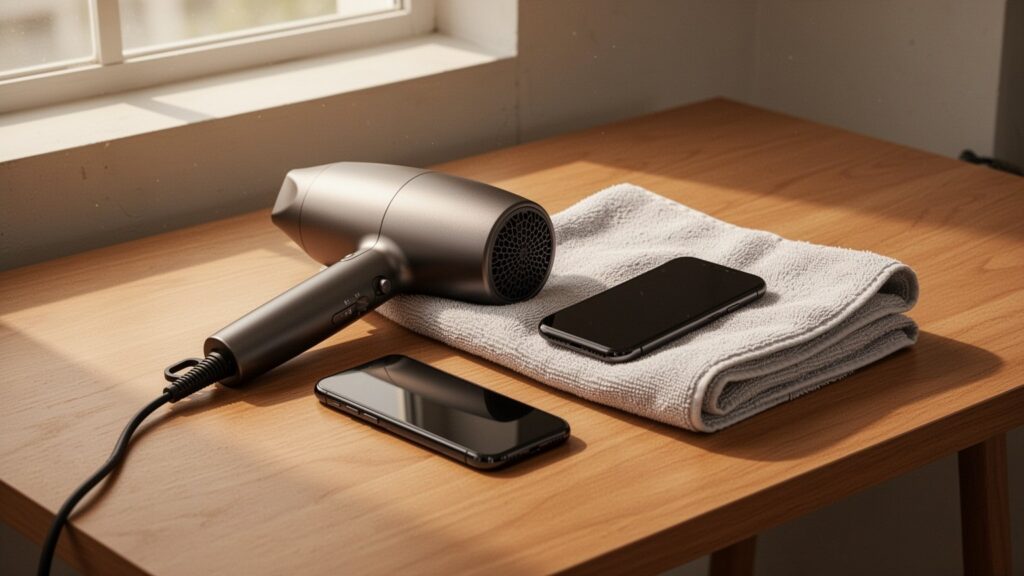
    • No heat or foreign objects: Hairdryers on hot, cotton swabs, and bags of rice damage internal components and waterproof seals.
    • Drying time: Let it air dry in a well-ventilated area for at least 30 minutes, or up to 24 hours depending on humidity.
    • Emergency charging: If the port is wet, dry the back of the phone and use a wireless charger safely.

    Why Does the Port Block Charging Even Without Direct Water Exposure?

    Why does the phone block charging even without dropping it in water?

    The charging port on a smartphone (USB-C or Lightning) contains tightly spaced metal pins. When tiny droplets or humidity enter the port, electrical resistance (impedance) drops sharply. If a standard 5V or higher charging current flows through in this state, electrolysis can quickly corrode the pins or cause a short circuit that damages the motherboard.

    To prevent hardware damage, the operating system automatically disables wired charging and displays an alert. Even if the phone was never dropped in water, high humidity from a post-shower bathroom, condensation during humid weather, salt in sweat, or damp lint inside the port can trigger the sensor. It works just like a circuit breaker tripping to stop you from touching a live socket with wet hands.

    Why Hairdryers and Rice Bags Ruin Your Device

    Why hairdryers and rice bags damage smartphones

    When the alert appears, it is tempting to try quick DIY fixes. However, manufacturers like Samsung and Apple strongly warn that certain drying methods can cause severe damage and drive up repair costs.

    Action to AvoidRisk to the Device
    Hot air from a hairdryerMelts waterproof adhesive and rubber gaskets (waterproof seals), deforms internal components
    Compressed air or blowing hardPushes surface moisture deeper into the phone toward the motherboard
    Inserting cotton swabs or paper towelsBends or permanently damages delicate connector pins inside the port
    Putting the phone in riceSmall rice particles and starch dust get trapped inside the port, accelerating corrosion

    Hot air from a hairdryer is especially risky because it melts internal waterproof seals, permanently destroying the phone’s water resistance.

    4-Step Safe Drying Method Recommended by Manufacturers

    Manufacturer recommended 4-step safe drying method

    When moisture enters the charging port, the standard procedure is patient, natural drying without physical interference.

    1. Unplug and tap gently: Disconnect the charging cable immediately. Hold the phone with the port facing down and gently tap it against your palm to shake out excess water.

    2. Place in an airy spot: Set the phone in a well-ventilated, shaded area. You can use an electric fan or the cool setting on a hairdryer held at a safe distance. (Some repair technicians prefer still air alone to avoid forcing moisture inward with air pressure.)

    3. Wait sufficiently: Even if surface moisture seems gone, the internal pins need at least 30 minutes to dry. On humid days, full drying can take up to 24 hours.

    4. Check the charging cable: Wipe the tip of the charging cable connector thoroughly with a dry cloth to make sure no residual moisture remains.

    How to Charge When the Battery Is About to Die

    How to charge a phone immediately with a wet charging port

    If you need your phone immediately while wired charging is disabled, a wireless charger is the safest solution.

    The wireless charging coil is built into the center back of the phone and operates independently of the charging port circuit. As long as you wipe any moisture off the back glass with a dry cloth, you can safely place the phone on a standard wireless charging pad or MagSafe charger.

    Note: While some online forums claim that moisture alerts are often caused by dust or system cache glitches, this is not an officially verified statistic. Following the complete drying procedure first remains the safest choice.

    If you see a moisture detected alert, turn off any heat sources, tap the phone port-down against your hand, and let it dry in front of a fan for at least 30 minutes.

    References

    1-Minute Summary Video

    Related Articles

  • Meta Muse AI Agent: Features, Pricing, and Early Amazon Conflict

    Meta Muse AI Agent: Features, Pricing, and Early Amazon Conflict

    Meta launched “Muse” in the US market on September 8, 2026, introducing a personal AI agent designed to execute tasks directly rather than just answer text prompts. The agent handles inbox management, calendar scheduling, shopping, and auditing unnecessary subscription services.

    Key Takeaways

    • Meta launched its task-executing AI agent, Muse, in the US on September 8, 2026.
    • Features include inbox cleanup, scheduling, automated shopping, and subscription auditing.
    • Free tier offers 100 million tokens per month, with paid tiers at $20 and $100 per month.
    • Runs in an isolated Muse Secure VM; faces platform friction after Amazon blocked third-party access.
    • International launch dates and hardware pricing remain unconfirmed.

    16,000 Emails Cleaned in 6 Minutes: The Rise of Task-Executing AI

    16,000 Emails Cleaned in 6 Minutes: The Rise of Task-Executing AI

    Unlike conventional chatbots limited to text responses, Meta’s Muse acts as an autonomous agent that handles everyday workflows. Following user commands, it reviews and sorts emails, schedules calendar events, books restaurant reservations, automates online purchases, and audits unwanted recurring subscriptions.

    In real-world tests by Silicon Valley correspondents, the agent sorted 16,000 emails in six minutes, tracked replies from sources, scheduled meetings, and identified unneeded recurring subscriptions. The feature scanning recurring charges to cut expenses drew particular attention, even affecting share prices across several subscription service companies.

    Free Tier, Paid Pricing, and Isolated Security Architecture

    Free Tier, Paid Pricing, and Isolated Security Architecture

    Meta lowered the barrier to entry by offering most core features for free. Paid plans are split into two tiers depending on workload volume and advanced capabilities.

    TierMonthly PriceKey Features
    Basic (Free)Free100 million tokens per month per user (Muse Spark 1.3 model)
    Power$20 / monthAdvanced task processing and expanded capabilities
    Maximum$100 / monthHigh-volume task execution for power users

    For operational safety, the system runs inside an isolated cloud virtual environment called “Muse Secure VM.” Sensitive actions, such as completing payments or sending outgoing emails, require prior user confirmation by design.

    Early Adoption, Platform Friction, and Roadmaps

    Muse recorded 902,000 downloads within six days of launch and reached the No. 1 free app spot on both the US Apple App Store and Google Play on September 21, 2026. On the same day, Amazon blocked Muse from searching and checking out on its storefront, citing terms of service violations and unauthorized third-party access, triggering immediate platform conflict.

    At Meta Connect 2026, Meta announced voice and real-time video features, smart glasses integration, and a keychain-style companion hardware device called “Muse Charm.” Specific pricing and release schedules for the Muse Charm remain unannounced, and external projections of 10 million Meta smart glasses sold in 2026 remain unconfirmed. Having launched initially in the US and Canada, broader international rollouts and local payment integration schedules have not yet been announced.

    Sources

    1-Minute Video Summary

    Related Articles