Ever plugged in a conference room projector or hooked up a dual monitor for remote work, only to be met with a “No Signal” black screen? If unplugging and reconnecting the cable changes nothing, what should you press first?
Quick Summary
- Display switch shortcut: Windows logo key + P (Fn + F4 on Samsung laptops)
- Mode selection: ‘Duplicate’ for presentations/lectures, ‘Extend’ for dual-monitor multitasking
- Reset a frozen screen: Windows logo key + Ctrl + Shift + B (restarts graphics driver)
- No sound output: Go to Settings > System > Sound and set the output device to HDMI / external device
What Is the First Shortcut to Press When the Screen Doesn’t Show?
The most common reason an external screen stays blank even after plugging in the cable properly is that the Windows display setting is locked to “PC screen only.” It is like powering on a TV without switching to the correct input source.
Pressing Windows logo key + P immediately opens the Project menu on the right side of the screen. You do not need to navigate through the Control Panel with a mouse—you can choose your display mode in just one second.
If you are using a Samsung laptop, pressing the Fn + F4 hotkey will also bring up the external display menu right away.
Duplicate vs. Extend: Which Mode Should You Choose?
Pressing Windows logo key + P reveals 4 display modes. Selecting the right mode for your task will keep your workflow smooth.
| Mode | How It Works | Recommended Scenario |
|---|---|---|
| PC screen only | Only primary display is active; external display turns off | When disconnecting from external monitors to use laptop alone |
| Duplicate | Mirrors the same screen across all connected devices | Meeting presentations, lectures, projector screen sharing |
| Extend | Expands desktop area so windows can move across screens | Remote work, multitasking, dual-monitor productivity |
| Second screen only | External display stays on; laptop/PC screen turns off | Watching movies on a TV, using laptop with lid closed |
If you prefer using your mouse, right-click an empty area on your desktop, select Display settings, and choose ‘Duplicate’ or ‘Extend’ under the Multiple displays menu.
3-Step Troubleshooting When Shortcuts Don’t Respond
If Windows does not recognize the monitor or the screen freezes even after pressing the shortcut, restart your graphics driver immediately. Press Windows logo key + Ctrl + Shift + B. The screen will flicker briefly with a beep sound while the graphics driver restarts—resolving display glitches without rebooting your PC.
If the display still does not connect after restarting the driver, press Windows logo key + I to open Settings > System > Display > Multiple displays, and click the Detect button to search for the device manually.
Finally, check that your HDMI, DisplayPort (DP), or USB-C cable is firmly seated, and verify that the monitor’s power and Input Source are switched to the correct port. Community discussions occasionally report specific driver or HDR conflicts affecting Extend mode, though this is not an officially confirmed Microsoft issue.
No Sound After Connecting via HDMI?
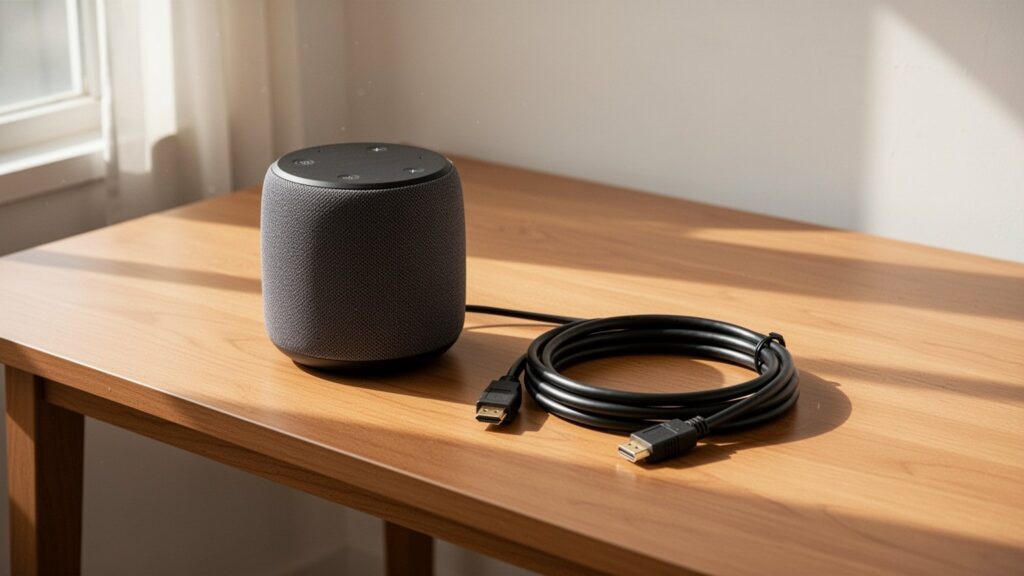
Sometimes video plays normally, but audio comes out of the laptop speakers instead of the monitor or projector. Because HDMI and DP cables carry both audio and video, ensure that the default audio output is set to the external device.
When there is no sound, open Settings > System > Sound or navigate to Control Panel > Sound.
Under the output device list, select your connected monitor or projector (such as HD Audio or HDMI Device) and set it as the default output device.
If your external monitor is stuck on a black screen, press ‘Win + P’ right now and select ‘Extend’ or ‘Duplicate.’
References
1-Minute Video Summary
Related Articles
- Can’t Find Your Mouse Cursor on a Large High-Res Monitor? How to Enlarge, Recolor, and Shake to Find It in Windows
- How to Back Up and Sync Sticky Notes with Your Microsoft Account So You Never Lose Them After a PC Reset
- Tired of Accidentally Hitting Caps Lock? How to Disable or Remap It in 10 Seconds Using Windows PowerToys
답글 남기기