Ever pressed F2 to edit a cell in Excel only to turn down the volume, or hit F5 in your browser and dimmed the screen? Having to hold down the Fn key in the bottom-left corner every time strains your fingers and interrupts your workflow. Why do laptop manufacturers change standard F1 through F12 functionality like this?
At a Glance
- For Lenovo, Dell, and ASUS, pressing
Fn + Escinstantly switches to standard function keys. On Samsung, look for a dedicatedFn Lockkey or pressFn + F12.- On many LG Gram models, shortcuts launch customer support tools, so turn off Hotkey Mode inside the LG Smart Assistant app.
- To lock function keys permanently across reboots, tap F2 or F10 at startup and set Hotkey Mode or Action Keys Mode to Disabled in the BIOS.
Why Your Function Keys Aren’t Working Properly
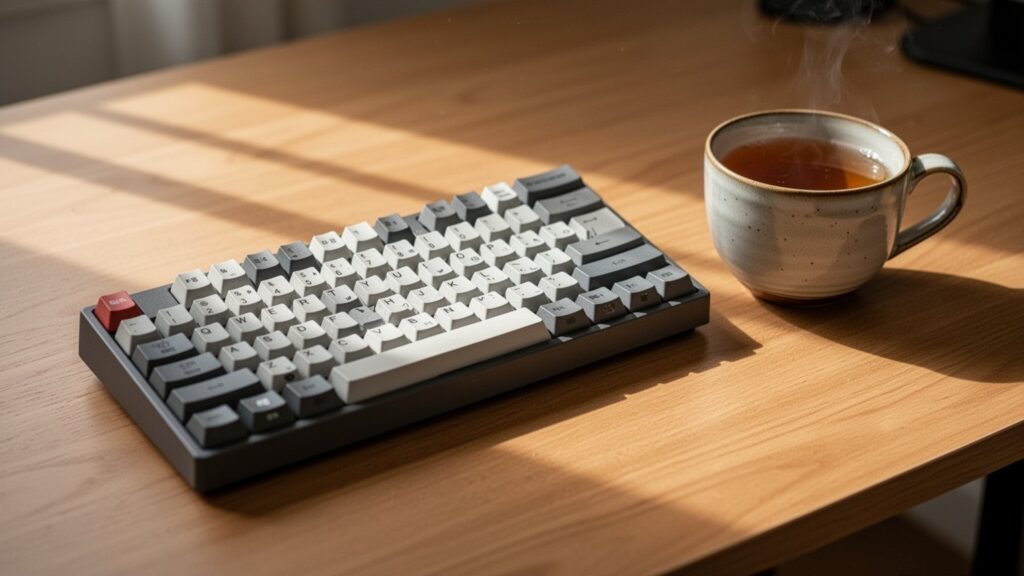
Laptops are thin and compact, leaving little room for dedicated volume buttons or brightness dials. To save space, manufacturers combined device controls—known as ‘hotkeys’—into the top row of F1 through F12 keys.
Much like shifting a car into Drive (D) or Reverse (R), laptop keyboards are set to a specific default operating mode. Most modern laptops ship from the factory in ‘Hotkey Priority Mode’ for everyday consumer convenience.
Because of this, pressing a key on its own adjusts brightness or volume instead of executing standard F2 or F5 commands. Switching back to standard function keys takes just a 10-second ‘Fn Lock’ change.
10-Second Shortcuts and Companion Apps by Brand
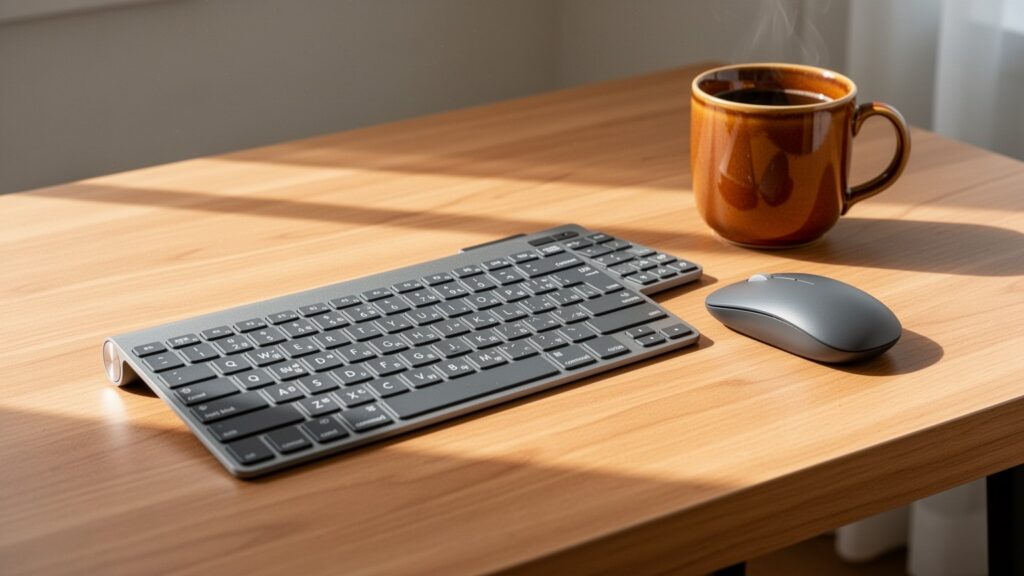
Most manufacturers design keyboards so you can toggle function key priority with a single shortcut. If the shortcut does not work, you can toggle it using the official utility software provided by your manufacturer.
| Brand | Primary Shortcut | Companion Software |
|---|---|---|
| Samsung | Dedicated Fn Lock key or Fn + F12 | Samsung Settings |
| LG | Fn + Esc (select models) | LG Smart Assistant / LG Control Center |
| Lenovo | Fn + Esc (ThinkPad: Fn + Left Shift) | Lenovo Vantage (Hardware Settings > Input) |
| HP | Fn + Esc (select models) | HP Support Assistant (varies by model) |
| Dell | Fn + Esc | Dell Peripheral Manager / QuickSet |
| ASUS | Fn + Esc | MyASUS (Device Settings > Input Device Settings) |
Lenovo and Dell laptops often feature a small padlock icon or an LED indicator on the corner of the Esc key. Pressing Fn + Esc turns the light on or off and switches the mode immediately.
Related Reading
Can You Really Speed Up an Old Laptop for About $75 (100,000 KRW) in Upgrades?
How to Keep Your Monitor On When Closing the Laptop Lid in Windows
How to Keep Fn Lock After Restarting: BIOS Settings

Even if you change the mode with a shortcut, some laptops revert to their original behavior after a reboot. In this case, you need to change the base configuration in your motherboard’s BIOS setup menu.
Immediately after powering on your laptop, repeatedly tap the BIOS key for your brand (such as F2 or F10) to open the setup screen. Changing the function key behavior to ‘Standard’ will lock it permanently.
- Samsung, ASUS, LG: Tap
F2at boot, then changeHotkey ModeorFunction Key Behaviorunder the Advanced or System Configuration menu. - HP: Tap
F10at boot, go to System Configuration, and setAction Keys ModetoDisabled. - Lenovo: Tap
F1orF2at boot, go to Configuration, and setHotkey ModetoDisabled.
Why Isn’t It Working on My Laptop? Brand-Specific Notes

Not all laptops work the same way. Some models do not support shortcut switching due to hardware design.
On many LG Gram models, pressing Fn + Esc opens the LG Support Center application instead of locking function keys. Gram users should open the ‘LG Smart Assistant’ app and disable Hotkey Mode there.
ASUS gaming lines (such as ROG and TUF) do not support the function key lock toggle in MyASUS, according to official guidance. Some Samsung Galaxy Book users also report that shortcut settings do not persist across reboots, though official documentation does not specify permanent lock behavior. Detachable tablet keyboards like the HP X2 cannot disable Action Keys Mode due to hardware constraints.
Check the top row of your keyboard for a padlock icon on the Esc or F12 key, and press it together with the Fn key.
Related Guides
- How to Check Laptop Battery Health in 1 Minute Without Software
- How to Disable the Caps Lock Key in 1 Minute with Microsoft PowerToys
- How to Wirelessly Mirror Your Smartphone Screen to Windows 11
- Why Laptop Hotspots Drain Data Quickly (and How to Fix It)