Windows 11

  • Why Is Your 144Hz Monitor Stuck at 60Hz? How to Fix It in Windows

    Why Is Your 144Hz Monitor Stuck at 60Hz? How to Fix It in Windows

    Did you connect a brand-new high-refresh-rate gaming monitor to your PC, only to feel like games look just as sluggish as before? Even after spending money on a 144Hz display, Windows often defaults to a 60Hz refresh rate. Here is how to verify and unlock your monitor’s full speed.

    Quick Summary

    • Windows 11: Right-click desktop → Display settings → Advanced display → Select 144Hz under Choose a refresh rate
    • NVIDIA Control Panel: Under Change resolution, select a resolution from the PC section (not the top TV section) to unlock 144Hz
    • Check connection: Plug directly into the dedicated graphics card at the bottom of the PC case, not the motherboard ports at the top
    • Cable requirements: QHD 144Hz requires DP 1.2 or HDMI 2.0+; 4K 144Hz requires DP 1.4 or HDMI 2.1

    Why Is Your 144Hz Monitor Still Running at 60Hz?
    Why Is Your 144Hz Monitor Still Running at 60Hz?

    Refresh rate refers to the number of times per second a monitor updates the image on screen, measured in Hertz (Hz). A 60Hz monitor displays 60 frames per second, while a 144Hz monitor outputs 144 frames per second.

    Think of it like a flipbook. When you flip 144 pages per second instead of 60, motion becomes roughly 2.4 times smoother. Motion blur and screen tearing decrease, and mouse input latency drops noticeably.

    However, Windows prioritizes safe display compatibility when a new monitor is connected, frequently locking the default refresh rate to 60Hz. If you set up a new display, you must manually adjust the settings to enable 144Hz output.

    How to Change Refresh Rate to 144Hz in Windows 10 and 11
    How to Change Refresh Rate to 144Hz in Windows 10 and 11

    Adjusting the refresh rate directly in Windows settings takes less than a minute. Follow the steps below for your operating system.

    Steps for Windows 11

    1. Right-click an empty area on your desktop and select Display settings.

    2. Scroll to the Related settings section and click Advanced display.

    3. Select your display and click the Choose a refresh rate dropdown, then select 144Hz (or the highest rate listed).

    Note: If a refresh rate in the dropdown has an asterisk (*), selecting it may automatically change your display resolution to accommodate that rate.

    Steps for Windows 10

    1. Right-click the desktop and choose Display settings.

    2. Scroll down, click Advanced display settings, and click Display adapter properties for Display 1.

    3. Go to the Monitor tab, set Screen refresh rate to 144Hz, and click OK.

    Major display manufacturers like Samsung also suggest clicking List All Modes under adapter properties to manually select the optimal resolution and refresh rate combination recommended in the monitor’s user manual.

    Check Your Cable Standard and GPU Port Location
    Check Your Cable Standard and GPU Port Location

    If 144Hz does not show up as an option or keeps reverting to 60Hz, inspect your physical setup. Video transmission runs at the lowest bandwidth threshold shared between the GPU port, the cable, and the monitor port.

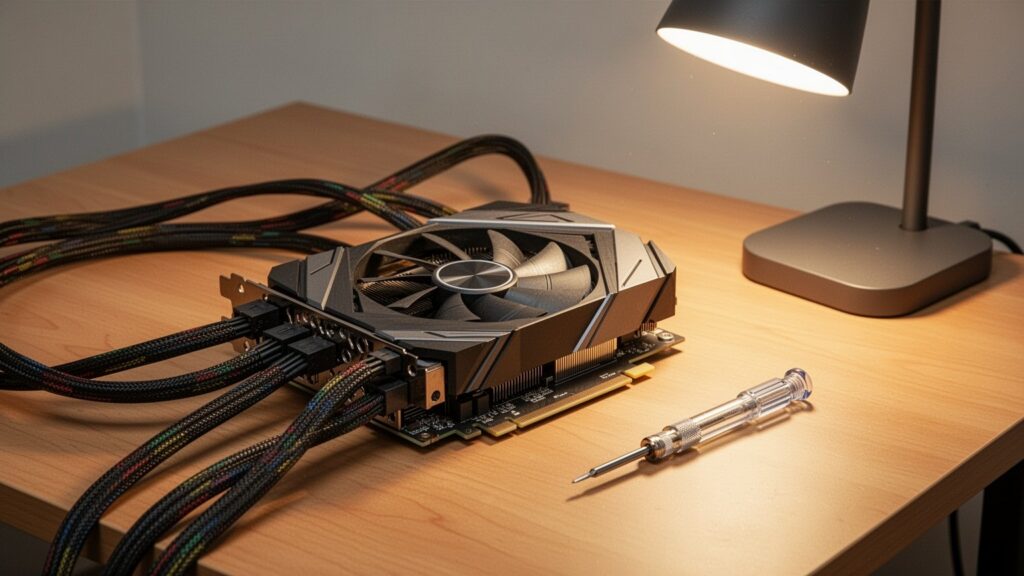
    First, verify where the cable connects behind your computer. Plugging into the motherboard I/O ports near the top uses integrated CPU graphics, which often caps refresh rates. Connect directly to the dedicated graphics card ports located lower on the case.

    Second, ensure the cable supports sufficient bandwidth. Different resolutions require specific cable standards to carry 144Hz signals.

    Standard1080p (FHD)1440p (QHD)4K (UHD)Notes / Features
    HDMI 1.4Up to 120Hz–144HzUp to 60Hz–75HzUp to 30HzLegacy standard; limited high-res support
    HDMI 2.0 (18.0 Gbps)Up to 240HzUp to 144HzUp to 60HzCannot output 4K at 144Hz
    HDMI 2.1 (48.0 Gbps)240Hz+240Hz+144HzFull high-res high-refresh support
    DisplayPort 1.2 (21.6 Gbps)Up to 240HzUp to 165HzUp to 75HzStandard PC gaming bandwidth
    DisplayPort 1.4 (32.4 Gbps)240Hz+240Hz120Hz (144Hz with DSC)VESA standard specification

    Manufacturer firmware limits can also affect HDMI ports. Even if a port is HDMI 2.0, some monitors only allow 144Hz over DisplayPort (DP). Check the monitor manual if an HDMI connection stays limited to 60Hz or 120Hz.

    Unlock the 60Hz Cap in GPU Control Panels
    Unlock the 60Hz Cap in GPU Control Panels

    A frequent mistake happens inside the NVIDIA Control Panel under Display → Change resolution.

    Selecting a resolution under the top Ultra HD, HD, SD section treats the screen as a TV broadcast format and caps the refresh rate at 60Hz. Scroll down to the PC section and select your native resolution there to reveal 144Hz and higher refresh rate settings.

    If you use an AMD graphics card, open AMD Software: Adrenalin Edition and check the Display section to manually configure the refresh rate.

    Note: On dual-monitor setups pairing a 144Hz main screen with a 60Hz secondary display, playing video in certain browsers or windowed modes may cause refresh rate sync drops depending on your GPU driver and Windows build.

    Right-click your desktop now and check your display settings to make sure your gaming monitor isn’t stuck at 60Hz.
    References

    1-Minute Video Summary

    Related Guides

  • How to Disable Startup Programs in Windows to Speed Up Boot Time

    How to Disable Startup Programs in Windows to Speed Up Boot Time

    Have you ever turned on your computer only to wait endlessly as desktop icons slowly appear or your mouse cursor stutters? Why does a PC that was blazing fast when new get slower and slower to boot up over time?

    At a Glance

    • Open Task Manager (shortcut: Ctrl + Shift + Esc) and set unused programs to ‘Disabled’ in the ‘Startup apps’ tab.
    • Prioritize disabling apps with a ‘High impact’ rating (consuming over 1 second of CPU time or over 3 MB of disk I/O), such as chat apps and game launchers.
    • Disabling startup apps does not uninstall them; you can re-enable them at any time.
    • You can also easily manage startup apps using the toggle switches in ‘Settings > Apps > Startup’.

    Why PC Boot Times Get Slower Over Time

    Why PC boot times get slower over time

    When installing new software, clicking “Next” without checking the options often enables auto-start on Windows boot by default. Typical culprits include messaging apps, game launchers, cloud storage sync clients, and automatic software updaters.

    This is like packing every single textbook into your backpack every morning, even for classes you do not have that day. The moment Windows boots up, multiple programs compete for CPU and disk resources simultaneously, creating a severe bottleneck.

    Removing programs you don’t need right away from the startup list and launching them manually only when needed can significantly reduce system load.

    Startup Impact Levels: Which Programs Should You Turn Off First?

    Startup impact levels and which programs to disable first

    Windows measures how much load each program places on boot speed using the “Startup impact” metric. This rating is determined by CPU processing time and disk read/write (I/O) activity during startup.

    Startup Impact LevelCPU Active TimeDisk I/O Usage
    High impactOver 1 second (1,000 ms)Over 3 MB
    Medium impact300 ms to 1,000 ms300 KB to 3 MB
    Low impactUnder 300 msUnder 300 KB (under 292 KB in some documentation)
    None–Disabled
    Not measured–No data collected

    Your primary targets should be programs listed as ‘High impact’. While user forums sometimes report dramatic improvements—such as boot times dropping from one minute down to 15 seconds—actual results vary depending on hardware configuration (such as having an SSD) and are not an official guarantee from Microsoft. Furthermore, official Microsoft documentation varies slightly regarding the disk threshold for Low impact, citing either under 292 KB or under 300 KB.

    How to Disable Startup Apps in 10 Seconds

    How to disable startup apps in 10 seconds via Task Manager or Settings

    The quickest method is pressing Ctrl + Shift + Esc to open Task Manager. In Windows 11, click ‘Startup apps’ on the left navigation bar; in Windows 10, go to the ‘Startup’ tab at the top. Right-click any non-essential program and select ‘Disable’.

    If you prefer using the Windows Settings interface, navigate to ‘Settings > Apps > Startup’ and switch the toggle switch to Off for the desired apps.

    Disabling an app here does not delete or uninstall it. The preference is stored in the Windows Registry, allowing you to re-enable auto-start at any point in the future.

    Press Ctrl + Shift + Esc right now and disable unnecessary startup apps marked with ‘High impact’.

    References

    1-Minute Summary Video

    Related Articles

  • How to Free Up C Drive Space in Windows Safely

    How to Free Up C Drive Space in Windows Safely

    Have you ever been startled to see your C drive storage bar turn red even when you haven’t downloaded any large videos? When free disk space runs low, your computer slows down and critical security updates can stall. How can you clean out unnecessary hidden files without touching crucial system files?

    At a Glance

    • Step 1: Open ‘Settings > System > Storage’ to run Storage Sense and Cleanup recommendations
    • Step 2: Clear temp folders (%temp%, C:\Windows\Temp) and reset cache with wsreset.exe
    • Step 3: Delete SoftwareDistribution cache and clean WinSxS backups with the DISM command
    • Step 4: Disable Hibernation (powercfg.exe /hibernate off) to immediately reclaim space equal to your RAM capacity (e.g., 16 GB)

    Start with Built-in Windows Storage Management

    Start with Built-in Windows Storage Management

    Just like seasonal clothes and delivery boxes pile up around the house over time, Windows accumulates temporary files and logs the longer you use it. Low disk space degrades PC performance, and Windows updates require at least 10 GB of free space even when using external storage, making regular maintenance essential.

    As of 2026, Windows lets you clean up easily using the built-in ‘Storage Sense’ tool. Navigate to Settings > System > Storage to see disk usage broken down by category at a glance.

    Settings MenuKey FeaturesNotes
    Storage SenseAutomatically clears temporary files and Recycle Bin when space is lowRuns only on the C drive by default
    Cleanup recommendationsSelectively removes large files, unused apps, and synced filesSafely deleted after user confirmation

    Emptying Temporary Files (Temp) and Store Cache

    Emptying Temporary Files (Temp) and Store Cache

    Temporary files created during program installation or execution often linger long after tasks finish. Press Win + R, type %temp%, and your user temp folder (C:\Users\<username>\AppData\Local\Temp) will open, allowing you to select and safely delete all files inside.

    You can clear the system-wide temp folder at C:\Windows\Temp the exact same way. If any file is currently in use, simply click Skip and continue.

    Additionally, if the Microsoft Store app cache is consuming disk space, open the Run dialog (Win + R) and type wsreset.exe to reset and purge unneeded store cache files (.appx).

    Safely Cleaning Windows Update Cache and the WinSxS Folder

    Safely Cleaning Windows Update Cache and the WinSxS Folder

    Pending installation files left behind after updates accumulate in C:\Windows\SoftwareDistribution\Download. To clear this folder, type services.msc in the Run dialog, temporarily stop three services—Windows Update, Background Intelligent Transfer Service (BITS), and Cryptographic Services—delete the files inside the folder, and then restart the services.

    Exercise caution with the C:\Windows\WinSxS folder. Deleting this folder manually in File Explorer will cause critical damage and render the operating system unbootable.

    To safely clean up older backup components, always run Dism.exe /online /Cleanup-Image /StartComponentCleanup in Command Prompt as Administrator using Microsoft’s official component cleanup tool.

    Reclaiming RAM-Sized Space by Disabling Hibernation (hiberfil.sys)

    Reclaiming RAM-Sized Space by Disabling Hibernation (hiberfil.sys)

    The hiberfil.sys file located at the root of the C drive occupies roughly the same amount of storage as your PC’s installed RAM. For instance, on a PC with 16 GB of RAM, it reserves up to 16 GB of drive space for hibernation data.

    If you do not use Hibernation, open Command Prompt as Administrator and run powercfg.exe /hibernate off to immediately delete the file and recover disk space. Note that disabling hibernation also turns off Fast Startup, so adjust this setting according to your needs.

    While some expect a guaranteed amount like 30 GB, actual space freed varies widely based on installed RAM capacity and accumulated update history, ranging anywhere from a few gigabytes to tens of gigabytes.

    Open Windows Settings > Storage right now, turn on Storage Sense, and clean out hidden temporary files.

    References

    1-Minute Video Summary

    Related Posts

  • Is Windows Defender Good Enough for Windows 11? Detection Rates and Key Settings

    Is Windows Defender Good Enough for Windows 11? Detection Rates and Key Settings

    Setting up a new PC or reinstalling Windows often leads to one question: do you need an antivirus? Many download free third-party programs or consider paying for an annual subscription. Can the built-in Windows 11 Defender protect you against modern ransomware and viruses on its own?

    Key Takeaways

    • As of 2026, Microsoft Defender achieves a 99.7%–100% malware detection rate, matching paid antivirus software.
    • For general home and office use, paying about $25–$40 (30,000–50,000 KRW) per year for third-party antivirus is unnecessary.
    • Avoid ad-supported free antivirus tools. Instead, enable Tamper Protection and Controlled Folder Access in Windows Settings.

    Is Microsoft Defender as Safe as Paid Antivirus?

    Is Microsoft Defender as Safe as Paid Antivirus?

    Windows Defender once had a reputation for weak performance. As of 2026, however, Microsoft Defender Antivirus consistently scores near the top in independent global security benchmarks.

    In Windows 11 lab evaluations by independent test lab AV-TEST, Defender earned a perfect 6.0/6.0 in Protection and 6.0/6.0 in Usability, securing “Top Product” certification with a 99.7%–100% malware detection rate. In AV-Comparatives real-world protection tests, it achieved a 98.5%–99.1% block rate, earning an “Advanced” rating.

    Testing LabTest CategoryDefender Score & Rating
    AV-TESTProtection6.0 / 6.0 (99.7%–100% Detection Rate)
    AV-TESTUsability6.0 / 6.0 (‘Top Product’)
    AV-ComparativesReal-World Protection98.5%–99.1% Block Rate (‘Advanced’)
    AV-ComparativesSystem Performance‘Advanced’ Award (Moderate System Impact)

    To put it in perspective, the default lock on your front door is now as sturdy as a high-end specialty lock. For standard web browsing and everyday office tasks, Defender provides more than enough defense.

    Who Actually Needs Paid Antivirus Software?

    Who Actually Needs Paid Antivirus Software?

    Most everyday users do not need to spend roughly $25–$40 (30,000–50,000 KRW) per year on paid antivirus suites like Norton 360 (starting at $29.99/year), Bitdefender, or McAfee. If you use genuine software and download files from official sources, Defender is plenty.

    Free third-party antivirus utilities are generally not recommended. While they offer basic malware detection, they often bundle aggressive upgrade pop-ups, data collection practices, and unnecessary bloatware that slows down your system.

    However, paid suites make sense if you need an all-in-one package with multi-device protection across PC and mobile (Android/iOS), built-in VPNs, password managers, dark web monitoring, or dedicated 1-on-1 technical support.

    In AV-Comparatives benchmarks, Defender showed measurable system delays during file copying and archiving, though whether this is noticeable on modern PCs remains debated. Offline detection rates without an internet connection also vary depending on the test period.

    3 Essential Windows 11 Settings to Maximize Security

    3 Essential Windows 11 Settings to Maximize Security

    To get the most out of Microsoft Defender, check a few built-in settings. A few quick adjustments will help stop ransomware and system tampering.

    First, turn on Tamper Protection. This prevents malicious apps from hijacking administrator rights to disable Defender’s real-time protection.

    Second, enable Controlled Folder Access. This dedicated anti-ransomware feature is disabled by default. When activated, it prevents unauthorized programs from modifying or encrypting files in your Documents, Photos, and other protected folders. If it blocks legitimate game saves or design software, simply allow the app manually through the prompt.

    Third, keep Core Isolation (Memory Integrity / HVCI) and SmartScreen active. Core Isolation uses virtualization to shield core Windows processes from malicious drivers, while SmartScreen filters out suspicious downloads and untrusted websites.

    Open Windows Security now to make sure Tamper Protection is enabled, and uninstall unneeded third-party antivirus software to keep your PC running fast.

    References

    1-Minute Summary Video

    Related Articles