Windows 10

  • How to Turn Off Laptop Touchpad Automatically When Mouse Is Connected

    How to Turn Off Laptop Touchpad Automatically When Mouse Is Connected

    Have you ever had your cursor jump to another sentence while typing, messing up your entire document? It usually happens when your palm brushes against the touchpad, triggering an accidental click. Instead of toggling the touchpad manually every time, you can set it to turn off automatically whenever you connect a mouse.

    Quick Summary

    • Windows 11: Win + I → Bluetooth & devices → Expand Touchpad → Uncheck “Leave touchpad on when a mouse is connected”
    • Windows 10: Settings → Devices → Touchpad → Uncheck “Leave touchpad on when a mouse is connected”
    • Older models: Control Panel → Mouse → Manufacturer tab (Synaptics/ELAN) → Check “Disable internal pointing device when external USB pointing device is attached”
    • Hardware shortcuts: Samsung/LG: Fn + F5, Hansung: Fn + F1, HP: Double-tap top-left corner of touchpad

    Why Automatic Disable Stops Jumping Cursors

    Why automatic touchpad disable stops jumping cursors

    When typing on a laptop, the base of your palm naturally rests against the wide touchpad. The touchpad can easily mistake this friction for a mouse click or cursor drag, jumping your cursor somewhere else mid-sentence. It is just as annoying as passenger luggage bumping the brake pedal while you drive.

    You can manually lock the touchpad with a keyboard Fn shortcut, but people often get stranded when they reboot or leave home without a mouse and cannot turn the touchpad back on. Windows has a built-in detection setting that locks the touchpad only when an external mouse is connected and immediately re-enables it the moment you unplug the cable or wireless receiver.

    How to Set It Up in 10 Seconds on Windows 11 and 10
    How to set up touchpad auto disable on Windows 11 and 10

    Thanks to the Precision Touchpad support built into modern Windows, you can configure this with a single checkbox without installing extra drivers.

    Operating SystemPathSetting to Change
    Windows 11Press Win + I → Bluetooth & devices → TouchpadClick the arrow next to the toggle, then uncheck Leave touchpad on when a mouse is connected
    Windows 10Start → Settings → Devices → TouchpadUncheck Leave touchpad on when a mouse is connected

    On Windows 11, depending on your build version, the wording may appear as Leave touchpad on when a mouse is connected. Keep the main “Touchpad” toggle turned On, and only uncheck that specific sub-option. That way, the touchpad reactivates immediately when you unplug the mouse.

    Related Reading
    마우스 고장났을때 키보드로 클릭하기와 마우스 단축키 총정리
    윈도우 11 마우스 커서 크기와 색상 바꾸는 법 (10초 해결)

    What to Do on Older Laptops or If the Option Is Missing
    Fixes for older laptops or missing touchpad options

    If the checkbox does not appear in your Settings menu, your laptop likely lacks Precision Touchpad support. In that case, use the classic Mouse Properties in Control Panel.

    Open Control Panel and select Mouse properties. Click the Touchpad or manufacturer tab (such as Synaptics, ELAN, or Device Settings). Check the box labeled Disable internal pointing device when external USB pointing device is attached, then click OK.

    If you prefer hardware shortcuts, you can also use your manufacturer’s built-in key combinations.

    BrandShortcut / Hardware Control
    Samsung / LGFn + F5
    HansungFn + F1
    HPDouble-tap the upper-left corner of the touchpad
    ASUSFn + F9 or Fn + F10
    LenovoFn + F10 or dedicated key (F6, F8)

    On ASUS and Lenovo laptops, the function key may vary (such as F6, F7, F9, or F10) depending on the model line (IdeaPad, ThinkPad) and production year. If you never plan to use the touchpad, you can also press F2 immediately at boot to enter the BIOS and set Touch Pad Mouse to Disable (Off). If the system freezes when trying to enter BIOS, press and hold the power button for at least 7 seconds to force a shutdown, then restart.

    Important Note for Wireless Mouse Users
    Important note for wireless mouse users

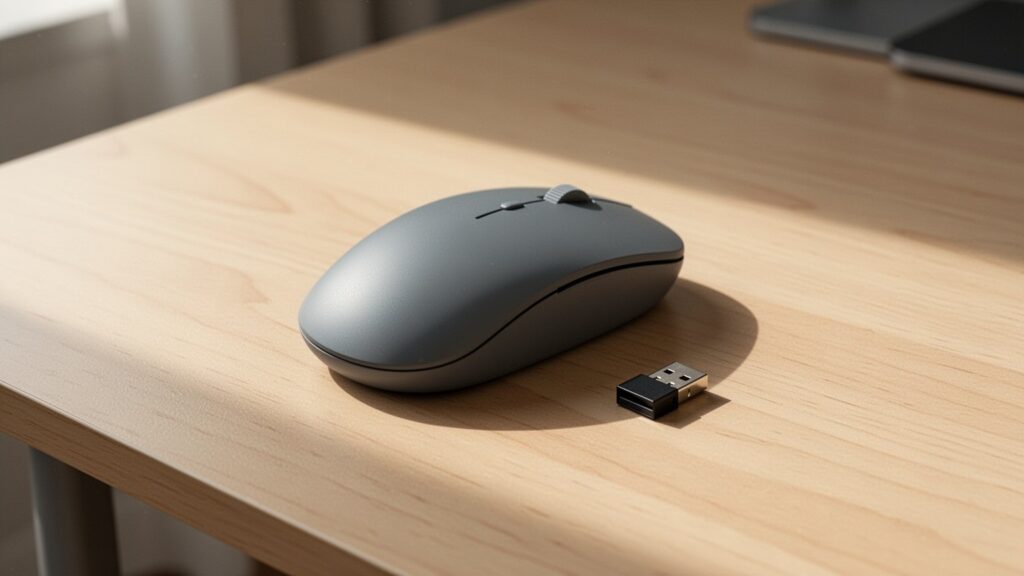
    While unplugging a wired mouse immediately restores touchpad control, wireless mice using a USB nano receiver (dongle) have an important catch.

    Even if you turn off the power switch on the mouse, Windows still detects an active mouse as long as the USB dongle remains plugged into the laptop port. If you pack the mouse into your bag without removing the dongle, your touchpad will stay disabled.

    Microsoft documentation does not offer a setting to distinguish between a plugged-in USB receiver and an active mouse. If you need to use the touchpad on the go without your mouse, unplug the USB receiver from your laptop.

    Press ‘Win + I’ on your laptop now and uncheck the automatic touchpad toggle. It eliminates typing interference immediately.

    함께 읽으면 좋은 글

    참고자료

    1분 요약 영상

  • How to Copy a File Path in Windows with a Shortcut

    How to Copy a File Path in Windows with a Shortcut

    When working on projects or tasks, you often need to paste a file’s full path into a chat, document, or command prompt. Most people copy the folder address first and manually append the file name. Is there an easier way to copy the complete file path in one second using a shortcut or right-click?

    At a Glance

    • Windows 10: Select file, Shift + Right-click → click ‘Copy as path’
    • Windows 11: Select file, press Ctrl + Shift + C to copy instantly
    • Paste: Press Ctrl + V in Notepad, Command Prompt (CMD), etc.
    • Path format: Automatically wrapped in double quotes (” “) to prevent spacing errors

    Windows 10: Hold Shift and Right-Click

    Windows 10: Hold Shift and Right-Click

    Windows File Explorer includes a hidden feature. Hold down the Shift key on your keyboard and right-click on any file or folder.

    An extended context menu will appear with a ‘Copy as path’ option. Clicking this immediately copies the complete absolute path to your clipboard, giving you the entire directory and filename at once.

    You can paste the copied path anywhere—Notepad, Command Prompt (CMD), the Run dialog, browsers, or Excel—by pressing Ctrl + V.

    Related Reading
    Can You Recover Accidentally Deleted Desktop Files with a Shortcut?
    How to Clear and Disable Recent Files in Windows File Explorer

    Windows 11 and Other OS Shortcuts

    Windows 11 and Other OS Shortcuts

    In Windows 11, the process is even simpler. You don’t need to hold the Shift key—a regular right-click brings up ‘Copy as path’ directly in the main context menu, or you can find it under the three-dot menu on the top toolbar.

    Starting with Windows 11 (version 22H2), you don’t even need the context menu. Simply select the file and press Ctrl + Shift + C to copy the path instantly.

    Here is a summary of file path copy shortcuts across different operating systems:

    Operating SystemShortcut / ActionMenu Location
    Windows 10Shift + Right-click‘Copy as path’ in extended context menu
    Windows 11Ctrl + Shift + C (or standard right-click)Default context menu and top 3-dot menu
    macOSCommand(⌘) + Option(⌥) + CSelect file and press shortcut

    Why Copied Paths Include Double Quotes

    Why Copied Paths Include Double Quotes

    When you use ‘Copy as path’, the copied path is automatically enclosed in double quotation marks (" "). This design prevents command-line tools like Command Prompt (CMD) or PowerShell from breaking the path if folders or file names contain spaces.

    Windows does not currently offer a built-in setting to copy paths without quotation marks. If you need clean text without quotes, you can paste the text into Notepad and use the find-and-replace tool.

    Older versions prior to Windows 7 may require registry edits or lack native support, so these shortcuts are best used in Windows 10 or later.

    Open File Explorer (Windows + E), select a file, and try copying its path with the shortcut now.

    Related Articles

    References

    1-Minute Video Summary

  • How to Use Windows Clipboard History (Win + V Shortcut)

    How to Use Windows Clipboard History (Win + V Shortcut)

    When working on documents or doing research on your PC, you have likely lost a copied link or text snippet after accidentally copying something else. Switching back and forth between windows to copy items one by one wastes time. By enabling a single built-in Windows feature, you can view and paste past clipboard items whenever you need them.

    Quick Summary

    • Shortcut: Press Windows logo key + V, then click [Turn on] to activate immediately.
    • Storage limits: Stores up to 25 items (text, HTML, bitmap images up to 4MB per item).
    • Data retention: Items are cleared upon PC restart or when exceeding 25 items; pin essential items to keep them permanently.
    • Syncing: Share copied items across devices logged into the same account via ‘Settings > System > Clipboard’.

    Enable Clipboard History with a Single Shortcut

    Enable Clipboard History with a single shortcut

    Standard copy and paste (Ctrl + C, Ctrl + V) keeps only the single most recent item in temporary memory. Copying any new content immediately overwrites the previous data.

    Pressing Windows logo key + V on your keyboard opens the Clipboard pop-up window. Click the [Turn on] button to start recording everything you copy from that moment forward.

    You can also enable it by opening Start > Settings > System > Clipboard and toggling the ‘Clipboard history’ switch to [On].

    Stores Up to 25 Items: Supported Data Types

    Stores up to 25 items: supported data types

    Clipboard history acts like a stack of notes stored in your system drawer. It stores not just plain text, but also web page formatting and images.

    CategorySpecification (As of 2026)
    Maximum stored items25 items
    Size limit per item4MB
    Supported formatsText, HTML, Bitmap images
    Supported OSWindows 10, Windows 11 (Windows 10 reached end of support on October 14, 2025)

    When the history reaches 25 entries, copying a new item will automatically push out and permanently delete the oldest unpinned item.

    Pin Critical Items to Prevent Accidental Deletion

    Pin critical items to prevent accidental deletion

    Restarting your PC resets and wipes all standard clipboard entries. Furthermore, once an item is pushed past the 25-entry limit, Microsoft provides no recovery method.

    For frequently used text such as email addresses, account details, or standard boilerplate responses, click the three-dot menu (...) on the item and select [Pin]. Pinned items remain safe even if you reboot your PC or click [Clear all].

    To clean up unneeded items, open the three-dot menu (...) and select [Delete] to remove them individually, or click [Clear all] to delete all non-pinned items at once.

    Syncing Across PCs and Troubleshooting

    Syncing across PCs and troubleshooting

    If you use both a laptop and a desktop, you can use cloud sync. Sign in with the same Microsoft account (or work/school account), go to Settings > System > Clipboard, and enable ‘Sync across your devices’ to transfer copied text across your computers.

    You can set clipboard sync to transfer copied text automatically, or manually choose which items to send from the Win + V window.

    In rare cases, system glitches may cause the clipboard to display only up to 2 items. This does not indicate a spec change; restarting Windows Explorer in Task Manager or toggling the Clipboard history setting off and on will restore normal operation.

    Press ‘Windows logo key + V’ right now to turn on Clipboard history, and pin your most-used phrases for instant access.

    References

    1-Minute Video Summary

    Related Articles

  • How to Disable the Caps Lock Key in Windows 11 and 10

    How to Disable the Caps Lock Key in Windows 11 and 10

    Have you ever been typing quickly in a document or chat only to realize you accidentally typed everything in ALL CAPS? Located right next to the ‘A’ key, the Caps Lock key is one of the most common causes of accidental typos. Windows doesn’t offer a built-in switch to turn it off, but what is the safest way to disable it?

    At a Glance

    • Windows does not have a built-in setting to disable Caps Lock, so you need to use Microsoft’s official free utility, ‘PowerToys’.
    • Compatible with Windows 11 and Windows 10 version 2004 (Build 19041) or higher on 64-bit PCs.
    • You can disable Caps Lock or remap it to other keys like Esc, Ctrl, or IME Hangul using ‘Keyboard Manager’ in PowerToys.
    • PowerToys must run in the background to maintain settings, and the key behaves normally on the Windows login screen.

    Why Windows Doesn’t Have a Built-In ‘Disable Caps Lock’ Setting

    Why is there no Caps Lock toggle in default Windows settings?

    Neither Windows 11 nor Windows 10 includes a native setting to disable the Caps Lock key. The only related feature in the Windows Accessibility menu is ‘Toggle Keys’, which plays a sound when you press it.

    In the past, users had to manually edit the Windows Registry (Scancode Map) to turn off the key. However, modifying the registry carries a risk of system errors, especially for beginners.

    It was like rewiring an entire electrical panel just to turn off a single light switch. Fortunately, Microsoft provides an official free utility that allows anyone to reconfigure keys safely in just a few clicks.

    Installing Microsoft PowerToys and System Requirements

    Installing Microsoft PowerToys and checking system requirements

    The tool you need to disable Caps Lock is Microsoft PowerToys. While it doesn’t come preinstalled with Windows, you can download it for free from the Microsoft Store.

    Before installing, make sure your PC meets the system requirements. Most modern Windows PCs will run it without issues.

    ItemSystem Requirements
    Operating SystemWindows 11 or Windows 10 version 2004 (Build 19041) or higher
    Processor64-bit (x64 or ARM64)
    Installation MethodMicrosoft Store search or Command Prompt (CMD)
    Install Commandwinget install --id Microsoft.PowerToys --source winget
    LicenseFree (Official Microsoft)

    How to Disable or Remap Caps Lock in 30 Seconds

    Step-by-step guide to disabling and remapping Caps Lock in 30 seconds

    Once PowerToys is installed, you can use the Keyboard Manager feature to completely disable Caps Lock or assign it a more useful function. The process takes just 5 steps.

    1. Open PowerToys, go to ‘Keyboard Manager’ in the left sidebar, and enable it.

    2. Click ‘Remap a key’, then click the ‘Add key remap’ (+) button.

    3. Under the ‘Select’ column on the left, press Caps Lock or choose it from the dropdown menu.

    4. Under the ‘To send’ column on the right, select Disable. If you want to assign a different function, choose your replacement key instead.

    5. Click ‘OK’ at the top right, and if a warning prompt appears, select ‘Continue Anyway’ to save your changes.

    Desired Function‘To send’ (Mapped To) Setting
    Disable Key CompletelyDisable
    Mac-Style Language SwitchIME Hangul
    Typo-Safe Modifier KeyEsc or Ctrl (Left Ctrl)

    3 Things to Keep in Mind Before Remapping

    3 key points to keep in mind before remapping

    While PowerToys key remapping is seamless, there are a few operational rules to keep in mind.

    First, PowerToys must be running in the background for key remapping to stay active. If you close the app completely, keys revert to their default behavior.

    Second, remapping does not apply to the Windows lock screen or login password prompt. For security reasons, the key functions as standard Caps Lock before you log in.

    Third, system-reserved shortcuts (Win + L, Ctrl + Alt + Del) and laptop Fn keys cannot be remapped. Additionally, according to Microsoft, because the utility intercepts keystrokes, it may slightly affect frame rates (FPS) in certain demanding video games.

    Download PowerToys from the Microsoft Store today and say goodbye to accidental Caps Lock presses.

    References

    1-Minute Video Summary

    Related Articles

  • How to Recover Permanently Deleted Files for Free with Microsoft’s Official Tool

    How to Recover Permanently Deleted Files for Free with Microsoft’s Official Tool

    Accidentally deleted an important document with Shift + Delete? When the Recycle Bin is empty, you might think you need expensive third-party recovery software. But Microsoft offers an official, free recovery tool that you can use right away.

    Quick Summary

    • Official Tool: “Windows File Recovery” free on Microsoft Store (app size approx. 2.3 MB)
    • System Requirements: Windows 10 (Build 19041.0+) and Windows 11; supports NTFS, FAT, exFAT, ReFS
    • Key Rule: Source drive (C:) and destination drive (D: or external USB) must be different
    • Modes: Use /regular for recent deletions and /extensive for older files or external drives

    Why permanently deleted files can still be recovered

    Why permanently deleted files can still be recovered

    Permanently deleting a file does not immediately erase its actual data from your drive. The Windows file system simply marks the space where the data was stored as free space that can be overwritten. It is like erasing a chapter title from a book’s table of contents while leaving the actual pages intact.

    However, if you keep using your computer, new data will overwrite those sectors, making recovery impossible. To maximize your chances of recovery, stop browsing the web, close running apps, and minimize PC usage immediately after noticing the deletion.

    Windows File Recovery requirements and supported formats

    Windows File Recovery requirements and supported formats

    Microsoft provides an official command-line tool called Windows File Recovery (winfr) for free through the Microsoft Store. At around 2.3 MB, it is lightweight, safe, and completely free of ads or paywalls.

    Note that network drives and cloud storage like OneDrive cannot be recovered with this tool. Review the supported specifications and media before getting started.

    CategoryDetails
    Operating SystemWindows 10 version 19041.0 (build 2004) or higher, Windows 11
    Supported StorageInternal HDD, SSD (limited by TRIM), external drives, USB flash drives, SD cards
    File SystemsNTFS, FAT, exFAT, ReFS
    File TypesDocuments (DOCX, PDF, XLSX, PPTX, etc.), photos (JPEG, PNG), audio/video (MP4, MP3), archives (ZIP), etc.

    How to run recovery commands: Regular vs. Extensive mode

    How to run recovery commands: Regular vs. Extensive mode

    Open Command Prompt as an administrator and enter the structured command. The basic syntax is winfr SourceDrive: DestinationDrive: [mode] [/n filter].

    For recently deleted files on an NTFS drive, use Regular mode (/regular). For example, to recover your entire Documents folder from the C: drive to an external drive (E:), run winfr C: E: /regular /n \Users\<username>\Documents\. To target specific file extensions, add filters such as winfr C: E: /regular /n .pdf /n .docx.

    If the file was deleted long ago or is on a USB or SD card (FAT/exFAT), use Extensive mode (/extensive). To search for files containing a specific word, run winfr C: D: /extensive /n report. To scan for photos in a specific folder, run winfr C: E: /extensive /n \Users\<username>\Pictures\.JPEG /n \Users\<username>\Pictures\.PNG.

    Important rules to follow during recovery

    Important rules to follow during recovery

    The single most critical rule is that the source drive and destination drive letters must be different. If you attempt to restore deleted files from the C: drive back onto the C: drive, the recovery process itself will overwrite the data and fail. Always save recovered files to a D: drive or a separate external USB drive (E:).

    When you run the command, a folder named Recovery_<date and time> is automatically created on the destination drive to store your recovered files. If you need to stop the process midway, press Ctrl + C.

    If you accidentally deleted a file with Shift + Delete, stop using your PC immediately, plug in an external drive, and run the recovery command.

    References

    1-Minute Video Summary

    Related Articles

  • How to Enable God Mode in Windows 11 and 10

    How to Enable God Mode in Windows 11 and 10

    Ever gotten lost in complex menus while trying to adjust mouse sensitivity or printer settings in Windows? Recent Windows updates scattered traditional Control Panel tools across multiple menus. What if you could gather all these settings into a single folder in just 10 seconds?

    At a Glance

    • Supported OS: Windows Vista, 7, 10, 11 (Administrator rights required)
    • Creation Code: GodMode.{ED7BA470-8E54-465E-825C-99712043E01C}
    • Key Features: Search and launch over 200 settings, including backup, power options, and device management, from a single folder

    What Is God Mode and Why Do You Need It?

    What Is God Mode and Why Do You Need It?

    The official name for God Mode is the ‘Windows Master Control Panel shortcut.’ Popularized by tech bloggers around 2010, it is a special shortcut folder that brings all advanced system management tools into one place.

    Think of it as gathering tools scattered across your house into one large toolbox. It works on every major Windows release from Windows Vista (2007) through Windows 7, Windows 10, and Windows 11.

    Microsoft prioritized the modern ‘Settings’ app in Windows 10 and 11. This buried many classic Control Panel features deep inside submenus. Using the Master Control Panel cuts down the clicks required to reach them.

    How to Create the God Mode Folder in 10 Seconds

    How to Create the God Mode Folder in 10 Seconds

    To set up God Mode, you must be logged in with an Administrator account. Once ready, follow these three steps on your desktop.

    StepActionDetails
    Step 1Create FolderRight-click empty space on desktop → select New → Folder
    Step 2Rename FolderPaste the special code as the folder name and press Enter
    Step 3Open and VerifyDouble-click the folder once its icon changes to a Control Panel icon

    Here is the exact name string to use for the folder:

    GodMode.{ED7BA470-8E54-465E-825C-99712043E01C}

    The GUID string inside the curly brackets tells the operating system to open the Master Control Panel. Once entered, the GUID part disappears, and the folder transforms into a special Control Panel icon.

    What Settings Are Included and How to Use Them?

    What Settings Are Included and How to Use Them?

    Opening the folder displays more than 200 system settings organized alphabetically and by category. You can browse all tools simply by scrolling through the File Explorer window.

    CategoryExample Settings
    Backup and Restore / File HistoryConfigure system backups, manage restore points
    Devices and Printers / MousePrinter properties, pointer speed, mouse wheel scroll sensitivity
    Power OptionsSleep timers, power button behavior
    Security and Maintenance / TroubleshootingWindows Defender Firewall, User Account Control, network and system troubleshooting
    Programs and Features / User AccountsUninstall apps, turn Windows features on/off, manage user permissions

    To quickly find a setting, type a keyword into the search bar in the top-right corner. You can also drag frequently used items onto your desktop to create standalone shortcuts.

    Things to Check Before Setting It Up

    Things to Check Before Setting It Up

    While God Mode is a built-in, safe Windows feature, keep a few points in mind.

    First, the total number of settings is not fixed. Depending on your Windows edition (Home vs. Pro) and installed hardware drivers (such as graphics cards), your item count may vary slightly around the 200+ mark.

    Second, occasional compatibility questions come up regarding OneDrive desktop sync. While some report folder creation glitches with OneDrive active, this has not been confirmed as a universal bug. Similarly, you do not need to enable file extension visibility for this to work in most environments.

    Create a new folder on your desktop today and enter the God Mode code to manage over 200 scattered Windows settings in one place.

    References

    1-Minute Summary Video

    Related Articles

  • How to Clear and Turn Off Recent Files in Windows File Explorer

    How to Clear and Turn Off Recent Files in Windows File Explorer

    Have you ever shared your screen in a meeting or looked at a laptop with a coworker, only to have File Explorer open with a list of your private recent files? By default, Windows displays up to 20 recent files on the File Explorer Home page and taskbar jump lists. Here is how to quickly clear your viewing history and permanently turn off recent file tracking.

    Quick Summary

    • One-time clear: Press ‘Win + E’ → Click the three dots (‘⋯’) at the top → ‘Options’ → In [Privacy], click [Clear] next to ‘Clear File Explorer history’
    • Disable auto-tracking: In Folder Options, uncheck all 2–3 boxes under Privacy (‘Show recently used files’ and ‘folders’)
    • Disable Start Menu integration: Press ‘Win + I’ → [Personalization] → [Start] → Toggle ‘Show recently opened items’ to [Off]
    • Change default startup folder: In Folder Options, change ‘Open File Explorer to’ from [Home] to [This PC]

    Clear Past File Explorer History in 3 Seconds

    Clear past File Explorer history in 3 seconds

    File Explorer keeps a meticulous record of the files and folders you open. To clear this entire history at once, you need to open the Folder Options menu.

    Press Win + E to open File Explorer. On Windows 11, click the three dots (⋯) on the right side of the top menu bar and select [Options]. If you are using Windows 10, click the [View] tab at the top and select [Options], or go to [File Explorer Options] under ‘Appearance and Personalization’ in the Control Panel.

    Once the window opens, check the ‘Privacy’ section at the bottom of the [General] tab. Click the [Clear] button next to ‘Clear File Explorer history’ to immediately delete recent records from File Explorer Home and taskbar jump lists. If you only want to remove a specific file, right-click that item in the list and select [Remove from Recent].

    Permanently Turn Off Recent Files Tracking

    Permanently turn off recent files tracking

    Clicking [Clear] only removes past records; newly opened files will start accumulating again. To prevent automatic tracking going forward, you must disable the display options themselves.

    In the [General] tab of Folder Options, uncheck all active boxes in the [Privacy] section.

    Setting (Windows 11)Windows 10 NameAction
    Show recently used filesShow recently used files in Quick accessUncheck
    Show frequently used foldersShow frequently used folders in Quick accessUncheck
    Show files from Office.com–Uncheck

    After unchecking the boxes, click [Apply] and [OK] to stop File Explorer from automatically collecting your activity. To fully disable recent items across Windows, press Win + I to open Settings, navigate to [Personalization] > [Start], and toggle Show recently opened items in Start, Jump Lists, and File Explorer to [Off].

    Set File Explorer to Open to ‘This PC’ by Default

    Set File Explorer to open to This PC by default

    Setting File Explorer to open directly to your computer’s drives rather than the Home or Quick Access view provides an even cleaner workspace.

    Locate the ‘Open File Explorer to’ dropdown menu at the top of the [General] tab in Folder Options. Change the default Home (or Quick access) setting to [This PC] and click OK. The next time you press Win + E, your C: and D: drive list will open first.

    Note that for cloud-synced files such as OneDrive or SharePoint, some users have reported issues where files remain in the list after clearing or show errors when removed individually. It remains unclear whether this is by design or a specific build bug.

    Press ‘Win + E’ now, open Folder Options, and uncheck the recent files options. Taking 10 seconds now will prevent awkward privacy leaks during your next screen share.

    References

    1-Minute Video Summary

    Related Articles

  • How to Open iPhone HEIC Photos on Windows for Free

    How to Open iPhone HEIC Photos on Windows for Free

    Did you transfer photos from your iPhone to your PC only to see blank white file icons with no thumbnail previews? Double-clicking them brings up an “unsupported format” error, followed by a Microsoft Store prompt asking you to purchase a $0.99 (1,200 KRW) codec. Is there a way to open HEIC photos directly on Windows without paying?

    At a Glance

    • Install the free “HEIF Image Extensions” and the manufacturer codec from the Microsoft Store to open them instantly in the default Photos app.
    • Install the “CopyTrans HEIC” utility to enable Explorer thumbnail previews and batch convert up to 100 images to JPG at once.
    • Set iPhone [Settings] ➔ [Photos] ➔ [Transfer to Mac or PC] to “Automatic” so photos automatically convert to compatible JPGs during transfer.
    • With the codec installed, you can open HEIC photos in the default Windows Paint app and save them as JPEG files.

    Why Don’t HEIC Files Open on Windows?

    Why don't HEIC files open on Windows?

    HEIC is a high-efficiency image format introduced by Apple in 2017 starting with iOS 11. It matches the quality of JPEG while cutting file sizes by roughly 50%, which is why it serves as the default photo format on iPhones. Think of it like a vacuum storage bag that shrinks file volume in half.

    The problem is that Windows 10 and Windows 11 do not include the codec required to unpack this compression out of the box. Without the codec, File Explorer cannot generate thumbnail previews, and the default Photos app shows an error message stating the file cannot be opened.

    How to Install Official Microsoft Codecs Without Paying $0.99 (1,200 KRW)

    Installing official Microsoft codecs for free

    Searching the Microsoft Store brings up the paid $0.99 (1,200 KRW) codec first. However, you can open HEIC files in the default Photos app for free by combining official free extensions.

    First, install the free “HEIF Image Extensions” (Product ID: 9PMMSR1CGPWG) from the Microsoft Store. Pairing this with the “HEVC Video Extensions from Device Manufacturer” (Product ID: 9N4WGH0Z6VHQ) link activates both the default photo viewer and Explorer thumbnail previews.

    ItemStandard Store SearchOfficial Free Link
    HEIF Image ExtensionsFreeFree (9PMMSR1CGPWG)
    HEVC Video Extensions$0.99 (1,200 KRW)Free (9N4WGH0Z6VHQ)
    Photo ConversionDefault App SupportOpen in Paint and Save as JPG

    Some Windows editions or specific device builds may show an unsupported message when opening the manufacturer codec link. However, once HEIF Image Extensions is installed, you can simply open the HEIC file in the default Windows Paint app and save it as a JPEG.

    View Thumbnails and Batch Convert up to 100 Images with One Tool

    Check thumbnails and batch convert 100 images with one tool

    If installing codecs feels tedious, the free utility “CopyTrans HEIC for Windows” is the easiest alternative. Free for personal use, it instantly enables photo previews directly inside Windows Explorer upon installation.

    Select your photos, right-click, and you can batch convert up to 100 images into JPG format without losing shooting dates or metadata. It also lets you insert HEIC photos directly into Microsoft Office documents such as Word or PowerPoint. Note that HEIC files created by some third-party cameras, such as Canon, may not be compatible.

    Change iPhone Transfer Settings in 10 Seconds to Prevent Future Issues

    Change iPhone transfer settings in 10 seconds to avoid future issues

    If you regularly move photos to a PC, adjusting a single setting on your iPhone is the most permanent fix. The iPhone includes a built-in feature that automatically converts photos to JPG whenever they are sent to a computer.

    Go to iPhone [Settings] ➔ [Photos], scroll to the bottom, and set [Transfer to Mac or PC] to “Automatic”. Photos remain stored as space-saving HEIC files on your iPhone, but when copied to a PC via cable, they convert into standard JPEG files automatically. If you prefer to capture images in standard JPEG from the start, go to [Settings] ➔ [Camera] ➔ [Formats] and choose “Most Compatible”.

    Switch the transfer option to “Automatic” in your iPhone [Settings] ➔ [Photos] now, and all future photos moved to your computer will open right away without manual conversion.

    References

    1-Minute Video Summary

    Related Articles

  • How to Schedule Windows Auto Shutdown Without Extra Software

    How to Schedule Windows Auto Shutdown Without Extra Software

    Ever left your PC running overnight to download a massive game or render a video, only to worry about wasted electricity and heat? You can easily set your computer to turn itself off automatically at a specified time.

    Quick Summary

    • Schedule shutdown: Press Win + R, then enter shutdown -s -t [seconds] (e.g., shutdown -s -t 3600 for 1 hour).
    • Cancel shutdown: Press Win + R, then enter shutdown -a.
    • Time conversion: 10 min = 600s, 30 min = 1800s, 1 hr = 3600s, 2 hrs = 7200s.
    • Note: Open apps will be forced to close when the timer expires, so save your work in advance.

    No Extra Software Needed: Use the Run Dialog

    Using the Run dialog to schedule shutdown without extra software

    There is no need to download suspicious third-party timer programs. Windows 10, Windows 11, and Windows Server already include a built-in power management command: shutdown.

    Just like setting a sleep timer on an air conditioner or fan, you can safely set an automatic power-off schedule using Windows native tools. Press Windows key + R to open the Run dialog in the bottom-left corner of your screen. Type a single command into this box or Command Prompt (CMD), and the timer starts immediately.

    Time Conversion Table and Shutdown Commands

    Time conversion table and auto shutdown command syntax

    The standard syntax to schedule a shutdown is shutdown -s -t [seconds] (or shutdown /s /t [seconds]). Here, -s stands for shutdown, and -t specifies the delay time in seconds before powering off.

    The time value must be entered in seconds. For example, if you want your PC to shut down in 1 hour, multiply 60 seconds by 60 minutes to get 3600. Common time conversions are listed below.

    Target TimeSecondsRun Dialog (Win + R) Command
    10 minutes600shutdown -s -t 600
    30 minutes1800shutdown -s -t 1800
    1 hour3600shutdown -s -t 3600
    2 hours7200shutdown -s -t 7200
    5 hours18000shutdown -s -t 18000

    When the delay time (/t) is greater than 0, Windows automatically applies the force-close option (/f) at the time of shutdown. Make sure to save open files, such as Word or Excel documents, before scheduling the timer to prevent data loss.

    How to Cancel or Schedule a Restart

    How to cancel a scheduled shutdown or set a restart

    If you need to keep working or entered the wrong time, you can cancel the timer at any point. Press Windows key + R, enter the cancellation command shutdown -a (or shutdown /a), and press Enter.

    Once submitted, a notification reading “Logoff is cancelled” will appear in the bottom-right corner of the taskbar, confirming that the scheduled shutdown is cancelled.

    If you want to schedule a restart rather than a full shutdown—such as after running updates or backups—replace -s with -r: shutdown -r -t [seconds].

    If you have an overnight download or rendering job running right now, press Win + R and enter shutdown -s -t 3600 to have your PC shut down automatically in 1 hour.

    References

    1-Minute Video Summary

    Related Articles

  • Do You Really Need to Safely Remove USB Drives in Windows?

    Do You Really Need to Safely Remove USB Drives in Windows?

    Do you click “Safely Remove Hardware” on the taskbar every time you transfer files to a USB drive? When in a hurry, you might just yank it out while worrying about data corruption. Is it actually safe to unplug a USB drive without ejecting it in Windows?

    At a Glance

    • Windows 10 (version 1809 and later) and Windows 11 set the default external storage policy to “Quick removal,” which disables write caching.
    • If all file transfers and running programs are finished and the drive is idle, unplugging it without safely removing it will not damage your data.
    • Unplugging during background indexing right after copying or while writing to an exFAT drive can corrupt the MBR/PBR, causing RAW partition errors.
    • You can check and change your drive’s cache policy under “Right-click Start → Disk Management → Drive Properties → Policies.”

    Why Windows Changed the Default Setting to “Quick Removal”

    Why Windows Changed the Default Setting to 'Quick Removal'

    In older versions of Windows, unplugging a USB drive without ejecting often caused corrupted files. However, starting with Windows 10 version 1809, Microsoft changed the default removal policy for external storage media from “Better performance” to “Quick removal.”

    The “Quick removal” policy disables write caching. Instead of holding data temporarily in system RAM, Windows writes it directly to the USB drive. It works like shipping a package directly to its destination rather than holding it in a sorting facility.

    As long as the drive is idle and no file copying or reading is active, you can unplug the drive without clicking “Safely Remove Hardware,” and your data will remain intact.

    3 Things That Happen When You Click “Safely Remove Hardware”

    3 Things That Happen When You Click 'Safely Remove Hardware'

    When you click “Eject” or “Safely Remove Hardware” on the taskbar, Windows immediately carries out a three-step background protection process.

    First, it flushes the cache, ensuring all pending write operations in system memory are committed to the storage drive. Second, it closes all open file handles so running applications release their hold on the drive.

    Third, it unmounts the file system completely, making it safe for physical disconnection without risking corruption. If you manually enabled “Better performance” to boost transfer speeds, you must go through this eject process to avoid losing data.

    When Unplugging a USB Drive Can Still Corrupt Data

    When Unplugging a USB Drive Can Still Corrupt Data

    Even with “Quick removal” enabled, pulling the drive out at the wrong moment can still corrupt the file system. The most common mistake is unplugging the drive the instant the file transfer progress window disappears.

    Even after the progress bar closes, background processes such as thumbnail generation, file indexing, or metadata updates may still be writing data. Forcibly disconnecting the drive while open documents or running programs are accessing it will also compromise data integrity.

    Drives formatted with exFAT are especially vulnerable because exFAT does not support file system journaling. Unplugging during a write operation can corrupt critical structures like the Master Boot Record (MBR) or Partition Boot Record (PBR). When this happens, the drive becomes a RAW partition, triggering the dreaded “You need to format the disk before you can use it” error.

    How to Check Your Drive Policy and Safely Disconnect

    How to Check Your Drive Policy and Safely Disconnect

    You can check the active removal policy for any connected external drive in Windows Disk Management.

    StepAction
    Step 1Right-click the Windows Start button
    Step 2Select "Disk Management" from the menu
    Step 3Right-click the target external disk entry and click "Properties"
    Step 4Check the "Policies" tab to verify if "Quick removal" is selected

    If “Quick removal” is active, waiting 5 to 10 seconds after a file transfer completes is generally safe. However, after transferring large batches of files or when dealing with critical backup drives, clicking “Safely Remove Hardware” and confirming the unmount prompt remains the safest practice.

    Wait 5 to 10 seconds after file transfers finish before unplugging, and always use “Safely Remove Hardware” for critical drives to confirm a clean unmount.

    References

    1-Minute Video Summary

    Related Articles