Windows 10

  • Windows Freezes After Sleep Mode? How to Turn Off Fast Startup

    Windows Freezes After Sleep Mode? How to Turn Off Fast Startup

    Have you ever walked away from your computer in sleep mode, only to come back to a pitch-black, frozen screen even when moving the mouse? Many people find their keyboard unresponsive and end up holding down the power button to force a shutdown. Why does this freeze keep happening?

    Quick Summary

    • Sleep mode freezes and crashes are primarily caused by system file (hiberfil.sys) conflicts from “Fast Startup.”
    • You can fix this by typing powercfg.cpl into the Run dialog (Win+R) and unchecking “Turn on fast startup (recommended).”
    • On modern SSDs, disabling Fast Startup makes virtually no difference in boot speed.
    • If driver defects or BIOS errors are the root cause, additional troubleshooting may be required.

    The Real Reason Windows Freezes in Sleep Mode
    The real reason Windows freezes in sleep mode

    The primary culprit is “Fast Startup,” a feature introduced in Windows 8 and enabled by default in Windows 10 and 11. Instead of performing a complete shutdown (“cold boot”), this feature uses a “hybrid shutdown” method that saves core system state data to the hiberfil.sys file before powering down.

    Think of it like shoving messy paperwork into a drawer instead of clearing your desk every time, then pulling it back out later. The problem is that even after multiple restarts, system cache and leftover driver states never fully reset and continue accumulating in this file.

    In this state, power restoration conflicts occur whenever the PC enters or wakes from sleep mode. This leads to black screens that won’t turn back on, mouse and keyboard freezing, or Blue Screen of Death (BSOD) crashes. Major manufacturers like Dell, HP, and ASUS also recommend disabling Fast Startup as the primary fix for sleep mode freezing.

    How to Disable Fast Startup in Control Panel in 1 Minute
    Steps to disable Fast Startup in Control Panel in 1 minute

    You can resolve this immediately by changing a power option setting—no extra software required. Follow these five steps:

    StepAction and Path
    Step 1Press Windows Key + R, type powercfg.cpl into the Run box, and press Enter.
    Step 2Click [Choose what the power buttons do] in the left pane.
    Step 3Click [Change settings that are currently unavailable] at the top (next to the shield icon).
    Step 4Under Shutdown settings, uncheck the [Turn on fast startup (recommended)] box.
    Step 5Click [Save changes] at the bottom and restart your computer.

    If you prefer using the command line, you can also run Command Prompt (CMD) as administrator and type powercfg /h off to disable it immediately.

    Why You Don’t Need Fast Startup on Modern PCs
    Why you don't need Fast Startup on modern PCs

    Fast Startup was originally designed back when mechanical HDDs took 1 to 2 minutes to boot. On modern systems equipped with fast NVMe SSDs, turning this feature off makes almost no perceptible difference in boot time.

    In fact, keeping Fast Startup on can cause issues: because the computer never fully powers down, Windows Updates may fail to install properly, accessing the motherboard BIOS can become difficult, and external USB devices might fail to reconnect properly.

    Note that if faulty graphics/chipset drivers or outdated motherboard BIOS firmware are the underlying issue, disabling Fast Startup alone might not completely resolve the problem. Additionally, any minor increase in boot time without Fast Startup can vary depending on your PC specifications, including SSD type, RAM capacity, and the number of background startup programs.

    Disable Fast Startup in Power Options right now and restart your PC. Your sleep mode freezing issues will be resolved.
    References

    1-Minute Video Summary

    Related Articles

  • Why Is Your 144Hz Monitor Stuck at 60Hz? How to Fix It in Windows

    Why Is Your 144Hz Monitor Stuck at 60Hz? How to Fix It in Windows

    Did you connect a brand-new high-refresh-rate gaming monitor to your PC, only to feel like games look just as sluggish as before? Even after spending money on a 144Hz display, Windows often defaults to a 60Hz refresh rate. Here is how to verify and unlock your monitor’s full speed.

    Quick Summary

    • Windows 11: Right-click desktop → Display settings → Advanced display → Select 144Hz under Choose a refresh rate
    • NVIDIA Control Panel: Under Change resolution, select a resolution from the PC section (not the top TV section) to unlock 144Hz
    • Check connection: Plug directly into the dedicated graphics card at the bottom of the PC case, not the motherboard ports at the top
    • Cable requirements: QHD 144Hz requires DP 1.2 or HDMI 2.0+; 4K 144Hz requires DP 1.4 or HDMI 2.1

    Why Is Your 144Hz Monitor Still Running at 60Hz?

    Why Is Your 144Hz Monitor Still Running at 60Hz?

    Refresh rate refers to the number of times per second a monitor updates the image on screen, measured in Hertz (Hz). A 60Hz monitor displays 60 frames per second, while a 144Hz monitor outputs 144 frames per second.

    Think of it like a flipbook. When you flip 144 pages per second instead of 60, motion becomes roughly 2.4 times smoother. Motion blur and screen tearing decrease, and mouse input latency drops noticeably.

    However, Windows prioritizes safe display compatibility when a new monitor is connected, frequently locking the default refresh rate to 60Hz. If you set up a new display, you must manually adjust the settings to enable 144Hz output.

    How to Change Refresh Rate to 144Hz in Windows 10 and 11

    How to Change Refresh Rate to 144Hz in Windows 10 and 11

    Adjusting the refresh rate directly in Windows settings takes less than a minute. Follow the steps below for your operating system.

    Steps for Windows 11

    1. Right-click an empty area on your desktop and select Display settings.

    2. Scroll to the Related settings section and click Advanced display.

    3. Select your display and click the Choose a refresh rate dropdown, then select 144Hz (or the highest rate listed).

    Note: If a refresh rate in the dropdown has an asterisk (*), selecting it may automatically change your display resolution to accommodate that rate.

    Steps for Windows 10

    1. Right-click the desktop and choose Display settings.

    2. Scroll down, click Advanced display settings, and click Display adapter properties for Display 1.

    3. Go to the Monitor tab, set Screen refresh rate to 144Hz, and click OK.

    Major display manufacturers like Samsung also suggest clicking List All Modes under adapter properties to manually select the optimal resolution and refresh rate combination recommended in the monitor’s user manual.

    Check Your Cable Standard and GPU Port Location

    Check Your Cable Standard and GPU Port Location

    If 144Hz does not show up as an option or keeps reverting to 60Hz, inspect your physical setup. Video transmission runs at the lowest bandwidth threshold shared between the GPU port, the cable, and the monitor port.

    First, verify where the cable connects behind your computer. Plugging into the motherboard I/O ports near the top uses integrated CPU graphics, which often caps refresh rates. Connect directly to the dedicated graphics card ports located lower on the case.

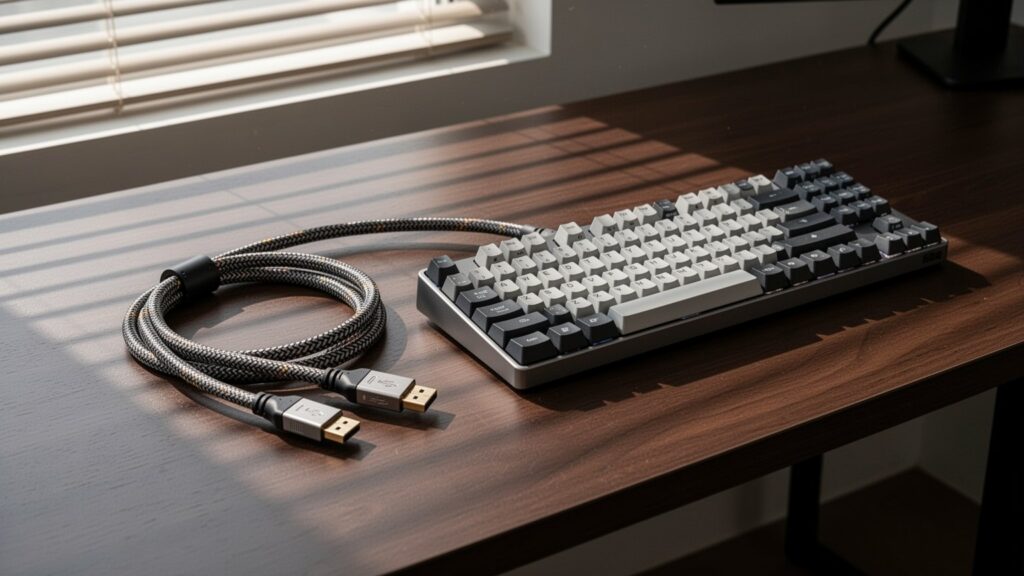
    Second, ensure the cable supports sufficient bandwidth. Different resolutions require specific cable standards to carry 144Hz signals.

    Standard1080p (FHD)1440p (QHD)4K (UHD)Notes / Features
    HDMI 1.4Up to 120Hz–144HzUp to 60Hz–75HzUp to 30HzLegacy standard; limited high-res support
    HDMI 2.0 (18.0 Gbps)Up to 240HzUp to 144HzUp to 60HzCannot output 4K at 144Hz
    HDMI 2.1 (48.0 Gbps)240Hz+240Hz+144HzFull high-res high-refresh support
    DisplayPort 1.2 (21.6 Gbps)Up to 240HzUp to 165HzUp to 75HzStandard PC gaming bandwidth
    DisplayPort 1.4 (32.4 Gbps)240Hz+240Hz120Hz (144Hz with DSC)VESA standard specification

    Manufacturer firmware limits can also affect HDMI ports. Even if a port is HDMI 2.0, some monitors only allow 144Hz over DisplayPort (DP). Check the monitor manual if an HDMI connection stays limited to 60Hz or 120Hz.

    Unlock the 60Hz Cap in GPU Control Panels

    Unlock the 60Hz Cap in GPU Control Panels

    A frequent mistake happens inside the NVIDIA Control Panel under Display → Change resolution.

    Selecting a resolution under the top Ultra HD, HD, SD section treats the screen as a TV broadcast format and caps the refresh rate at 60Hz. Scroll down to the PC section and select your native resolution there to reveal 144Hz and higher refresh rate settings.

    If you use an AMD graphics card, open AMD Software: Adrenalin Edition and check the Display section to manually configure the refresh rate.

    Note: On dual-monitor setups pairing a 144Hz main screen with a 60Hz secondary display, playing video in certain browsers or windowed modes may cause refresh rate sync drops depending on your GPU driver and Windows build.

    Right-click your desktop now and check your display settings to make sure your gaming monitor isn’t stuck at 60Hz.

    References

    1-Minute Video Summary

    Related Guides

  • How to Disable Startup Programs in Windows to Speed Up Boot Time

    How to Disable Startup Programs in Windows to Speed Up Boot Time

    Have you ever turned on your computer only to wait endlessly as desktop icons slowly appear or your mouse cursor stutters? Why does a PC that was blazing fast when new get slower and slower to boot up over time?

    At a Glance

    • Open Task Manager (shortcut: Ctrl + Shift + Esc) and set unused programs to ‘Disabled’ in the ‘Startup apps’ tab.
    • Prioritize disabling apps with a ‘High impact’ rating (consuming over 1 second of CPU time or over 3 MB of disk I/O), such as chat apps and game launchers.
    • Disabling startup apps does not uninstall them; you can re-enable them at any time.
    • You can also easily manage startup apps using the toggle switches in ‘Settings > Apps > Startup’.

    Why PC Boot Times Get Slower Over Time

    Why PC boot times get slower over time

    When installing new software, clicking “Next” without checking the options often enables auto-start on Windows boot by default. Typical culprits include messaging apps, game launchers, cloud storage sync clients, and automatic software updaters.

    This is like packing every single textbook into your backpack every morning, even for classes you do not have that day. The moment Windows boots up, multiple programs compete for CPU and disk resources simultaneously, creating a severe bottleneck.

    Removing programs you don’t need right away from the startup list and launching them manually only when needed can significantly reduce system load.

    Startup Impact Levels: Which Programs Should You Turn Off First?

    Startup impact levels and which programs to disable first

    Windows measures how much load each program places on boot speed using the “Startup impact” metric. This rating is determined by CPU processing time and disk read/write (I/O) activity during startup.

    Startup Impact LevelCPU Active TimeDisk I/O Usage
    High impactOver 1 second (1,000 ms)Over 3 MB
    Medium impact300 ms to 1,000 ms300 KB to 3 MB
    Low impactUnder 300 msUnder 300 KB (under 292 KB in some documentation)
    None–Disabled
    Not measured–No data collected

    Your primary targets should be programs listed as ‘High impact’. While user forums sometimes report dramatic improvements—such as boot times dropping from one minute down to 15 seconds—actual results vary depending on hardware configuration (such as having an SSD) and are not an official guarantee from Microsoft. Furthermore, official Microsoft documentation varies slightly regarding the disk threshold for Low impact, citing either under 292 KB or under 300 KB.

    How to Disable Startup Apps in 10 Seconds

    How to disable startup apps in 10 seconds via Task Manager or Settings

    The quickest method is pressing Ctrl + Shift + Esc to open Task Manager. In Windows 11, click ‘Startup apps’ on the left navigation bar; in Windows 10, go to the ‘Startup’ tab at the top. Right-click any non-essential program and select ‘Disable’.

    If you prefer using the Windows Settings interface, navigate to ‘Settings > Apps > Startup’ and switch the toggle switch to Off for the desired apps.

    Disabling an app here does not delete or uninstall it. The preference is stored in the Windows Registry, allowing you to re-enable auto-start at any point in the future.

    Press Ctrl + Shift + Esc right now and disable unnecessary startup apps marked with ‘High impact’.

    References

    1-Minute Summary Video

    Related Articles