Why are large file downloads painfully slow even when you pay for gigabit internet? Web browsing and video streaming work smoothly, so it is easy to assume nothing is wrong. But your computer’s connection could be capped at 100 Mbps right now. Why does this happen?
Key Takeaways
- Wasted costs: Paying for a 500 Mbps or 1 Gbps plan while stuck at 100 Mbps overpays around $290 to $435 (390,000 to 590,000 KRW) across a 3-year contract.
- Cable check: Gigabit requires all 8 copper wires. If even 1 wire is damaged, the link speed automatically drops to 100 Mbps. Always use at least Cat 5e.
- Windows settings: Open Device Manager and turn off power-saving features like “Energy Efficient Ethernet” under your network adapter.
- Speed & Duplex: Keep it set to “Auto Negotiation” first. If the speed does not recover, manually test “1.0 Gbps Full Duplex”.
How Much Money Are You Wasting on a Capped Plan?
Broadband plans on three-year contracts differ substantially by speed tier. In Korea, major carriers charge about $16 (22,000 KRW) per month for 100 Mbps, about $24 (33,000 KRW) for 500 Mbps, and about $28 (38,500 KRW) for 1 Gbps.
If you pay for a 500 Mbps subscription but stay locked to 100 Mbps due to a configuration or wiring fault, you overpay by about $8 (11,000 KRW) every month. Over a three-year commitment, that amounts to about $290 (396,000 KRW) lost. On a 1 Gbps tier, the loss reaches about $12 (16,500 KRW) per month, totaling about $435 (594,000 KRW) over three years.
| Plan | Advertised Speed | Monthly Rate (3-Year Contract, incl. VAT) | Difference vs. 100M | Minimum Guaranteed Speed (KT SLA) |
|---|---|---|---|---|
| Internet Slim (100M) | 100Mbps | about $16 (22,000 KRW) | Baseline | 50Mbps |
| Internet Basic (500M) | 500Mbps | about $24 (33,000 KRW) | +about $8 (+11,000 KRW) | 250Mbps |
| Internet Essence (1G) | 1Gbps | about $28 (38,500 KRW) | +about $12 (+16,500 KRW) | 500Mbps |
(Note: Depending on sales channels, bundles, and promotions, some carriers quote rates about $1 to $2 [1,100 to 2,200 KRW] lower, so check your actual billing statement.)
The 8-Wire Mystery: Why Ethernet Cables Downgrade to 100 Mbps
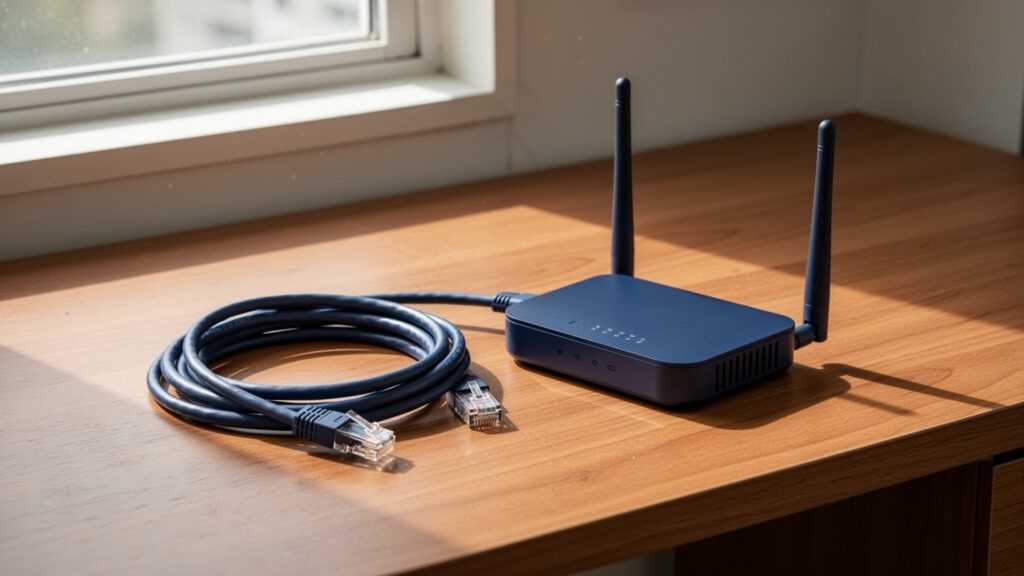
Think of an Ethernet cable as an eight-lane highway. Older Fast Ethernet (100 Mbps) required only 4 copper wires inside the cable (pins 1, 2, 3, and 6) to transfer data. In contrast, Gigabit (1 Gbps) speeds require all 8 copper wires intact and working simultaneously.
What happens if just one of those eight wires breaks, gets crimped in a door, or loses contact inside the RJ-45 connector? To prevent total signal loss, network hardware drops the link speed to 100 Mbps (or 10 Mbps) as a fail-safe fallback mode.
Cable ratings also matter. If the outer jacket says “CAT.5”, bandwidth restrictions limit it to 100 Mbps. Running 500 Mbps or 1 Gbps reliably requires at least a “CAT.5e” or “CAT.6” cable.
Related Reading
100 Mbps vs. 500 Mbps: Do you really need 500 Mbps for 4K streaming?
How and why to turn off Windows Delivery Optimization
10-Second Windows Fix: Unlocking NIC Speed and Power Settings
Even with good cables, Windows network driver settings often pin connections to 100 Mbps. Press [Win + X], open [Device Manager], expand [Network adapters], and double-click your wired Ethernet adapter (Realtek or Intel). Next, open the [Advanced] tab.
First, inspect [Speed & Duplex]. If this is locked to “100 Mbps Full Duplex”, link throughput remains throttled. While online forums often suggest forcing this to “1.0 Gbps Full Duplex”, Intel documentation and router vendors recommend “Auto Negotiation” per IEEE gigabit specifications. A mismatch against the router port can cut off the link entirely. Keep it on “Auto Negotiation” first, and only test “1.0 Gbps Full Duplex” if link speeds refuse to recover.
Next, turn off power-saving features in the same Advanced list. Locate [Energy Efficient Ethernet (EEE)], [Green Ethernet], and [Gigabit Lite / Auto Disable Gigabit], then set each to [Disabled]. Finally, go to the [Power Management] tab and uncheck “Allow the computer to turn off this device to save power”. This stops Windows from degrading connection speeds to 100 Mbps after waking from sleep mode.
Still Stuck at 100 Mbps? Check Wall Jacks and Modems
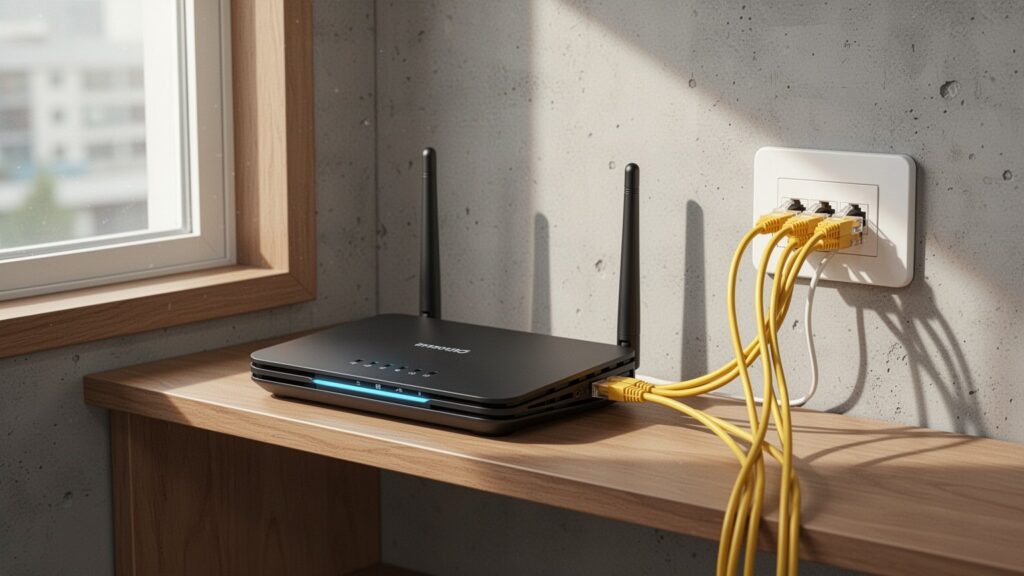
If adjusting PC settings does not fix the link speed, check for physical bottlenecks in your home wiring. Older buildings and apartments frequently have in-wall wiring terminated with only 4 wires (2 pairs) rather than 8 wires (4 pairs).
In a 4-wire structured cabling environment, plugging a retail gigabit router straight into the wall jack caps speeds at 100 Mbps. Reaching full speed requires routing through the ISP’s dedicated modem, which utilizes proprietary modulation to deliver 500 Mbps across 2 pairs.
Government network quality assessments show that healthy gigabit lines deliver average download speeds of 496.05 Mbps for 500 Mbps tiers and 987.70 Mbps (98.8% of advertised capacity) for 1 Gbps plans. Verify that every segment—from the wall patch panel and modem to the router and your PC—uses all 8 wires.
Open your Windows Network Settings now to verify your Ethernet link speed. If it shows 100 Mbps, start by disabling the power-saving settings in Device Manager.
Recommended Reading
- How to install Windows 11 with a local account without internet (BypassNRO)
- Cat 6 vs. Cat 7 Ethernet: Why Cat 7 is overkill for home use
- Does more antennas on a Wi-Fi router make it faster?
- How to troubleshoot a Windows Blue Screen of Death in Safe Mode
답글 남기기