Tech Tips

  • Why Your Laptop Tingles While Charging (And How Grounded Chargers Fix It)

    Why Your Laptop Tingles While Charging (And How Grounded Chargers Fix It)

    Have you ever felt a faint tingling sensation or vibration on your wrists and fingertips while typing on a charging laptop? Or noticed your stylus jittering across the touchscreen? Is your device broken, or is the charger to blame?

    Quick Summary

    • Surface tingling and stylus jitter occur when hundreds of microamps (µA) of leakage current from power conversion cannot escape.
    • A grounded 3-prong charger directs this leakage current safely into the ground.
    • The fix only works if the charger, extension cord, and wall outlet all feature an active ground connection.
    • For metal-bodied laptops, choose a grounded Gallium Nitride (GaN) charger rated for at least 65W.

    Why Does Your Laptop Tingle and Cause Touch Jitter?
    Why Does Your Laptop Tingle and Cause Touch Jitter?

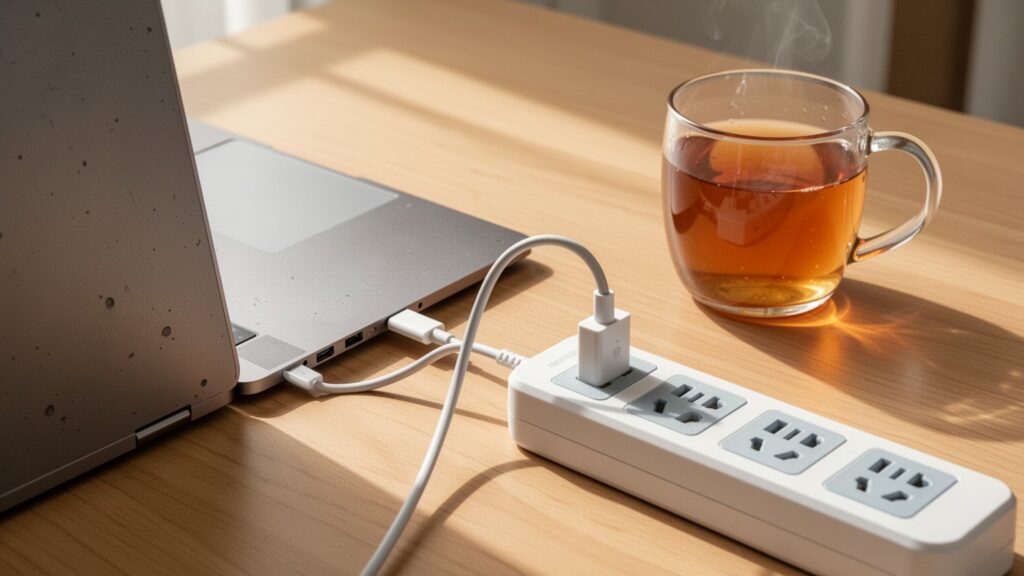
    Laptop power adapters convert high-voltage alternating current (AC) from the wall into low-voltage direct current (DC, typically around 20V). During this process, electricity passes through an EMI filter to suppress electromagnetic interference, which produces high-frequency electrical noise and tiny leakage currents.

    Unlike plastic laptops, modern aluminum or magnesium metal bodies conduct electricity. Without a dedicated exit path, leakage current lingers on the metal surface, creating an induced voltage of several dozen volts and residual currents of several hundred microamps (µA). Capacitive touch sensors on smartphones, tablets, and trackpads also experience interference from this stray current, resulting in erratic touches or stylus jitter.

    Tech communities and manufacturers view this sensation slightly differently. Tech forums often describe it as a micro electric shock where stray current discharges through your skin. In contrast, official guidance from manufacturers like Samsung Electronics explains it as harmless electrostatic induction—a slight vibration sensation rather than direct electrical shock, due to the anodized oxide coating on the metal exterior.

    Grounded vs. Ungrounded Plugs: What Is the Difference?
    Grounded vs. Ungrounded Plugs: What Is the Difference?

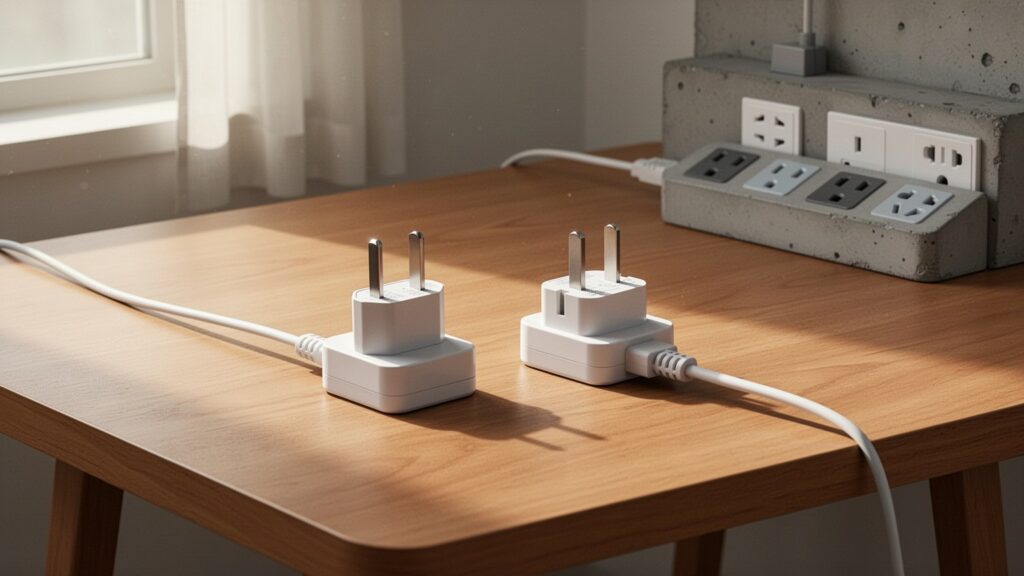
    The key to stopping this effect is giving the residual current somewhere else to go. A quick look at your power plug reveals why it happens.

    Ungrounded chargers have only two prongs. They are light and compact, but offer no pathway to vent stray current. Grounded chargers feature a dedicated ground prong (or side grounding clips). This metal contact routes stray surface current safely through the electrical wiring and deep into the ground.

    CategoryUngrounded Plug (2-prong)Grounded Plug (3-prong / Grounded)
    DesignOnly 2 power prongsAdditional ground pin or side metal contacts
    Leakage HandlingNo discharge path (discharges through touch)Vented into building earth ground via grounding pin
    SymptomsWrist tingling, vibration, stylus jitter, erratic touchEliminates surface voltage and touch interference

    Related Articles
    Can You Safely Charge a Smartphone with a 65W Laptop Charger?
    Can a $75 (100,000 KRW) SSD and RAM Upgrade Really Speed Up an Old Laptop?

    Does Switching to a Grounded Charger Solve Everything?
    Does Switching to a Grounded Charger Solve Everything?

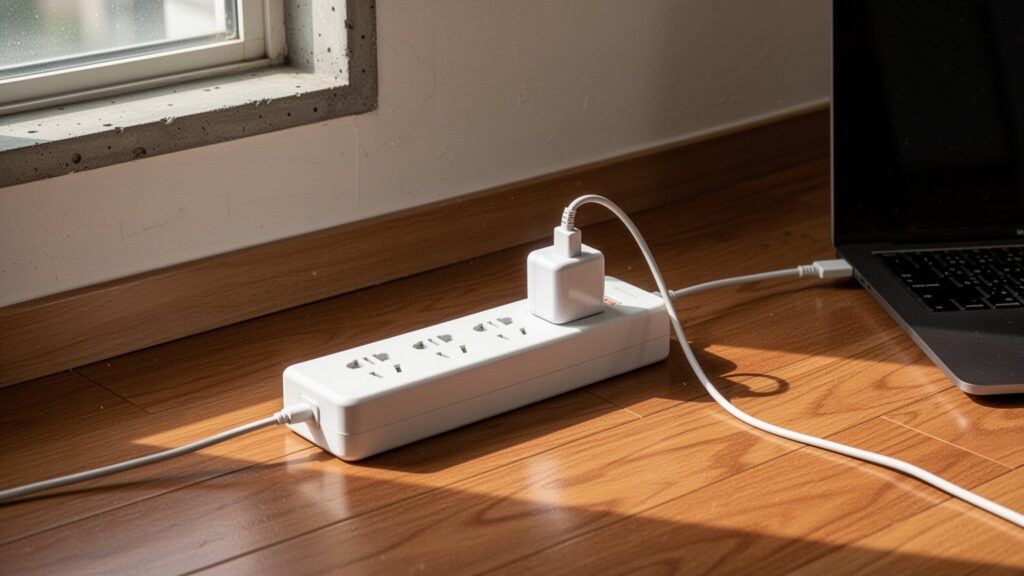
    Buying a grounded charger is not always enough on its own. The entire pathway to the ground must be connected. All three links—the charger, the power strip, and the wall outlet—must support grounding.

    Older buildings often lack grounded wiring in wall outlets. If you plug into an ungrounded outlet or use an ungrounded 2-prong extension cord, the grounding circuit breaks, and the tingling sensation will persist even with a grounded charger.

    Some accessory sellers claim that ungrounded charging ruins your motherboard or reduces battery life. However, no certified test reports or official manufacturer warnings substantiate this claim. Even so, establishing a grounded setup is essential if you want to eliminate that annoying vibration and stylus jitter while working.

    How to Choose the Right Grounded Charger
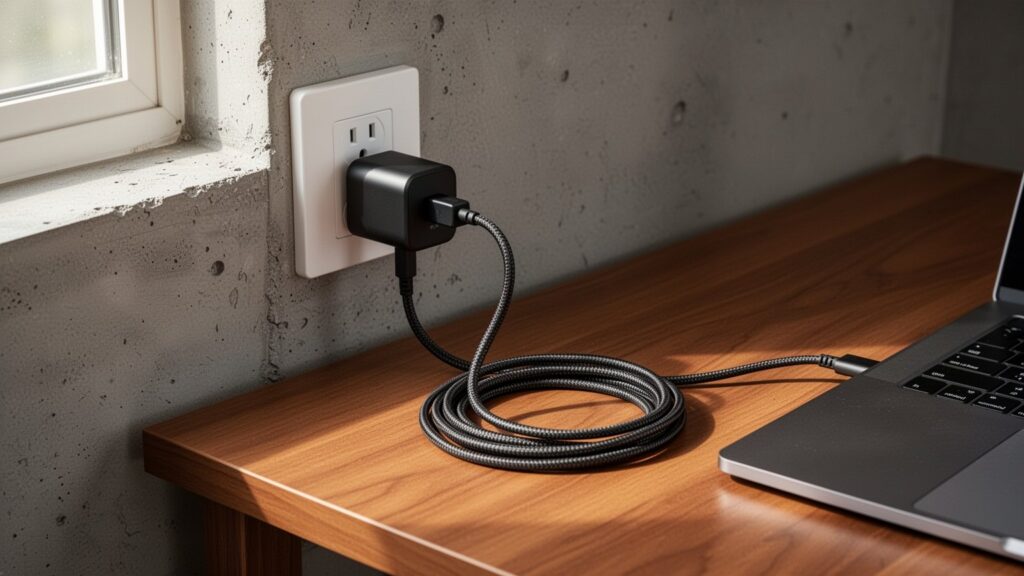
    How to Choose the Right Grounded Charger

    When shopping for a new charger, check your device’s power specifications and safety certifications. For laptop use, look for an adapter with at least 65W output. Gallium Nitride (GaN) chargers are currently the best choice, offering high wattage in a compact size with excellent thermal management.

    To charge phones, tablets, and laptops reliably from a single brick, make sure it supports USB-PD (Power Delivery) and PPS (Programmable Power Supply). You can choose official grounded adapters (such as Samsung’s EP-TA845, EP-TA865, EP-TB010, or EP-TB410) or reputable third-party 65W to 140W multi-port grounded chargers.

    When using a multi-port charger, check how wattage is distributed when multiple devices are plugged in at once. Ensure the primary laptop port still delivers the minimum recommended wattage (usually 65W or higher).

    Check your current setup: look for a third grounding prong or metal contacts on your charger plug, and confirm your power strip and wall outlet have active grounding pins.

    Related Articles

    References

    1-Minute Video Summary

  • How to Disable the Caps Lock Key in Windows 11 and 10

    How to Disable the Caps Lock Key in Windows 11 and 10

    Have you ever been typing quickly in a document or chat only to realize you accidentally typed everything in ALL CAPS? Located right next to the ‘A’ key, the Caps Lock key is one of the most common causes of accidental typos. Windows doesn’t offer a built-in switch to turn it off, but what is the safest way to disable it?

    At a Glance

    • Windows does not have a built-in setting to disable Caps Lock, so you need to use Microsoft’s official free utility, ‘PowerToys’.
    • Compatible with Windows 11 and Windows 10 version 2004 (Build 19041) or higher on 64-bit PCs.
    • You can disable Caps Lock or remap it to other keys like Esc, Ctrl, or IME Hangul using ‘Keyboard Manager’ in PowerToys.
    • PowerToys must run in the background to maintain settings, and the key behaves normally on the Windows login screen.

    Why Windows Doesn’t Have a Built-In ‘Disable Caps Lock’ Setting

    Why is there no Caps Lock toggle in default Windows settings?

    Neither Windows 11 nor Windows 10 includes a native setting to disable the Caps Lock key. The only related feature in the Windows Accessibility menu is ‘Toggle Keys’, which plays a sound when you press it.

    In the past, users had to manually edit the Windows Registry (Scancode Map) to turn off the key. However, modifying the registry carries a risk of system errors, especially for beginners.

    It was like rewiring an entire electrical panel just to turn off a single light switch. Fortunately, Microsoft provides an official free utility that allows anyone to reconfigure keys safely in just a few clicks.

    Installing Microsoft PowerToys and System Requirements

    Installing Microsoft PowerToys and checking system requirements

    The tool you need to disable Caps Lock is Microsoft PowerToys. While it doesn’t come preinstalled with Windows, you can download it for free from the Microsoft Store.

    Before installing, make sure your PC meets the system requirements. Most modern Windows PCs will run it without issues.

    ItemSystem Requirements
    Operating SystemWindows 11 or Windows 10 version 2004 (Build 19041) or higher
    Processor64-bit (x64 or ARM64)
    Installation MethodMicrosoft Store search or Command Prompt (CMD)
    Install Commandwinget install --id Microsoft.PowerToys --source winget
    LicenseFree (Official Microsoft)

    How to Disable or Remap Caps Lock in 30 Seconds

    Step-by-step guide to disabling and remapping Caps Lock in 30 seconds

    Once PowerToys is installed, you can use the Keyboard Manager feature to completely disable Caps Lock or assign it a more useful function. The process takes just 5 steps.

    1. Open PowerToys, go to ‘Keyboard Manager’ in the left sidebar, and enable it.

    2. Click ‘Remap a key’, then click the ‘Add key remap’ (+) button.

    3. Under the ‘Select’ column on the left, press Caps Lock or choose it from the dropdown menu.

    4. Under the ‘To send’ column on the right, select Disable. If you want to assign a different function, choose your replacement key instead.

    5. Click ‘OK’ at the top right, and if a warning prompt appears, select ‘Continue Anyway’ to save your changes.

    Desired Function‘To send’ (Mapped To) Setting
    Disable Key CompletelyDisable
    Mac-Style Language SwitchIME Hangul
    Typo-Safe Modifier KeyEsc or Ctrl (Left Ctrl)

    3 Things to Keep in Mind Before Remapping

    3 key points to keep in mind before remapping

    While PowerToys key remapping is seamless, there are a few operational rules to keep in mind.

    First, PowerToys must be running in the background for key remapping to stay active. If you close the app completely, keys revert to their default behavior.

    Second, remapping does not apply to the Windows lock screen or login password prompt. For security reasons, the key functions as standard Caps Lock before you log in.

    Third, system-reserved shortcuts (Win + L, Ctrl + Alt + Del) and laptop Fn keys cannot be remapped. Additionally, according to Microsoft, because the utility intercepts keystrokes, it may slightly affect frame rates (FPS) in certain demanding video games.

    Download PowerToys from the Microsoft Store today and say goodbye to accidental Caps Lock presses.

    References

    1-Minute Video Summary

    Related Articles

  • How to Enable God Mode in Windows 11 and 10

    How to Enable God Mode in Windows 11 and 10

    Ever gotten lost in complex menus while trying to adjust mouse sensitivity or printer settings in Windows? Recent Windows updates scattered traditional Control Panel tools across multiple menus. What if you could gather all these settings into a single folder in just 10 seconds?

    At a Glance

    • Supported OS: Windows Vista, 7, 10, 11 (Administrator rights required)
    • Creation Code: GodMode.{ED7BA470-8E54-465E-825C-99712043E01C}
    • Key Features: Search and launch over 200 settings, including backup, power options, and device management, from a single folder

    What Is God Mode and Why Do You Need It?

    What Is God Mode and Why Do You Need It?

    The official name for God Mode is the ‘Windows Master Control Panel shortcut.’ Popularized by tech bloggers around 2010, it is a special shortcut folder that brings all advanced system management tools into one place.

    Think of it as gathering tools scattered across your house into one large toolbox. It works on every major Windows release from Windows Vista (2007) through Windows 7, Windows 10, and Windows 11.

    Microsoft prioritized the modern ‘Settings’ app in Windows 10 and 11. This buried many classic Control Panel features deep inside submenus. Using the Master Control Panel cuts down the clicks required to reach them.

    How to Create the God Mode Folder in 10 Seconds

    How to Create the God Mode Folder in 10 Seconds

    To set up God Mode, you must be logged in with an Administrator account. Once ready, follow these three steps on your desktop.

    StepActionDetails
    Step 1Create FolderRight-click empty space on desktop → select New → Folder
    Step 2Rename FolderPaste the special code as the folder name and press Enter
    Step 3Open and VerifyDouble-click the folder once its icon changes to a Control Panel icon

    Here is the exact name string to use for the folder:

    GodMode.{ED7BA470-8E54-465E-825C-99712043E01C}

    The GUID string inside the curly brackets tells the operating system to open the Master Control Panel. Once entered, the GUID part disappears, and the folder transforms into a special Control Panel icon.

    What Settings Are Included and How to Use Them?

    What Settings Are Included and How to Use Them?

    Opening the folder displays more than 200 system settings organized alphabetically and by category. You can browse all tools simply by scrolling through the File Explorer window.

    CategoryExample Settings
    Backup and Restore / File HistoryConfigure system backups, manage restore points
    Devices and Printers / MousePrinter properties, pointer speed, mouse wheel scroll sensitivity
    Power OptionsSleep timers, power button behavior
    Security and Maintenance / TroubleshootingWindows Defender Firewall, User Account Control, network and system troubleshooting
    Programs and Features / User AccountsUninstall apps, turn Windows features on/off, manage user permissions

    To quickly find a setting, type a keyword into the search bar in the top-right corner. You can also drag frequently used items onto your desktop to create standalone shortcuts.

    Things to Check Before Setting It Up

    Things to Check Before Setting It Up

    While God Mode is a built-in, safe Windows feature, keep a few points in mind.

    First, the total number of settings is not fixed. Depending on your Windows edition (Home vs. Pro) and installed hardware drivers (such as graphics cards), your item count may vary slightly around the 200+ mark.

    Second, occasional compatibility questions come up regarding OneDrive desktop sync. While some report folder creation glitches with OneDrive active, this has not been confirmed as a universal bug. Similarly, you do not need to enable file extension visibility for this to work in most environments.

    Create a new folder on your desktop today and enter the God Mode code to manage over 200 scattered Windows settings in one place.

    References

    1-Minute Summary Video

    Related Articles

  • How to Save Specific Pages from a PDF Without Any Software
    How to Save Specific Pages from a PDF Without Any Software
    Have you ever needed to send just two or three specific pages from a massive PDF to a client or school? Paying a monthly subscription for paid editing software feels wasteful, while uploading sensitive documents to free online converter websites raises security concerns. Is there a way to extract pages using only the default web browser already on your computer, without installing extra programs?

    Quick Summary

    • Drag and drop the PDF into your browser (Chrome/Edge) and press Ctrl+P (Mac: Cmd+P).
    • Set the destination to ‘Save as PDF’ or ‘Microsoft Print to PDF’.
    • Change Pages to ‘Custom’ and enter a range with a hyphen (1-5) or individual pages with commas (3, 6, 8).
    • Because this uses virtual printing, interactive elements like digital signatures and hyperlinks may be stripped, so check the file after saving.

    How Browser Virtual Printing Works in 10 Seconds

    How browser virtual printing works in 10 seconds

    You do not need to purchase or install dedicated PDF editing tools like Adobe Acrobat Pro. Web browsers you use every day, such as Google Chrome or Microsoft Edge, already have high-performance PDF viewers and virtual printing engines built in.

    This works just like placing selected pages from a thick encyclopedia onto a photocopier and printing them as a new, thin booklet file instead of physical paper. Just as a paper printer outputs physical sheets, the browser redraws and outputs only the pages you specify into a clean new PDF file.

    5-Step Extraction Guide and Page Syntax

    5-step extraction guide and page syntax

    The process is straightforward and takes less than a minute. Follow the steps below.

    1. Open file: Drag and drop the target PDF file into a Chrome or Edge browser window.

    2. Open print menu: Press the shortcut Ctrl + P (or Cmd + P on Mac).

    3. Change destination: Set the Destination (printer) to ‘Save as PDF’ or ‘Microsoft Print to PDF’.

    4. Specify pages: Change the ‘Pages’ option from ‘All’ to ‘Custom’ and enter your desired page numbers.

    5. Save: Click the ‘Save’ button at the bottom and choose your destination folder and file name.

    When typing page numbers, you can freely combine commas and hyphens depending on what you need.

    PurposeInput Format ExampleExtracted Pages
    Continuous page range1-5 or 3-5All pages from 1 to 5
    Individual pages3, 6, 8Pages 3, 6, and 8 (3 pages total)
    Mixed range + individual1-3, 7, 10-12Pages 1–3, 7, and 10–12

    Things to Check Before Clicking Save

    Things to check before clicking save

    Virtual printing generates a new document based on what is rendered visually on screen. As a result, interactive elements from the original file—such as hyperlinks, digital signatures, bookmarks, and fillable form fields—might disappear or stop working in the newly created PDF.

    In addition, the printed page number in the document text (for example, page 1 after a cover sheet) may differ from the browser’s actual sheet index (sheet 3). When entering page numbers, always check the visual page sequence shown in the browser’s preview panel to avoid saving the wrong pages.

    Furthermore, if a PDF has DRM protection or print restrictions enabled, the browser’s print option may be disabled entirely. Rare fonts or ultra-high-resolution graphics might also render slightly differently depending on the browser engine, so it is best to open and inspect the exported file once it is saved.

    Try dragging a PDF into Chrome or Edge right now and press ‘Ctrl + P’ to extract only the pages you need.

    References

    1-Minute Summary Video

    Related Articles

  • How to Copy and Paste Between Android and Windows PC

    How to Copy and Paste Between Android and Windows PC

    Do you often message links or notes to yourself just to get them onto your computer? Opening a chat app, pasting, and sending text every time gets tedious. What if copying something on your phone meant you could immediately press Ctrl + V on your PC to paste it?

    Quick Summary

    • Feature: Copy on your smartphone and immediately paste on your PC with ‘Ctrl + V’
    • Requirements: Windows 10 (22H2 or later) or Windows 11 / Android 10 or later (Samsung One UI 2.1 or later)
    • Setup: PC ‘Phone Link’ app → Settings → Features → Turn on ‘Cross-device copy and paste’
    • Note: Must be signed into the same Microsoft account / iPhone (iOS) clipboard sharing is not officially supported

    How Cross-Device Copy and Paste Works Without Messaging Apps

    How cross-device copy and paste works without messaging apps

    Clipboard sharing between your PC and smartphone works through Windows’ built-in Phone Link app. Your smartphone needs the Link to Windows feature built in or installed.

    When enabled, text or images copied on your phone transfer instantly to your PC over the network. It works just like sharing a single real-time clipboard between both devices on your desk.

    Data syncs over Wi-Fi or mobile data regardless of Bluetooth status, completely eliminating the need to send notes through chat apps.

    System Requirements and Supported Devices

    System requirements and supported devices

    To use real-time clipboard sharing, both your PC and mobile device must meet specific OS and manufacturer requirements. Here are the system requirements:

    CategoryRequirements
    PC OSWindows 10 (22H2 or later / including Oct 2022 update), Windows 11
    Smartphone OSAndroid 10 or later (Samsung One UI 2.1 or later)
    Supported BrandsSamsung, Surface Duo, HONOR, OPPO, ASUS, vivo, Xiaomi
    Account RequirementBoth devices signed in to the same Microsoft account

    One important note: While iPhones (iOS) support calls and messages via the Phone Link app, cross-device copy and paste is not officially supported on iOS.

    How to Enable Cross-Device Copy and Paste in 1 Minute

    How to enable cross-device copy and paste in 1 minute

    If both devices are signed in with the same Microsoft account, you only need to turn on a single toggle in your PC settings.

    • In Phone Link app: Open Phone Link on your PC → Click Settings (gear icon) in the top right → Go to Features → Turn on ‘Cross-device copy and paste’ (Allow this app to copy and paste content between my devices).
    • In Windows Settings: Go to Windows Settings → Bluetooth & devices → Mobile devices → Manage mobile devices → Turn on Cross-device copy and paste.

    By default, both devices should be on the same Wi-Fi network. However, turning on ‘Use mobile data’ in your phone’s Link to Windows settings lets you copy and paste freely even when away from home.

    Similar Settings to Avoid and Troubleshooting Tips

    Similar settings to avoid and troubleshooting tips

    A few Windows and Samsung settings have similar names, so make sure not to confuse them:

    • Sync across your devices (Windows Settings > System > Clipboard): This syncs clipboard history only between Windows PCs (PC ↔ PC), not with your phone.
    • Continue apps on other devices (Samsung Settings > Connected devices): This is a Samsung-exclusive feature that works across Galaxy phones, tablets, and Galaxy Books using a Samsung account.

    In recent Windows 11 updates, the cross-device copy and paste toggle moved into the ‘Mobile devices’ section. If clipboard sharing stops syncing or drops connection, check your device connection settings again in Phone Link.

    Open Phone Link on your PC and toggle on cross-device copy and paste today. You will never have to message links to yourself again.

    1-Minute Video Summary

    Related Articles

  • How to Clear and Turn Off Recent Files in Windows File Explorer

    How to Clear and Turn Off Recent Files in Windows File Explorer

    Have you ever shared your screen in a meeting or looked at a laptop with a coworker, only to have File Explorer open with a list of your private recent files? By default, Windows displays up to 20 recent files on the File Explorer Home page and taskbar jump lists. Here is how to quickly clear your viewing history and permanently turn off recent file tracking.

    Quick Summary

    • One-time clear: Press ‘Win + E’ → Click the three dots (‘⋯’) at the top → ‘Options’ → In [Privacy], click [Clear] next to ‘Clear File Explorer history’
    • Disable auto-tracking: In Folder Options, uncheck all 2–3 boxes under Privacy (‘Show recently used files’ and ‘folders’)
    • Disable Start Menu integration: Press ‘Win + I’ → [Personalization] → [Start] → Toggle ‘Show recently opened items’ to [Off]
    • Change default startup folder: In Folder Options, change ‘Open File Explorer to’ from [Home] to [This PC]

    Clear Past File Explorer History in 3 Seconds

    Clear past File Explorer history in 3 seconds

    File Explorer keeps a meticulous record of the files and folders you open. To clear this entire history at once, you need to open the Folder Options menu.

    Press Win + E to open File Explorer. On Windows 11, click the three dots (⋯) on the right side of the top menu bar and select [Options]. If you are using Windows 10, click the [View] tab at the top and select [Options], or go to [File Explorer Options] under ‘Appearance and Personalization’ in the Control Panel.

    Once the window opens, check the ‘Privacy’ section at the bottom of the [General] tab. Click the [Clear] button next to ‘Clear File Explorer history’ to immediately delete recent records from File Explorer Home and taskbar jump lists. If you only want to remove a specific file, right-click that item in the list and select [Remove from Recent].

    Permanently Turn Off Recent Files Tracking

    Permanently turn off recent files tracking

    Clicking [Clear] only removes past records; newly opened files will start accumulating again. To prevent automatic tracking going forward, you must disable the display options themselves.

    In the [General] tab of Folder Options, uncheck all active boxes in the [Privacy] section.

    Setting (Windows 11)Windows 10 NameAction
    Show recently used filesShow recently used files in Quick accessUncheck
    Show frequently used foldersShow frequently used folders in Quick accessUncheck
    Show files from Office.com–Uncheck

    After unchecking the boxes, click [Apply] and [OK] to stop File Explorer from automatically collecting your activity. To fully disable recent items across Windows, press Win + I to open Settings, navigate to [Personalization] > [Start], and toggle Show recently opened items in Start, Jump Lists, and File Explorer to [Off].

    Set File Explorer to Open to ‘This PC’ by Default

    Set File Explorer to open to This PC by default

    Setting File Explorer to open directly to your computer’s drives rather than the Home or Quick Access view provides an even cleaner workspace.

    Locate the ‘Open File Explorer to’ dropdown menu at the top of the [General] tab in Folder Options. Change the default Home (or Quick access) setting to [This PC] and click OK. The next time you press Win + E, your C: and D: drive list will open first.

    Note that for cloud-synced files such as OneDrive or SharePoint, some users have reported issues where files remain in the list after clearing or show errors when removed individually. It remains unclear whether this is by design or a specific build bug.

    Press ‘Win + E’ now, open Folder Options, and uncheck the recent files options. Taking 10 seconds now will prevent awkward privacy leaks during your next screen share.

    References

    1-Minute Video Summary

    Related Articles

  • How to Move and Control Your Mouse Cursor Using Only the Keyboard

    How to Move and Control Your Mouse Cursor Using Only the Keyboard

    Have you ever had your mouse cursor suddenly freeze while typing an urgent document or completing an online transaction? Whether your wireless mouse battery died or your cable broke, saving your work or closing windows without a mouse can feel impossible. However, you can control the cursor entirely using your keyboard’s numeric keypad. Here is how to set it up and use it.

    Quick Summary

    • Activation shortcut: Press ‘Left Alt + Left Shift + Num Lock’ together, then press Enter on the prompt dialog
    • Move cursor: Numpad 8 (Up), 2 (Down), 4 (Left), 6 (Right), and 7·9·1·3 (Diagonals) / Ctrl (Accelerate), Shift (Slow down to 1-pixel precision)
    • Click & Double-click: Select / (Left click) or – (Right click), then press 5 (Click) or + (Double-click)
    • Drag & Drop: Press 0 over an item to hold down the button, move, and press . (Decimal point) to release

    How to Turn on Mouse Keys Instantly with a Shortcut or Settings

    How to Turn on Mouse Keys Instantly with a Shortcut or Settings

    Windows 10 and 11 come with a built-in feature called “Mouse Keys” that lets you control the pointer using your keyboard when you do not have a mouse. You do not need to install any extra drivers or third-party software.

    The fastest way to turn it on is by using the dedicated keyboard shortcut. Press Left Alt + Left Shift + Num Lock simultaneously, and a prompt asking “Do you want to turn on Mouse Keys?” will appear on screen. Press Enter or the Spacebar to enable Mouse Keys mode immediately.

    If the shortcut does not respond, you can turn it on directly through Windows Accessibility settings. Press Windows key + U to open Accessibility settings, navigate to the “Mouse” menu under “Interaction,” and toggle Mouse Keys on. Alternatively, press Windows key + I to open the main Settings app and navigate to Accessibility.

    Moving the Cursor in 8 Directions Using the Numeric Keypad

    Moving the Cursor in 8 Directions Using the Numeric Keypad

    Once Mouse Keys is enabled, the numeric keypad on the right side of your keyboard acts as your mouse pad. You can move the cursor in 8 directions, similar to a directional pad on a game controller.

    Even numbers control standard up, down, left, and right movements, while odd numbers move diagonally. You can also adjust movement speed using modifier keys. Hold Ctrl while pressing a direction key to accelerate movement across the screen, or hold Shift to slow the cursor down to precise 1-pixel increments.

    DirectionNumpad KeyFunction Description
    Up / Down8 / 2Move cursor vertically up or down
    Left / Right4 / 6Move cursor horizontally left or right
    Diagonal (Top-Left / Top-Right)7 / 9Move cursor diagonally up-left or up-right
    Diagonal (Bottom-Left / Bottom-Right)1 / 3Move cursor diagonally down-left or down-right
    Accelerate / Slow DownCtrl / ShiftHold while moving for high speed / 1-pixel fine precision

    How to Click, Right-Click, Double-Click, and Drag and Drop

    How to Click, Right-Click, Double-Click, and Drag and Drop

    Once you move the cursor to the target position, you can perform clicks and window dragging using the keypad. Mouse Keys works by having you first select which mouse button to activate before executing the click command.

    Press the slash (/) to select the primary left mouse button, or press the minus sign (-) to select the right mouse button (for context menus). Once selected, that button remains active until you choose a different one. After selecting your button mode, press 5 to perform a single click, or press the plus sign (+) to double-click.

    You can also drag and drop icons or windows. Place the cursor over the target item and press 0 to hold down the mouse button (drag). Then, use the direction keys to move the cursor to where you want it and press the decimal point (.) to release the button (drop).

    ActionKeyDescription
    Select left button/Sets left-click as the active button (default)
    Select right button-Sets right-click as the active button
    Select both buttons*Sets both buttons as active simultaneously
    Single click5Performs a single click with the active button
    Double click+Performs a double-click with the active button
    Hold down button (Drag)0Holds down the active mouse button
    Release button (Drop).Releases the held mouse button

    Important Things to Keep in Mind When Using Mouse Keys

    Important Things to Keep in Mind When Using Mouse Keys

    Keep in mind that while Mouse Keys is active, your numeric keypad is converted into a mouse controller, meaning you cannot use it to type numbers. If you need to enter numbers, use the top row number keys (1–0) above the letter keys instead.

    In addition, Mouse Keys is designed primarily for full-sized keyboards with a physical numeric keypad on the right. For tenkeyless (TKL) keyboards or compact laptops without a numpad, official documentation does not specify whether the default shortcut directly remaps standard letter keys, so connecting an external full-sized keyboard is recommended.

    Once you have saved your work and connected a working mouse, press Left Alt + Left Shift + Num Lock again or turn off the toggle in Settings to return the keypad back to normal number entry mode.

    If your mouse suddenly stops working, don’t panic—press Left Alt + Left Shift + Num Lock to safely navigate and save your work using the keyboard.

    References

    1-Minute Video Summary

    Related Articles

  • How to Reduce Chrome Memory Usage and Fix Tab Lag (Save Up to 40% RAM)

    How to Reduce Chrome Memory Usage and Fix Tab Lag (Save Up to 40% RAM)

    When browsing the web, it is easy to end up with dozens of open tabs. Eventually, the computer fans roar and the mouse cursor starts lagging. Why does Chrome become so resource-heavy with just a few extra tabs?

    Quick Summary

    • Official Google metrics: Free up to 40% and up to 10GB of RAM using Memory Saver
    • How to set up: Enter chrome://settings/performance in the address bar and select the recommended ‘Balanced’ mode
    • Prevent data loss: Add your essential work websites to the exception list so unsaved forms do not disappear
    • Extra tip: Disable running background apps after closing Chrome at chrome://settings/system
    h2>Why Does Chrome Slow Down Your Computer with Every Tab?

    Why Does Chrome Slow Down Your Computer with Every Tab?

    For security and stability, Chrome assigns a separate process—an isolated workspace—to every single tab. This ensures that if one tab crashes, it does not take down other tabs or the entire browser.

    Think of it like occupying an entire new desk in a library for each book you open. When you keep 20 to 30 tabs open on a system with 8GB or 16GB of RAM, memory quickly fills up, causing the entire PC to stutter and freeze.

    h2>The 3 Memory Saver Modes: Which One Fits Your Setup?

    The 3 Memory Saver Modes: Which One Fits Your Setup?

    Google Chrome includes a Memory Saver feature that frees up memory from inactive tabs and redirects resources to active tasks. According to Google, this feature can reduce browser memory usage by up to 40% and 10GB.

    Enter chrome://settings/performance into your address bar to jump directly to the Performance settings. Memory Saver provides three tiers. Google designed the deactivation timer to adapt dynamically to your system state rather than using a rigid minute threshold.

    Saving LevelHow It WorksRecommended For
    ModerateReclaims memory after extended inactivity based on system needsHigh-RAM systems, light browsing
    BalancedDeactivates tabs based on usage patterns and system state (Recommended)Standard office work and multitasking
    MaximumReclaims memory quickly as soon as you switch away from tabsLow-memory systems (8GB RAM or less)
    h2>How to Protect Tab Data and Stop Background RAM Leaks

    How to Protect Tab Data and Stop Background RAM Leaks

    When you click back on a discarded tab, the page will automatically reload. To keep draft posts or filled forms from disappearing, click Add next to “Always keep these sites active” and register the domains you work on regularly (such as notion.so).

    You do not have to worry about tabs playing audio, running calls, sharing screens, or downloading files—Chrome automatically detects active media and processes and will not deactivate them.

    Finally, prevent Chrome from secretly consuming RAM after closing the window. Enter chrome://settings/system in your address bar and toggle off “Continue running background apps when Google Chrome is closed” to completely stop unnecessary memory drain. (Note: These performance settings are supported on Windows, macOS, and ChromeOS desktop environments.)

    Open chrome://settings/performance in Chrome right now and set Memory Saver to ‘Balanced’ for a much smoother PC experience.

    h2>References h2>1-Minute Video Summary
    h2>Related Articles