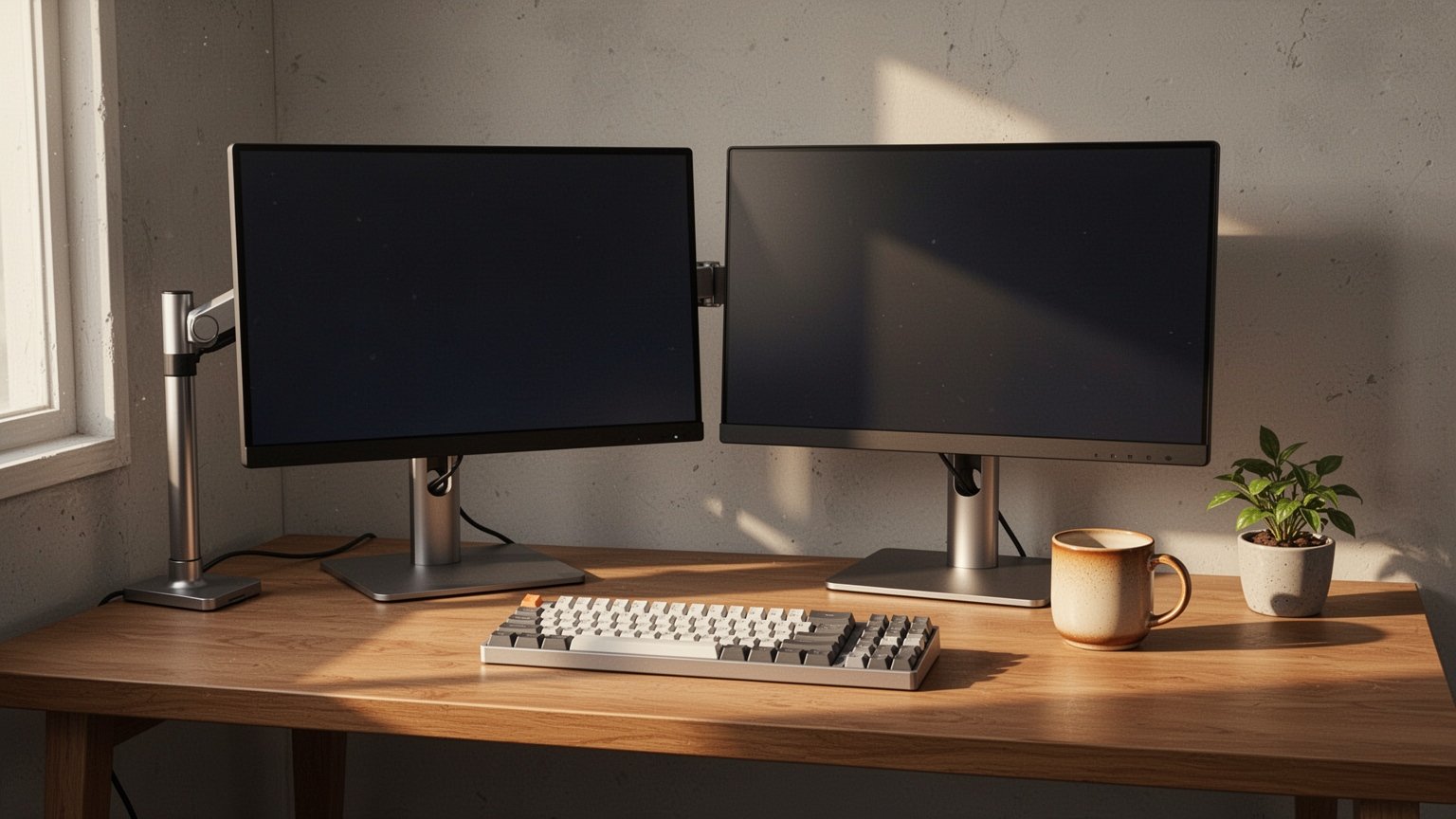
When using a dual-monitor setup, both taskbars often mirror the same cluttered row of open program icons. Hiding the taskbar entirely on the secondary screen isn’t ideal either, as switching windows requires dragging the mouse all the way back to the main display. Fortunately, you can set each taskbar to show only the programs currently open on that specific screen.
Quick Summary
- Windows 11: Go to Settings → Personalization → Taskbar → Taskbar behaviors, then select ‘Taskbar where window is open’.
- Windows 10: Go to Settings → Personalization → Taskbar → Multiple displays, then select ‘Taskbar where window is open’.
- Instant changes: Settings take effect immediately without restarting or signing out.
- System tray note: In Windows 11, moving the clock and system tray requires changing your primary display under Display settings.
Why Do Both Taskbars Show the Exact Same Icons?
By default, Windows mirrors every running program across the taskbars on all connected monitors. It is like placing an identical duplicate pencil holder on two separate desks.
Disabling the taskbar on your secondary display frees up screen space, but forces you to move your cursor back to the main display every time you switch windows. Adjusting a single setting lets you isolate apps to the taskbar of the screen they are running on, reducing visual clutter.
Windows offers three ways to display taskbar buttons across multiple monitors:
| Display Option | How Taskbar Buttons Behave |
|---|---|
| All taskbars | Every open program icon appears duplicated across both the main and secondary monitors. |
| Main taskbar and taskbar where window is open | The primary monitor shows all icons, while the secondary monitor only shows icons for apps open on it. |
| Taskbar where window is open | Each monitor only displays icons for the apps currently running on that screen. |
Related Reading
How to Turn Off the Windows 11 Taskbar Weather Widget and Search Box
How to Fix a Frozen Windows Taskbar in 10 Seconds Without Restarting
How to Isolate Open Windows on Windows 11
On Windows 11, separating taskbar icons by monitor takes only a few clicks. The changes apply instantly in real time, so there is no need to restart your PC or log out.
Right-click an empty area on the taskbar and select Taskbar settings, or press Windows key + I to open Settings and navigate to Personalization. Then, select Taskbar.
Click Taskbar behaviors near the bottom to expand the section. Make sure Show my taskbar on all displays is checked. Then, open the dropdown next to When using multiple displays, show my taskbar apps on and choose Taskbar where window is open.
Windows 10 Settings and System Tray Behavior
The process is similar on Windows 10. Right-click an empty space on the taskbar, choose Taskbar settings, and scroll down to the Multiple displays section. Ensure the Show taskbar on all displays toggle is set to On, then set the Show taskbar buttons on dropdown to Taskbar where window is open.
Keep in mind that on Windows 11, the system tray—including the clock and hidden notification icons—is fixed to the primary monitor by default. If you want the clock on your secondary monitor, navigate to Settings → System → Display, select that monitor, and check Make this my main display.
Some users have reported instances where clicking an icon on the secondary taskbar occasionally launches or focuses the window on the primary monitor. Official documentation has not confirmed whether this is a system-level bug or a behavior specific to individual apps remembering window coordinates. Additionally, the detailed button grouping option found in Windows 10 (“Combine buttons on other taskbars”) differs in recent Windows 11 builds.
Press Windows key + I right now and change your taskbar setting to “Taskbar where window is open.”
Related Guides
- How to Show Seconds in the Windows 11 Taskbar Clock
- How to Fix a Mouse Cursor Getting Stuck Between Dual Monitors
- Win + P Shortcut: Quickly Fix Display Projection and Detection Issues
- IPS vs. VA Panels: Which Monitor Is Better for Office Work?
답글 남기기