Have you ever seen full Wi-Fi bars on your phone, yet web pages freeze and videos refuse to buffer? You restart the router thinking it is broken, and suddenly everything runs fast again. What actually happens inside a router that runs 24 hours a day, 365 days a year?
Quick Summary
- Cause: Running 24/7 accumulates temporary cache files and lingering device sessions in DRAM, slowing down connection speeds.
- Setup: Free auto-reboot scheduling is available in admin settings for ipTIME (192.168.0.1), ASUS, and other brands.
- Recommended time: Schedule once a week or daily between 3:00 AM and 6:00 AM when network usage is lowest.
- Manual reboot: Unplug the power adapter, wait 10 to 30 seconds (KT official guides suggest 3 seconds), then power on the modem 1 to 2 minutes before the router.
Why Routers Are Small Computers That Need Regular Restarts
A Wi-Fi router is not a simple signal booster. It is a compact computer equipped with its own CPU and DRAM (memory). When left running nonstop, connection logs, error logs, temporary cache, and internal routing tables (DHCP and NAT tables) continuously build up in its memory.
Today, smart TVs, robot vacuums, and smart lights stay connected to your wireless network alongside phones and laptops. As active connection sessions multiply, the router quickly consumes its DRAM. Once it hits its hardware processing ceiling, you experience random speed drops and disconnected signals—much like a desk cluttered with old paperwork and empty cups leaves no room to work.
A reboot flushes out unnecessary cache files and tangled session residue all at once. It also requests a fresh IP lease from your internet service provider (ISP), restoring network stability.
How to Set Up Automatic Reboots by Brand in 3 Minutes
You do not need to unplug your router by hand every time. Most modern routers include a built-in scheduler in their admin dashboard to reboot automatically while you sleep. It costs nothing.
Open any web browser, type your router’s default gateway address into the URL bar, and configure the schedule.
| Manufacturer | Gateway Address | Menu Navigation | Recommended Setting |
|---|---|---|---|
| ipTIME | 192.168.0.1 | Management Tool > Advanced Setup > System Management > Miscellaneous | Enable ‘Auto Reboot’ and set time between 3:00 AM and 5:00 AM |
| ipTIME (Newer UI) | 192.168.0.1 | Management Tool > Special Features > System Scheduler | Click [+], select ‘Reboot’, and set frequency to ‘Weekly’ |
| ASUS | asusrouter.com or App | Administration > System > Reboot Scheduler | Enable ‘Reboot Scheduler’ and choose days and early-morning hours |
| MERCUSYS | mwlogin.net | Advanced > System > Reboot Schedule | Enable ‘Reboot Schedule’ and choose preferred timing |
On ipTIME routers running firmware 15.32.8 or newer, the System Scheduler feature allows you to define exact repeating schedules. Always click [Apply] at the bottom of the page to save your changes.
Related Reading
Wi-Fi 6 vs. Wi-Fi 5: What Is the Difference?
Do More Antennas on a Router Really Mean Faster Wi-Fi?
Checking Support on ISP-Provided Routers and Older Models
Routers supplied by internet service providers also feature designated admin portal addresses. For major Korean telecom carriers, KT uses 172.30.1.254, SK Broadband uses 192.168.35.1 or 192.168.0.1, and LG Uplus uses 192.168.219.1. Default login credentials are printed on a sticker on the hardware unit.
However, automated reboot scheduling varies widely on ISP-rented hardware. While users report finding schedule options within certain LG Uplus management menus, official carrier documentation rarely highlights automatic reboots, focusing instead on manual power cycling.
Additionally, budget entry-level models such as the Netis WF2419V2 lack automated reboot scheduling entirely according to official support materials. Expert recommendations on restart frequency range from once a week to daily or every two to three days. Scheduling a reboot at least once a week between 3:00 AM and 6:00 AM provides a safe and effective starting baseline.
Manual Reboot Tips: Why Waiting 30 Seconds Matters
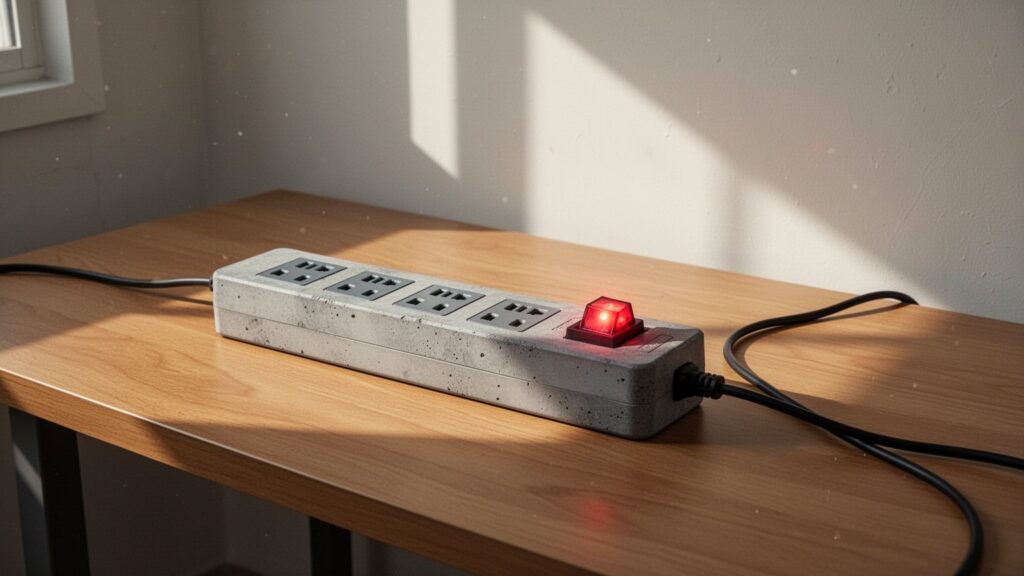
If your router lacks an automated scheduler, you must cycle power manually. Do not simply press the power switch off and immediately back on. Internal capacitors continue to supply power for a brief moment, which can keep data in memory from completely wiping clean.
Always unplug the power adapter directly from the wall outlet. While KT self-help videos recommend waiting 3 seconds after pulling the power cord, IT technical documentation suggests waiting 10 to 30 seconds to fully discharge lingering electrical currents.
If your setup uses a separate modem and router, the power-on sequence matters. Turn on the modem first and wait 1 to 2 minutes until optical line authentication finishes. Then plug in the router to avoid IP assignment conflicts. Never hold down the pinhole ‘Reset’ button, as this triggers a factory reset and deletes your Wi-Fi name and password completely.
Log into your router’s admin portal before going to bed tonight and schedule an automatic restart for 4:00 AM. It costs nothing and prevents sudden Wi-Fi drops.
Related Reading
- 2.4 GHz vs. 5 GHz Wi-Fi: Which Band Is Faster?
- Why Is Your Wi-Fi Extender Slower? Extenders vs. Mesh Wi-Fi
- How to Share Wi-Fi Instantly with a QR Code
- Full Wi-Fi Bars but No Internet? How to Fix Signal Drops
답글 남기기