Have you ever paused to read an article, grabbed your mouse, and found the cursor frozen for a second or two? Swapping in fresh batteries or shaking the mouse doesn’t fix it—every time you pause, the initial delay returns. If the mouse hardware isn’t broken, why does this keep happening?
Quick Summary
- A 1- to 2-second freeze after 5 seconds of inactivity happens because Windows puts the wireless adapter to sleep and has to wake it up (wake-up lag).
- Press
Windows Key + X→ [Device Manager] → right-click your Bluetooth adapter → [Properties] → [Power Management], and uncheck “Allow the computer to turn off this device to save power.”- Go to [Control Panel] → [Power Options] → [Change advanced power settings], and disable “USB selective suspend setting.”
- If the lag persists, check for your mouse’s internal deep-sleep mode or 2.4 GHz wireless interference.
It Isn’t Broken Hardware: Blame Aggressive Windows Power Saving
If you don’t touch your mouse for about five seconds while reading or typing, Windows 10 and Windows 11 treat the device as idle. To conserve battery life, the operating system temporarily cuts power to the Bluetooth adapter or USB controller.
This works like a car’s automatic stop-start system at a red light. It saves fuel, but there is a brief delay when restarting. Similarly, your mouse freezes for one to two seconds while waking up the suspended connection.
Because the cursor moves smoothly once it gets going, it is easy to assume the hardware is malfunctioning. In reality, the issue stems from default OS power management settings.
How to Disable Bluetooth Power Saving in Device Manager
The most effective fix is stopping Windows from turning off the Bluetooth device. In Windows, you can change this setting in a few seconds by following these steps:
| Step | Navigation Path | Action |
|---|---|---|
| Step 1 | Press Windows Key + X | Click [Device Manager] from the menu |
| Step 2 | Expand [Bluetooth] category | Right-click your main adapter (e.g., “Intel(R) Wireless Bluetooth(R)”) |
| Step 3 | Go to [Properties] → [Power Management] tab | Uncheck “Allow the computer to turn off this device to save power” and click [OK] |
If your mouse uses a dedicated USB wireless receiver (dongle), check the [Universal Serial Bus controllers] section as well. Open the properties for “USB Root Hub,” go to the [Power Management] tab, and uncheck the power-saving option to keep the connection stable.
Related Articles
How to Fix PC Bluetooth Earphone Audio Stutter and Lag
How to Control the Mouse with Your Keyboard in Windows
Disable USB Selective Suspend in Control Panel
If a slight lag remains after updating the Bluetooth adapter settings, tweak Windows Power Options. This disables the system feature that forces USB ports and wireless interfaces into a low-power state.
Open [Control Panel] and navigate to [Power Options]. Click [Change plan settings] next to your active power plan, then click [Change advanced power settings]. In the pop-up window, expand [USB settings] and find [USB selective suspend setting].
Set both “On battery” and “Plugged in” to [Disabled], then apply the changes. This keeps the wireless communication path open at all times, preventing missed or delayed initial inputs.
Still Lagging? Other Factors to Check
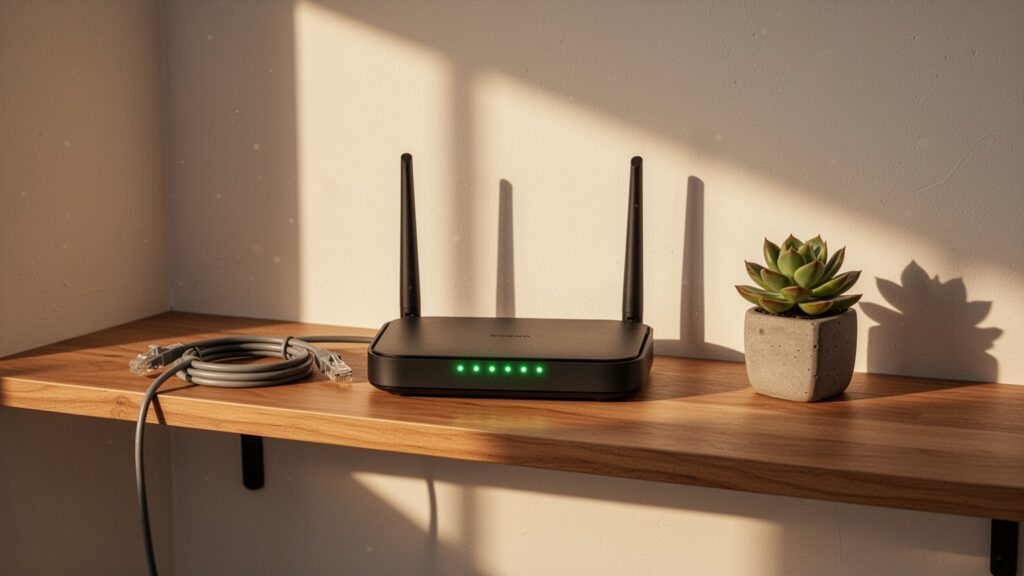
Even after adjusting these settings, lag may not disappear completely in every setup. A few hardware and system factors can still cause delays.
First, some PCs do not display the [Power Management] tab in Device Manager due to motherboard drivers, BIOS configurations, or Modern Standby standards. While unofficial registry tweaks exist to force the tab to appear, they are not verified manufacturer solutions.
Second, many mice have a built-in “deep sleep” mode inside their firmware. This hardware-level power saving causes a 0.5- to 1-second delay that Windows settings cannot override. In addition, 2.4 GHz Wi-Fi router interference can cause cursor stutter or input delays.
Press Windows Key + X now and uncheck the Bluetooth power-saving option in Device Manager. Your cursor will wake up instantly without freezing when you resume working.
Related Articles
- How to Change Mouse Cursor Size and Color in Windows 11
- Does Windows Freeze on Sleep Mode? How to Disable Fast Startup
- How to Stop Windows from Waking Up Automatically at Night
- How to Fix Windows Blue Screen Errors Using Safe Mode
답글 남기기