Did you receive a PDF that needs a signature and immediately look for a printer or scanner? Without the hassle of printing on paper, signing by hand, and taking a photo, you can add a clean handwritten signature using your phone’s built-in features alone.
Quick Summary
- iPhone: Open PDF in ‘Files’ app → [Markup] icon → [+] button → Select [Signature] and position it on the document
- Galaxy: Open ‘Samsung Notes’ app → Tap [Import PDF (PDF+)] → Sign in [Pen] mode → [More options] > [Save as file] > [PDF file]
- Stamp overlay: Stamp on white paper and photograph it → Press and hold in Gallery to lift subject (remove background) → Insert as image on the document
- Time required: 10 to 30 seconds using built-in features without installing paid apps
How to Sign a PDF on iPhone Using Built-in Markup
You can add a signature to a PDF directly in the default Files app on iPhone without installing any paid apps.
The process is simple:
1. Open Document: Open the PDF document you need to sign in the ‘Files’ app.
2. Enter Markup: Tap the pencil-shaped [Markup] icon at the top.
3. Create Signature: Tap the [+] button in the bottom-right corner and select [Signature].
4. Input and Position: Draw your signature on the screen with your finger or an Apple Pencil, tap [Done], then drag the signature box to the signature field and adjust its size.
Once created, your signature stays saved on the device so you can insert it with a single tap next time.
How to Import and Sign a PDF on Samsung Galaxy with Samsung Notes

Samsung Galaxy users can use the built-in PDF import feature in the pre-installed ‘Samsung Notes’ app.
1. Import PDF: Open the ‘Samsung Notes’ app and tap [Import PDF (PDF+)] in the top right to open the document to sign.
2. Enable Pen Mode: Select [Pen] mode in the top toolbar and choose your desired pen type, thickness, and color.
3. Enter Signature: Sign directly on the signature line using your finger or the S Pen.
4. Save PDF: Tap [More options (three dots)] in the top right > [Save as file] > [PDF file] to export the document in its original layout.
Without any third-party viewers or paid tools, you can finish a cleanly signed PDF file in 10 to 30 seconds.
Related Articles
How to Extract Just 2 Pages from a Long PDF Without Extra Software
How to Compress PDF File Size in 1 Minute Without Installing Software
How to Overlay a Physical Stamp or Handwritten Signature on White Paper
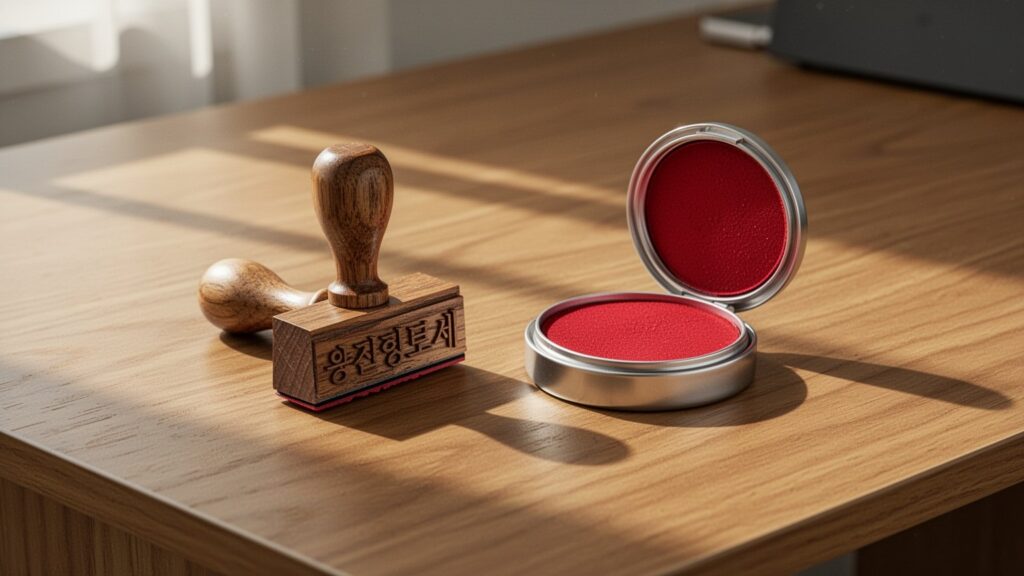
If you need an image of a physical stamp or seal rather than a handwritten signature, your phone’s default photo features can handle it.
Stamp clearly on a white sheet of paper and take a photo. In the Gallery or Photos app, long-press the stamp to isolate it from the background and save it as a sticker or transparent image.
Import this transparent stamp image using the sticker feature in iPhone Markup or via [Attach (paperclip)] > [Image] in Samsung Notes. Position and resize it over the signature field to create an authentic stamped appearance.
Comparing Signature Features by Device and Things to Keep in Mind

Built-in mobile signature tools save substantial time during everyday tasks and paperwork submissions.
| Category | iPhone (iOS) | Galaxy (Samsung) |
|---|---|---|
| App Used | Default ‘Files’ app (Markup) | Default ‘Samsung Notes’ (PDF+) |
| Input Tool | Finger touch, Apple Pencil | Finger touch, S Pen |
| Stamp Overlay | Background cutout inserted as sticker | Gallery cutout attached as image |
| Time Required | About 10–30 seconds | About 10–30 seconds |
However, for high-stakes agreements such as bank loans or real estate transactions requiring digital certificates or audit trails, standard PDF markup signatures may not meet legal requirements. Always verify the recipient’s submission criteria. Non-Samsung Android devices may also differ in available annotation features depending on their default viewer.
If you have a PDF document ready, open Markup or Samsung Notes now to save your signature for future use.
Related Guides
- How to Open HWP Documents and Save as PDF Without Installing a Viewer
- How to Wirelessly Mirror Your Smartphone Screen to Windows 11