PC Troubleshooting

  • Windows Freezes After Sleep Mode? How to Turn Off Fast Startup

    Windows Freezes After Sleep Mode? How to Turn Off Fast Startup

    Have you ever walked away from your computer in sleep mode, only to come back to a pitch-black, frozen screen even when moving the mouse? Many people find their keyboard unresponsive and end up holding down the power button to force a shutdown. Why does this freeze keep happening?

    Quick Summary

    • Sleep mode freezes and crashes are primarily caused by system file (hiberfil.sys) conflicts from “Fast Startup.”
    • You can fix this by typing powercfg.cpl into the Run dialog (Win+R) and unchecking “Turn on fast startup (recommended).”
    • On modern SSDs, disabling Fast Startup makes virtually no difference in boot speed.
    • If driver defects or BIOS errors are the root cause, additional troubleshooting may be required.

    The Real Reason Windows Freezes in Sleep Mode
    The real reason Windows freezes in sleep mode

    The primary culprit is “Fast Startup,” a feature introduced in Windows 8 and enabled by default in Windows 10 and 11. Instead of performing a complete shutdown (“cold boot”), this feature uses a “hybrid shutdown” method that saves core system state data to the hiberfil.sys file before powering down.

    Think of it like shoving messy paperwork into a drawer instead of clearing your desk every time, then pulling it back out later. The problem is that even after multiple restarts, system cache and leftover driver states never fully reset and continue accumulating in this file.

    In this state, power restoration conflicts occur whenever the PC enters or wakes from sleep mode. This leads to black screens that won’t turn back on, mouse and keyboard freezing, or Blue Screen of Death (BSOD) crashes. Major manufacturers like Dell, HP, and ASUS also recommend disabling Fast Startup as the primary fix for sleep mode freezing.

    How to Disable Fast Startup in Control Panel in 1 Minute
    Steps to disable Fast Startup in Control Panel in 1 minute

    You can resolve this immediately by changing a power option setting—no extra software required. Follow these five steps:

    StepAction and Path
    Step 1Press Windows Key + R, type powercfg.cpl into the Run box, and press Enter.
    Step 2Click [Choose what the power buttons do] in the left pane.
    Step 3Click [Change settings that are currently unavailable] at the top (next to the shield icon).
    Step 4Under Shutdown settings, uncheck the [Turn on fast startup (recommended)] box.
    Step 5Click [Save changes] at the bottom and restart your computer.

    If you prefer using the command line, you can also run Command Prompt (CMD) as administrator and type powercfg /h off to disable it immediately.

    Why You Don’t Need Fast Startup on Modern PCs
    Why you don't need Fast Startup on modern PCs

    Fast Startup was originally designed back when mechanical HDDs took 1 to 2 minutes to boot. On modern systems equipped with fast NVMe SSDs, turning this feature off makes almost no perceptible difference in boot time.

    In fact, keeping Fast Startup on can cause issues: because the computer never fully powers down, Windows Updates may fail to install properly, accessing the motherboard BIOS can become difficult, and external USB devices might fail to reconnect properly.

    Note that if faulty graphics/chipset drivers or outdated motherboard BIOS firmware are the underlying issue, disabling Fast Startup alone might not completely resolve the problem. Additionally, any minor increase in boot time without Fast Startup can vary depending on your PC specifications, including SSD type, RAM capacity, and the number of background startup programs.

    Disable Fast Startup in Power Options right now and restart your PC. Your sleep mode freezing issues will be resolved.
    References

    1-Minute Video Summary

    Related Articles

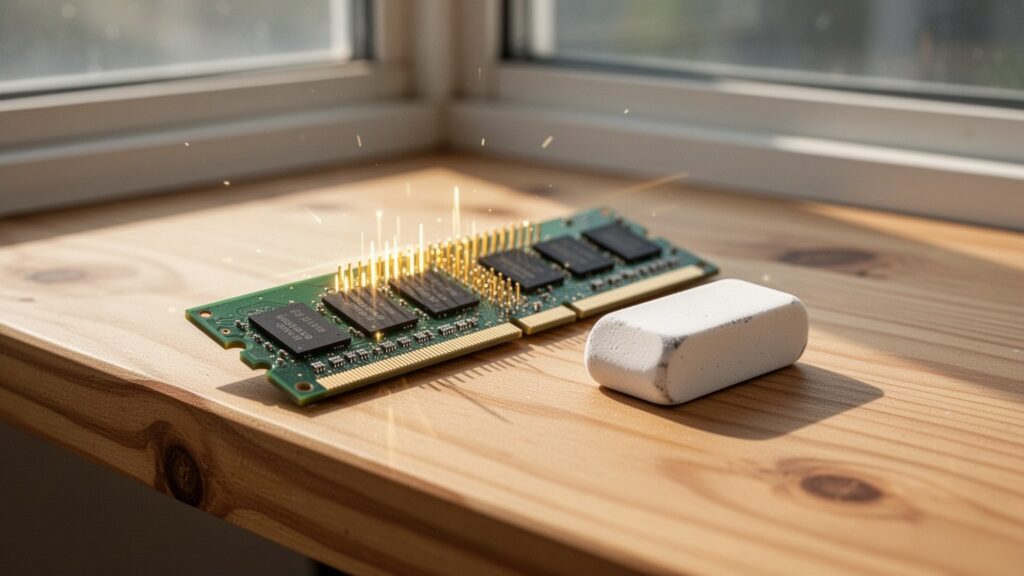
  • PC Turns On but No Display: Why Cleaning RAM with an Eraser Works

    PC Turns On but No Display: Why Cleaning RAM with an Eraser Works

    Have you ever pressed your PC power button, heard the fans spin up, and seen the case lights turn on, only for your monitor to show a blank screen with “No Signal”? When the screen stays black, it is easy to assume a major component has failed and worry about expensive repair costs. But why do IT technicians and hardware manufacturers recommend reaching for a simple rubber eraser first?

    Quick Summary

    • Unplug the power cable and press the PC power button 4–5 times to fully drain residual motherboard power.
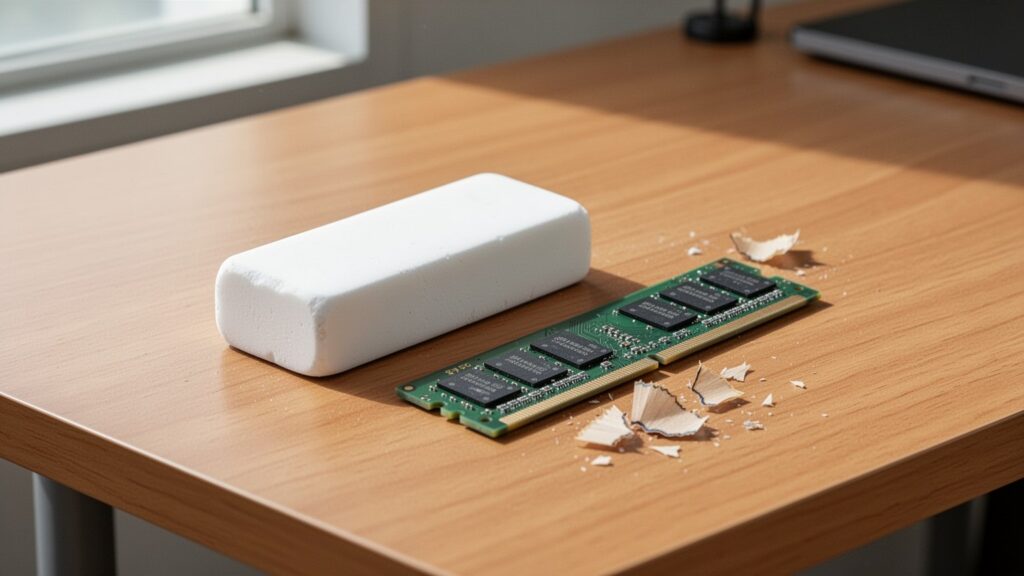
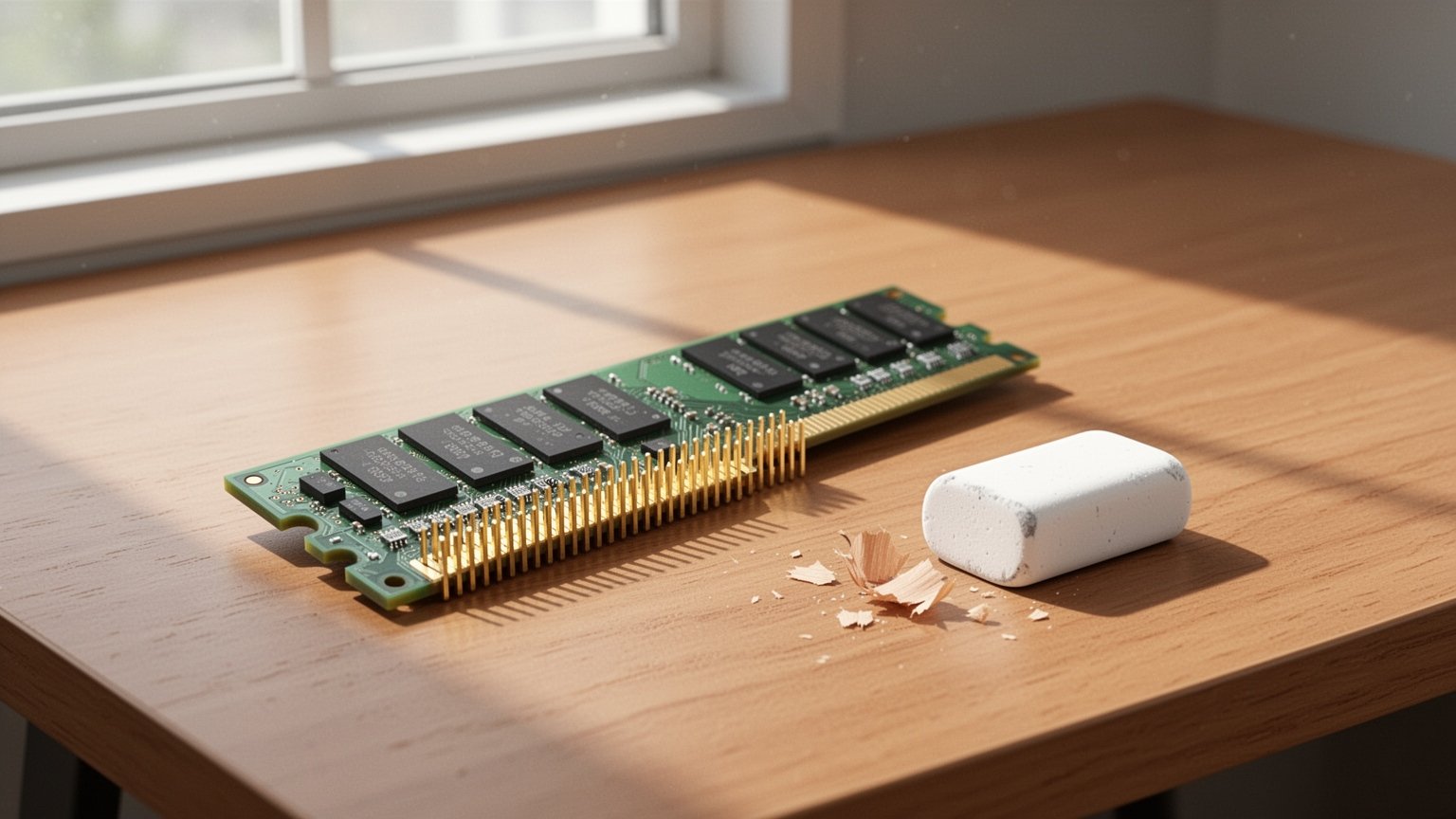
    • Remove the RAM vertically and gently rub both sides of the gold contacts (gold fingers) with a soft rubber eraser.
    • Thoroughly brush or blow away all eraser crumbs, align the asymmetrical notch, and press firmly until both latches click into place.
    • Clean the motherboard RAM slot pins using only compressed air or an air blower, never an eraser.

    Why Your Screen Stays Black: Poor Contact on RAM ‘Gold Fingers’

    Why Your Screen Stays Black: Poor Contact on RAM 'Gold Fingers'

    When you power on a computer, the motherboard runs a Power-On Self-Test (POST) to ensure all core components are working properly. If the system memory (RAM) is not detected correctly in its slot, the BIOS halts display output, leaving your monitor with a black screen or a “No Signal” notification.

    The row of gold-plated contacts along the bottom edge of a RAM module is known as “gold fingers.” Although these contacts are manufactured with a gold layer of 0.8 μm or more by standard specifications, prolonged exposure to ambient oxygen and moisture creates a microscopic oxide film. When fine dust accumulates over this layer, electrical contact resistance rises, cutting off signal transmission to the motherboard.

    How an Eraser Strips Away Oxide Layers (and Cleaning Precautions)

    How an Eraser Strips Away Oxide Layers and Cleaning Precautions

    Gently rubbing the gold fingers with a soft rubber eraser creates mild mechanical friction that strips away hardened oxide films and grime without scratching the underlying metal contacts. Major hardware manufacturers such as Samsung Electronics and professional IT publications also recommend this eraser cleaning technique in their official troubleshooting guides.

    However, there are critical precautions to follow. Using acetone to break down stubborn dirt will dissolve the module’s plastic PCB substrate, while water dries slowly and risks short circuits or corrosion. If you prefer a liquid cleaner, use pure isopropyl alcohol or dedicated electronic contact cleaners (such as BW-100 or DeoxIT). In addition, never use an eraser inside the motherboard’s RAM slots; clear out slot pins using only compressed canned air or an air blower.

    3 Steps to Safely Clean and Reseat RAM Without Damaging Hardware

    3 Steps to Safely Clean and Reseat RAM Without Damaging Hardware

    When removing and installing RAM, preventing static discharge and short circuits from residual power is essential. Follow this safe procedure:

    StepActionKey Precaution
    Step 1: Power DischargeUnplug the PC power cord and press the power button 4–5 timesFully discharges residual motherboard current
    Step 2: Removal & CleaningPush side latches down to release RAM, then rub gold fingers with an eraserCompletely brush off eraser shavings and let rest for 10–15 minutes
    Step 3: Alignment & ReseatingAlign the bottom asymmetrical notch and insert verticallyPress down evenly on both ends until latches click shut

    RAM modules feature an asymmetrical notch cut into the bottom edge. Because the notch position varies across standards like DDR3, DDR4, and DDR5, always verify the ridge position inside the motherboard slot before pushing down to prevent physical damage.

    Debris Removal and Common Myths Around Eraser Cleaning

    Debris Removal and Common Myths Around Eraser Cleaning

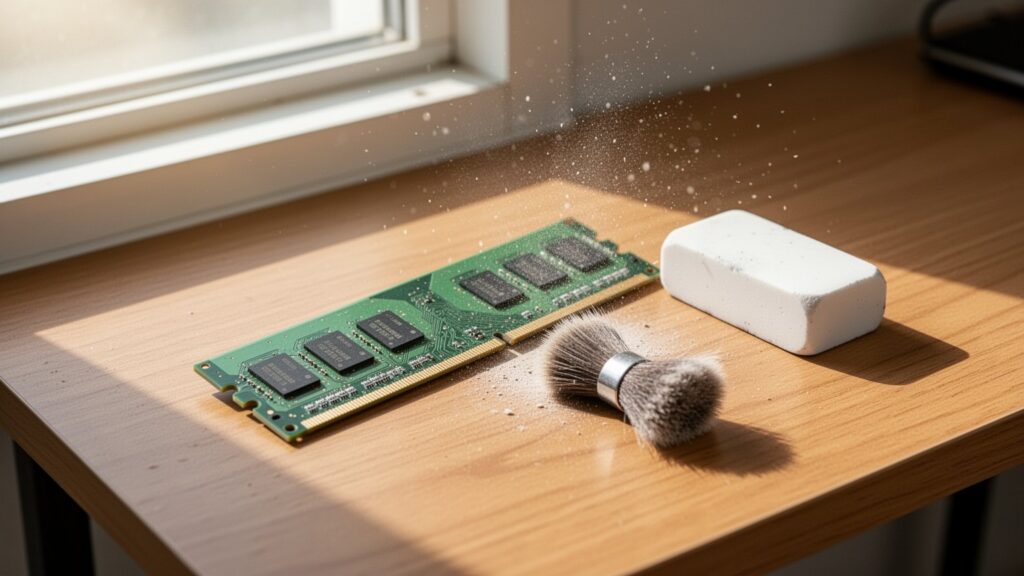
    The most important finishing step after using an eraser is clearing away all rubber shavings. If leftover crumbs cling to the pins when inserted into the slot, they can cause new contact faults or short circuits between pins. Use a soft brush or air blower to sweep away every trace of debris, and let the stick sit for 10–15 minutes before reinstalling.

    Some PC repair communities argue that the eraser itself does nothing, claiming that the mechanical friction of simply removing and reseating the RAM stick is what restores contact. Claims that “70% to 90% of black screen issues are caused by faulty RAM contact” are also empirical rules of thumb rather than official data. However, in environments where a stubborn oxide layer has developed, the gentle abrasive action of an eraser provides proven mechanical help in restoring clean metal contact.

    If your PC turns on without a display signal, do not jump straight to replacing expensive parts. Cut the power completely today and try cleaning your RAM contacts with an ordinary rubber eraser first.

    References

    1-Minute Video Summary

    Related Articles