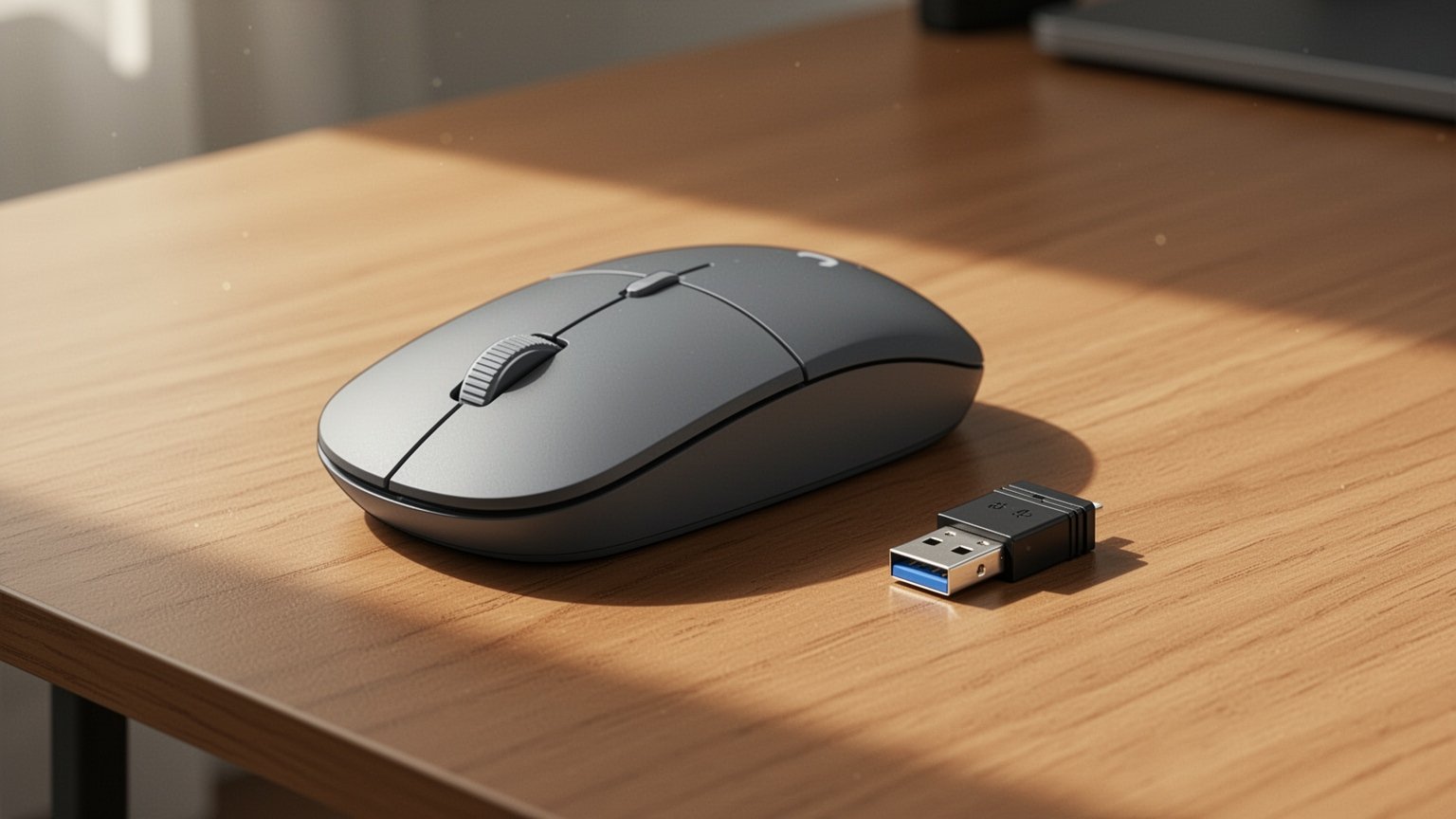
Have you ever dealt with a wireless mouse that stutters or a keyboard that skips keystrokes? If replacing the batteries and cleaning your mouse pad didn’t solve the lag, the culprit might be somewhere unexpected. Do you have a blue USB device, like an external hard drive, plugged into your computer?
Quick Summary
- Cause: USB 3.0 (5 Gbps) data transmission raises the 2.4 GHz noise floor by up to 25 dB, degrading receiver sensitivity.
- Symptoms: Mouse cursor lag, stuttering, missed clicks, dropped keystrokes, and drastically reduced wireless range.
- Measurements: Placing a receiver directly next to an active USB 3.0 port causes severe lag starting at 3 feet (about 91 cm) and complete signal loss when ports are stacked adjacent.
- Fix: Move the dongle to a USB 2.0 port or use an inexpensive USB extension cable to bring the receiver onto your desk away from the PC chassis.
Why Does a Perfectly Fine Mouse Suddenly Start Lagging?
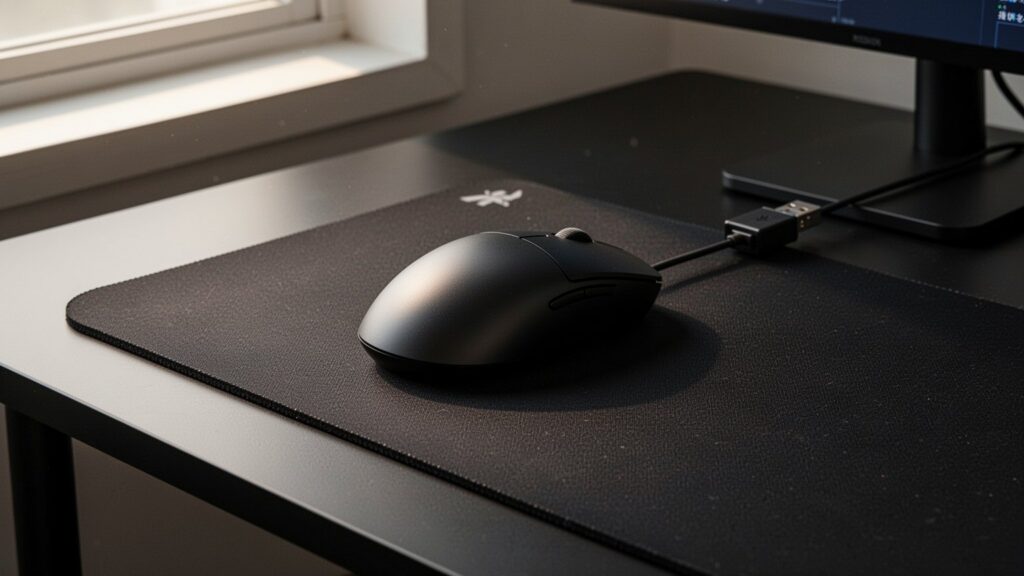
Most wireless mice and keyboards communicate across the 2.4 GHz band using a small USB receiver (dongle) connected to your computer. However, plugging a USB 3.0 device into the same machine can immediately create problems.
Operating at transfer rates up to 5 Gbps, the USB 3.0 (SuperSpeed) specification radiates broadband RF noise across the 2.4 GHz to 2.5 GHz ISM band. This directly overlaps with the frequencies wireless peripherals rely on.
It is like trying to have a conversation in a quiet room while someone runs a blender next to your table. Because this noise spreads across the entire band rather than spiking at one single frequency, built-in receiver filters cannot screen it out. As a result, receiver sensitivity drops, the signal-to-noise ratio (SNR) plummets, and you experience input lag, cursor jitter, and dropped keystrokes.
What Intel’s White Paper Revealed: The Actual Interference Numbers
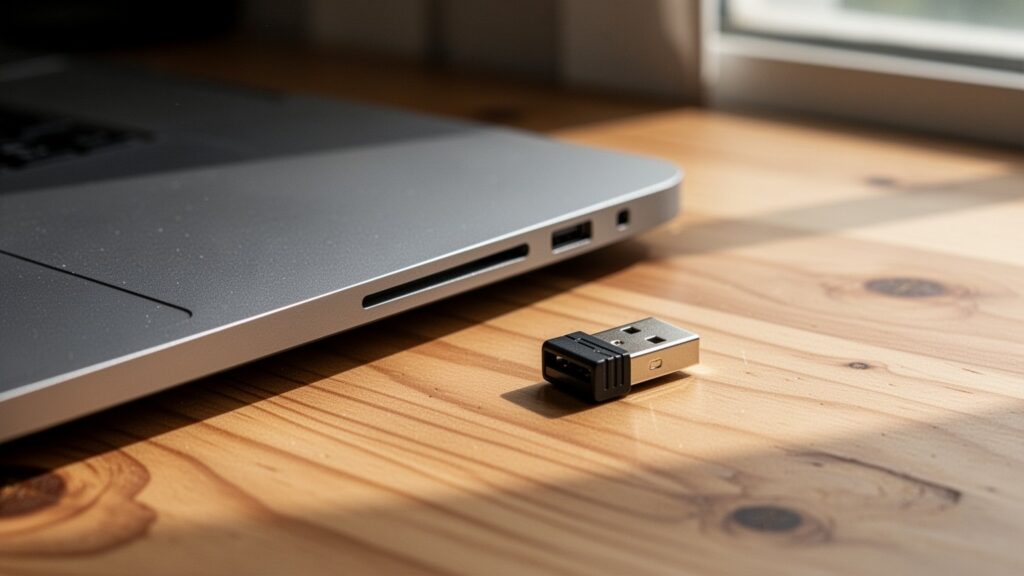
This issue is well documented. According to an official white paper released by Intel (Intel White Paper 327216-001), connecting a USB 3.0 external hard drive to a laptop raised the 2.4 GHz noise floor by approximately 20 dB. Depending on the connector’s shielding, noise levels rose by up to 25 dB.
Crucially, this interference is not limited to active file transfers. Even when idle—with the cable simply plugged in to maintain a connection link without transferring files—the port generates the exact same RF noise.
Distance tests demonstrated clear real-world drop-offs. When a wireless receiver sat directly next to an active USB 3.0 port, the mouse functioned at 2 feet (about 61 cm), but suffered severe lag at 3 feet (about 91 cm) and 5 feet (about 152 cm). When plugged into vertically stacked adjacent ports, the receiver failed to register inputs entirely.
| Feature | USB 2.0 | USB 3.0 (SuperSpeed) |
|---|---|---|
| Internal Pin Count | 4 pins | 9 pins |
| Standard Port Color | Black or White | Blue or labeled ‘SS’ |
| Transfer Speed | Not applicable | Up to 5 Gbps |
| 2.4 GHz Noise | No high-speed clock noise emission | Broadband RF noise emission (up to 25 dB increase) |
Related Reading
How to Control the Mouse with Your Keyboard When Your Mouse Breaks
Bluetooth Mouse Freezes for One Second on First Click? How to Fix Windows Power Saving
3 Ways to Fix Mouse Stutter Without Buying a New One
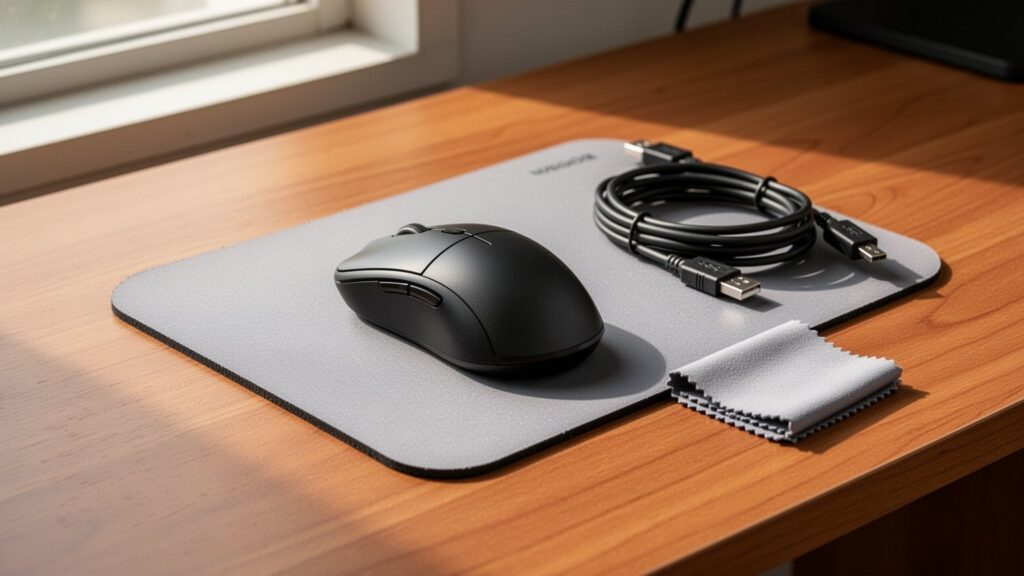
You don’t need to replace your mouse. This stutter is not a hardware defect; it is an inherent electromagnetic interference (EMI) characteristic of the USB 3.0 standard. Intel and Logitech recommend the following steps.
First, physically separate the ports. Plug your 2.4 GHz wireless receiver and USB 3.0 devices into ports as far apart as possible. On a laptop, for example, place the receiver on the left side and the USB 3.0 peripheral on the right side.
Second, switch to a USB 2.0 port. Wireless mouse receivers transmit very little data and do not benefit from high-speed bandwidth. Plugging the dongle into a standard black USB 2.0 port avoids high-speed clock noise altogether.
Third, use an inexpensive USB extension cable. Instead of plugging the receiver directly into the back or side of your PC, connect it to an extension cable and place it on your desk close to your mouse and keyboard. Increasing that physical distance dramatically cuts down interference. Intel’s tests showed that fully shielding external devices and connectors reduced radiated noise by about 12 dB.
Port Identification Pitfalls and Unverified Claims
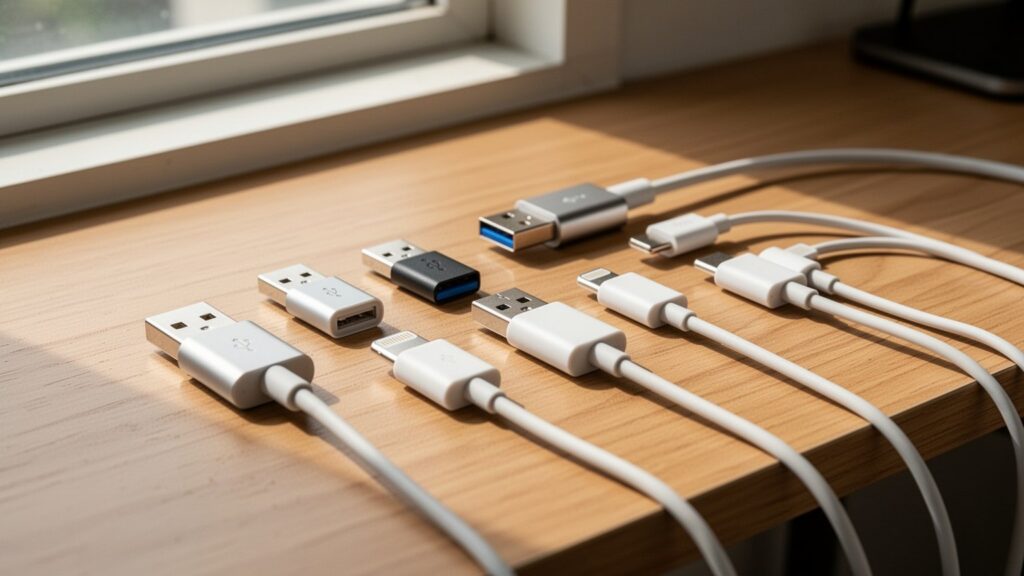
Do not rely entirely on port color. While standard guidelines color USB 3.0 ports blue, many recent motherboards and laptops use black, red, or teal for their USB 3.1 or 3.2 ports. If you are unsure, look inside the port for 9 physical pins or check for the ‘SS’ (SuperSpeed) logo marked next to the slot.
Some online advice claims you must maintain a strict distance of 20 to 30 cm between your receiver and external drives. However, Intel’s official white paper only cites test data at 2-foot, 3-foot, and 5-foot increments; it does not set a mandatory 30 cm standard.
The paper also notes that Bluetooth devices share the 2.4 GHz band and are vulnerable to USB 3.0 noise. However, unlike standard proprietary RF dongles, the document does not include dedicated graphs or specific measurement figures for Bluetooth hardware.
If your wireless mouse keeps stuttering, don’t buy a new one yet. Try moving the dongle away from blue USB 3.0 ports and into a USB 2.0 port or an extension cable.
Related Articles
- How to Change Mouse Cursor Size and Color in Windows 11 in 10 Seconds
- Mouse Wheel Middle-Click Shortcuts and crxMouse Gesture Fixes
- Mouse Cursor Sticking at the Corner of Dual Monitors? 1-Minute Fix
- How to Increase Keyboard Repeat Rate in Windows in 30 Seconds