Have you ever had your mouse cursor suddenly freeze while typing an urgent document or completing an online transaction? Whether your wireless mouse battery died or your cable broke, saving your work or closing windows without a mouse can feel impossible. However, you can control the cursor entirely using your keyboard’s numeric keypad. Here is how to set it up and use it.
Quick Summary
- Activation shortcut: Press ‘Left Alt + Left Shift + Num Lock’ together, then press Enter on the prompt dialog
- Move cursor: Numpad 8 (Up), 2 (Down), 4 (Left), 6 (Right), and 7·9·1·3 (Diagonals) / Ctrl (Accelerate), Shift (Slow down to 1-pixel precision)
- Click & Double-click: Select / (Left click) or – (Right click), then press 5 (Click) or + (Double-click)
- Drag & Drop: Press 0 over an item to hold down the button, move, and press . (Decimal point) to release
How to Turn on Mouse Keys Instantly with a Shortcut or Settings
Windows 10 and 11 come with a built-in feature called “Mouse Keys” that lets you control the pointer using your keyboard when you do not have a mouse. You do not need to install any extra drivers or third-party software.
The fastest way to turn it on is by using the dedicated keyboard shortcut. Press Left Alt + Left Shift + Num Lock simultaneously, and a prompt asking “Do you want to turn on Mouse Keys?” will appear on screen. Press Enter or the Spacebar to enable Mouse Keys mode immediately.
If the shortcut does not respond, you can turn it on directly through Windows Accessibility settings. Press Windows key + U to open Accessibility settings, navigate to the “Mouse” menu under “Interaction,” and toggle Mouse Keys on. Alternatively, press Windows key + I to open the main Settings app and navigate to Accessibility.
Moving the Cursor in 8 Directions Using the Numeric Keypad
Once Mouse Keys is enabled, the numeric keypad on the right side of your keyboard acts as your mouse pad. You can move the cursor in 8 directions, similar to a directional pad on a game controller.
Even numbers control standard up, down, left, and right movements, while odd numbers move diagonally. You can also adjust movement speed using modifier keys. Hold Ctrl while pressing a direction key to accelerate movement across the screen, or hold Shift to slow the cursor down to precise 1-pixel increments.
| Direction | Numpad Key | Function Description |
|---|---|---|
| Up / Down | 8 / 2 | Move cursor vertically up or down |
| Left / Right | 4 / 6 | Move cursor horizontally left or right |
| Diagonal (Top-Left / Top-Right) | 7 / 9 | Move cursor diagonally up-left or up-right |
| Diagonal (Bottom-Left / Bottom-Right) | 1 / 3 | Move cursor diagonally down-left or down-right |
| Accelerate / Slow Down | Ctrl / Shift | Hold while moving for high speed / 1-pixel fine precision |
How to Click, Right-Click, Double-Click, and Drag and Drop
Once you move the cursor to the target position, you can perform clicks and window dragging using the keypad. Mouse Keys works by having you first select which mouse button to activate before executing the click command.
Press the slash (/) to select the primary left mouse button, or press the minus sign (-) to select the right mouse button (for context menus). Once selected, that button remains active until you choose a different one. After selecting your button mode, press 5 to perform a single click, or press the plus sign (+) to double-click.
You can also drag and drop icons or windows. Place the cursor over the target item and press 0 to hold down the mouse button (drag). Then, use the direction keys to move the cursor to where you want it and press the decimal point (.) to release the button (drop).
| Action | Key | Description |
|---|---|---|
| Select left button | / | Sets left-click as the active button (default) |
| Select right button | - | Sets right-click as the active button |
| Select both buttons | * | Sets both buttons as active simultaneously |
| Single click | 5 | Performs a single click with the active button |
| Double click | + | Performs a double-click with the active button |
| Hold down button (Drag) | 0 | Holds down the active mouse button |
| Release button (Drop) | . | Releases the held mouse button |
Important Things to Keep in Mind When Using Mouse Keys
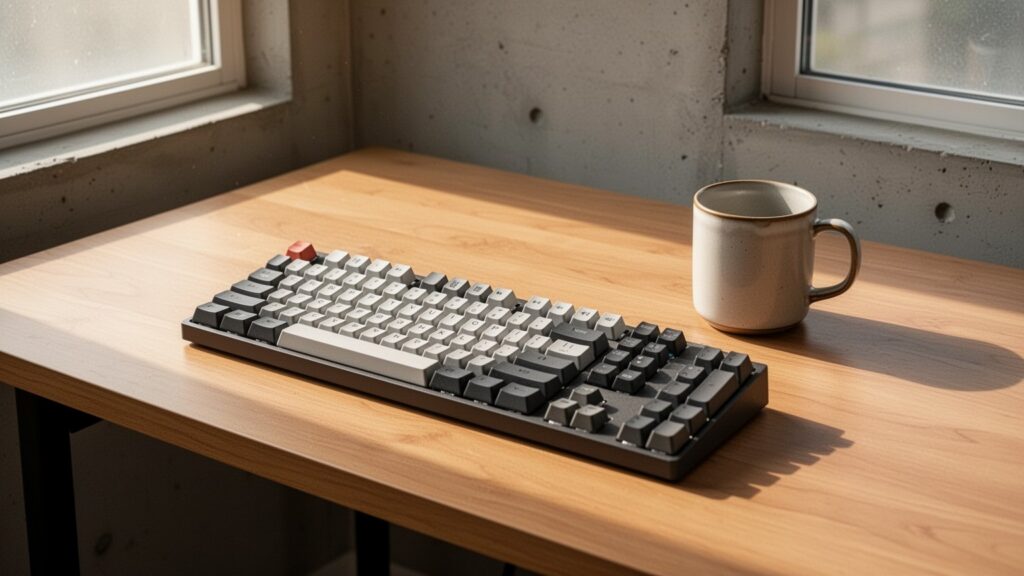
Keep in mind that while Mouse Keys is active, your numeric keypad is converted into a mouse controller, meaning you cannot use it to type numbers. If you need to enter numbers, use the top row number keys (1–0) above the letter keys instead.
In addition, Mouse Keys is designed primarily for full-sized keyboards with a physical numeric keypad on the right. For tenkeyless (TKL) keyboards or compact laptops without a numpad, official documentation does not specify whether the default shortcut directly remaps standard letter keys, so connecting an external full-sized keyboard is recommended.
Once you have saved your work and connected a working mouse, press Left Alt + Left Shift + Num Lock again or turn off the toggle in Settings to return the keypad back to normal number entry mode.
If your mouse suddenly stops working, don’t panic—press Left Alt + Left Shift + Num Lock to safely navigate and save your work using the keyboard.