Have you ever had your cursor jump to another sentence while typing, messing up your entire document? It usually happens when your palm brushes against the touchpad, triggering an accidental click. Instead of toggling the touchpad manually every time, you can set it to turn off automatically whenever you connect a mouse.
Quick Summary
- Windows 11: Win + I → Bluetooth & devices → Expand Touchpad → Uncheck “Leave touchpad on when a mouse is connected”
- Windows 10: Settings → Devices → Touchpad → Uncheck “Leave touchpad on when a mouse is connected”
- Older models: Control Panel → Mouse → Manufacturer tab (Synaptics/ELAN) → Check “Disable internal pointing device when external USB pointing device is attached”
- Hardware shortcuts: Samsung/LG: Fn + F5, Hansung: Fn + F1, HP: Double-tap top-left corner of touchpad
Why Automatic Disable Stops Jumping Cursors

When typing on a laptop, the base of your palm naturally rests against the wide touchpad. The touchpad can easily mistake this friction for a mouse click or cursor drag, jumping your cursor somewhere else mid-sentence. It is just as annoying as passenger luggage bumping the brake pedal while you drive.
You can manually lock the touchpad with a keyboard Fn shortcut, but people often get stranded when they reboot or leave home without a mouse and cannot turn the touchpad back on. Windows has a built-in detection setting that locks the touchpad only when an external mouse is connected and immediately re-enables it the moment you unplug the cable or wireless receiver.
How to Set It Up in 10 Seconds on Windows 11 and 10
Thanks to the Precision Touchpad support built into modern Windows, you can configure this with a single checkbox without installing extra drivers.
| Operating System | Path | Setting to Change |
|---|---|---|
| Windows 11 | Press Win + I → Bluetooth & devices → Touchpad | Click the arrow next to the toggle, then uncheck Leave touchpad on when a mouse is connected |
| Windows 10 | Start → Settings → Devices → Touchpad | Uncheck Leave touchpad on when a mouse is connected |
On Windows 11, depending on your build version, the wording may appear as Leave touchpad on when a mouse is connected. Keep the main “Touchpad” toggle turned On, and only uncheck that specific sub-option. That way, the touchpad reactivates immediately when you unplug the mouse.
Related Reading
마우스 고장났을때 키보드로 클릭하기와 마우스 단축키 총정리
윈도우 11 마우스 커서 크기와 색상 바꾸는 법 (10초 해결)
What to Do on Older Laptops or If the Option Is Missing
If the checkbox does not appear in your Settings menu, your laptop likely lacks Precision Touchpad support. In that case, use the classic Mouse Properties in Control Panel.
Open Control Panel and select Mouse properties. Click the Touchpad or manufacturer tab (such as Synaptics, ELAN, or Device Settings). Check the box labeled Disable internal pointing device when external USB pointing device is attached, then click OK.
If you prefer hardware shortcuts, you can also use your manufacturer’s built-in key combinations.
| Brand | Shortcut / Hardware Control |
|---|---|
| Samsung / LG | Fn + F5 |
| Hansung | Fn + F1 |
| HP | Double-tap the upper-left corner of the touchpad |
| ASUS | Fn + F9 or Fn + F10 |
| Lenovo | Fn + F10 or dedicated key (F6, F8) |
On ASUS and Lenovo laptops, the function key may vary (such as F6, F7, F9, or F10) depending on the model line (IdeaPad, ThinkPad) and production year. If you never plan to use the touchpad, you can also press F2 immediately at boot to enter the BIOS and set Touch Pad Mouse to Disable (Off). If the system freezes when trying to enter BIOS, press and hold the power button for at least 7 seconds to force a shutdown, then restart.
Important Note for Wireless Mouse Users
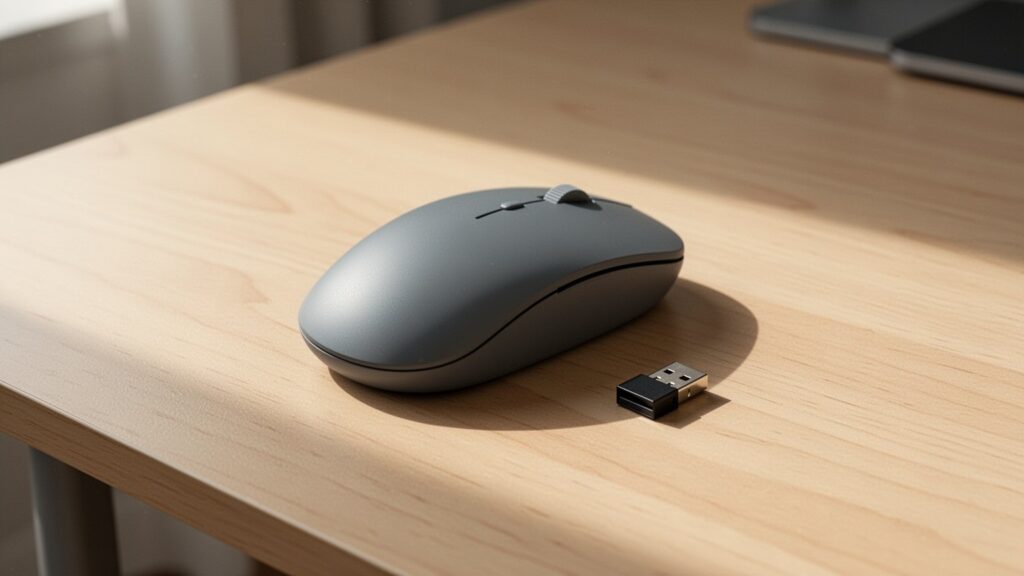
While unplugging a wired mouse immediately restores touchpad control, wireless mice using a USB nano receiver (dongle) have an important catch.
Even if you turn off the power switch on the mouse, Windows still detects an active mouse as long as the USB dongle remains plugged into the laptop port. If you pack the mouse into your bag without removing the dongle, your touchpad will stay disabled.
Microsoft documentation does not offer a setting to distinguish between a plugged-in USB receiver and an active mouse. If you need to use the touchpad on the go without your mouse, unplug the USB receiver from your laptop.
Press ‘Win + I’ on your laptop now and uncheck the automatic touchpad toggle. It eliminates typing interference immediately.
함께 읽으면 좋은 글
- 느려진 구형 노트북, 10만 원 들여 부품만 바꾸면 정말 빨라질까?
- 노트북 닫아도 모니터 안꺼지게 설정하는 법 (윈도우 덮개 전원 옵션)
- 충전 중 노트북 만지면 왜 찌릿할까? 접지 충전기 차이점 총정리
- 듀얼 모니터 마우스 커서가 모서리에 걸린다면? 1분 만에 해결하는 설정법