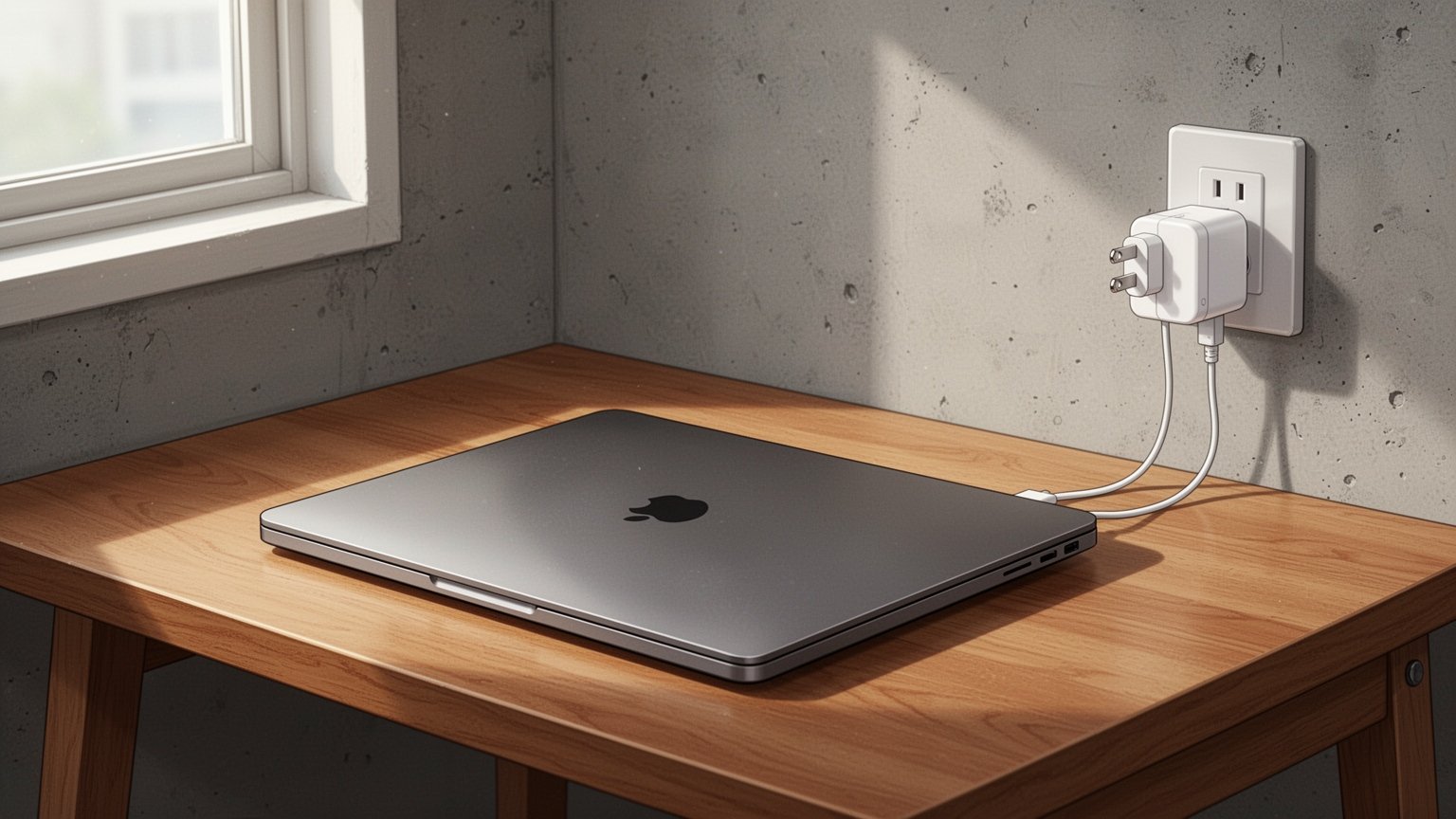
Have you ever felt a faint tingling sensation or vibration on your wrists and fingertips while typing on a charging laptop? Or noticed your stylus jittering across the touchscreen? Is your device broken, or is the charger to blame?
Quick Summary
- Surface tingling and stylus jitter occur when hundreds of microamps (µA) of leakage current from power conversion cannot escape.
- A grounded 3-prong charger directs this leakage current safely into the ground.
- The fix only works if the charger, extension cord, and wall outlet all feature an active ground connection.
- For metal-bodied laptops, choose a grounded Gallium Nitride (GaN) charger rated for at least 65W.
Why Does Your Laptop Tingle and Cause Touch Jitter?
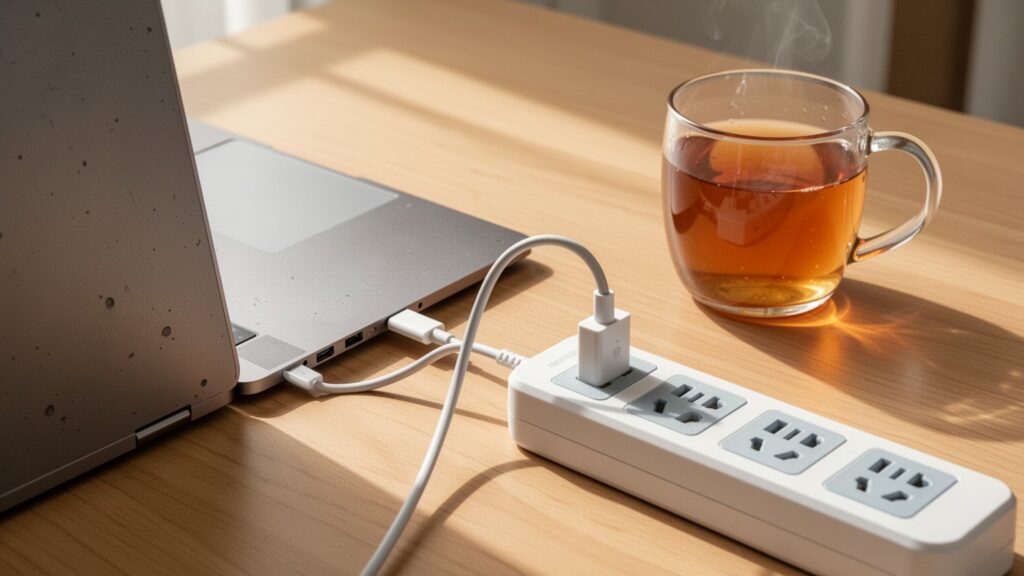
Laptop power adapters convert high-voltage alternating current (AC) from the wall into low-voltage direct current (DC, typically around 20V). During this process, electricity passes through an EMI filter to suppress electromagnetic interference, which produces high-frequency electrical noise and tiny leakage currents.
Unlike plastic laptops, modern aluminum or magnesium metal bodies conduct electricity. Without a dedicated exit path, leakage current lingers on the metal surface, creating an induced voltage of several dozen volts and residual currents of several hundred microamps (µA). Capacitive touch sensors on smartphones, tablets, and trackpads also experience interference from this stray current, resulting in erratic touches or stylus jitter.
Tech communities and manufacturers view this sensation slightly differently. Tech forums often describe it as a micro electric shock where stray current discharges through your skin. In contrast, official guidance from manufacturers like Samsung Electronics explains it as harmless electrostatic induction—a slight vibration sensation rather than direct electrical shock, due to the anodized oxide coating on the metal exterior.
Grounded vs. Ungrounded Plugs: What Is the Difference?
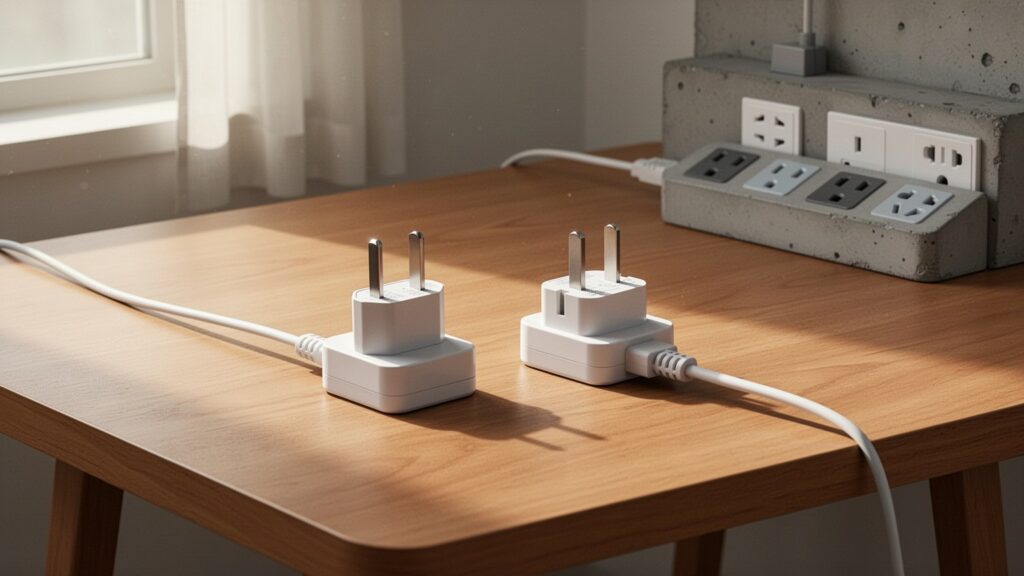
The key to stopping this effect is giving the residual current somewhere else to go. A quick look at your power plug reveals why it happens.
Ungrounded chargers have only two prongs. They are light and compact, but offer no pathway to vent stray current. Grounded chargers feature a dedicated ground prong (or side grounding clips). This metal contact routes stray surface current safely through the electrical wiring and deep into the ground.
| Category | Ungrounded Plug (2-prong) | Grounded Plug (3-prong / Grounded) |
|---|---|---|
| Design | Only 2 power prongs | Additional ground pin or side metal contacts |
| Leakage Handling | No discharge path (discharges through touch) | Vented into building earth ground via grounding pin |
| Symptoms | Wrist tingling, vibration, stylus jitter, erratic touch | Eliminates surface voltage and touch interference |
Related Articles
Can You Safely Charge a Smartphone with a 65W Laptop Charger?
Can a $75 (100,000 KRW) SSD and RAM Upgrade Really Speed Up an Old Laptop?
Does Switching to a Grounded Charger Solve Everything?
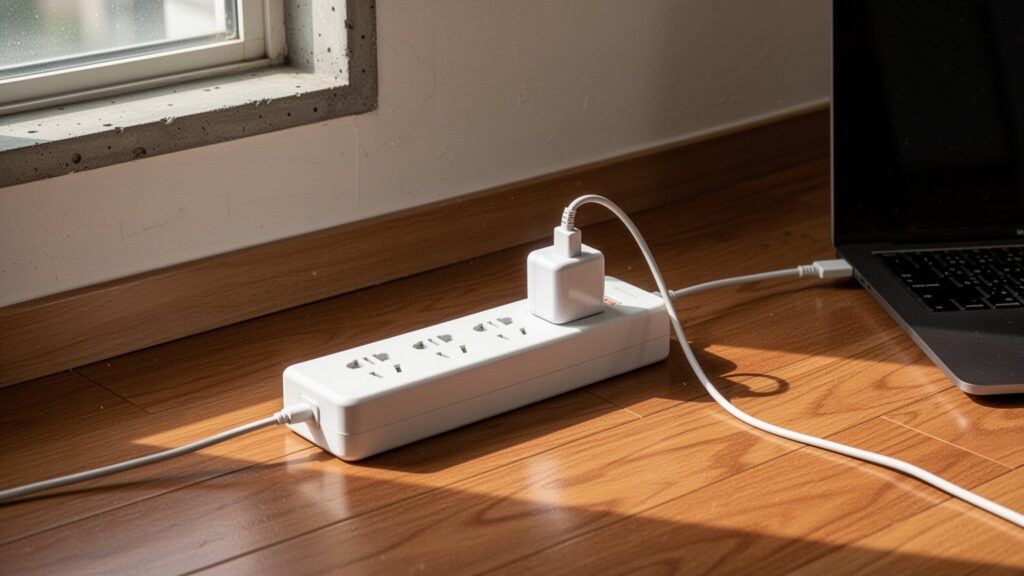
Buying a grounded charger is not always enough on its own. The entire pathway to the ground must be connected. All three links—the charger, the power strip, and the wall outlet—must support grounding.
Older buildings often lack grounded wiring in wall outlets. If you plug into an ungrounded outlet or use an ungrounded 2-prong extension cord, the grounding circuit breaks, and the tingling sensation will persist even with a grounded charger.
Some accessory sellers claim that ungrounded charging ruins your motherboard or reduces battery life. However, no certified test reports or official manufacturer warnings substantiate this claim. Even so, establishing a grounded setup is essential if you want to eliminate that annoying vibration and stylus jitter while working.
How to Choose the Right Grounded Charger
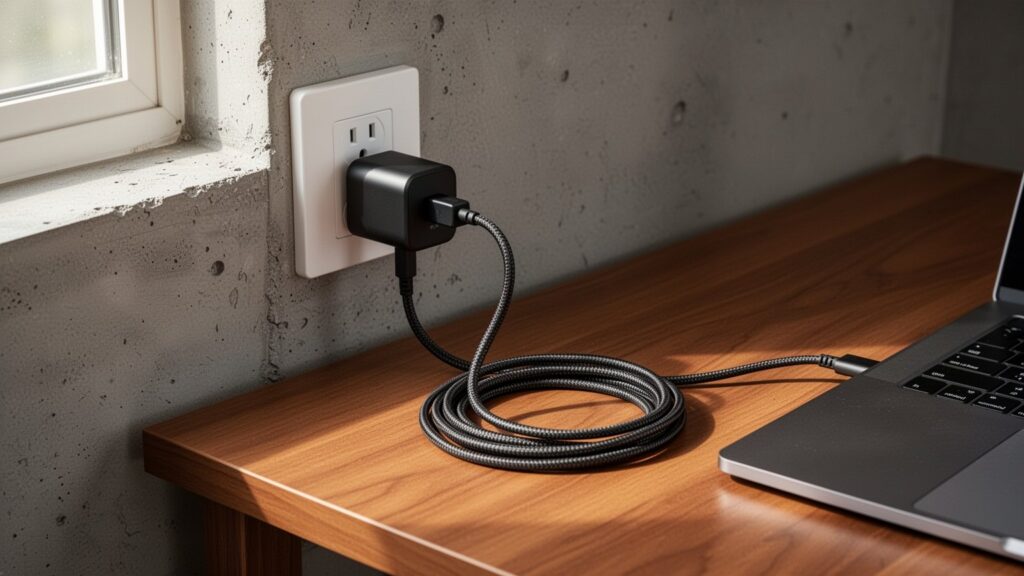
When shopping for a new charger, check your device’s power specifications and safety certifications. For laptop use, look for an adapter with at least 65W output. Gallium Nitride (GaN) chargers are currently the best choice, offering high wattage in a compact size with excellent thermal management.
To charge phones, tablets, and laptops reliably from a single brick, make sure it supports USB-PD (Power Delivery) and PPS (Programmable Power Supply). You can choose official grounded adapters (such as Samsung’s EP-TA845, EP-TA865, EP-TB010, or EP-TB410) or reputable third-party 65W to 140W multi-port grounded chargers.
When using a multi-port charger, check how wattage is distributed when multiple devices are plugged in at once. Ensure the primary laptop port still delivers the minimum recommended wattage (usually 65W or higher).
Check your current setup: look for a third grounding prong or metal contacts on your charger plug, and confirm your power strip and wall outlet have active grounding pins.
Related Articles
- Will You Get Fined for Leaving an EV Plugged In After a Full Charge? EV Charging Obstruction Rules
- Why Does EV Fast Charging Slow Down Above 80% and Cost More?
- Fined About $75 (100,000 KRW) for Parking at an EV Charger Without Charging: Expanded Enforcement Rules
- How to Check Windows Laptop Battery Health in 1 Minute Without Extra Software