Have you ever plugged in your phone before heading out, only to be stopped by a “Moisture detected” warning? Even if you never dropped it in water, the sudden alert might make you reach for a hairdryer. But does blowing hot air really solve the problem without damaging the device?
Quick Summary
- Unplug immediately: Disconnect the cable and gently tap the phone against your palm with the port facing down.
- No heat or foreign objects: Hairdryers on hot, cotton swabs, and bags of rice damage internal components and waterproof seals.
- Drying time: Let it air dry in a well-ventilated area for at least 30 minutes, or up to 24 hours depending on humidity.
- Emergency charging: If the port is wet, dry the back of the phone and use a wireless charger safely.
Why Does the Port Block Charging Even Without Direct Water Exposure?
The charging port on a smartphone (USB-C or Lightning) contains tightly spaced metal pins. When tiny droplets or humidity enter the port, electrical resistance (impedance) drops sharply. If a standard 5V or higher charging current flows through in this state, electrolysis can quickly corrode the pins or cause a short circuit that damages the motherboard.
To prevent hardware damage, the operating system automatically disables wired charging and displays an alert. Even if the phone was never dropped in water, high humidity from a post-shower bathroom, condensation during humid weather, salt in sweat, or damp lint inside the port can trigger the sensor. It works just like a circuit breaker tripping to stop you from touching a live socket with wet hands.
Why Hairdryers and Rice Bags Ruin Your Device
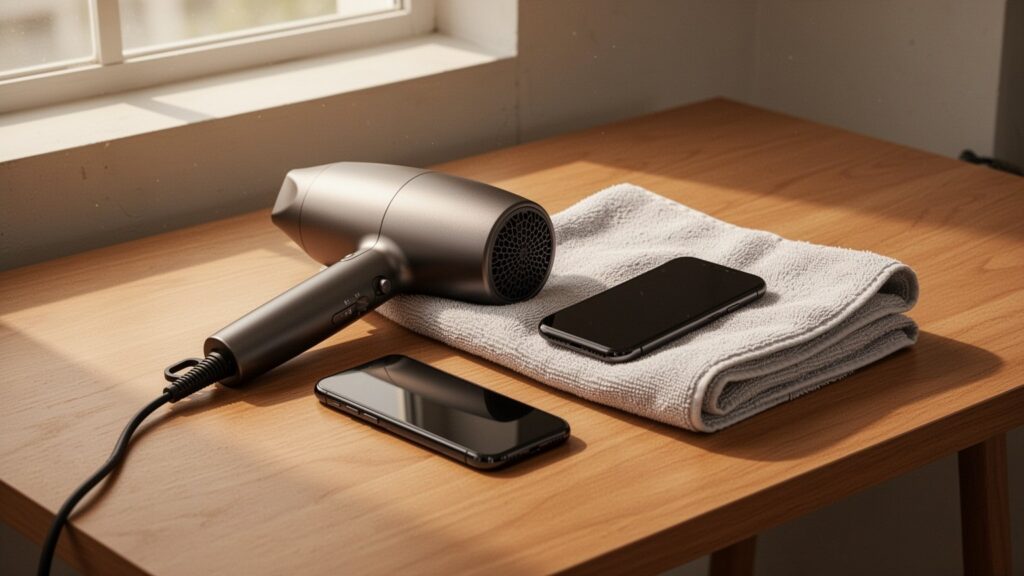
When the alert appears, it is tempting to try quick DIY fixes. However, manufacturers like Samsung and Apple strongly warn that certain drying methods can cause severe damage and drive up repair costs.
| Action to Avoid | Risk to the Device |
|---|---|
| Hot air from a hairdryer | Melts waterproof adhesive and rubber gaskets (waterproof seals), deforms internal components |
| Compressed air or blowing hard | Pushes surface moisture deeper into the phone toward the motherboard |
| Inserting cotton swabs or paper towels | Bends or permanently damages delicate connector pins inside the port |
| Putting the phone in rice | Small rice particles and starch dust get trapped inside the port, accelerating corrosion |
Hot air from a hairdryer is especially risky because it melts internal waterproof seals, permanently destroying the phone’s water resistance.
4-Step Safe Drying Method Recommended by Manufacturers

When moisture enters the charging port, the standard procedure is patient, natural drying without physical interference.
1. Unplug and tap gently: Disconnect the charging cable immediately. Hold the phone with the port facing down and gently tap it against your palm to shake out excess water.
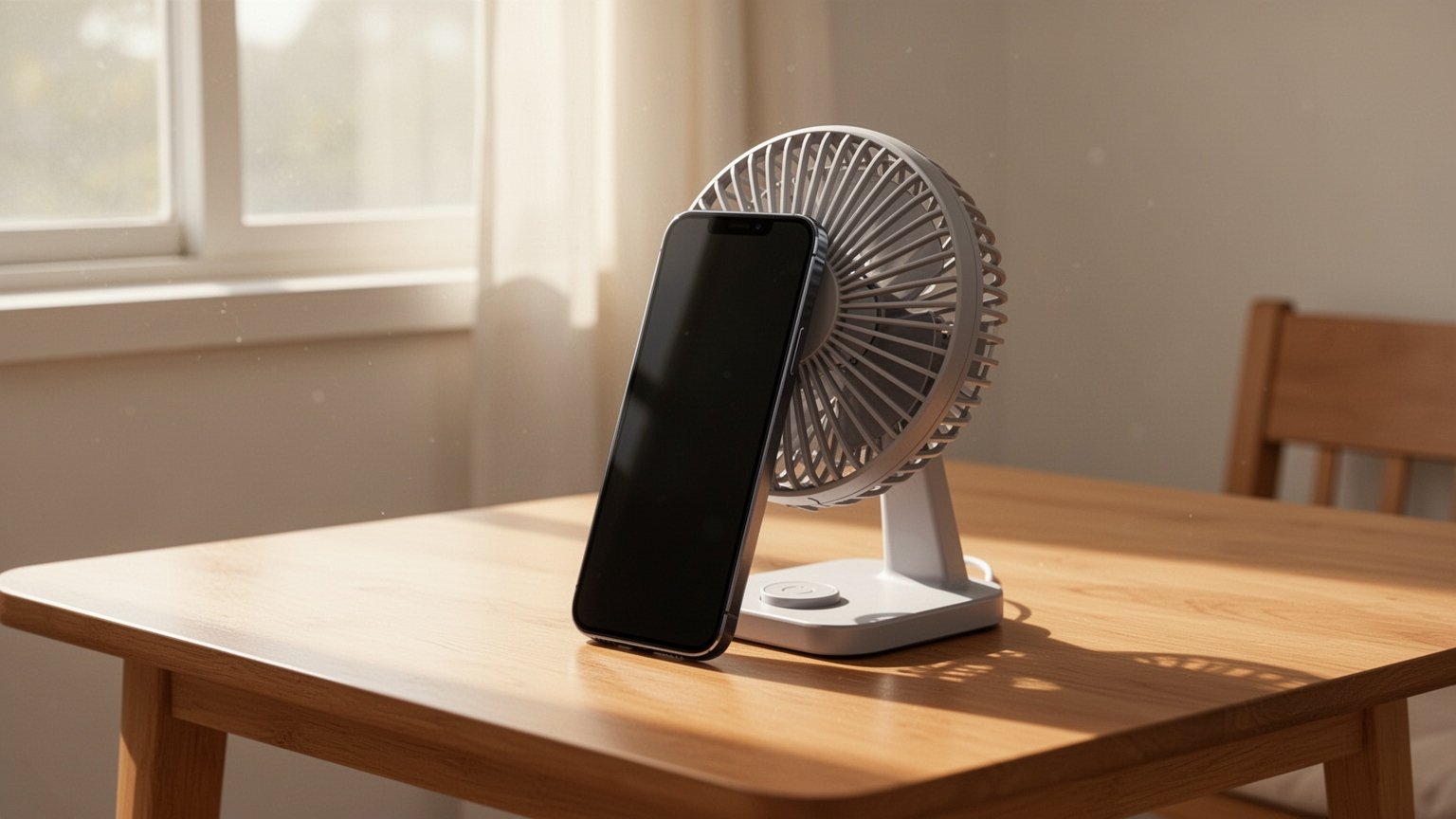
2. Place in an airy spot: Set the phone in a well-ventilated, shaded area. You can use an electric fan or the cool setting on a hairdryer held at a safe distance. (Some repair technicians prefer still air alone to avoid forcing moisture inward with air pressure.)
3. Wait sufficiently: Even if surface moisture seems gone, the internal pins need at least 30 minutes to dry. On humid days, full drying can take up to 24 hours.
4. Check the charging cable: Wipe the tip of the charging cable connector thoroughly with a dry cloth to make sure no residual moisture remains.
How to Charge When the Battery Is About to Die
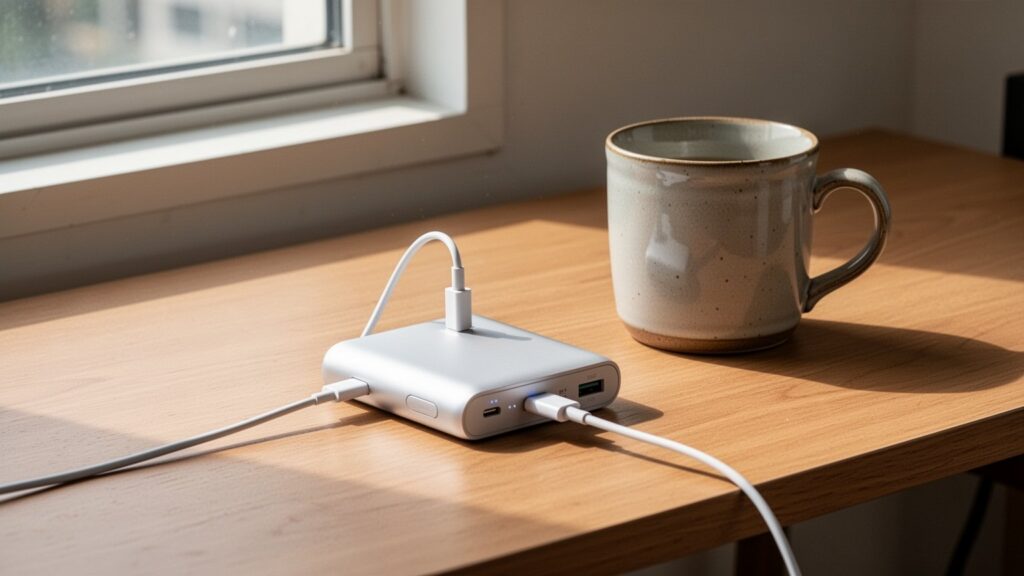
If you need your phone immediately while wired charging is disabled, a wireless charger is the safest solution.
The wireless charging coil is built into the center back of the phone and operates independently of the charging port circuit. As long as you wipe any moisture off the back glass with a dry cloth, you can safely place the phone on a standard wireless charging pad or MagSafe charger.
Note: While some online forums claim that moisture alerts are often caused by dust or system cache glitches, this is not an officially verified statistic. Following the complete drying procedure first remains the safest choice.
If you see a moisture detected alert, turn off any heat sources, tap the phone port-down against your hand, and let it dry in front of a fan for at least 30 minutes.