When you finish working on your computer, you might wonder whether to shut it down completely or leave it in sleep mode for a faster start the next day. You might also worry that leaving it in sleep mode draws too much power or wears out internal components. How do the two options actually compare in power draw and system performance?
Quick Summary
- The power difference between Sleep Mode and Shut Down is only 1–3W, costing under $0.10 (52–100 KRW) extra per month.
- Switching to Sleep Mode instead of leaving the PC idle with the display on (30–86.5W) saves roughly 156 kWh, or about $21 (28,548 KRW) per year.
- Because of Windows Fast Startup, you must choose “Restart” rather than “Shut Down” to fully clear memory leaks.
- Use Sleep Mode for short breaks (1–2 hours), Shut Down at the end of the day, and Restart once a week.
The Electricity Cost Difference Is Less Than 10 Cents a Month
Even when a computer is shut down, leaving it plugged in still draws about 0.2W to 2.3W in standby power for the motherboard and network interface. On the other hand, Sleep Mode (S3) draws a tiny trickle of current—about 0.5W to 5.1W—to keep your active session stored in RAM.
The difference in power draw between the two states is only about 1W to 3W. Even if you leave your PC in sleep mode all month long, the additional power consumption is only about 0.518 kWh, which translates to less than $0.10 (52–100 KRW) per month.
| Power State | Average Power Draw | Notes & Cost Impact |
|---|---|---|
| Shut Down | Approx. 0.2W – 2.3W | Standby power when plugged in |
| Sleep Mode (S3) | Approx. 0.5W – 5.1W | Maintains RAM power (< $0.10 / 52–100 KRW/month) |
| Idle at Desktop | Approx. 30W – 86.5W | Exceeds 100W with monitor on |
On the other hand, putting your PC into sleep mode instead of leaving it idle on the desktop (30W to 86.5W) can save about 156 kWh, or roughly $21 (28,548 KRW) annually.
Why Using Only Sleep Mode Causes Performance Stutters
While sleep mode drastically reduces wake-up time, running your computer for extended periods without a reboot can slow it down. This happens primarily due to memory leaks.
Even after you close applications, leftover remnants and background processes may fail to release their allocated space in RAM. It is like leaving stacks of documents scattered across your desk day after day.
When available RAM runs low, Windows compensates by using a portion of your storage drive as virtual memory (paging). Because disk operations are slower than RAM, the system begins to stutter.
Why You Need to Click “Restart” Instead of “Shut Down” to Clear Memory
Many users select “Shut Down” believing it performs a full system reset. However, modern Windows versions enable “Fast Startup” by default, which saves the current Windows kernel session to the disk during shutdown and reloads it upon turning the PC back on.
This means shutting down and turning the PC back on does not completely wipe cached kernel data. To fully clear volatile RAM and reset system state, you must select “Restart.”
While there is no official schedule for rebooting, restarting your PC about once a week helps maintain peak performance. Modern hardware is built to handle over 40,000 power cycles, so frequent power transitions will not easily damage your components.
The Most Practical Power Management Habits for Daily Use
When stepping away for 1 to 2 hours—such as for lunch or a meeting—using Sleep Mode is most efficient because it lets you resume your work instantly.
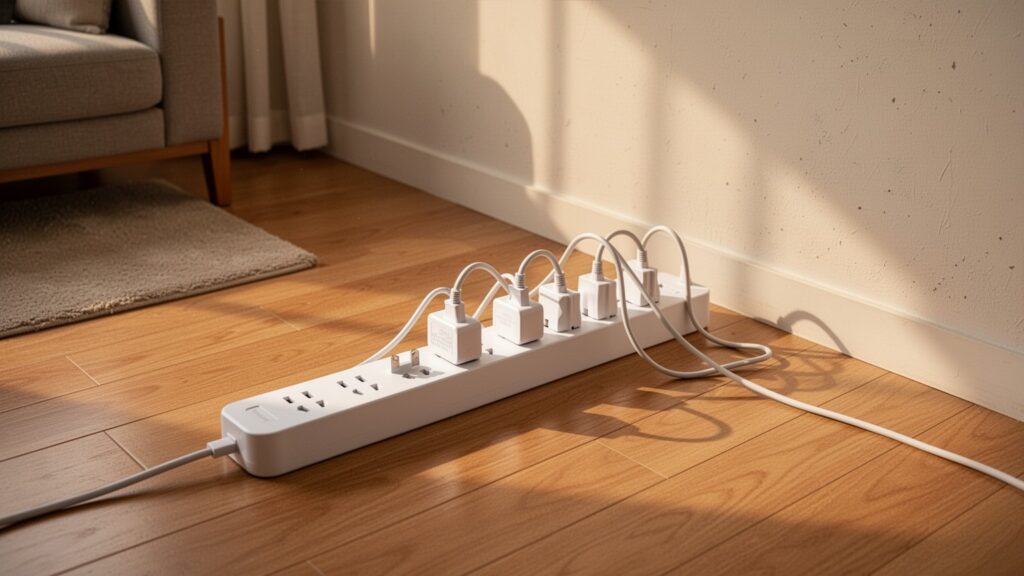
When leaving for the day or going to bed, choose “Shut Down.” To eliminate standby power entirely, switch off the power strip. Cutting power during long absences saves about 27 kWh, or roughly $3.70 (4,941 KRW) per year.
Even if you rely primarily on Sleep Mode during the week, make it a habit to click “Restart” once a week to clear system memory.
Use Sleep Mode freely for short breaks, and restart your PC once a week to keep memory completely clear.