2.4GHz vs 5GHz

  • Full Wi-Fi Signal but Internet Keeps Dropping? How to Fix Channel Interference

    Full Wi-Fi Signal but Internet Keeps Dropping? How to Fix Channel Interference

    Have you ever had full Wi-Fi bars on your phone, yet YouTube videos freeze and web pages take forever to load? If your internet lags even right next to the router, your device is likely not broken. Why is the signal strong while the internet barely works?

    Quick Summary

    • Frequent Wi-Fi drops are mostly caused by “channel interference” from neighboring routers using the same frequency.
    • Find less congested, non-overlapping channels (like 1, 6, or 11) using Android apps like WiFi Analyzer or PC tools.
    • Access your router settings (e.g., 192.168.0.1) and manually change the channel under Wireless settings.
    • Set the 2.4 GHz bandwidth to 20 MHz, and switch to 5 GHz in open spaces with fewer physical obstacles.

    Why Full Wi-Fi Signal Still Drops: Channel Interference
    Why Full Wi-Fi Signal Still Drops: Channel Interference

    The Wi-Fi icon on your screen only shows the radio signal strength between your device and the router. The real issue lies in the frequency channel—the invisible pathway data travels on.

    Think of it like a single-lane road: when too many cars try to drive on it at once, traffic slows to a crawl. In densely populated apartment complexes and residential buildings, multiple routers use the same frequency path, causing packet collisions and data loss.

    Specifically, the 2.4 GHz band has up to 13 channels spaced just 5 MHz apart. However, a single Wi-Fi transmission requires a bandwidth of about 20 to 22 MHz, causing adjacent channels to overlap and interfere with each other.

    How to Find Less Congested Wi-Fi Channels
    How to Find Less Congested Wi-Fi Channels

    Free analyzer tools on your phone or PC let you instantly check which channels neighboring routers are using. On Android, free apps like WiFi Analyzer show channel congestion graphs. On a PC, tools like NetSpot provide a detailed scan.

    Due to Apple iOS restrictions, iPhones and iPads cannot scan surrounding Wi-Fi networks directly, so you will need an Android device or a PC.

    StandardRecommended Non-overlapping ChannelsDetails
    Global StandardChannels 1, 6, 11The standard 3-channel setup worldwide to minimize interference
    Regional Standard (e.g. KCC)Channels 1, 5, 9, 134-channel division guideline used in certain regulatory regions

    Because some older or North American devices cannot detect channels 12 and 13, sticking to channels 1, 6, or 11 is the safest choice for broad device compatibility. Pick whichever of these three is least crowded in your area.

    How to Change Channels in Router Settings
    How to Change Channels in Router Settings

    Once you identify a clear channel, manually assign it in your router settings. Open a web browser and type your router’s default gateway IP address into the address bar.

    Manufacturer / ISPDefault IPDefault Login
    ipTIME / Common Routers192.168.0.1admin / admin
    KT172.30.1.254ktuser / homehub or megaap
    SK Broadband192.168.35.1Last 6 digits of MAC + _admin
    LG Uplus192.168.219.1Check sticker on device for password/serial

    For most standard router dashboards, the process is straightforward: log in to the admin panel, navigate to [Advanced Settings] → [Wireless / Wi-Fi Settings], select your desired channel from the drop-down menu or run a channel scan, and click [Apply] or [Save].

    2 Additional Router Settings for Better Speed and Stability
    2 Additional Router Settings for Better Speed and Stability

    Adjusting two additional settings alongside channel selection can further reduce connection drops.

    First, lock the 2.4 GHz channel bandwidth (channel width) to 20 MHz. While setting it to 40 MHz can increase maximum speed, it takes up twice as much spectrum, significantly raising the risk of interference from neighboring networks. In crowded areas, 20 MHz (or Auto 20/40 MHz) provides far greater stability.

    Second, connect to 5 GHz Wi-Fi when nearby. The 5 GHz band offers wider channels and far less signal interference compared to 2.4 GHz. In the same room or open spaces with few walls, switching to 5 GHz delivers faster, drop-free connectivity. Actual improvements may vary depending on your layout and router hardware.

    Scan nearby Wi-Fi channel congestion on your phone first, then switch to an uncluttered channel in your router settings.
    References

    1-Minute Video Summary

    Related Articles

  • 2.4 GHz vs 5 GHz Wi-Fi: Which Band Is Faster and Which Should You Use?

    2.4 GHz vs 5 GHz Wi-Fi: Which Band Is Faster and Which Should You Use?

    When checking your smartphone’s Wi-Fi list, you often see ‘2.4G’ and ‘5G’ versions of the same network name. You might connect to 5G expecting maximum speed, only to find the connection drops the moment you shut your bedroom door. Why isn’t the higher number always the right choice?

    Quick Summary

    • Gaming or streaming high-definition video near the router: Connect to 5 GHz
    • Closed rooms or smart home IoT appliances needing constant connection: Connect to 2.4 GHz
    • Router placement: Place it in an open, central spot at least chest-high, not on the floor or behind a TV
    • Antenna adjustment: Position two antennas at a 90-degree angle (one vertical, one horizontal) for maximum reception

    2.4 GHz vs 5 GHz: Signal Characteristics and Speed Differences

    2.4 GHz vs 5 GHz signal characteristics and speed differences

    The number attached to your Wi-Fi name refers to the radio frequency band in gigahertz (GHz), not 5G cellular mobile networks. As of 2026, most routers feature dual-band technology that broadcasts both frequencies simultaneously. 5 GHz offers a wider channel bandwidth of 580 to 900 MHz, delivering faster data transfer speeds and lower latency. In contrast, 2.4 GHz has a narrower bandwidth of about 82 to 100 MHz, but its longer wavelengths bend around physical obstacles more effectively.

    Think of 5 GHz as a high-speed train on a straight track, while 2.4 GHz is an off-road vehicle navigating winding mountain paths. 5 GHz degrades quickly when passing through walls or doors, but offers blazing speeds at close range. 2.4 GHz is slower, but indoors its signal can reach up to 70 meters, delivering a stable connection through walls into other rooms.

    Which Frequency Should You Connect to for Each Device and Location?

    Which frequency to connect for each device and location

    Dividing your devices between frequencies based on purpose and distance helps maximize network efficiency. Devices that demand high speed—such as for large file downloads, high-definition streaming, or online gaming—should connect to 5 GHz near the router. Devices located in walled rooms or smart home appliances with low data needs stay connected more reliably on 2.4 GHz.

    CategoryRecommended for 2.4 GHzRecommended for 5 GHz
    Target DevicesRobot vacuums, air purifiers, washing machines, IP camerasPCs, laptops, tablets, modern smartphones, gaming consoles
    LocationRooms far from router, behind solid wallsLiving room with router, open line of sight nearby
    Pros & ConsBetter wall penetration / Prone to microwave and Bluetooth interferenceHigh speeds and low latency / Sharp signal drop through obstacles

    However, 2.4 GHz only has three non-overlapping channels (channels 1, 6, and 11), making it vulnerable to signal interference from neighboring Wi-Fi networks, microwave ovens, and Bluetooth devices.

    Router Placement Tips for Full-House Coverage

    Router placement tips for full-house coverage

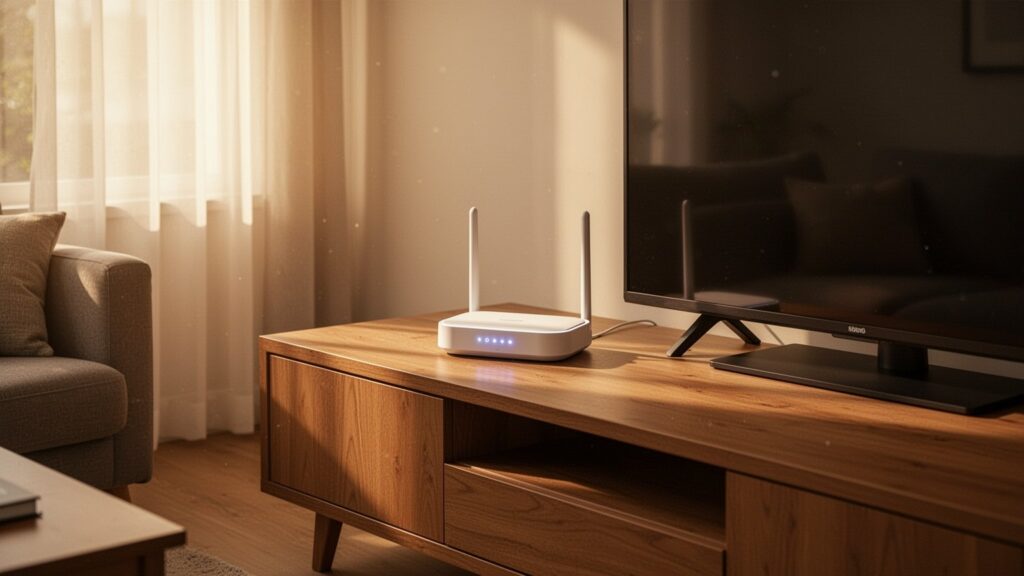
    Even with the right frequency, poor router placement degrades performance. Placing your router on the floor or behind a TV causes furniture and walls to absorb radio waves, creating dead zones. Position the router in a central, open area of the home, elevated at least chest-high from the floor.

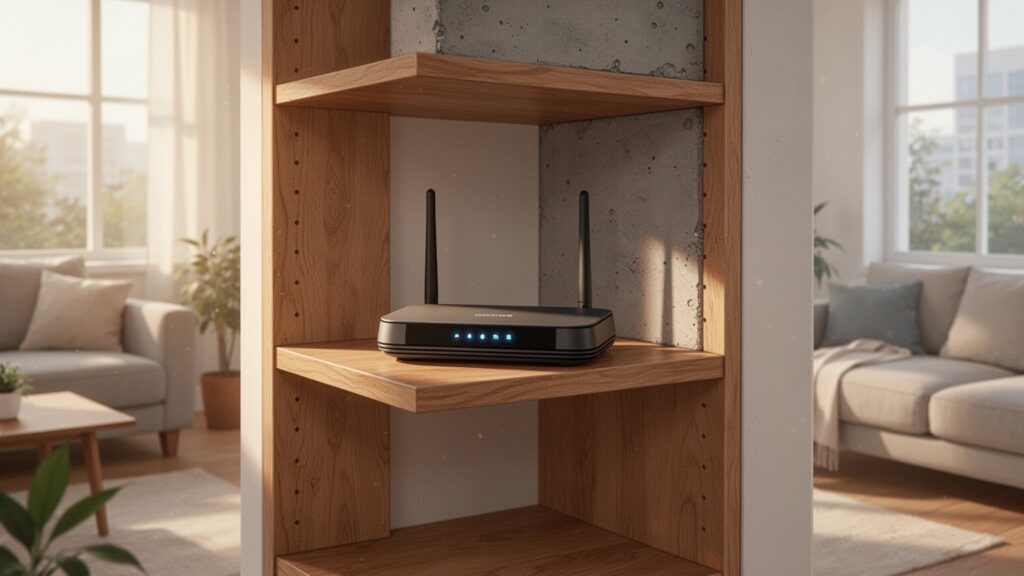
    For routers with two or more antennas, adjust their orientation. Pointing one antenna vertically toward the ceiling and another horizontally at a 90-degree angle ensures balanced coverage for both horizontal and vertical device orientations. For large homes or thick concrete walls, adding a Wi-Fi range extender or setting up a mesh Wi-Fi system can eliminate remaining dead spots.

    Why Real-World Internet Speeds Differ from Router Specs

    Why real-world internet speeds differ from router specs

    The maximum speeds advertised on router boxes or ISP spec sheets are theoretical maximums measured under ideal conditions without signal degradation. For example, a standard dual-band router (such as a KT GiGA Wave 2) supports up to 300 Mbps on 2.4 GHz and 867 Mbps on 5 GHz, but real-world wireless environments operate on half-duplex communication and incur network protocol overhead of around 30%, which can cut effective speeds roughly in half.

    Theoretical maximum speeds also vary by Wi-Fi standard documentation. Wi-Fi 5 (802.11ac) specs are often listed anywhere from over 1 Gbps up to 3.46–3.5 Gbps or even 6.9 Gbps depending on stream configurations, while Wi-Fi 6 (802.11ax) varies between 9.6 Gbps and 10 Gbps. In dense apartment complexes, 2.4 GHz speeds frequently drop from the typical 100–200 Mbps range down to 20–40 Mbps due to channel congestion, making real-world measurements essential.

    Try switching your smartphone to the 5 GHz band when sitting near your router, and back to 2.4 GHz when behind closed doors for a stable, drop-free connection.

    References

    1-Minute Video Summary

    Related Articles