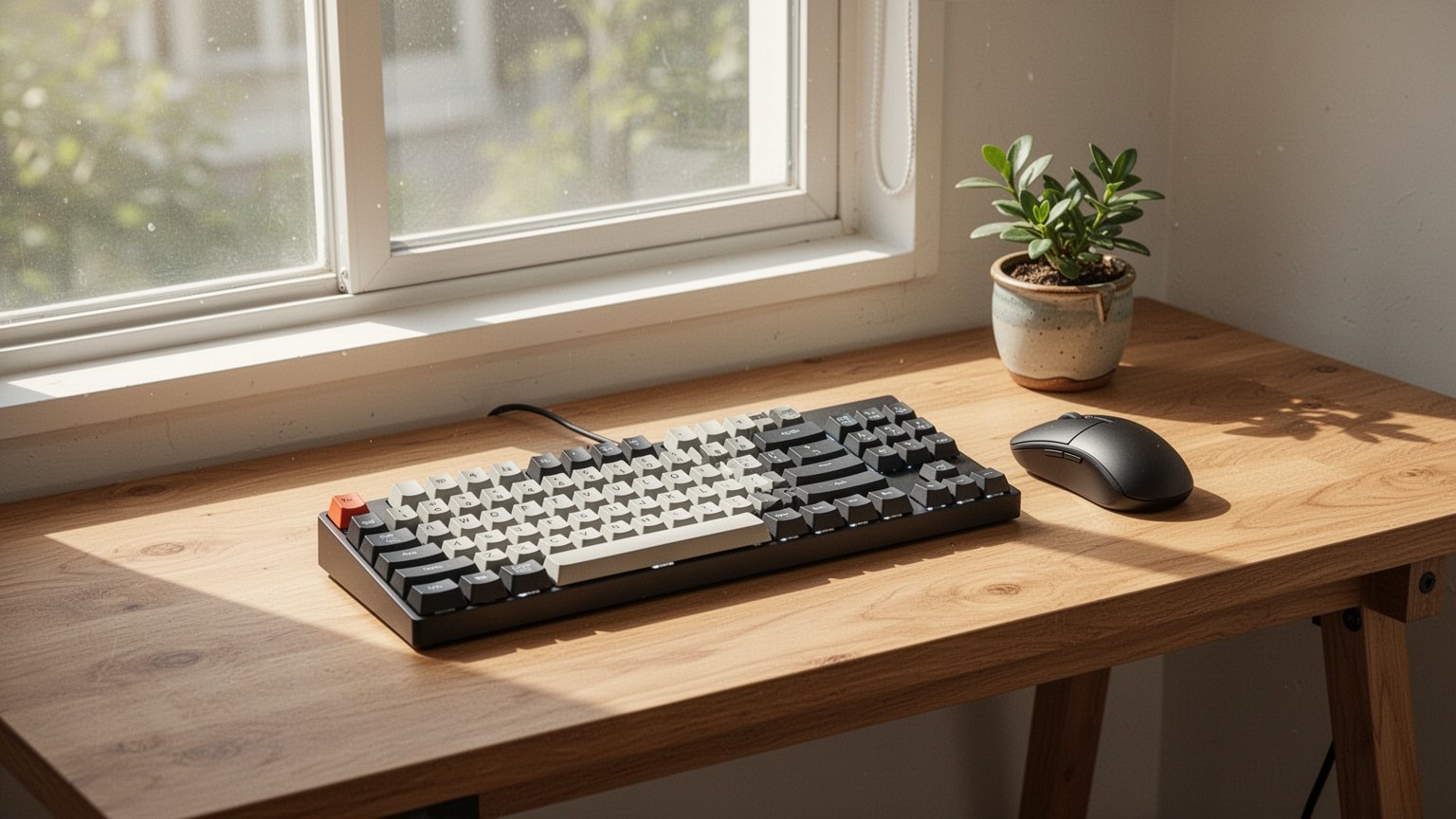
Have you ever been typing a document or browsing the web, tried to copy some text, and suddenly watched your entire screen turn into a black-and-white movie? It is easy to panic and assume your display panel cracked or your graphics card failed. But why did all the color vanish from a perfectly working screen?
Quick Summary
- Instant recovery shortcut: Press ‘Windows key + Ctrl + C’ to bring back full color in one second.
- Manual fix: Press ‘Windows key + U’ to open Accessibility settings, then turn the ‘Color filters’ toggle switch off.
- Prevent future accidents: Turn off the ‘Keyboard shortcut for color filters’ setting so accidental key combinations won’t trigger it again.
- Hardware check: If your monitor’s built-in OSD menu appears in color, your monitor is completely fine—it is strictly a software setting.
An Accidental Windows Key Press While Copying Is the Culprit
A sudden grayscale screen is almost never a hardware failure—it is usually an accidental keyboard input. Windows 10 and Windows 11 include a built-in feature designed to turn display colors to grayscale immediately.
The standard copy shortcut is Ctrl + C. However, the Windows logo key sits right next to the Ctrl key on the lower-left edge of most keyboards. When typing quickly, hitting both keys simultaneously registers as Windows key + Ctrl + C, which instantly toggles on the grayscale color filter.
It is like trying to flip a light switch and accidentally bumping the ventilation fan switch right beside it. This feature is an official accessibility tool intended to help users with visual impairments, color vision deficiency (red-green or blue-yellow color blindness), or light sensitivity distinguish screen elements more clearly.
The 1-Second Shortcut Fix and How to Test for Hardware Issues
Fixing it takes just one step: press Windows key + Ctrl + C again on your keyboard. This key combination works as a toggle switch, turning the color filter on and off, so your screen immediately returns to full, vivid color.
Before spending money on a service technician or monitor repair, check whether your hardware is actually faulty. Press the physical menu button (OSD) on your monitor frame. If the monitor’s built-in settings menu displays in bright color, or if the Windows boot logo appears in color when restarting, your monitor panel and display cables are completely healthy.
| Action | Shortcut | Result |
|---|---|---|
| Restore color instantly | Windows key + Ctrl + C | Toggles back to standard color display |
| Open Accessibility settings directly | Windows key + U | Opens the Color filters settings menu |
| Open standard Windows Settings | Windows key + I | Opens the main Windows Settings window |
Related Guides
How to Fix a Frozen Windows Screen in 1 Second Without Shutting Down
Windows Split Screen Shortcuts: How to Snap Windows in Seconds
How to Turn Off Grayscale Manually When the Shortcut Doesn’t Work

If the shortcut option has been disabled in your system settings, pressing the key combination will do nothing. When that happens, navigate to the Accessibility menu using your mouse and turn off the color filter manually.
Press Windows logo key + U on your keyboard to open Accessibility settings immediately without searching. Then follow the path matching your operating system version and turn the switch to ‘Off’ to restore color.
| Operating System | Manual Navigation Path | Final Step |
|---|---|---|
| Windows 11 | Start > Settings (Win + I) > Accessibility > Color filters | Toggle ‘Color filters’ switch to ‘Off’ |
| Windows 10 | Start > Settings > Ease of Access > Color filters | Toggle ‘Turn on color filters’ switch to ‘Off’ |
| Older Win 10 | Start > Settings > Ease of Access > Color & high contrast | Toggle ‘Apply filter’ switch to ‘Off’ |
How to Permanently Disable the Shortcut to Prevent Accidents

To avoid triggering grayscale mode again while typing and copying text in the future, it is best to turn off the shortcut trigger altogether.
Press Windows key + U to open Accessibility, select Color filters, and uncheck or toggle off Keyboard shortcut for color filters (in Windows 10: Allow the shortcut key to toggle filter on or off). With this setting disabled, hitting the keys accidentally will never turn your screen black and white again.
Note that while claims circulate online stating grayscale displays noticeably reduce monitor power consumption, official Microsoft technical documentation does not provide verified energy savings figures. Additionally, default shortcut states can vary slightly across Windows 11 updates, so verifying your settings directly in the system menu is always the most dependable approach.
Press ‘Windows key + Ctrl + C’ on your keyboard right now to bring back your screen’s colors, then disable the shortcut option in the Color filters menu.
Related Guides
- Screen Recording on Windows: Instant Shortcut Without Third-Party Apps
- Laptop and Windows Screen Recording Shortcuts: 3-Second Guide
- Display Projection Shortcut Win + P: Instant Setup When Your Monitor Fails
- Windows Virtual Desktops: How to Get Dual-Monitor Productivity on One Screen
답글 남기기