Have you ever struggled to find your tiny mouse cursor on a high-resolution QHD or 4K monitor? Stop wasting time waving your mouse across the screen to locate it. Here is how you can make your cursor stand out in just 10 seconds without installing third-party software.
Quick Summary
- Change size & color: Press Win + U, open ‘Mouse pointer and touch’, and customize the size (1–15) and vibrant colors.
- Ctrl key ripple effect: Run main.cpl, navigate to ‘Pointer Options’, and check ‘Show location of pointer when I press the CTRL key’.
- Shake to find cursor: Install Microsoft’s free tool ‘PowerToys’ and enable ‘Find My Mouse’.
1-Second Shortcut: Adjust Size (1–15) and Custom Colors
Losing track of your mouse pointer on a large monitor is like searching for a tiny button in a dark room. In Windows 11, you can instantly adjust cursor size and color with a single shortcut.
Press Windows key + U to open Accessibility settings, then select Mouse pointer and touch. (You can also get there via Start > Settings > Accessibility.)
| Setting | Options | Recommendation |
|---|---|---|
| Pointer Size | Slider from 1 to 15 | Level 2–3 for standard displays, 4–5 for 4K displays |
| Pointer Style | White, Black, Inverted, Custom | Choose fluorescent lime or yellow for maximum visibility |
Selecting ‘Custom’ lets you pick vibrant colors like lime, yellow, gold, pink, or green. This ensures your cursor remains distinct against both light web pages and dark workspaces.
Tap the Ctrl Key: Locate the Cursor with a Ripple Effect
Even with a larger cursor, having multiple open windows can cause you to lose track of it. In this case, enabling the built-in ripple effect makes locating the pointer effortless whenever you press the Ctrl key.
Press Win + R, type main.cpl, or go to Start > Settings > Bluetooth & devices > Mouse > Additional mouse settings. In the Pointer Options tab, check Show location of pointer when I press the CTRL key at the bottom and click ‘OK’.
Whenever you lose track of the mouse, simply press and release the Ctrl key. Concentric circles will animate toward the pointer to pinpoint its location. (Note: Depending on your PC configuration, it may only respond to the left Ctrl key instead of the right Ctrl key, though this is not explicitly documented by Microsoft.)
Shake to Find? Use the Microsoft PowerToys Spotlight Feature
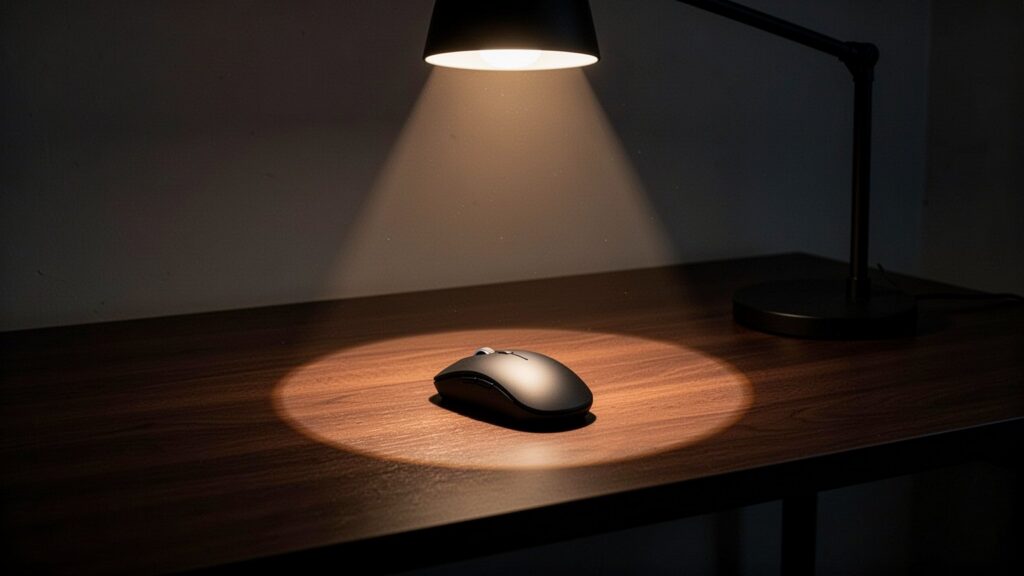
Windows 11 does not natively include a shake-to-locate mouse gesture. However, installing Microsoft’s official free utility, Microsoft PowerToys, lets you use a powerful spotlight effect.
Enabling the Find My Mouse utility in PowerToys highlights your screen in the following way:
- Activation: Shake the mouse, press the left Ctrl key twice, or press the right Ctrl key twice.
- Visual Effect: Dims the background with a 50% opacity dark overlay (#000000) while showing a 100px radius bright circular spotlight (#FFFFFF) over the pointer for 500ms.
Clicking anywhere or pressing a keyboard key immediately dismisses the spotlight, making it especially handy across multi-monitor setups.
Press Windows key + U right now and increase your mouse cursor size to level 3 or higher for effortless tracking.
답글 남기기