Did you buy a 144Hz gaming monitor only to find it stuck at a sluggish 60Hz? Looking at the back of your PC, you will see a rectangular HDMI port right next to a DisplayPort (DP) with one beveled corner, making it confusing to choose the right one. Why can choosing the wrong cable cut your monitor’s refresh rate in half?
Quick Summary
- 1080p & 1440p 144Hz: HDMI 2.0 (18.0 Gbps) or DP 1.2 (21.6 Gbps) and above is sufficient.
- 4K 144Hz: Requires HDMI 2.1 (48.0 Gbps) or a DP 1.4 cable with DSC support.
- G-Sync Compatible: Most gaming monitors require a DP cable to enable screen tear prevention.
- Lowest Spec Rule: The refresh rate is bottlenecked by the lowest version among your GPU, cable, and monitor port.
HDMI vs DisplayPort: How Are They Different?
The two connectors were built for entirely different purposes. HDMI evolved to connect consumer electronics such as TVs, gaming consoles, and soundbars. As a result, it excels at home theater features like eARC (audio return) and CEC (controlling peripheral devices with a TV remote).
In contrast, DisplayPort (DP) is a PC-centric standard developed by VESA specifically for monitors and graphics cards. It is optimized for high refresh rates and daisy-chaining multiple monitors via Multi-Stream Transport (MST) from a single port.
Think of a cable as a water pipe. Even if your monitor is ready to receive 144 frames of water per second, a narrow pipe will bottleneck the flow to just 60 frames. This is why DP, with its generous bandwidth design, is considered the default standard for PC gaming setups.
144Hz Support by Resolution: Bandwidth and Version Matter
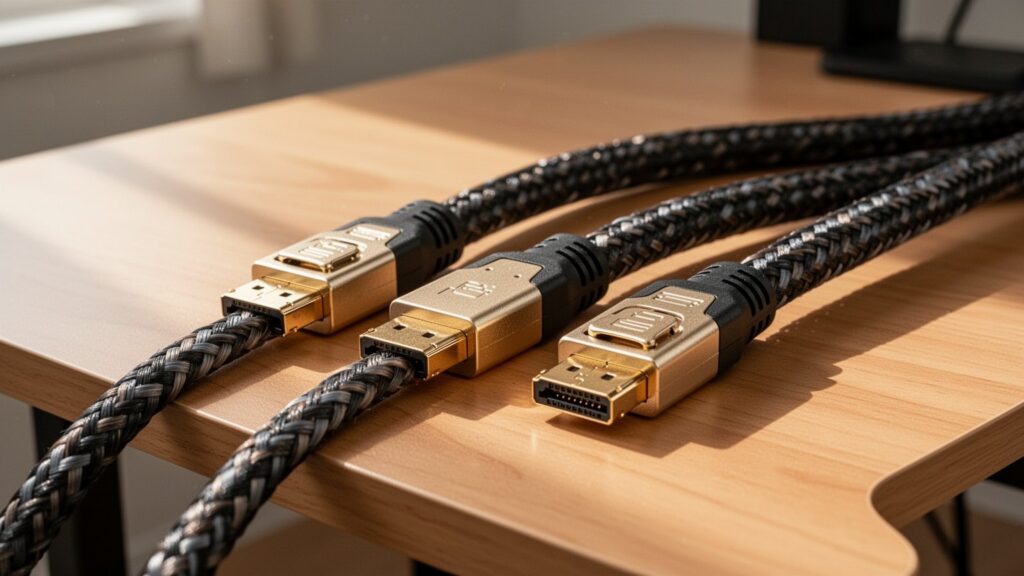
The required cable version depends entirely on your monitor’s resolution: 1080p (FHD), 1440p (QHD), or 4K. You need sufficient data bandwidth (Gbps) to transmit a full 144Hz signal.
| Standard | Max Bandwidth | 1080p 144Hz | 1440p 144Hz | 4K 144Hz | Variable Refresh Rate (VRR / G-Sync) |
|---|---|---|---|---|---|
| HDMI 2.0 | 18.0 Gbps | Supported | Supported | Not Supported (Max 60Hz) | Limited Support |
| HDMI 2.1 | 48.0 Gbps | Supported | Supported | Supported | Native Support |
| DP 1.2 | 21.6 Gbps | Supported | Supported | Not Supported (Max 60Hz) | FreeSync / G-Sync Compatible |
| DP 1.4 | 32.4 Gbps | Supported | Supported | Supported (via DSC) | Full FreeSync / G-Sync Support |
| DP 2.1 | 80.0 Gbps | Supported | Supported | Supported (Native Uncompressed) | Full FreeSync / G-Sync Support |
Note that specifications for older standards can vary across sources. For instance, reports conflict on whether HDMI 1.4 supports 1080p at 144Hz or caps at 60Hz, and the maximum 4K output for DP 1.2 is variously cited as 30Hz, 60Hz, or 75Hz. To ensure stable high refresh rate performance, using a newer standard is always recommended.
G-Sync Compatibility and Dual Monitor Setup
NVIDIA G-Sync Compatible mode, which prevents screen tearing during gaming, is highly sensitive to the cable type. Most mainstream gaming monitors only enable G-Sync over a DisplayPort connection and will not work over HDMI. To use VRR over HDMI, both the monitor and graphics card must officially support HDMI 2.1 VRR.
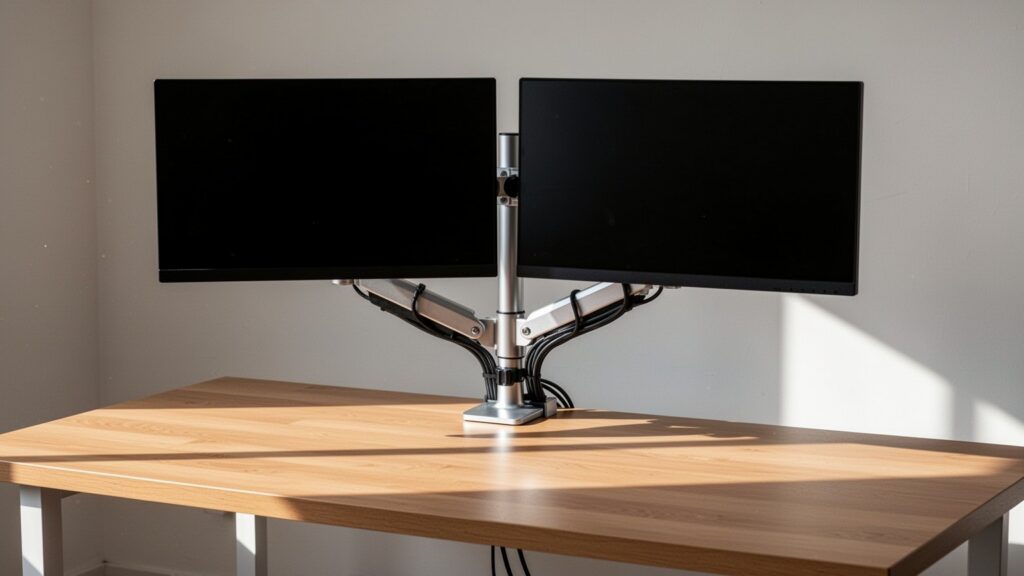
Dual-monitor configurations also require care. Most dedicated graphics cards feature three DP ports and one HDMI port on the back. For the most stable setup, plug your high-refresh-rate primary gaming monitor into a DP port, and connect secondary 60Hz monitors or gaming consoles to the HDMI port.
Your refresh rate will always default to the lowest version among your graphics card port, cable, and monitor input port. Even if your monitor supports DP 1.4, a lower-spec cable or an incorrect port setting will prevent the 144Hz option from appearing entirely.
Check the back of your PC to verify your primary monitor is connected via DP 1.4 or higher, then open Windows Advanced Display Settings to confirm 144Hz is enabled.
답글 남기기